- Windows 11 allows you to enable or disable the confirmation box when sending files to the Recycle Bin or permanently deleting them.
- The settings can be adjusted from the Trash properties or by using the ConfirmFileDelete value in the Registry.
- Tools like cleanmgr and Storage Sense help to automatically empty and manage the Recycle Bin and prevent locks.
- Choosing whether or not to keep the deletion confirmation depends on the balance between error safety and speed of work.

If you tend to delete files on your computer almost without thinking, it's very likely that the typical window of “Are you sure you want to delete this file?” It might seem like a nuisance. But at the same time, it may have saved you more than once from sending something important to the Recycle Bin. Knowing how Recover files deleted from the Recycle Bin This will be useful to you. In Windows 11, this confirmation can be enabled or disabled as you wish, and it's a good idea to understand how it works to avoid surprises.
Furthermore, in our daily work we not only talk about the confirmation window when deleting, but also about How to manage the recycling binWhat happens when it fills up?full but empty bin), how to empty it when it gets clogged, or how we can automate its cleaning using features like Storage Sense. Keeping this under control helps you free up space and reduce the risk of data loss.
How file deletion works in Windows 11
In Windows 11, when you choose to delete a file from Explorer, the system normally sends it to the Recycle Bin first, so It is not permanently deleted immediately.That file will still take up disk space, but you can easily restore it if you change your mind or deleted it by mistake.
This standard behavior changes if you use the key combination Shift + DelIn that case, the file is deleted without going to the Recycle Bin, and Windows may display a different dialog box asking if you really want to permanently delete the file. This double layer of security is designed to avoid accidental disposalespecially when working with sensitive documents.
By default, Windows 11 includes additional mechanisms such as Storage SenseIt can automatically empty the Recycle Bin after a certain time or clean folders like Downloads. So, even if you don't empty the Recycle Bin manually, the system can free up space periodically without you having to worry too much.
However, some users manage many files daily, move hundreds of gigabytes between drives, or perform massive content cleanups, and for them, the confirmation window when deleting is more of a hindrance than a help. In these cases, it can be useful. disable deletion confirmation and streamline the workflow, knowing that the Recycle Bin will always remain as a safety net, unless you use permanent deletion.
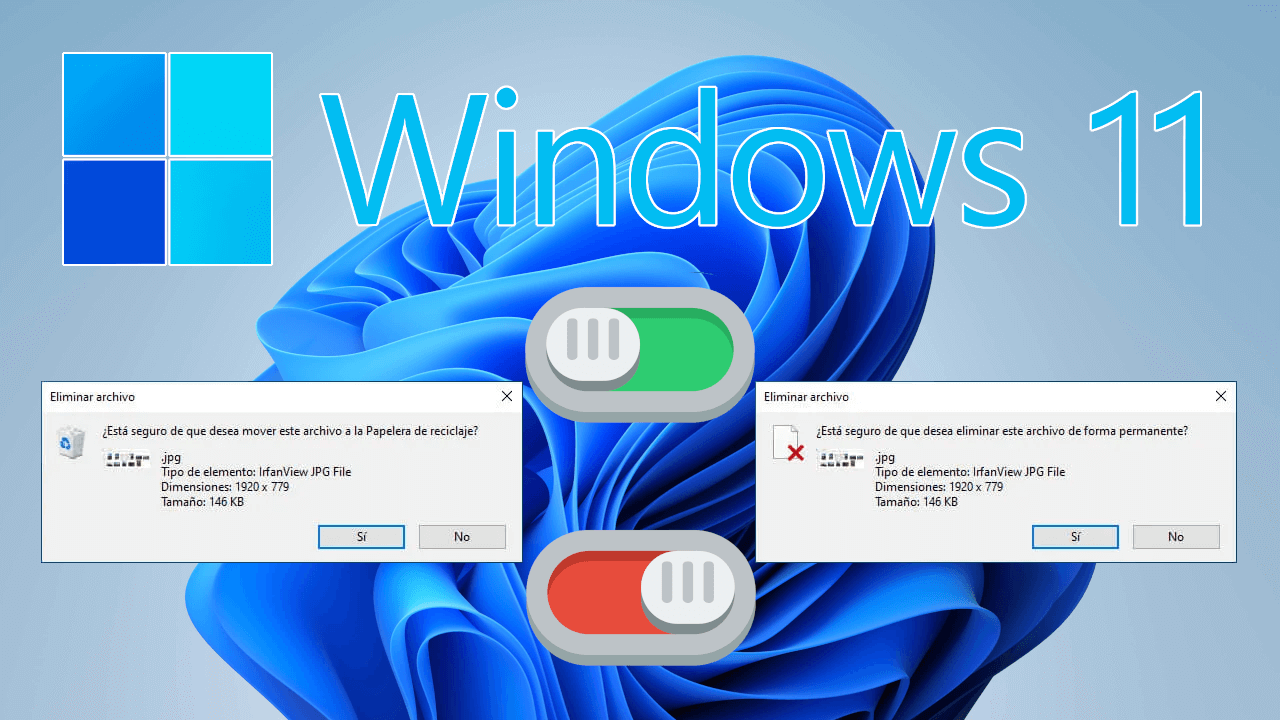
Enable or disable confirmation when deleting from the Recycle Bin properties
The most direct way to control whether Windows 11 asks you before sending something to the Recycle Bin is Configuring the properties of the Recycle BinThis setting applies both to deletion from the context menu and to deletion when using the Delete key, as long as the file goes to the Recycle Bin.
To begin, locate the Recycle Bin icon on your desktop. If it's hidden, you can show it again from your desktop icon settings. Restore the Recycle Bin iconClick with the right-click on the Trash icon and, in the menu that opens, select the "Properties" option.
A window will open with the specific settings for the Recycle Bin. Here you will see, among other parameters, the maximum size it can occupy in each unit and, what interests us most, a box called "Display dialog box to confirm deletion"This box controls the behavior of the warning when you send items to the Recycle Bin.
If you enable this option, every time you try to delete files or folders to the Recycle Bin, the system will display a confirmation box such as "Are you sure you want to move this file to the Recycle Bin?". You will then have to click Yes to complete the operation or No to cancel it. an extra layer of protection against errors.
If, on the other hand, you uncheck the box, the files will be sent to the Recycle Bin immediately. without displaying any warning windowThis configuration is preferred by those who delete a lot of information every day and want to avoid the extra click, knowing that, as long as they don't empty the Recycle Bin, they can restore any item with a couple of clicks.
Activate or deactivate the permanent deletion message (Shift + Delete)
In addition to the notification when something is moved to the Recycle Bin, Windows can also display a dialog box when you permanently delete a file using the combination Shift + DelIn this case, the typical message is "Are you sure you want to permanently delete this file?", making it clear that no copy will remain in the Recycle Bin.
This second warning is especially important because, if you confirm, the file will disappear without going to the Recycle BinThis makes recovery more difficult in case of an error. Therefore, although some users may find the window annoying, it's worth considering whether it's worth keeping it active as a safety net.
The key is that Windows allows you to manage both the confirmation of sending to the Recycle Bin and the confirmation of permanent deletion, and it is possible enable one, disable the other, or adjust both to adapt them to your workflow. Users who work with critical documents often prefer to keep all notifications, while those who frequently perform bulk cleanup prefer to minimize messages.
If you're used to using Shift + Delete to quickly empty folders, you might not want to disable this confirmation, because you could accidentally delete valuable material without any way to recover. However, if you rarely use permanent deletion and always work through the Recycle Bin, it makes more sense to focus on... adjust only the normal deletion confirmation.
In any case, keep in mind that these confirmation windows do not affect the ability to recover files already in the Recycle Bin: as long as you don't empty it, you will be able to restore items deleted by mistake, regardless of whether or not there was prior notice.
Change the deletion confirmation from the Windows Registry
In addition to the graphical method through the Recycle Bin properties, there is another more advanced way to activate or deactivate the confirmation message: edit the Windows RegistryThis option is intended for users with a certain level of expertise or for those who want to apply the change more thoroughly or deploy it across multiple profiles.
The Registry stores the system's internal settings, and among those options is the control of deletion confirmation using a value called ConfirmFileDeleteModifying it allows you to enable or disable the dialog, both for the Recycle Bin and for direct deletion, in Windows 11 and also in Windows 10.
To access it, open the Registry Editor (for example, by pressing Windows + R and typing regedit and pressing Enter). Once inside, navigate to the following path: Computer\HKEY_CURRENT_USER\Software\Microsoft\Windows\CurrentVersion\Policies. This is where you can create or adjust the value that controls the behavior.
In the right-hand panel, right-click in an empty area and choose "New" > "DWORD (32-bit) Value". Name it ConfirmFileDeleteNext, double-click on that new value to open its editing window, and in the "Value data" field, type 0 or 1 depending on what you want to configure.
The value 0 is used for disable confirmation for deleting files and foldersThe value 1 is used to enable the deletion confirmation dialog. Once you have modified the data, click OK and close the Registry Editor. It is recommended that you restart your computer for the changes to take full effect.
Configure the Recycle Bin to avoid errors when emptying it
The Recycle Bin's behavior isn't limited to the confirmation message. Sometimes, especially when managing multiple hard drives and moving large amounts of data, other messages may appear. blocks when trying to view or empty the Recycle BinIn these cases, File Explorer may get stuck on "Detecting files" or "Cleaning drive" at 0%.
This situation usually occurs when there are many items in the Recycle Bin, corrupted files, or entries that the system can't handle properly. If your Recycle Bin is several gigabytes in size and hasn't been emptied in a while, Windows may take a considerable amount of time to list all those files before actually deleting them.
If opening the Recycle Bin freezes the Explorer, or if pressing "Empty Recycle Bin" leaves everything at 0% without progressing, a possible escape route is to use the system's own cleaning tools, which work at a slightly different level than the Explorer. Clean from other interfaces It can unlock situations that are not progressing from the graphical view.
Remember that the Recycle Bin is independent for each drive: each disk (C:, D:, etc.) has its own reserved space. When files accumulate across multiple volumes, the total amount of space occupied can be enormous, making the need to... even more critical. empty it regularly to recover capacity on your disks.
If you work with a lot of temporary material (videos, virtual machines, test copies, etc.), it's a good idea to occasionally check how much space the Recycle Bin is taking up on each drive, or rely on automatic features like Storage Sense to make that task less manual and more predictable.
Empty the Recycle Bin using Disk Cleanup and cleanmgr
When normal emptying from the Recycle Bin itself fails, a classic alternative is to use the Disk Cleanup, also known internally as cleanmgr. This tool comes integrated into Windows and allows you to clean different types of system files, including the contents of the Recycle Bin.
To open it you can press Windows + R, type cleanmgr and confirm. You'll be asked to choose the drive you want to work on, such as C:. After a brief scan, a list of file categories you can delete will appear, along with their estimated space usage. One of these boxes corresponds to the "Recycle Bin."
Check the box associated with the Recycle Bin and, if you wish, you can also select other categories such as temporary files, thumbnails, or remnants of previous installations. Then, click OK for the system to begin the process. unit cleaningIn many cases, this method succeeds in emptying the Recycle Bin even if the Explorer freezes while trying.
If the process still gets stuck at 0% on "Cleaning the drive" and doesn't progress, you may have a particularly corrupted Recycle Bin or files that the system can't handle normally. In these more extreme cases, there are tools to recover deleted files, such as rebuilding the Recycle Bin at the system level, but as a first step it's always worth trying with cleanmgr because It is safe and supported by Microsoft.
On Windows 10 and Windows 11 systems, the behavior of this tool is similar, so it is also useful if your Recycle Bin problems occur on computers with Windows 10, such as build 19045.5487 or other versions of the same system.
Empty and manage the Recycle Bin automatically with Storage Sense
If you don't want to have to manually empty the Recycle Bin, Windows 11 includes a feature specifically designed for you: Storage SenseThis feature is responsible for periodically deleting temporary files, old items from the Downloads folder, and items that have been in the Trash for too long.
To access it, go to Start and open the Settings app. Then, go to the "System" section and select "Storage." Within this section, you'll see a block called "Storage Management" where you'll find the "Storage Sense" option. Click on it to access its detailed settings.
On the Storage Sense screen you can activate the option to "Automatic cleaning of user content"From here, several options will appear: one of them is the "Run Storage Sense" menu which allows you to specify how often you want Windows to run the cleanup (for example, every day, every week or every month).
A little further down you'll see a specific setting for the Recycle Bin, with text like "Delete files in my Recycle Bin if they've been there for more than…" and a time dropdown menu. There you can choose, for example, 1 day, 14 days, 30 days, or 60 days, depending on how long you want to allow before the files are deleted. the files are permanently deleted.
Additionally, on the same screen you can decide how the files in your Downloads folder are managed, which can also be automatically deleted if they haven't been used for a certain period. If you wish, at the bottom of the settings there's a "Run Storage Sense now" button, which forces an immediate cleanup based on your selected criteria.
When is it appropriate to enable or disable deletion confirmation?
Deciding whether to enable the confirmation dialog box when deleting depends largely on your way of using the computer and the type of files you work with. Managing sensitive work documents is not the same as cleaning up duplicate photos or unimportant downloaded videos.
If you tend to delete files in a hurry and don't mind losing some, you'll probably find it more convenient to disable confirmation and let everything go to the Trash without further clicks. Since you can then review the Trash before emptying it, you have a second filter to prevent disasters. However, if you frequently use Shift + Delete, consider leaving the permanent deletion warning enabled.
However, if you share the computer with other people, work with sensitive data, or are simply someone who often regrets deleting something, it might be wiser. keep all confirmations enabledYou'll lose a little speed, but you'll gain a lot of peace of mind, especially if you don't have frequent backups.
It's also important to consider system health: a Trash that's never emptied accumulates gigabytes upon gigabytes, which, in the long run, can cause crashes or performance issues. Properly configuring Storage Sense to do some of the work for you, combined with a clear policy on deletion confirmations, helps to ensure that Windows 11 stays cleaner and more responsive.
In short, knowing all the available options—from the Recycle Bin properties and the Registry Editor to tools like cleanmgr and Storage Sense—gives you complete control over how files are deleted and cleaned on your computer. With just a few minutes of configuration, you can have a system that deletes exactly as you want, without unnecessary warnings or the shock of irreversible deletions.


Passionate writer about the world of bytes and technology in general. I love sharing my knowledge through writing, and that's what I'll do on this blog, show you all the most interesting things about gadgets, software, hardware, tech trends, and more. My goal is to help you navigate the digital world in a simple and entertaining way.