- Your Apple ID is your digital identity at Apple and provides unified access to services like the App Store, iCloud, Apple Music, and Apple TV+.
- You can create an account from a iPhone, iPad, Mac, PC with Windows or any Web navigator following a guided assistant.
- It is possible to register Apple IDs for children through Family Sharing, with age limits that vary by country.
- Using strong passwords and two-factor verification is key to protecting your account and personal data.

If you have an iPhone, iPad, Mac, or are thinking of buying one, the first thing you need is a Apple ID account properly configuredWithout it, you won't be able to download apps from the App Store, back up to iCloud, use iMessage, FaceTime nor the other services that make an Apple device truly worthwhile.
Creating your Apple ID is a simple process, but it has many small details that are worth knowing. avoid errors, duplicate accounts or access problems Later on. Here you'll find a very comprehensive guide, explained in easy-to-understand language, with all possible methods: from a new iPhone, from the App Store, on a Mac, on a Windows PC, or directly from the web. We'll also see how to create an account for your child and what the difference is between an Apple ID and iCloud.
What exactly is an Apple ID account and what is it used for?
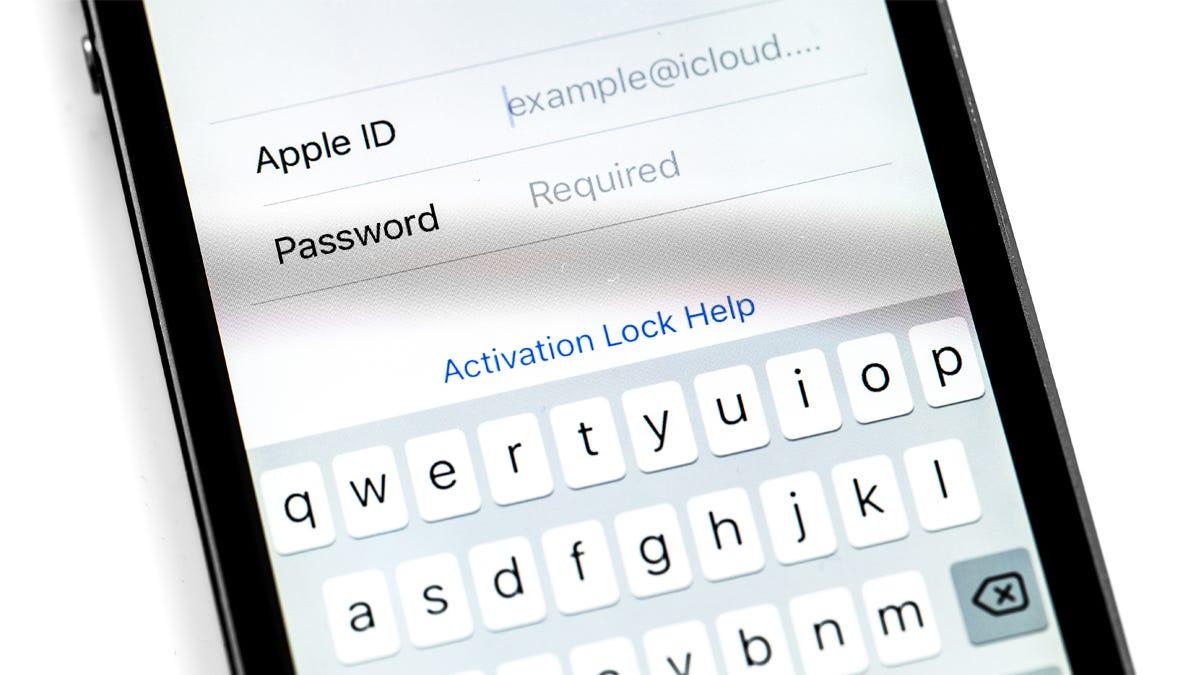
An Apple ID is, basically, your digital identity within the Apple ecosystemIt is a personal account consisting of an email address and a password, which you use to log in to all the brand's services and devices.
With that same account you can access the App Store, iTunes Store, Apple Music, Apple TV+, iCloud, Apple Books, Apple Arcade virtually any Apple service, whether on an iPhone, iPad, Mac, Apple Watch, Apple TV or even from a web browser.
In addition, your Apple ID allows your data to always be synchronized: Contacts, photos, notes, calendars, reminders, documents, and settings They stay up-to-date across all your devices thanks to iCloud, as long as you use the same account on all of them.
Another key point is security. Your Apple ID can be protected with two-factor authenticationThis adds an extra verification code to your trusted devices to prevent unauthorized access, even if someone figures out your password.
In summary, this account functions as a Master key that unlocks all Apple servicesWithout it, the device works, but you lose much of what makes the ecosystem special (cloud backups, app store, content synchronization, etc.).
Difference between Apple ID and iCloud account
Many people get confused by these terms, and it's no wonder: Apple ID and iCloud are closely relatedBut they are not exactly the same, although in practice they often go hand in hand.
On one hand, the Apple ID is the The general account you use to sign in to Apple servicesYou manage purchases, subscriptions, personal data, payment methods, etc. You can create it with almost any email address: Gmail, Outlook, Yahoo, your internet provider's email, etc.
On the other hand, iCloud is the Service storage and Apple cloud synchronizationIt includes iCloud Drive, iCloud Photos, device backup, iCloud Mail, iCloud Keychain, notes syncing, calendars, and more.
When you create a new iCloud account from Apple, you typically generate an address like yourname@icloud.comThat @icloud.com address, in turn, also works as a valid Apple ID, so Every iCloud account is automatically an Apple ID.
However, it's also possible that your Apple ID is based on a third-party email address (for example, user@gmail.comand that you also have a linked iCloud account. In that case, Your Apple ID can exist with or without an associated @icloud.com email address.; if you need change Apple ID emailThere are methods to do it from the iPhone.
Basic requirements to create your Apple ID account
Before you start creating your Apple ID, it's a good idea to have some information ready, because the system will ask for it in different steps and thus You will avoid interruptions in the middle of the process.
Generally, you will need to provide Your name and surname, date of birth, and a valid email addressThat email will be your primary Apple ID identifier, unless you choose to create a new @icloud.com address when given the option.
You will also need to define a A secure password that meets the complexity requirementsMinimum length, a combination of letters and numbers, and avoid overly obvious passwords. It's important that it's strong, but also something you can remember or save in a safe place. password manager reliable.
Apple will ask you for a phone number that you have permanent access toThis number is used both for two-factor verification and to help you regain access to your account if... Forgot your password?.
Depending on the method you choose to create the account, you may be asked to payment and billing information (credit/debit card, address, postal code, etc.). In many cases you can select the “None” option as a payment method, and add it later when you make your first purchase.
How to create an Apple ID when setting up a new iPhone, iPad, or iPod touch
The most common way to get a new Apple ID is during the Initial setup of a brand new iPhone, iPad, or iPod touchIn the Getting Started Assistant, you'll see a screen to sign in with your Apple account.
If you've never had one, on that screen you can tap the option Did you forget your password or don't have an Apple account? Then choose to create a free Apple ID. It's the most direct way to leave the store with your device fully ready.
The process will guide you step by step so that Select your date of birth, write your full name and click continue. Then you will have to indicate whether you want to use an email address you already have or Create a new, free iCloud addresswhich will also serve as an Apple ID.
Once you have chosen your email address, you will need to Verify that address with a code that Apple will send you by emailCreate your secure password, indicate the country or region, and activate two-factor authentication if you wish (highly recommended).
Once the system confirms your address, your account will be ready. Sign in to iCloud, the App Store, and other servicesAs you use the new device, the system may later ask for your phone number and a payment method to complete the setup.
Create an Apple ID from the App Store on iPhone or iPad
If you skipped creating the account during device setup, don't worry: you can still do it. Register an Apple ID directly from the App Store of your iPhone or iPad.
First of all, make sure that no iCloud session is active on that device. Then open the App Store and tap your profile icon or the account button in the top right.
In the menu that appears, you can tap on Create new Apple IDThe assistant will ask you for an email address and to choose a secure password, as well as select the country or region that will be used as a reference for the store and billing.
Next, you will need to enter your payment method and billing informationHowever, you can choose "None" if you only want to download free apps and learn how to use them later. remove cardThen the system will ask you to confirm your phone number so that it can be used as a verification and recovery method.
The final step will be to check your inbox: Apple will send you a email with a verification link or codeOnce you confirm that email, your account will be activated and you can start downloading apps, games, music, or content from the App Store and other services.
Create your Apple ID on a Mac
You can also create an Apple account from scratch on a Mac without needing an iPhone first. Normally, you would do it from... the system settings or from the login access itself of the team.
In recent versions of macOS, you can go to Open the Apple menu and System SettingsIn the sidebar you'll see an option to sign in with your Apple ID; right below it there's usually a link like "Don't have an account?".
Clicking on that option will prompt the assistant to Enter your date of birth, an email address, and a strong passwordand select the corresponding country or region. You will use that email address later to log in on all your devices.
The next section focuses on the financial aspect: you will need Add a payment method and your billing informationHowever, you will again have the option to select "None" if you don't want to link a card yet. Afterwards, the system will ask you to confirm a phone number.
Finally, as with the other methods, you will need to Verify your email address through the message Apple sends.Once you complete the verification, your Apple account will be ready and you'll be able to use iCloud, the Mac App Store, Apple Music, and the rest of the services from your computer.
Create an Apple ID on a Windows PC
If you don't have an Apple device but want to get a head start, you can also Create your Apple ID account from a Windows computerApple offers apps like Apple Music, Apple TV, or in some cases iTunes to manage this part.
On Windows computers where available, open the Apple Music app or Apple TV appAt the bottom of the sidebar you'll find the option to sign in; click on it and then choose Create a new Apple account.
The assistant will guide you so that Provide a valid email address, set a secure password, and select your region. from the device. That email and password combination will be what you use to log in to any Apple service from that point forward.
Next, you will need to fill in the fields of payment method and billing informationJust like on Mac or iPhone, you can select "None" as your payment method if you only want to create the account and decide later which card to link.
After completing those steps, check your inbox: Apple will have sent a verification emailOnce the address is confirmed, your Apple ID will be active and you can use it on that PC (for Apple Music, TV, etc.) as well as on any Apple device you purchase later.
Create an Apple ID from the web (any device)
Another very convenient way to create your account, regardless of the device you use, is through your web browser. Apple has a specific page where you can register an Apple ID from scratch in a matter of minutes.
You just have to go to account.apple.com o appleid.apple.com and tap the “Create your Apple ID” link that appears on the home screen. This works the same way on mobile devices. AndroidWindows computers, Smart TV with a browser, tablets… practically on any device.
The form will ask you to enter Your first and last name, country or region, email address, and passwordYou will also need to fill in your date of birth and provide a phone number that you can access whenever you need it.
If you'd like, you can tick the boxes to Receive updates and news from Apple about products, services, or software. It's not mandatory, but it keeps you up to date on news and offers.
When you click Continue, the system will send you a verification code sent to both email and phone number that you provided. By correctly entering those codes, your Apple ID will be created and ready to sign in to any Apple device or online service.
How to create an Apple ID for a child
Children under a certain age cannot create an Apple ID themselves, but parents or guardians can do so using the feature Share with familyThe minimum age varies by country, although in most regions children under 13 need the help of an adult.
In Spain and other countries, if you are the organizer or representative of the Family Sharing groupYou can create an Apple account for your child from your iPhone, iPad, or Mac. You may need to verify your adult status with a credit card or ID added to the Wallet app, depending on the situation.
On iPhone or iPad, go to Settings > Family and click the button to add a member. Then choose the option Create a child account and follow the wizard. You will need to Enter the child's name and date of birthAnd it's important that this is correct, because it affects the protection measures and can't always be changed later.
The system will ask you to complete a few more steps to Set up the child's account with their email address or a suggested @icloud.com address or even with its Game Center nickname. From there, you can manage parental controls, content limits, screen time, and purchases from your own adult account.


Passionate writer about the world of bytes and technology in general. I love sharing my knowledge through writing, and that's what I'll do on this blog, show you all the most interesting things about gadgets, software, hardware, tech trends, and more. My goal is to help you navigate the digital world in a simple and entertaining way.