Have you ever felt like you're caught in a tug-of-war between two technological worlds? On one hand, you have Windows, the undisputed king for playing the latest AAA titles and using professional software, and on the other, Linux, the paradise for programmers and open-source enthusiasts seeking absolute control over their machine . The good news is that you don't need to get a haircut or buy a new computer to enjoy both.
Setting up a dual-boot system is essentially dividing your hard drive so that each operating system has its own dedicated space. While tinkering with partitions might seem daunting at first, if you follow the steps carefully and avoid unnecessary risks, it's a fairly safe process. It allows you to switch between operating systems simply by restarting, giving you the best of both platforms without any interference.
Prerequisites and security measures
Before taking the plunge, make a checklist to avoid any unpleasant surprises. First and foremost: back up all your important files to the cloud or an external drive. Manipulating partitions always carries a minimal risk, but it's better to be safe than sorry. Additionally, it's advisable to write down your Windows product key by running commands in the command prompt to avoid activation problems later.
For everything to work smoothly, you need to make sure your PC uses UEFI firmware and that the hard drive has a GPT partition table . You can check this in the Windows "System Information." If your computer is very old and uses legacy BIOS, the process is different, but nowadays almost everything is UEFI. You'll also need an empty USB drive of at least 8GB, as the process of creating the bootable drive will erase everything on it.
Preparing Windows for the guest
You can't just install Linux on top of it; you first need to make room for it. The most common way is to shrink the C: partition . You can use the native Windows tool, "Disk Management," or follow a guide on how to create Linux partitions from Windows for more clarity. Ideally, you should leave between 50 and 120 GB of unallocated space , depending on whether you're going to use Linux only for studying or to set up a professional development environment with containers and virtual machines.

There are three settings in Windows that can ruin your installation if you don't change them. First, you must disable Fast Startup in the power options, as this leaves the disk in a partial hibernation state that can corrupt files if Linux tries to access them. Second, if you have BitLocker enabledDecrypt it completely; otherwise, the Linux installer won't be able to see the partition. Finally, if you're having trouble shrinking the disk volume, try... disable hibernation using the command powercfg /h off.
Creation of the installation medium
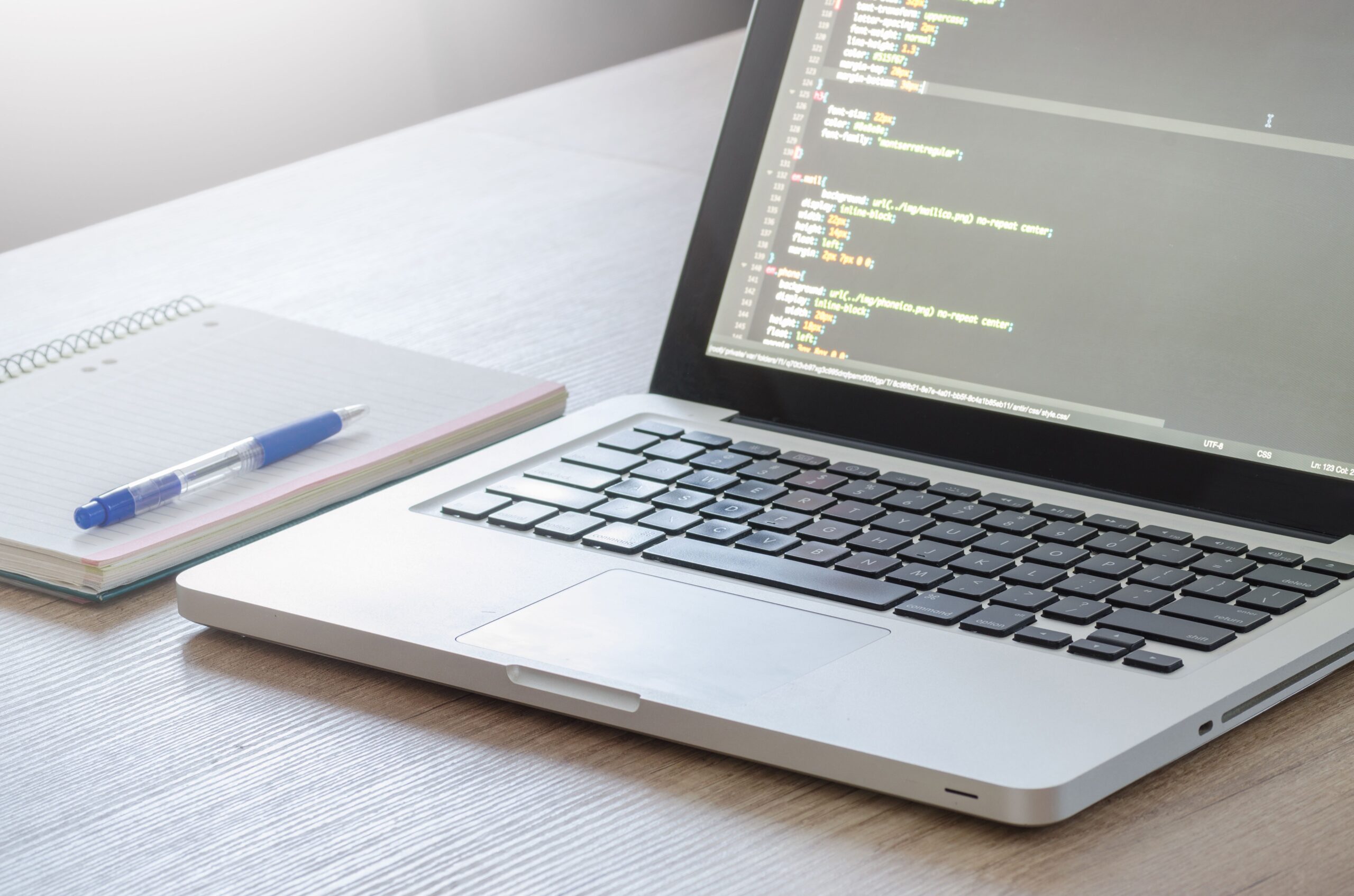
Now it's time to prepare the USB drive. First, download the ISO image of your preferred distribution. Ubuntu and Fedora are fantastic options for beginners because they are very stable and compatible. If you're looking for something more advanced or minimalist, Arch Linux or CachyOS are interesting choices, although they require more skill. To burn the ISO to the USB drive, tools like Rufus or Balena Etcher are the most reliable; be sure to select the GPT partition scheme and the UEFI target system.
Once you have the USB drive ready, restart your PC and enter the boot menu by repeatedly pressing the corresponding key (F12, F10, Esc, depending on the manufacturer). In the BIOS/UEFI settings, you will likely need to disable Secure Boot , especially if you are using distributions that do not have a recognized digital signature. Although Ubuntu allows you to keep it enabled, disabling it usually saves a lot of trouble during installation.

The Linux installation process
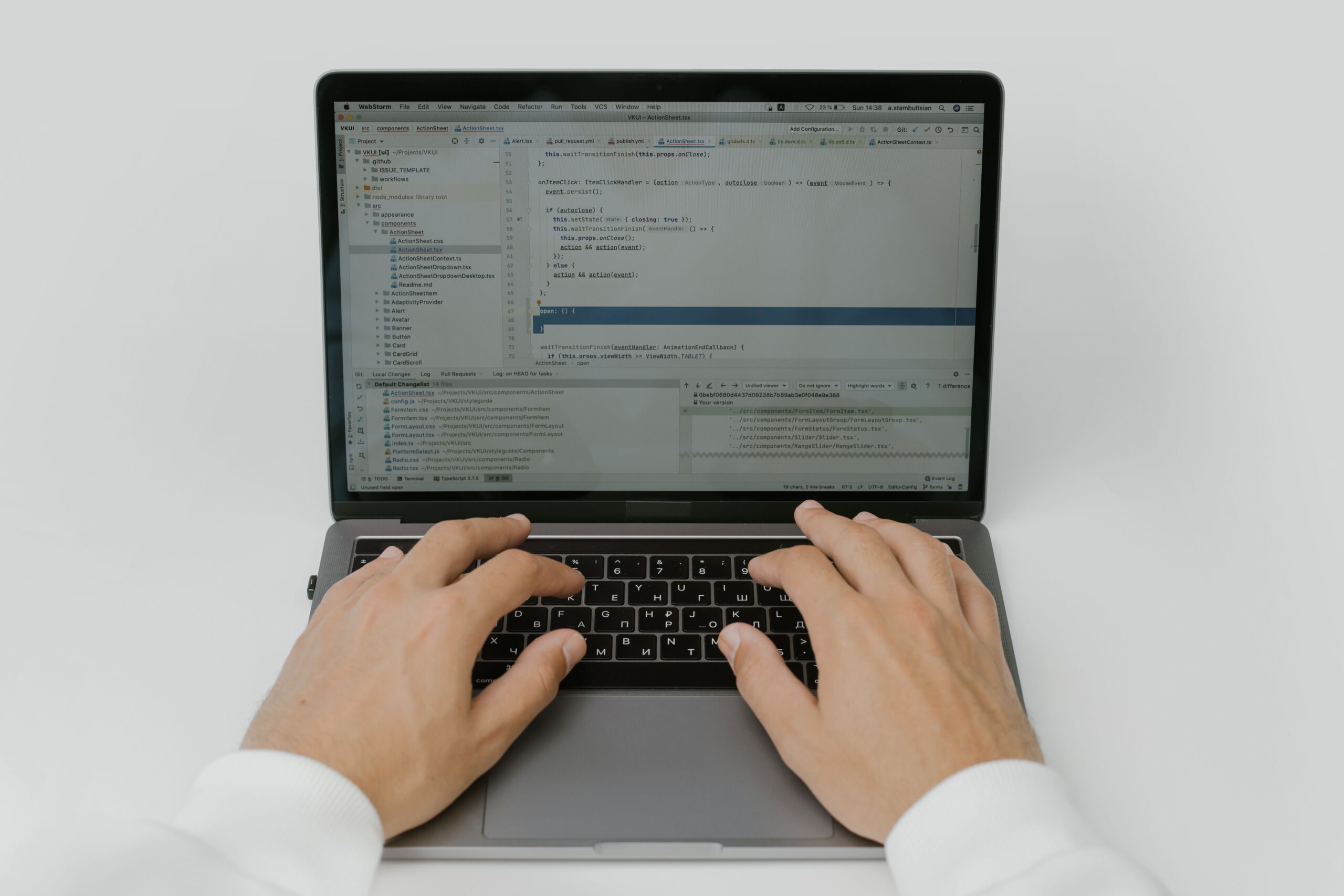
When you boot from the USB drive, you'll enter a "Live" environment, allowing you to test the system without installing anything. This is the ideal time to verify that the Wi-Fi and sound are working correctly. Once you're satisfied, launch the installer. Here comes the crucial point: the type of installation. If you're new to this, the "Install alongside Windows Boot Manager" option is the simplest and safest, as the system handles the processing for you.
If you prefer full control, choose manual partitioning ("Something else"). In this mode, you must create a root partition (/) formatted as ext4 and, optionally, a separate /home partition so your personal files aren't erased if you decide to reinstall the system. This is vital. do not format the EFI partition existing Windows installation; you simply need to mount it in /boot/efi so that the GRUB bootloader can coexist with Microsoft's.
Final configuration and post-installation settings
After restarting, you should see the menu of GRUBThis is the screen where you choose which operating system to use. If your PC boots directly into Windows, it's because the UEFI boot order is still prioritizing Microsoft. You can fix this. changing the boot order in dual boot by re-entering the BIOS and moving the Linux entry up, or by using the command bcdedit from the Windows console as administrator.

A very typical problem is that The time becomes out of sync. when switching systems. This happens because Linux uses the UTC standard and Windows uses local time. The quickest solution is to run timedatectl set-local-rtc 1 in the Linux terminal. If you want to customize the start menu, you can edit the file /etc/default/grub to change the timeout or set Windows as the default system.
Alternatives and additional tips
If you find dual booting too cumbersome for your needs, there are lighter alternatives. A virtual machine (like VirtualBox) is ideal if you only need Linux for occasional tasks without restarting. There's also WSL (Windows Subsystem for Linux), which integrates a Linux terminal directly into Windows. However, none of these options offer the native hardware performance that dual booting provides, which is essential for programming with Docker or running resource-intensive software.
For developers, it's recommended to install essential tools like Git, BuildEssential, and Visual Studio Code immediately after installation. If you have a mechanical hard drive (HDD) instead of an SSD, be patient, as loading times will be longer, but the functionality is exactly the same. Remember that you can always access your Windows files from Linux by mounting the NTFS partition, which greatly simplifies shared workflows.
Having a dual-boot system is the ultimate strategy for not having to give up either tool, allowing you to switch between the robustness of Windows and the flexibility of Linux depending on the task. From meticulous disk preparation and disabling obstructive Microsoft features, to configuring the GRUB bootloader and correcting the system time, every step ensures that both environments coexist harmoniously without risk of data loss.

Passionate writer about the world of bytes and technology in general. I love sharing my knowledge through writing, and that's what I'll do on this blog, show you all the most interesting things about gadgets, software, hardware, tech trends, and more. My goal is to help you navigate the digital world in a simple and entertaining way.