- Windows allows you to customize the background with still images or slideshows, adjusting the interval, order, and layout type.
- You can choose between light, dark, or custom mode, adapting the interface to the lighting and user preferences.
- The accent color can be set automatically or manually and applied to Start, taskbar, and windows.
- Color filters, contrast themes, and transparency effects round out the options for improving accessibility and visual comfort.
If you spend many hours in front of the computer, sooner or later you wonder how arrange the desktop and windows to your liking To reduce eye strain and make everything more pleasant, changing the background color, light or dark theme, and accent colors in Windows is one of the quickest ways to achieve this, and it's much easier than it seems.
Throughout this article we will see, step by step, how Customize the background color, color mode, and visual accents of the system, along with extra options such as slideshows, transparency effects, and color filters. Everything is explained in detail, with practical tips and tricks, and without leaving out any of the important options that Windows offers to adapt the interface to your way of working.
Change the wallpaper and use the slideshow option
One of the most visible ways to customize Windows is to modify the desktop wallpaperIn addition to using a single image or a solid color, the system allows you to activate a slideshow, that is, a sequence of photos that change automatically after a certain time.
For the presentation to work correctly, the first thing to do is Prepare a folder with all the images that you want to use as backgrounds. It's recommended that they be high-resolution photos, adapted to your screen size, so they don't appear pixelated or distorted. If you need to adjust how they are displayed or the background of the Explorer itself, you can customize File Explorer to facilitate the organization.
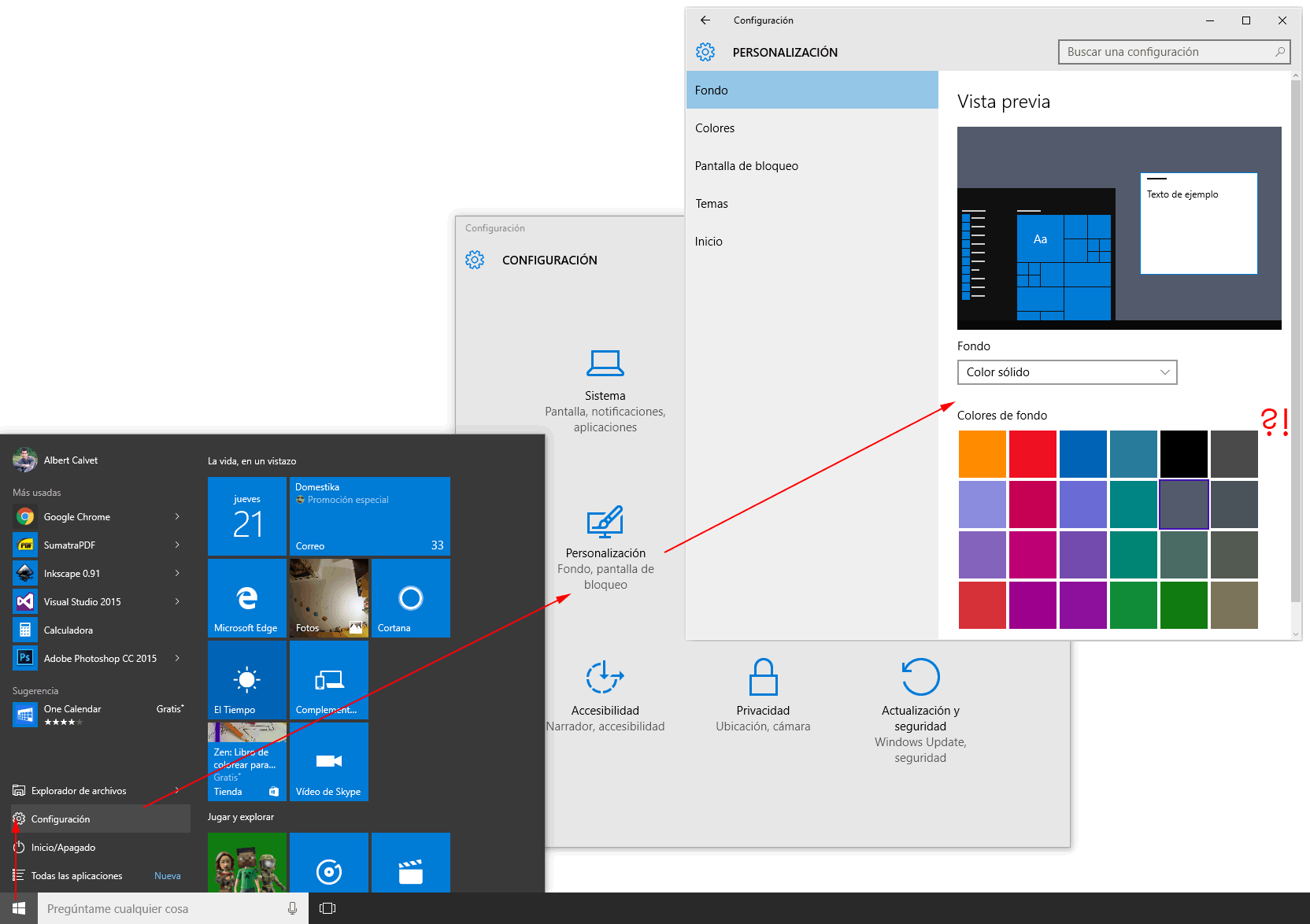
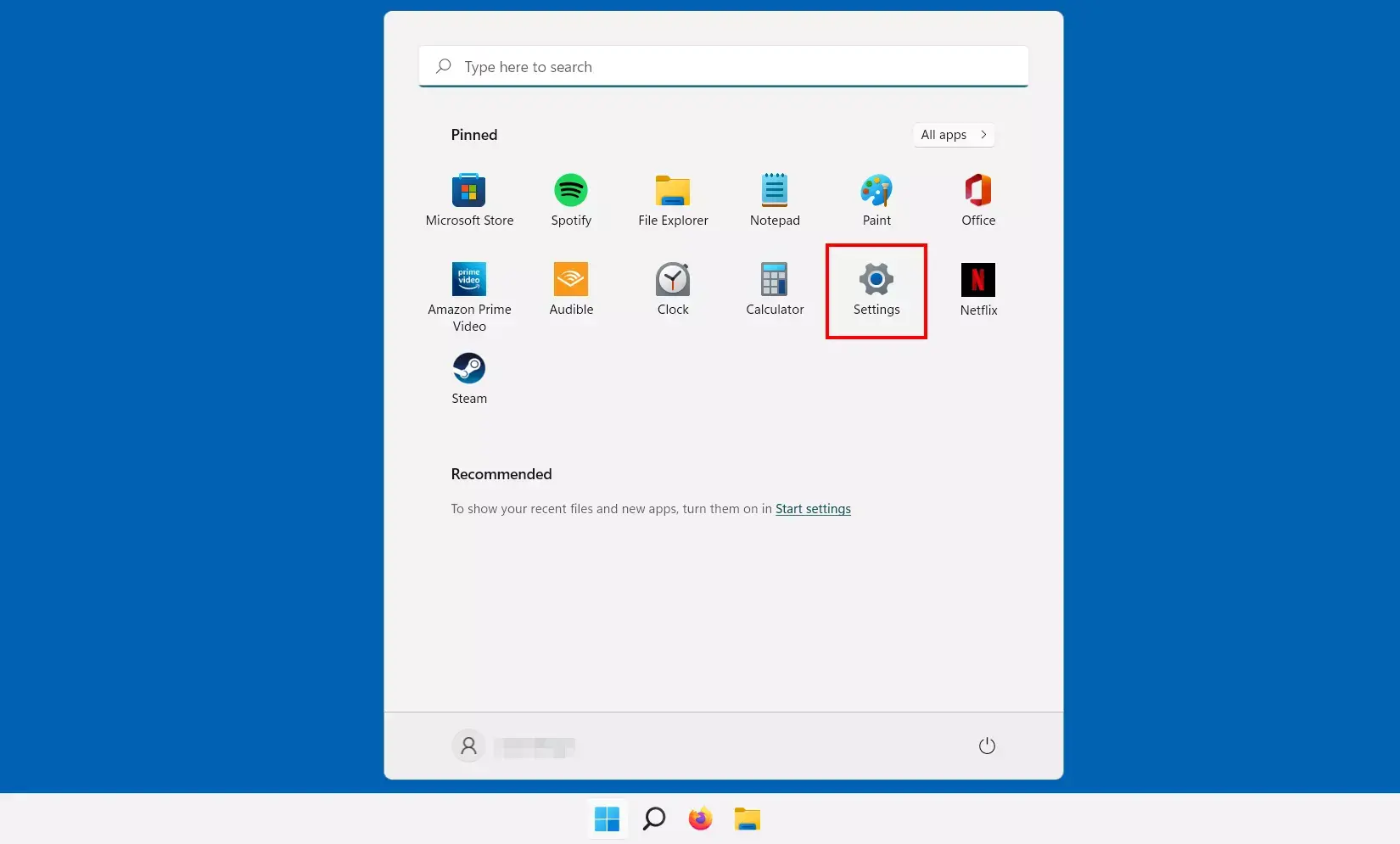
Once you have the folder ready, you need to open the personalization settings. From Windows, you can easily access the path. Settings > Personalization > Background screen (In some versions, it appears simply as "Background"). In the section where you choose the background type, in addition to options like "Image" or "Solid Color", you will find the "Presentation" option.
When you select "Presentation", the system will ask you to Please specify the photo folder that you want to use. To do this, click the "Browse" button and navigate to the location where you saved the images. When you accept, Windows will use all the contents of that folder as the source for the desktop slideshow.
This option not only lets you liven up your desktop, but it's also ideal if you like view different photos throughout the dayWhether they're landscapes, minimalist backgrounds, or personal photos, you can also opt for more dynamic and animated effects, such as put a GIF in the background if your version of Windows and your tools support it.
Within the presentation settings, Windows also lets you adjust the time interval between one image and the nextYou can make the background change quite frequently or very infrequently, for example every 30 minutes or every 60 minutes, depending on what you find more convenient.
This control of the presentation's "playback speed" is key if you want to avoid distractions: a change that's too fast can draw too much attention, while a long interval makes the background less noticeable and more discreet.
Another important aspect of the presentation is the order in which the images are shownIn the settings, you'll find a "Shuffle Order" option (or something similar) which, when activated, displays the photos out of order. This prevents the background from always following the same pattern and gives you a more varied desktop.
If you prefer to control the exact order yourself, simply turn off random modeIn this way, Windows will respect the order in which the images appear within the folder, which is normally based on the file name or the date.
Finally, whether you use a single image or choose a slideshow, you have the option to configure fund dispositionHere you can choose from several typical options: "Fill", "Fit", "Expand", "Tile", "Center" and similar, depending on the version of Windows.
The "Fill" option is usually the most recommended, since It makes the image fill the entire screen cropping only what's necessary to avoid black bars. "Center" is useful for smaller backgrounds or those with borders you want to preserve. The other modes help you adapt images of different aspect ratios without excessive distortion.
Adjust color mode: light, dark, and custom themes
In addition to the desktop background, Windows allows you to change the general interface color modeThis affects the Start menu, taskbar, windows, and many compatible applications. This choice greatly influences visual comfort, especially when working in low light.
Currently, Windows offers two main modes: light theme and dark themeThese are complemented by an additional mode called "custom mode." Each one is better suited to specific lighting conditions and personal preferences.
Clear mode displays an appearance brighter and cleanerwith light backgrounds and high brightness levels. It usually works very well in well-lit environments, such as offices with plenty of natural light, as the contrast makes the text and icons easy to read.
For its part, dark mode features an interface with dark backgrounds and light textDesigned to reduce glare when using a computer in low light, such as at night or in dimly lit rooms. This helps minimize eye strain and can be more comfortable during long sessions.
To switch between these modes, you need to open the application. Configuring Windows and go to Personalization > Colors. There you will see a section called "Choose your mode" or something similar, from which you can directly select the light theme, dark theme, or custom mode.
Custom mode is especially interesting because it allows you to combine light and dark elementsFor example, you can use a dark style for the taskbar and Start menu, but keep the applications in light mode, or vice versa. This way you can fine-tune the interface to what you find most comfortable.
Microsoft's official description highlights that the dark mode is specially designed For low-light environments, seeking a balance between contrast and visual comfort. Conversely, the light mode is considered ideal for "daytime" or for spaces with high ambient light.
It's a good idea to try each option for a few days to see which one best suits your routine. You can even change mode depending on the time of dayClear in the morning and dark at night, something many users do precisely to protect their eyesight.
Customize the accent color in Windows
Beyond the background and light or dark mode, Windows lets you configure what's called accent colorThis tone is used to highlight key interface elements: buttons, links, switches, selected icons, and other interactive components.
Choosing the right color is important because adds personality to the desk and helps maintain visual consistency. For example, you can choose a color that matches your wallpaper, your company's corporate colors, or simply your favorite shade.
To access this setting, you must again go to the application of Settings > Personalization > ColorsWithin this section you will find the options related to the accent color and how it is applied to the system.
Windows gives you two ways to select this color: automatic mode and manual selectionIf you choose to have it be automatic, the system itself will analyze the wallpaper and choose a predominant tone that matches the current image.
This automatic option is very practical if you use presentations or change backgrounds frequently, since the The accent color adapts dynamically. and maintains a certain harmony without you having to touch anything every time you change the background.
On the other hand, if you prefer to control the appearance in detail, you can switch to manual selection mode. In this case, you will be able to choose an accent color to your liking within the "Recent Colors" or "Windows Colors" sections that appear in the settings.
If none of the suggestions appeal to you, you can also click on "View colors" or an equivalent option. This opens a more advanced selector where you can define an exact toneeither by moving the cursor over the palette or by entering specific color values (for example, in RGB format or similar, depending on the version). You can also Use Color Picker to take color samples from anywhere on the screen.
Once the accent color is chosen, Windows will apply it consistently in many places across the interface, creating a a more personalized and consistent appearanceIt is very useful for quickly identifying active or selected elements and, at the same time, for giving your team a personal touch.
Apply accent color to Start, taskbar, and windows
Accent color isn't just for small visual details, it can also extend to key areas of the system such as the Start menu, taskbar, action center, title bars, and window borders.
In the Colors section within Settings, you will find several checkboxes that determine where you want the accent color to appearOne of the most interesting options is the ability to display it in the Start menu, taskbar, and action center, which are highly visible areas of the desktop.
When you activate this function, the color you have selected will be applied to these elements so that the desktop has a more uniform appearanceIn this way, the chosen tone is not limited to icons or buttons, but becomes an integral part of the system's visual theme.
It's important to note that this setting is only available when you have selected the option in Windows. dark color mode or custom modeIf you have everything in general light mode, you may not be able to apply the accent color to the taskbar and Start menu in the same way.
Another very useful setting is the one that allows you to use accent color in the title bars and window bordersWhen enabled, the top of each window (where the application name and minimize, maximize, and close buttons are displayed) will adopt that color, as will the window outline.
This helps make the interface more recognizable and easier to read, especially if you usually work with many windows open at the same timeIdentifying which one is active becomes easier when the title bars use a clearly visible accent color.
Activate or deactivate transparency effects
Another visual aspect that greatly influences the feeling of modernity of Windows is the transparency effectsThese effects apply a slight acrylic blur to some window backgrounds and surfaces, so that you can see a little of what's behind them, but without losing the legibility of the content.
The transparency effects serve to give a greater sense of depth and layers within the interface, making the desktop appear more dynamic and less "flat." Many people find them appealing precisely because they soften the edges between windows and backgrounds.
However, you might prefer a more solid appearance, whether for personal taste, performance reasons, or because you want to focus as much as possible on the text and main elements. In that case, you have the option to disable transparency effects from the same Colors menu in Settings.
By disabling them, the areas that were previously slightly translucent will become completely opaqueThis is usually done with a uniform color linked to the selected theme and accent color. This can also help on less powerful computers, as it sometimes slightly reduces the graphics load, although on most modern devices the impact is very small.
It's recommended that you try it for a while with the effects both turned on and off to check. Which option best suits your work style?Some users highly value the visual style they provide, while others prioritize a more understated and distraction-free look.
Color filters and contrast themes for accessibility
Windows also incorporates features designed for those who have visual difficulties or specific accessibility needsAmong these options, color filters and contrast themes stand out, which modify the color palette to improve the visibility of the content.
The contrasting themes These are adjustments that radically change the color scheme, using very dark or very light backgrounds with text in very bold tones. Their purpose is to make it easier to distinguish letters, icons, and interface elements, avoiding color combinations that could be confusing.
Within these contrasting themes, it is possible, in many versions of Windows, further customize some colors to adapt the result to each user. Thus, a person sensitive to certain tones can avoid them and choose alternatives that are more comfortable for them.
Furthermore, the color filters These filters modify the way colors are displayed on the screen to help those who have trouble distinguishing them, such as those with some types of color blindness. These filters change the color palette so that the differences between certain shades become more apparent.
Thanks to these filters, elements that previously appeared almost identical now have a clearer contrast between themselvesThis makes it easier to identify buttons, progress bars, or indicators that rely on color to convey information. If you experience problems with inverted or unusual colors, here's a guide to help. fix inverted colors on Windows systems.
Microsoft offers additional documentation specifically about these features in sections such as "Change color contrast in Windows" or "Use color filters in Windows." These sections explain how to use them. specific use cases and recommended combinations for different types of users, which is very useful if you need to adjust the interface for accessibility reasons.
In practice, these tools make Windows a much more efficient system. inclusive and adaptableallowing people with different levels of vision to work and enjoy the computer without so many visual barriers.
With all these options, from presentation mode backgrounds to light and dark modes, accent colors, transparency effects, and color filters, you have a wide range of settings at your fingertips to make Windows look exactly the way you want. Taking advantage of these features not only improves the system's appearance but also helps you to work more comfortably, reduce eye strain and adapt the environment to your specific needs, whether for reasons of taste or accessibility.


Passionate writer about the world of bytes and technology in general. I love sharing my knowledge through writing, and that's what I'll do on this blog, show you all the most interesting things about gadgets, software, hardware, tech trends, and more. My goal is to help you navigate the digital world in a simple and entertaining way.