- Setting Google Chrome as your default browser prevents links from opening in Edge or other browsers.
- Shortcuts like Ctrl-click, Shift-click, and the middle mouse button allow you to open links in new tabs without losing the current page.
- Specific extensions for Chrome and Firefox allow you to force tabs to open and control the order and behavior of the tabs.
- Smart use of shortcuts, mouse, and plugins improves productivity when managing many tabs and windows.
If you spend all day in front of the computer using the browserIt's normal to want to control exactly how links open: in the same tab, in a new one, in the background, in a separate window… and, of course, which browser they open with. Many people still waste time because they haven't mastered these basic tricks.
Additionally, when you have multiple browsers installed (Chrome, Edge, Firefox, Opera, etc.) It's easy for Windows to make decisions for you and always open links with the browser you're least interested in, usually Microsoft Edge. Let's see, step by step and in detail, how to make links open the way you want: with Google Chrome, without losing your current tab, and taking advantage of keyboard shortcuts, mouse controls, and extensions.
Make all links open with Google Chrome
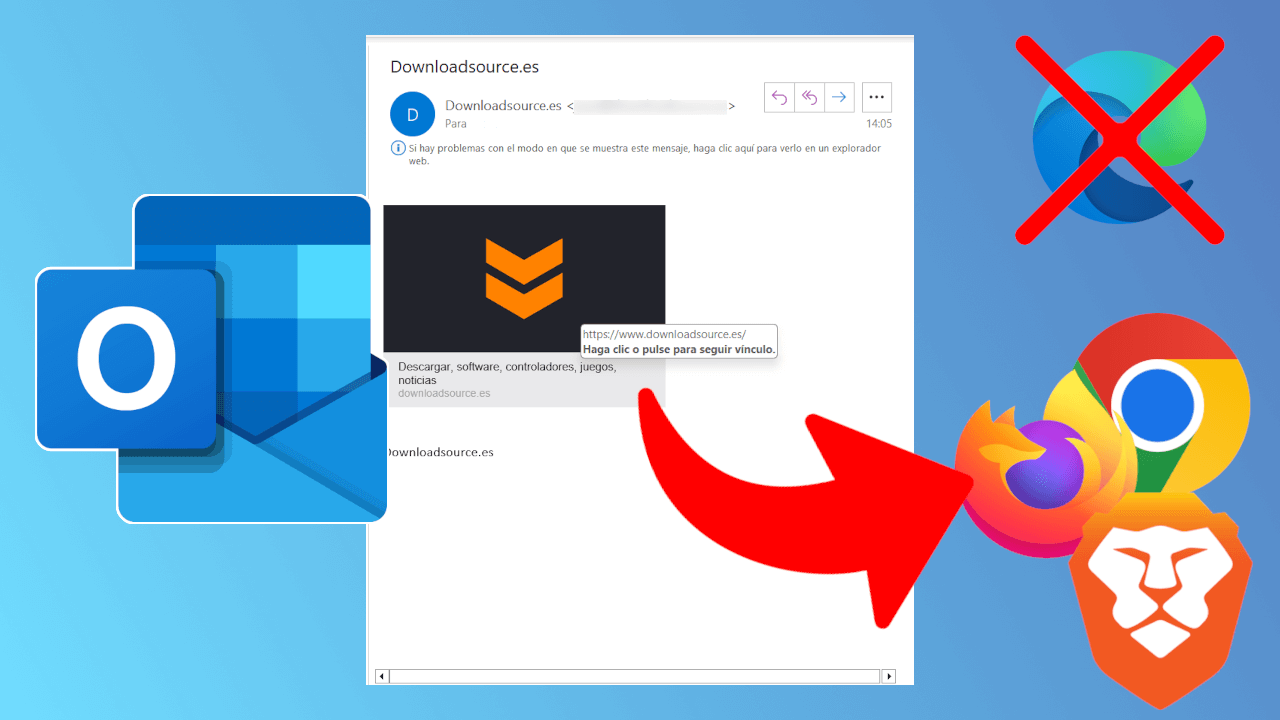
The first common problem is that the links open with Edge or another browser Even if you always want to use Chrome. This happens with links in chats, Word documents, PDFs, shortcuts, email, etc. The key is to correctly configure the default browser on your system.
On Windows, Chrome will only automatically open links if it is set as the default browser.Otherwise, the system will use Edge or another browser that was previously configured. The process for changing this is very simple, but it's important to do it correctly so that it affects all types of links and protocols.
General steps to set Google Chrome as the default browser in Windows (the exact path may vary slightly depending on the Windows version, but the idea is the same):
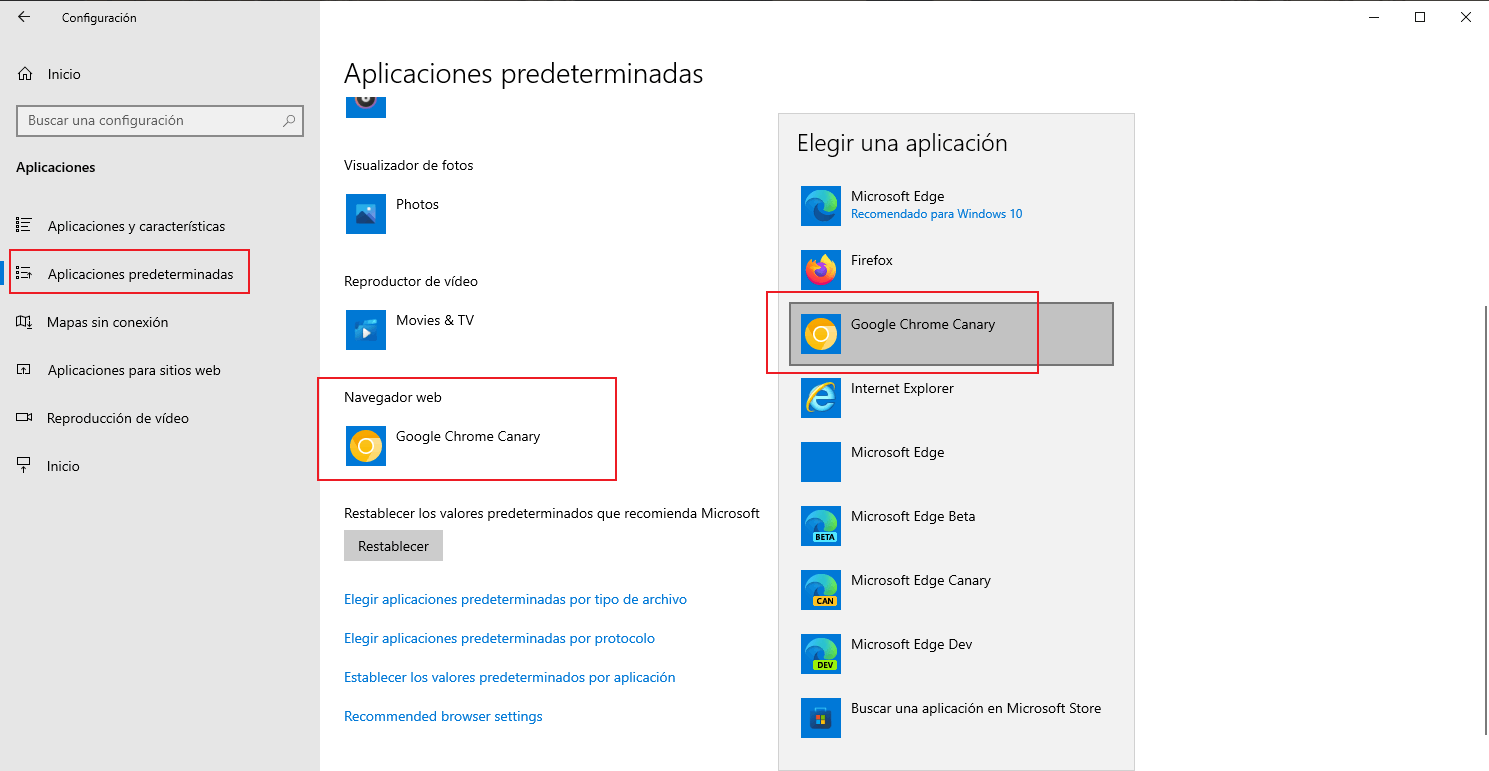
- Open Windows Settings from the Start menu (gear icon) or with the Windows + I key combination.
- Go to the Applications section and then in "Default apps".
- Look for the "Web Browser" section and Click on the icon that appears (usually Edge).
- Select "Google Chrome" from the list so that set the default browser for opening web links.
In some versions of Windows you can configure Chrome by file type and protocol (For example, so that it also opens http and https links, .htm and .html files, etc.). If you want to be even more meticulous, go into the advanced options and assign Chrome to everything related to web browsing.
Once Chrome is set as default, any link you open from a chat, document, or email will be affected. It should launch directly in Chrome, unless a specific application has its own internal configuration to use another browser. This includes links to Google Drive, web pages, online forms, documents viewed via the web, and even some PDFs that open in a browser tab.
Why it's important to control tabs and links
Web browsers have become the central tool for work and leisureWe browse the web, work in the cloud, watch videos, listen to music, use web applications… everything happens through a browser tab. Therefore, the way we open and manage links has a direct impact on our productivity.
Tabs revolutionized the way we use the InternetInstead of having a new window for each page, we can now group hundreds of sites into a single window organized by tabs. This makes it much easier to view multiple pages at once, compare information, have reference resources open, and so on.
The problem arises when we always open links in the same tabEvery time you click normally on a link that replaces the current page, you lose context: if you want to go back, you have to use the back button, navigation becomes slower, and in long searches, you end up confused trying to remember what page you were on at the beginning.
Open links in new tabs, and do it quickly and intuitivelyThis avoids much of this chaos. You can have the main page in a fixed tab and, from there, "branch out" the links that interest you in new tabs to explore them without ever losing your starting point.
This approach is especially useful when you're comparing information (For example, multiple offers, multiple guides, different search results). You have the pages side by side in the same window, and you simply switch tabs, without duplicating windows or cluttering your desktop.
Basic ways to open links in a new tab
All modern browsers (Chrome, Edge, Firefox, Opera, etc.) share the basic methods To open a link in a new tab. Some are slower, others very fast; it's a good idea to master them all to choose the one that best suits the situation and the device you're using.
Open links using the context menu (right-click)
This is the "classic" method that many people have used for years.It involves right-clicking on the link to display the browser's context menu and then choosing the appropriate option.
- Right-click on the link that you want to open.
- In the drop-down menu, select "Open link in a new tab" or "Open link in a new tab" (the text may vary slightly depending on the browser and language).
The advantage of this method is that it is very intuitive and available in virtually any browser.The disadvantage is that it is considerably slower than other methods, because it requires opening the menu, finding the option, and clicking a second time.
On a laptop touchpad, the equivalent of the right button is usually a two-finger tap.After that, the procedure is exactly the same: select the option to open the link in another tab from the menu.
Open links with the Ctrl key (new tab in background)
If you want to open links in a new tab while still viewing the current oneThe combination of the Ctrl key with a normal click is one of the fastest and most convenient ways to do this.
- Hold down the Ctrl key keyboard.
- As long as you keep it, Click normally with the left mouse button on the link.
The result is that the link opens in a new tab, but in the background.In other words, you don't automatically switch tabs. You continue viewing the original page, and when you want, you can go to the new tab that will already be loaded (or loading) at the top.
This shortcut works the same in Chrome, Edge, Firefox, and other major browsers.On many touchpads, a normal click combined with Ctrl works without problems: it's just a matter of getting used to the gesture.
Open links with the Shift key (new tab in foreground)
The Shift key combined with a click on the link It does something very similar to Ctrl, but with one important difference: the new tab opens in the foreground.
- Hold down the Shift key on the keyboard.
- Click normally with the left mouse button on the link..
In this case, the link opens in a new tab and the browser automatically switches to that tab.It's ideal when you want to keep the original page open, but you're interested in going directly to the content of the link without having to manually switch tabs.
Just like with Ctrl, this shortcut is compatible with most popular browsersOnce you get the hang of it, you'll find it much faster than always using the right button and the context menu.
Open links with the mouse wheel (middle button)
The mouse wheel (the so-called middle button) is one of the best tools for managing tabs.And many people aren't aware of everything it allows you to do. One of its star features is opening links in new tabs almost instantly.
- Place your cursor directly over the link you want to open..
- Press the mouse wheel down, as if it were a third button..
With that simple gesture, the link opens instantly in a new tab.It usually runs in the background (meaning you don't immediately switch tabs). It's extremely fast and convenient when you're browsing a list of links (Google results, news, products, etc.) and want to open several without losing your position.
This middle click also works on the tabs themselves.If you press the wheel on an open tab, it will close instantly, without needing to click the "X". It's a very quick way to close tabs you no longer need.
Another useful function of the wheel is automatic scrolling.If you middle-click on an empty area of the page (not on a link or an interactive element), a mode is activated in which you can scroll the page by gently moving the mouse up or down, without touching the sidebar or turning the wheel.
Open links in a new window instead of a tab
There are situations where you don't just want another tab, but a whole other window.For example, you can place two pages side-by-side and easily compare information in full screen. It can also be useful if you work with multiple monitors.
Browsers allow you to open a link in a new window with a gesture very similar to opening tabs., changing the modifier key you use while clicking the link.
- Hold down the Shift key while clicking the link (typical behavior in many browsers and systems, although it may vary depending on the configuration).
- Another option is to open the link in a new tab (with Ctrl or middle click) and drag that tab out of the main windowwhich automatically creates a new window with that tab.
Working with multiple windows is very useful when you are researching a topic in depth. And you want to consult different sources at the same time. For example, you can have the original page on the left and the tabs with comparative results on the right, all visible at the same time without having to switch tabs.
If the information in that additional window is no longer of interest to youSimply close the entire window by clicking the "X" in the upper right corner (on Windows) or the corresponding button on other systems. If, however, you want to keep a specific tab, you can drag it from that secondary window to the main window. regroup them.
If the information in that additional window is no longer of interest to youSimply close the entire window by clicking the "X" in the upper right corner (on Windows) or the corresponding button on other systems. If, however, you want to keep a specific tab, you can drag it from that secondary window to the main window to regroup them.
Useful keyboard shortcuts for managing tabs
In addition to tricks for opening links, browsers offer keyboard shortcuts to manage tabs without touching the mouse. Knowing how to use them can save you many clicks throughout the day.
- Ctrl + T: opens a new empty tab.
- Ctrl + W o Ctrl + F4: Close the current tab.
- Ctrl + Shift + T: reopens the last closed tab (very useful when you close it by mistake).
- Ctrl + Tab o Ctrl + Page Down: Go to the next tab.
- Ctrl + Shift + Tab o Ctrl + Page Up: Go to the previous tab.
These shortcuts work almost identically in Chrome, Edge, and FirefoxCombined with Ctrl-click or middle-click, they allow you to move through dozens of tabs without hardly taking your hand off the keyboard, or even copy the links from all tabs.
Extensions to always open links in new tabs
Although browsers come with many built-in options, sometimes they are not enough. For the type of control that some users need, extensions or add-ons come into play, expanding the browser's standard behavior.
In the specific case of always opening links in new tabsBoth Chrome and Firefox, as well as other Chromium-based browsers, have extensions that enforce this behavior, allowing customization based on the domain, link type, click method, etc.
Extensions for Google Chrome and Chromium-based browsers
In the Chrome Web Store you can find several extensions designed specifically for this purpose. to control how links are opened. Some of the most interesting ones, depending on the type of use, are the following.
DoubleClicker
DoubleClicker is a Chrome extension that allows you to open links with a double click. instead of right-clicking or using keyboard shortcuts. Once installed, if you double-click a link, it will open in a new tab.
Its great advantage is that it turns a very natural gesture (the double click) into an advanced action without having to use menus. It's especially convenient if you're not comfortable with keyboard shortcuts or if you use the touchpad a lot.
However, DoubleClicker is designed for Chrome and Chromium browsers. (like Edge, Opera, or Vivaldi when using the Chrome Web Store). There is no dedicated version for Firefox.
DOUBLE-CLICK TO…
DOUBLE-CLICK TO… is another extension for Google Chrome Focused on leveraging double-clicking, but this time with more customization options. It allows you to assign different actions to double-clicking on a web page.
Among the actions that can be configured are You can quickly scroll to the top of the page, close the current tab, or, more importantly for our purposes, open a new browser tab. This way, you can adapt the behavior to your workflow.
This is a Chrome-exclusive extensionIt's not natively available for Firefox. It's ideal if you like using simple gestures to automate common tasks.
OPEN IN NEW TAB
OPEN IN NEW TAB is a Google Chrome extension focused on domain-based behavior.Its main function is to allow all links on a specific website to always open in a new tab.
Its operation is quite simple.:
- You visit a website that you use often.
- You click on the extension icon and add it to the list of managed domains.
- From there, All links within that domain will automatically open in new tabs..
It's a very useful solution for websites where you always want to keep the homepage intact. (for example, control panels, work tools, forums, or internal search engines) while you explore content in new tabs.
OPEN TABS NEXT TO CURRENT
OPEN TABS NEXT TO CURRENT does not focus on forcing the opening in new tabsbut rather in the order in which those tabs are placed. When you browse intensively and open many links, the position of the tabs can make all the difference.
With this extension, every new tab you open will appear right next to the current tab. instead of at the end of all open tabs. This helps keep tabs related to the same topic or work session grouped together.
The extension is available for Chrome, Edge, and Firefox., although its installation in each of them is done through the corresponding extension store (Chrome Web Store, Firefox Add-ons, etc.).
Outline Tabs
Tabs Outliner is an advanced extension for managing and organizing tabsInstead of simply forcing them to open in new tabs, create an index or map of all the tabs and windows you have open.
The extension records and stores the links you click on.allowing you to create a hierarchical structure of tabs, group them, reopen entire sets, perform searches within the index, etc. It is especially useful when researching complex topics with many sources.
Tabs Outliner is available for Chrome and Edge (and other Chromium-based browsers that use its extension store). If you tend to accumulate dozens of tabs, it becomes almost like a Swiss Army knife for not losing anything important.
CLOSE ALL TABS
Closing tabs is just as important as opening them properly.CLOSE ALL TABS is an extension available for Chrome and Edge that expands the standard options for closing tabs.
Although browsers already include actions such as "close other tabs" or "close tabs on the right"This extension adds more possibilities and a more direct interface to perform these operations according to your needs at any given time.
OPEN TABS – SAVE TREES BY OPENING TABS
This extension has a curious approach: optimizing how tabs are opened to reduce the number needed.According to its creators, it helps reduce the indirect "environmental impact" by better managing resources (although the most important thing here is, above all, organization).
Each time a new tab is opened, the extension displays configurable shortcuts.in addition to widgets like the time or weather. This way you can centralize frequently accessed items and reduce redundant tabs.
OPEN TABS – SAVE TREES BY OPENING TABS is available for Chrome, Edge, Opera, Vivaldi and other Chromium-based browsersbut it is not found in the Firefox extensions store.
RIGHT CLICK OPENS LINK NEW TAB CORRECT ORDER
Another issue that often bothers many users is the "illogical" order in which the tabs are opened.Some prefer new tabs to appear at the end; others, attached to the current tab.
The RIGHT CLICK OPENS LINK NEW TAB CORRECT ORDER extension allows you to precisely adjust this behaviorYou can arrange all tabs opened from a link in a way that is most convenient for you, preventing them from being scattered all over the bar.
It is designed for Chromium-based browsers (Chrome, Edge, Vivaldi, Opera…). There is no version available for Firefox.
New Tab Redirect and similar extensions
New Tab Redirect and other similar extensions focus on customizing what happens when you open a new tabAlthough their main function is usually to change the new tab page, some also allow you to adjust the behavior when opening links.
With this type of extension you can, for example, define whether certain links should always open in a new tabor even apply additional keyboard shortcuts to control how each link opens depending on the context.
Specific extensions for Mozilla Firefox
Firefox also has its own ecosystem of add-ons These are designed to control the behavior of links and tabs. Some of them cover functions similar to Chrome extensions.
DOUBLE CLICK NEW TAB
DOUBLE CLICK NEW TAB is a Firefox-exclusive extension This replicates the idea of double-clicking on links. It allows a link on a website to open in a new tab in the background when you double-click it.
In addition, it offers configuration options such as double-click speed. or the action associated with that gesture, so you can fine-tune it to respond exactly to your mouse usage.
OPEN LINK WITH NEW TAB
OPEN LINK WITH NEW TAB is another Firefox extension designed to give you complete control over how links are opened.It allows different operating modes:
- Respect the website settings (maintain the original behavior of the link).
- Open only the links that lead to different sites in a new tab..
- Open absolutely all links in new tabs..
Once installed, it is configured from the Firefox extensions management page.In the extension's options menu, you can choose between different opening policies depending on what suits you best.
Extra mouse tricks for faster browsing
Beyond opening links, the middle mouse button offers several tricks that many people overlook and that allow you to navigate and manage tabs much more efficiently.
We've already seen that it's used to open links in new tabs and close tabs.But these are not its only useful functions during daily navigation.
- Close tabs instantly: Place the pointer over the tab you want to close and click with the wheel; the tab will close without needing to point to the "X".
- auto scroll: Middle-click on an empty space on the page to activate automatic scroll mode; move the mouse slightly up or down to make the page scroll smoothly in that direction.
- Quick access to the tab menu (depending on the browser): holding down the middle button on a tab can open a context menu with actions such as duplicate tab, mute it, or quickly close it.
Many advanced mice also come with additional configurable buttons. (side or extra buttons). With the manufacturer's software, you can assign tab-related actions to these buttons: open a new tab, go back/forward, close the tab, etc. If you work a lot in the browser, configuring them to your liking can make a significant difference.
Mastering how links are opened and organized in Chrome and other browsers It lets you stop struggling with tabs that move around erratically, windows that open when you don't want them to, and links that always pop up in Edge instead of Chrome. With a few keyboard shortcuts (Ctrl, Shift), tricks with the mouse wheel, and, if needed, a well-chosen extension, you can adapt your browsing to your workflow: open everything in new tabs without losing the current one, keep links organized next to the active tab, group sessions with tools like Tabs Outliner, Sync tabs across devices And of course, make sure that any link you click, no matter where it comes from, always opens in Google Chrome as your default browser.


Passionate writer about the world of bytes and technology in general. I love sharing my knowledge through writing, and that's what I'll do on this blog, show you all the most interesting things about gadgets, software, hardware, tech trends, and more. My goal is to help you navigate the digital world in a simple and entertaining way.