One of the great things about reading these types of posts is that we always find solutions for almost everything. For example, today I decided to write about airplane mode stuck on Windows 10.
I know that at some point you have gone through this unpleasant moment, for this reason, I dedicated myself to compiling the best ten methods that can help you with it. So if you really want to solve this problem and have wireless connections on your PC again, pay attention to my recommendations.
How to fix airplane mode stuck in Windows 10?
As I just told you, below I am going to show you the 10 most effective methods to help you fix the stuck airplane mode on your Windows 10 operating system. Take note of the following and learn with us.
1.- Restart the device
In most cases, performing a device reboot is usually enough to resolve the issue.
- You are going to click on the Start Menu to start this process. As you may remember, this menu is identified by the Windows logo.

- Now, you must press the button power or power.
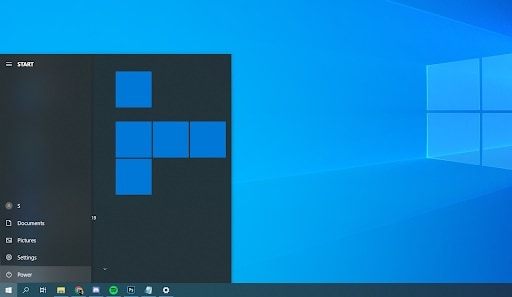
- After this, you have to choose the option that says Restart within the context menu. Alternatively, you can choose the option Delete and turn on the computer manually once it is turned off.
- After you have restarted your computer, you need to check if you can exit airplane mode or if the issue persists.
2.- Deactivate airplane mode through system settings
A wide variety of users have claimed that one of the alternatives to solve this problem is to disable airplane mode through the system settings. Believe it or not, this is an excellent option that can help you get out of the mode when the normal switch is not working or is dimmed.
- To start, you have to open the section setting by clicking on the gear icon found in the start menu. You can also press the keys Windows + I to open it without so much protocol.
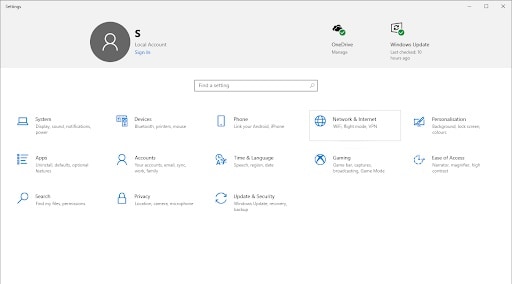
- What follows is to click on the option that says Network and Internet that appears in the window.
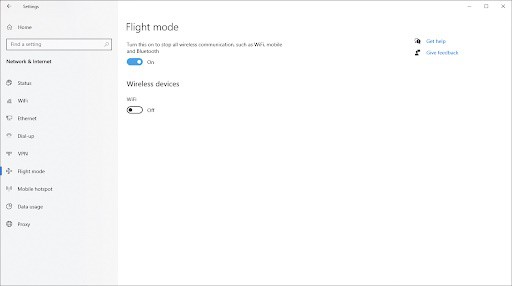
- Now, you need to switch to the tab Airplane mode – which is also known in some versions as flight mode – through the menu that appears on the left side of the screen.
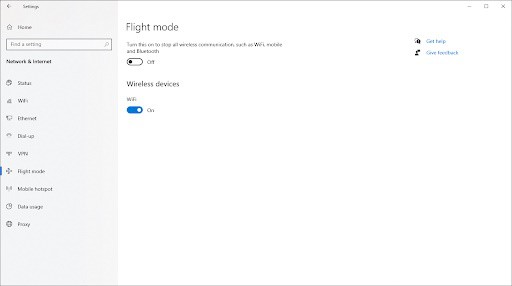
- You must make sure to set the option to activate this to stop all wireless connections (WiFi, Bluetooth, Mobile) press on disabled.
- When you do this, your computer should return to its normal mode. In case the airplane mode is still stuck, we invite you to try the following methods.
3.- Reset the network settings
When you reset the network settings completely you can successfully resolve the airplane mode stuck error in Windows 10.
Please note that performing this action will cause your device to forget the WiFi details as well as the connections VPN and so-called Ethernet networks. You can also reset network adapters. Before you proceed with this, you should make sure that you have all the necessary details to configure your connections once again.
- Open the configurations by clicking on the settings icon located in the start menu. Remember that you can access it more easily by pressing the keys Windows + I.
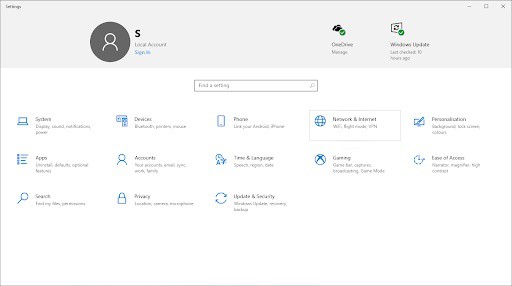
- After this, you must click where it says Network and Internet.
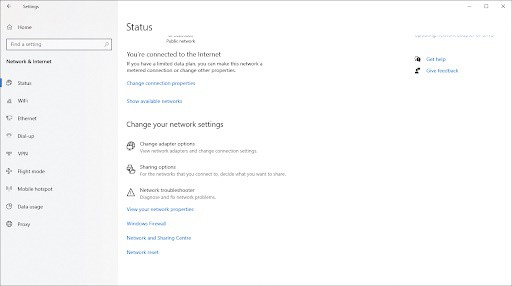
- What follows is to stay on the tab State Then you must scroll to the bottom of the window and locate the link that says network reset, click on it.

- Finally, you have to click on the option reset now to start the process. At this point, it will likely take a few minutes for Windows to reset the settings. But then you can check if the airplane mode is still stuck or not.
4.- Disable radio management services
There is evidence that in some cases, disabling so-called radio management services has solved the stuck airplane mode issue in Windows 10.
- The first thing we are going to do is press the keys Windows + R simultaneously. This way you will be able to enter the Run utility.
- Following this, you have to write msc and click on the button Accept. A window will immediately open with the name Services, where all the services available on your computer will appear.
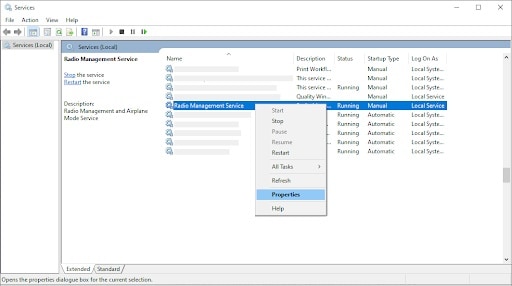
- Afterwards, you will have to scroll down until you locate the option Radio management service. When you find it, right click on that option and select the section Properties.
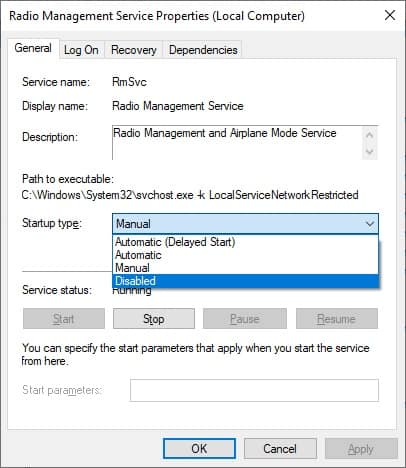
- Next, you need to make sure to set the start type within the section disabledIf you succeed, you can be sure that the service will run this way on your computer.
- What follows is to see if the service is disabled and click where it says Stop to disable it. Then press the option Accept to close the window.
- Now, you must exit the window. Services and restart your computer. Test if the airplane mode stuck in Windows 10 is still stuck after you perform these actions.
5.- Clear the DND and renew the IP address
In case the airplane mode is still stuck, you can try flushing the DNS and renewing the IP address to fix it. Make sure you perform the steps mentioned in the previous method before proceeding with this procedure. It is important to make sure that the radio management services are turned off.
Flush DNS in Windows 10
- You are going to press the keys Windows + R so that the utility we know as Run can be started.
- Now, you have to write cmd followed by the Enter key to properly start the so-called command prompt.

- Copy and paste the following command ipconfig /flushhdns and press the Enter key to execute it.
- Make sure to close the command prompt.
Renew IP address
- With the help of the keys Windows + R you are going to open the Run utility on your computer.
- Place the phrase cmd and press the Enter key to start the classic application symbol of the system on your computer.

- Copy – in the same order—the following commands: ipconfig /release; ipconfig /all; ipconfig /flushdns; ipconfig /renew; netsh int ip set dns; netsh winsock reset. Press Enter and that's it.
- Finally, you need to close the command prompt and check if the stuck airplane mode is solved by performing the steps above.
6.- Make an edit to the registry
Performing a simple registry edit can fix the stuck airplane mode in Windows 10. However, before you start this process, it is important to backup your registry in case something goes wrong.
- Open the registry editor. You can do this quickly with the help of the Windows + R keys. As you know, this allows the Run utility to be launched with ease.
- You are going to write the sentence regedit and click on the button Accept. With this, the registry editor should open within a few seconds.
- You can navigate through the log by pressing the arrow icon next to the folder with the name Register key. Then you have to navigate to the next key: HKEY_LOCAL_MACHINE\System\CurrentControlSet\Control\Class.
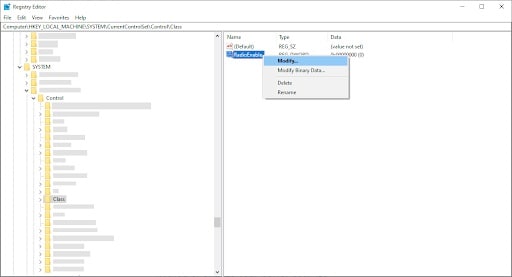
- At this point, you need to right click on the option RadioEnable and select where it says modify.

- You must establish the value data in 1. Click on the OK button. You can now exit the registry editor and restart your computer. When your computer restarts, check if the stuck airplane mode is fixed or not.
7.- Switch to normal startup
According to most reports, people who managed to get out of the stuck airplane mode did so by adjusting the startup type of the device. You can do this by following these steps:
- By pressing the keys Windows + RAs I mentioned, you are going to start the Run utility.
- Now, you are going to write the words msconfig and press the button that says OK.
- Stay in the default general window. You should see a section with the name start selection.
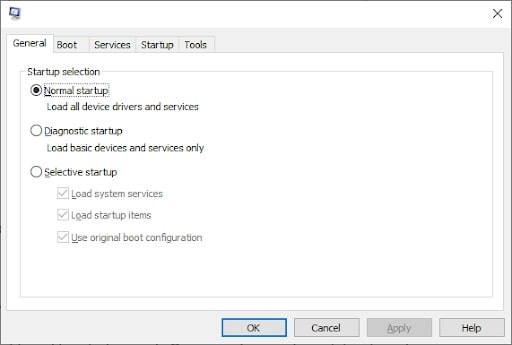
- Then, you must make sure that the normal start. Press where it says Apply and then where it says Accept.
- Restart your computer. Once you do, you will be able to check if the airplane mode stuck issue has been fixed or persists.
8.- Change the power settings
Sometimes the power management settings disable the wireless adapter. This causes it to temporarily disconnect or get into conflicts. The way to quickly fix this is by performing small adjustments.
- By pressing the keys Windows + X You can click on the option Device manager.

- Now, you need to expand the menu of the network adapters by clicking on the arrow right next to it.
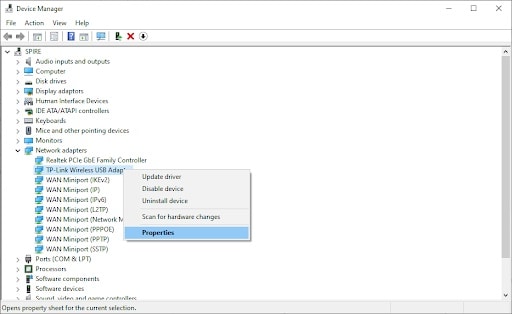
- Afterwards, you have to right click on the network adapter so that you choose the option We take care of your rental property in Valencia. .
- Switch to the tab of Power management.
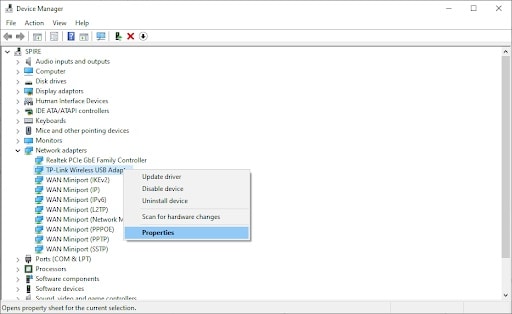
- You must make sure to uncheck the option that says Allow the computer to turn off the device to save power, and click OK.
- Restart your computer and check if the airplane mode stuck is fixed.
9.- Use the internet connection troubleshooter
I've always told you that one of the peculiarities of Windows is that it has various troubleshooters. One of them is even designed to solve problems with Internet connections. This could help you put an end to the airplane mode stuck in Windows 10.
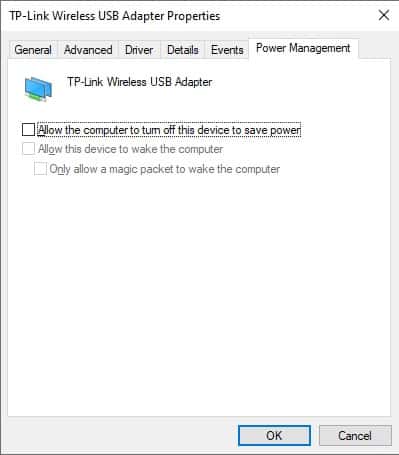
- You are going to open the setting once you press the option adjustments inside the start menu.
- Locate the section update and security.
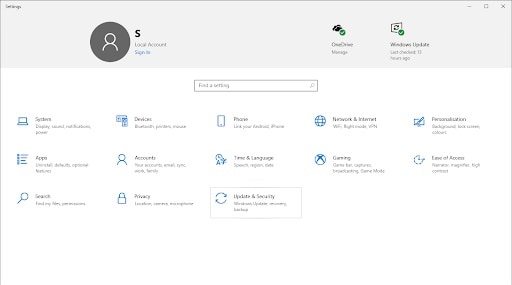
- Then, you will change to the tab of solve problems through the menu located on the left panel of the screen.
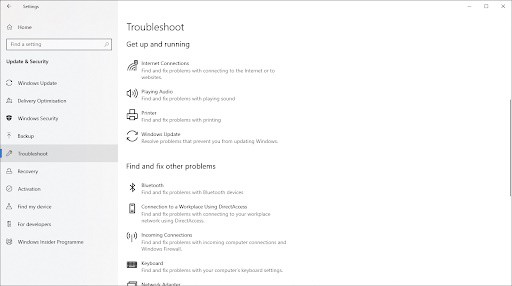
- Here, you will select Internet connections, then you must click on run the troubleshooter. Follow each of the instructions that appear on the screen and solve the problem with the help of Windows.
10.- Temporarily disable the antivirus
I have told you on repeated occasions that the antivirus Airplane mode is a common problem on computers. It can also interfere with your Internet connections or prevent applications from running properly. You can test if your antivirus is the cause of the stuck airplane mode by temporarily disabling it.
However, do not forget that you must make a backup before performing this procedure to reverse any damage.
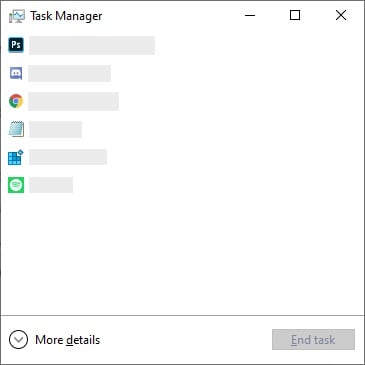
- Choose an empty space on the taskbar, right click and choose the option that says Task Manager.
- When the task manager starts in compact mode, you should make sure to expand the details by clicking on the button that says details of mode.
- Then, you will change to the tab of Home via the menu at the top of the window.
- You have to locate the antivirus application that you have installed on your computer and click on it.
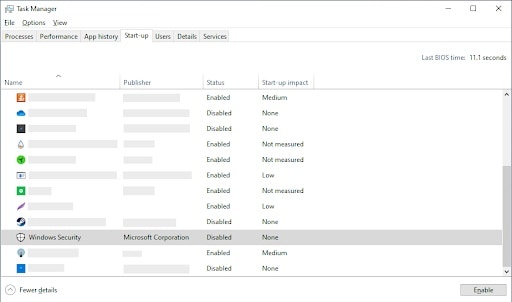
- Next, you need to click on disable so that the application can be disabled from running when you restart your device.
- Restart your computer and try disabling airplane mode.
In case none of our methods allow you to fix airplane mode stuck in Windows 10. Most likely, your computer is suffering from a special case that is not included in this list. It is best to contact the support team. Microsoft customer support.

My name is Javier Chirinos and I am passionate about technology. Ever since I can remember, I have been interested in computers and video games, and that passion has turned into a job.
I have been publishing about technology and gadgets on the Internet for over 15 years, especially in mundobytes.com
I am also an expert in online marketing and communication and have knowledge in WordPress development.