- The DJ with IA de Spotify combines personalized recommendations and feedback with AI-generated voice.
- Requires Spotify Premium, an updated app, and availability in your market (English and Spanish).
- It is controlled from the mobile app; it supports commands English voiceover and playback via Spotify Connect.
- Includes language options (DJ X and DJ Livi) and learns from your interactions to fine-tune the selection.
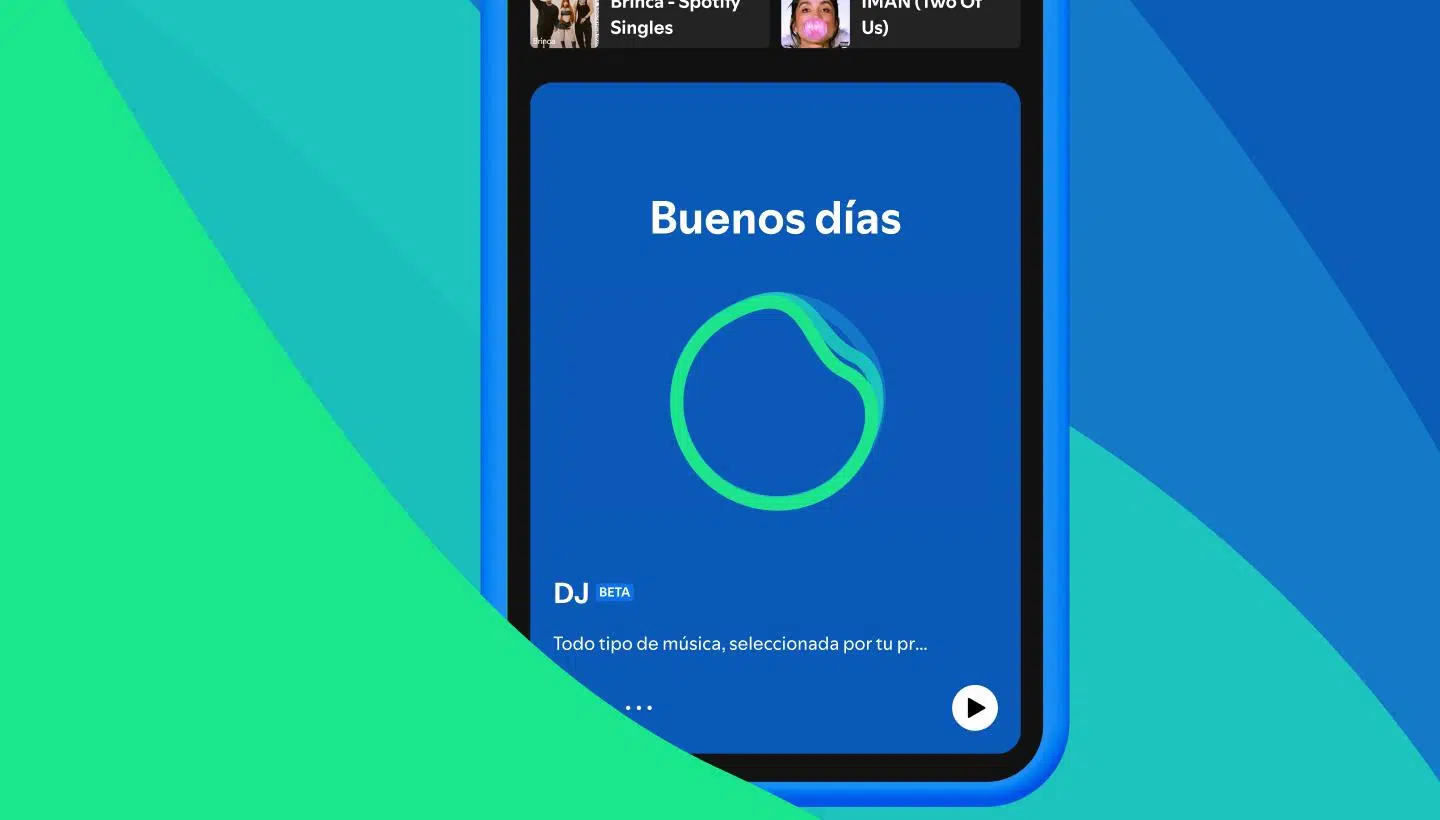
If you've ever dreamed of having a personal DJ who knows you inside and out, now you're closer than ever: Spotify's AI DJ brings that concept to your mobile device , with sets that adapt to your listening habits and radio-style synthesized commentary. This isn't just another recommended playlist; it's an experience that blends editorial curation and generative technology to help you discover music with context.
In addition to selecting songs tailored to your tastes, this virtual DJ accompanies you between tracks with AI- generated narration , sharing information about artists, genres, and highlights from your listening history. The idea is to recreate the human touch of a radio station, but customized for you and available in English and, for Spanish speakers, in Spanish.
What is Spotify's AI DJ and how does it work?
The AI DJ feature on Spotify generates a personalized music session based on your preferences , listening history, and the data the platform has on your favorite artists and genres. No two listening sessions are the same: each session changes in real time as you interact with it.
Between songs, you'll hear a voice speaking to you like a radio announcer. Spotify uses generative AI technology (based on OpenAI models and Sonantic voice technology) to create these comments, which are supported by information curated by Spotify's music editors . The result is designed to make you feel like you're listening to a radio station, but one where the programming revolves around you.
In its initial English release, the voice was provided by Xavier Jernigan (DJ X). For Spanish, Spotify worked with Olivia "Livi" Quiroz Roa , a senior music editor in Mexico City, to create the Hispanic voice model. Many testers noted that it felt like receiving recommendations from a friend.
It's worth noting that, at certain stages of the feature, there was no option to mute the voiceover , and the comments were only available in English. Currently, the experience includes Spanish for Spanish-speaking Premium users in markets where DJ is available, maintaining the spirit of providing brief informational snippets.
Requirements, availability and countries
To use AI DJing, you need two things: a Spotify Premium subscription and the latest version of the app on iOS or Android . This feature also depends on availability in your market: it launched in the US and Canada, later arrived in the UK and Ireland, and as of August 2023, was rolled out in beta to nearly 50 markets, including Australia.
The list of countries mentioned in that expansion included, among others: Antigua, Australia, Bahamas, Barbados, Barbuda, Belize, Botswana, Burundi, Canada, Dominica, Eswatini, Fiji, Gambia, Ghana, Grenada, Guyana, Ireland, Jamaica, Kenya, Kiribati, Lesotho, Liberia, Malawi, Malta, Marshall Islands, Namibia, Nauru, Nigeria, Nigeria, Pakistan, Palau, Papua New Guinea, Philippines, Rwanda, Saint Kitts and Nevis, Saint Kitts and Nevis, Saint Vincent and the Grenadines, Samoa, Sierra Leone, Singapore, Solomon Islands, South Africa, Sweden, Tanzania, Tonga, Uganda, Uganda, United States, Vanuatu, Zambia and Zimbabwe.
Regarding Spanish, Spotify announced that it was testing AI DJ in Spanish with Livi's voice and that Spotify Premium users in Spain and Latin America could use it in markets where DJ was active. These Spanish-speaking countries include: Argentina, Bolivia, Chile, Colombia, Costa Rica, Dominican Republic, Ecuador, El Salvador, Guatemala, Honduras, Mexico, Nicaragua, Panama, Paraguay, Peru, Uruguay, and Venezuela.
If you don't see the DJ card in your app, don't worry: the rollout may not have reached your account or region yet. Also, check that you have the latest version of the app installed. There isn't a separate DJ app on desktop, but you can use it through Spotify Connect by streaming from your phone.
How to Use AI DJ on Mobile (Step by Step)
There are several ways to get started with DJing. The most direct is to open Spotify and use the search bar to type "DJ" ; in the results, you'll see a card or playlist called Spotify AI DJ . Tap it and press play: in seconds, you'll be listening to a selection tailored to you and the first comments from the virtual DJ.
Another method that also works on many devices is to go to Search > Made for You and then tap the DJ card to start listening. When you launch the feature, DJ will automatically be added to Your Library so you can find it faster next time.
While listening, you can change the music without leaving the session: tap the DJ button in the Playing bar (bottom of the app) to request a change of selection. If your DJ is in English, press and hold that button to request a mix by genre, mood, artist, or decade ; it will generate a personalized set of songs based on your request.
Each time you use the feature, the system will take into account what you skip or listen to. This interaction makes the experience dynamic and evolving : it brings back old favorites, mixes them with the latest releases, and surprises you with discoveries that match your profile.
How to use it on your computer: connect it from your phone
To enjoy AI-powered DJing on your desktop, simply stream from your mobile device using Spotify Connect . Open the app on iOS or Android (make sure it's up to date), start the DJ, and in the device selector, choose your computer as the destination . In a few seconds, you'll have playback on your PC or Mac , with the same selection and commentary from the DJ.
This method works for Premium subscribers , maintaining session quality and control. You can return to your mobile device whenever you want or transfer to other compatible devices without interrupting the music.
Language and voice settings
If you want to change the DJ's commentary language, go to the feature card and open the menu (the three dots on iOS or Android). Then, tap DJ Language and select either English: DJ X or Spanish (Mexico): DJ Livi . The voice and tone will change to match your choice.
In English, the voice belongs to Xavier Jernigan , Head of Cultural Partnerships at Spotify. In Spanish, the voice is that of Olivia "Livi" Quiroz Roa , a music editor and playlist creator in Mexico, whose voice has particularly resonated with audiences by conveying warmth and naturalness.
Key features, voice control, and new features
The AI-powered DJ relies on three pillars: advanced recommendation algorithms , the work of hundreds of music experts who curate the knowledge base, and a generative voice that provides context for the music. This translates into announcer-style pauses, short stories, and transitions that encourage you to listen to songs without skipping them.
Spotify is also testing improvements focused on natural control. Specifically, there's an update that lets you use your voice to ask it to change the style , play something more appropriate for the moment, or even play songs by a specific artist . To activate these commands, open DJ, long-press the DJ button, and speak.
Currently, these voice commands are available in English and deployed in over 60 countries , with plans to expand to more regions. Spain is not yet included in this initial rollout, but its arrival is expected as the launch progresses.
The experience integrates with Your Library via the DJ card , and you can transfer playback to other devices directly from the DJ button. As a side note, in various phases of the product, voiceover has been an integral part of the experience, with no option to disable it ; the goal is to maintain the spirit of a personalized radio station.
- Dynamic Personalization: Recover favorites, explore what's new, and adjust your session based on your feedback.
- Brief comments: small capsules that provide information about artists, genres or songs.
- Contextual control: Change mood or decades with one tap, and expanding voice commands (English).
- Spotify Connect: Output to your desktop or compatible speakers without losing the thread.
Tips for discovering music (with and without a DJ)
To refine the AI DJ's selection, don't be shy: use the heart icon on the songs you like . This gesture feeds the algorithm and improves its suggestions next time. Skipping tracks you don't like also helps clear the way.
Beyond DJing, there are several great ways to broaden your horizons. Follow your favorite artists to stay up-to-date on new releases, explore artist playlists and sections like "Fans Also Like" to discover similar acts.
The Discover Weekly list remains a goldmine for finding new products tailored just for you. And if you're into collaboration, create shared lists with friends: that cross-pollination of tastes can uncover gems your algorithm hasn't yet mapped.
Want to turn any track into an endless loop? Try Spotify Radio on a song, album, playlist, or artist: it'll generate a related stream that moves through similar styles. And if you love going to concerts, check out live events on Spotify to get a feel for the scene.
Bonus tip: If you have playlists on other services, tools like Free Your Music can migrate them to Spotify. This adds historical data to your account and helps make recommendations even more accurate . And while we're on the subject of tips and tricks, you might be interested in learning how to shuffle songs when you're not using the DJ feature.
Troubleshooting: What to do if it doesn't appear or fails
If you can't find the DJ card, start with the basics: make sure you have Spotify Premium and the app is up to date. Sometimes the rollout to accounts is gradual, so your account might take a little longer to receive the feature.
Go to your account settings within the app and check if the AI DJ option is enabled . If everything looks correct but you still don't see it, try logging out and back in to refresh your profile on the device.
Are the problems persisting? Go to Settings > Storage and clear the Spotify cache , then restart your phone. Alternatively, force close the app and reopen it. These steps usually resolve temporary issues.
If none of the above works, the best thing to do is contact Spotify support . With a little patience, you should be able to enjoy the DJ again without any problems.
Subscription plans and requirements
The AI DJ feature is available exclusively to Premium subscribers . Spotify offers a free version with ads and certain limitations, while Premium allows you to download songs for offline listening , improve audio quality, and access advanced features like the DJ function itself.
Keep in mind that, for now, the DJ app itself doesn't offer a standalone offline mode . There's been speculation that it might be possible to enjoy it offline in the future, but for now, playback and comments require a connection.


Passionate writer about the world of bytes and technology in general. I love sharing my knowledge through writing, and that's what I'll do on this blog, show you all the most interesting things about gadgets, software, hardware, tech trends, and more. My goal is to help you navigate the digital world in a simple and entertaining way.