- Scanpst.exe is Microsoft's free tool for checking and repairing damaged Outlook PST and OST files at the internal structure level.
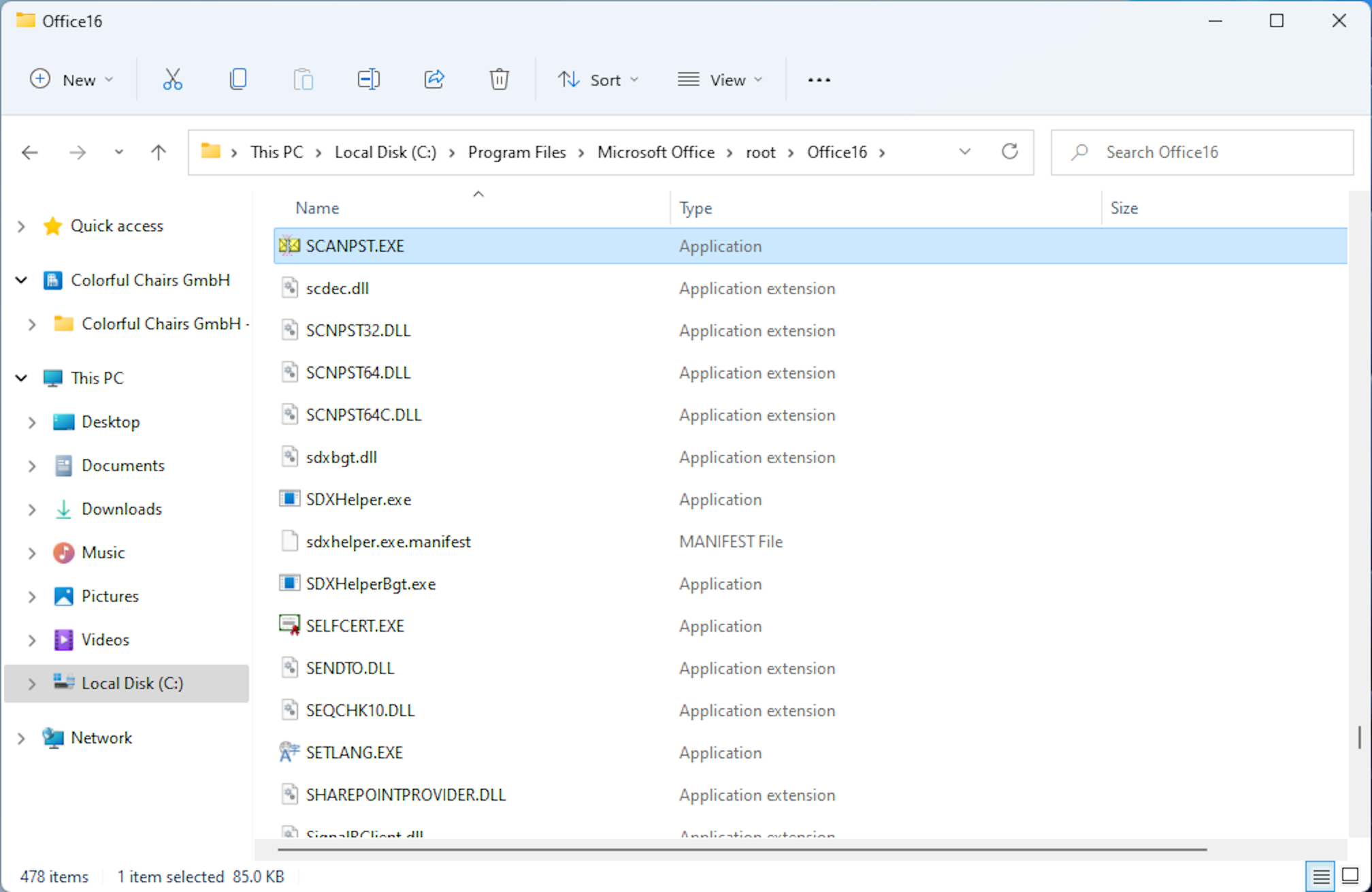
- Its location depends on the Outlook version and installation type, but it is always found within the Microsoft Office folders in Program Files.
- The utility can restore stability to the Outlook profile, although it sometimes deletes corrupted items, so it's advisable to use the .bak backup.
- When the corruption is severe or the file is very large, it is recommended to combine Scanpst.exe with specialized PST repair tools.
When Outlook starts giving rare errors, crashes, or corrupted data messagesThe problem almost always lies in the PST or OST files where all the email is stored. In these cases, many people panic, thinking they've lost their emails forever, but Windows includes a little-known utility that can get you out of trouble: Scanpst.exe, the Inbox Repair tool.
This small application comes pre-installed with Outlook and is designed to analyze and repair the internal structure of data filesIt's not magic, nor does it fix absolutely everything, but as a first step to recovering a corrupted profile, it's practically essential. Let's take a closer look at exactly what it is, where to find it in each version of Outlook, how to use it, what it does internally, and when it's advisable to move on to more advanced solutions like repair a corrupted Microsoft Office installation.
What is Scanpst.exe and what exactly is it used for?
Scanpst.exe is the Microsoft Outlook Inbox Repair Tool executableIt is a free utility included with Office that handles file checking. .pst (personal folders) y .ost (offline folders), locate structural errors and correct them as far as possible.
PST and OST files are not simple text files; they are actually databases with complex internal structures (BTrees, indexes, internal tables, reference counts, etc.). When something becomes corrupted due to a sudden shutdown, an Outlook crash, a disk failure, an aggressive antivirus program, or a network outage, these structures become inconsistent and problems begin: Emails that won't open, folders that disappear, Outlook that suddenly closes. or it doesn't even start. Furthermore, the file size can influence its behavior, so it's useful to know how adjust the maximum size of the OST and PST files.
The main function of Scanpst.exe is validate and rebuild those low-level structures from the data file. The tool does not check anything on the Exchange server or other online services; it is limited exclusively to the local .pst or .ost file, ensuring that the internal database makes sense again and, if necessary, removing unrecoverable blocks to prevent them from continuing to cause errors.
In older versions of Outlook there was also a parallel tool called Scanost.exe (OST Integrity Check) Specifically for working with .ost files and Exchange synchronization issues. Today, Microsoft recommends using Scanpst.exe directly on OST files when they are experiencing access problems.
Where is Scanpst.exe located on your computer (all versions of Outlook)
One of the things that confuses people the most is that the The location of Scanpst.exe changes depending on the Outlook version.The installation type (MSI or Click-to-Run) and whether Windows is 32-bit or 64-bit are also factors. It doesn't appear in the Start menu like any other application; you have to physically go to the folder where the executable file is located.
Generally, the tool is installed in one of the following paths: “Program Files” or “Program Files (x86)”within the Microsoft Office folder. Below are the typical locations depending on your Outlook version and installation:
Typical paths for Scanpst.exe in modern Outlook (2019, 2016, 2013, 2010, 2007)
In recent Office/Outlook installations, the tool is usually located in these paths (adjust the drive letter, normally) C: \):
- Outlook 2019 (Office19)
32-bit version on 64-bit Windows: C:\Program Files (x86)\Microsoft Office\root\Office19
64-bit version: C:\Program Files\Microsoft Office\root\Office19 - Outlook 2016 (Office16)
Click-to-Run 32-bit Installation on 32-bit Windows: C:\Program Files (x86)\Microsoft Office\root\Office16
Click-to-Run 64-bit on Windows 64-bit: C:\Program Files\Microsoft Office\root\Office16
Installing MSI 32-bit on Windows 32-bit: C:\Program Files (x86)\Microsoft Office\Office16
Installing MSI 64-bit on Windows 64-bit: C:\Program Files\Microsoft Office\Office16 - Outlook 2013 (Office15)
Click-to-Run 64-bit: C:\Program Files\Microsoft Office 15\root\Office15
Click-to-Run 32-bit: C:\Program Files (x86)\Microsoft Office 15\root\Office15
MSI 64-bit: C:\Program Files\Microsoft Office\Office15
MSI 32-bit: C:\Program Files (x86)\Microsoft Office\Office15 - Outlook 2010 (Office14)
Windows 64 bit: C:\Program Files\Microsoft Office\Office14
Windows 32 bit: C:\Program Files (x86)\Microsoft Office\Office14 - Outlook 2007 (Office12)
Windows 64 bit: C:\Program Files\Microsoft Office\Office12
Windows 32 bit: C:\Program Files (x86)\Microsoft Office\Office12
Classic paths in older versions of Outlook
If you're still working with older versions, the The location of Scanpst.exe may be in shared system folders from MAPI or Windows Messaging:
- Outlook 2003
Windows 32 bit: C:\Program Files (x86)\Common Files\System\MSMAPI\
Windows 64 bit: C:\Program Files\Common Files\System\MSMAPI\ - Outlook 2002 / XP
Windows 32 bit: C:\Program Files\Common Files\System\MSMAPI\ - Outlook 2000
C:\Program Files\Common Files\System\MAPI\Language ID\NT\scanpst.exe - Outlook 97 / Outlook 98
C:\Program Files\Common Files\Windows Messaging\scanpst.exe
In addition to these paths, on older computers with Windows NT, 2000, 95 or 98, variations such as the following could be found:
- drive:\Program Files\Common Files\System\Mapi\1033\NT (Windows NT/2000)
- drive:\Program Files\Common Files\System\Mapi\1033\95 (Windows 95/98)
If after checking these locations you still don't see the executable, a quick option is type “scanpst.exe” in the Windows search barIf Outlook is correctly installed, the system will locate the tool and you will be able to open the containing folder from the search results themselves.
How to find the path to the PST or OST file you want to repair
Locating the executable is only half the job. To use it, you need to know Where is the PST or OST file of your Outlook profile saved?For many home users, this part is the most confusing, but it can be figured out in a few clicks from the application itself.
In current Outlook versions (2010 and later), you can follow this path to view the location of the data file associated with your account:
- Open Outlook and go to File > Account Settings > Account Settings.
- In the window that appears, go to the tab “Data files”.
- Select the account you are interested in and click on the button. “Open file location” (or similar).
This will open the folder where the file is located in File Explorer. .pst or .ost that uses that profileThat's the path you'll then need to specify in Scanpst.exe so it can scan and repair it.
If you have multiple Outlook accounts or profiles, you'll see a list of several PST/OST files. In that case, it's a good idea to... Note the exact file name that you want to fix (for example, Outlook.pst, file.ost, name@domain.com.pst, etc.) so you don't get confused later.
How to use Scanpst.exe step by step to repair PST and OST files
The inbox repair tool is designed so that almost anyone can use it, but it's best to follow a specific order and Always close Outlook before starting To avoid conflicts with open files; if you can't close it, try starting it in safe mode.
The basic procedure for using Scanpst.exe in any version of Outlook is as follows:
- Close Outlook completely and any other Office application that may be using the data file.
- Go to the folder where it is located Scanpst.exe (according to the routes discussed earlier) and double-click on it.
- In the tool window, in the field “Enter the name of the file you want to analyze”Enter the path to the .pst or .ost file you want to check, or click on "Examine" to select it from the Explorer.
- If you want to adjust the diagnostic log, tap on "Options" and choose whether you want to record the errors found (useful for reviewing them later).
- Press on "Start" so that the file analysis can begin.
- When the scan is complete, the tool will tell you if any problems were found and will... will offer the option to repair them.
- Check the box “Create a backup of the analyzed file before repairing it”A .bak file will be created, which is the backup of the original PST with another extension.
- Click on "Fix" and wait for the process to finish. The time will depend on the file size and the level of corruption.
Once the repair is complete, you can Open Outlook normally using the same profile that the data file used. If everything went well, the errors should have disappeared and the program should be working fairly stably again.
What Scanpst.exe does inside: how it "fixes" a PST
To understand what we can expect from the tool, it's helpful to know a little about what it actually does. Scanpst.exe doesn't just "mark as good" a file, but analyze the internal structure as if it were a database and it cleans up and reconstructs incoherent information.
At a low level, the program checks internal tables, BTree indexes, reference counts, and other binary structures. When it finds blocks illegible or clearly damaged, removes them from the file. If those blocks were part of a specific message or folder, that element is lostbut the rest of the file remains clean and usable.
At a slightly more user-visible level, Scanpst.exe performs several checks on folders and messages:
Folder review and repair
In each folder of the .pst file, the associated internal tables are reviewed and it is verified that all rows correspond to an actual message or subfolder within the system:
- It is verified that the correct tables are linked to each folder.
- Each row of those tables is traversed to confirm that the indicated message or subfolder exists.
- If the message or subfolder is not found, the row is removed from the table to avoid broken references.
- If the element exists, its internal integrity is validated.
- If that validation fails, the item is considered damaged and is removes from both the table and the database.
- If the validation is successful, an extra analysis is performed to ensure that the stored values are consistent with the folder.
When a folder itself is significantly damaged, Scanpst.exe can rebuild it from scratchThese recreated folders do not contain user data, but serve as a clean structure to hang the rest of the elements that could be saved.
Message review and repair
In the messages, the tool pays special attention to the recipient and attachment tablesas well as a number of key email properties. The process is similar to that of folders, but focused on each individual item:
- A basic validation is performed on the internal tables that store the list of recipients and the message attachments.
- Once the recipient table is validated, its content is synchronized with the properties of the message recipient so that everything is consistent.
- It is verified that the parent folder where the message is located is valid.
- Important properties are reviewed, such as:
- PR_MESSAGE_CLASSIf it's missing, it looks at "IPM.Note".
- PR_MESSAGE_FLAGS y PR_SUBMIT_FLAGSInconsistent brands are validated and corrected.
- PR_CLIENT_SUBMIT_TIMEIf the message is marked as sent and the time is missing, it is filled in with the current time.
- PR_SEARCH_KEYIf it does not exist, a random GUID is generated.
- PR_CREATION_TIME y PR_LAST_MODIFICATION_TIMEIf they are not present, they are set to the current moment.
- PR_MESSAGE_SIZEThe actual size is recalculated and, if it does not match, the value is updated.
Interestingly, no direct validation is done on the message body or subjectbeyond low-level structural verification. As soon as the validation is complete, the tool also Adjust the display properties of the recipients so that they align with the repaired recipient table.
Finally, additional algorithms are run to detect “orphan messages” (items that do not belong to any coherent folder) and are moved to a special folder, often called "Orphans" or "Lost Items", for the user to decide what to do with them.
What happens after repairing the file with Scanpst.exe
After using the tool, the next step is Open Outlook and check what has been recoveredDepending on the level of damage, the program may rebuild part of the folder structure and create special folders for content that it was unable to locate correctly.
It is common for a folder called “Recovered personal folders” or similar. Inside it you'll see the standard Outlook folder structure (Inbox, Sent Items, Calendar, Contacts, etc.), often empty, because it's a PST rebuilt from scratchA folder called “Lost and Found”This is where messages and folders that were saved but no longer fit perfectly in their original location are placed. If you're missing emails, consult guides for recover deleted emails.
The recommended procedure after the repair is to create a new clean PST file and move everything you want from the recovered folders there. This is the safest way to stabilize your profile in the long term.
Creating a new PST file in different versions of Outlook
The specific steps for creating a new personal folders file vary slightly depending on the version, but the idea is always the same: add a new data file to the profile and use it as a destination for the recovered items.
In general terms:
- Outlook 2010 and later
Go to the tab Archive > section Information > Account settings > again Account settings > tab Data files > tap on "Add" and, in the “Create or open Outlook data file” dialog box, Indicate name and location for the new PST. - Outlook 2007
Menu Archive > Data file management > Add > choose “Office Outlook Personal Folders File (.pst)” > Define the name and folder where to save it. - Outlook 2003
Menu Archive > New > Outlook data file > “Create or open Outlook data file” > type a file name and confirm. - Outlook 2002
Menu Archive > New > Personal folders file (.pst) > “Create Microsoft personal folders” > define the file name.
Once you've added that new PST to the profile, you'll be able to drag items from “Recovered Personal Folders” or “Lost Items” to the new structure. When you're finished, it's a good idea remove the recovered PST of the profile to avoid continuing to carry over possible inconsistencies.
How to take advantage of the backup file (.bak) created by Scanpst.exe
During the repair, if you leave the backup option checked, the tool generates a file with the same path and name as the original PST but with the .bak extensionThat .bak file is a snapshot of the archive before the repair, and it can serve as an extra recovery source if you notice that important elements are missing; furthermore, it's advisable to follow best practices for back up your emails.
If after reviewing the repaired PST file you find that specific emails or folders are missing, you can try convert the .bak file into another importable PST file and salvage what can be salvaged from there. To do so:
- Locate the file .Capricorn in the same folder where the original PST file was located.
- Make a copy and change the extension to .pst (for example, “Original_PST_Copy.pst”).
- From Outlook, go to File > Import and Export (or “Open and import” depending on the version).
- Choose “Import from another program or file” > next.
- Choose “Personal folder file (.pst)” > next.
- In “File to import”, click on Browse and select the new PST file that you have renamed.
- In “Options”, select if you want do not import duplicates to avoid unnecessary mixing.
- Check the option of “Include subfolders” and choose where you want the items to be imported (usually into a clean new PST file).
With this method, you can often achieve messages that the main repair failed to relocateHowever, if the damage was very serious, it's possible that even the .bak file might not contain all of that data.
OST Integrity Check Tool (Scanost.exe) and its relationship to Scanpst.exe
In teams that work with Exchange and OST filesIt was common to use the old Scanost.exe utility to check for and fix synchronization problems between the offline archive and the server mailbox. This tool:
- He was in charge of Compare the contents of the OST file with those of the mailbox in Exchange..
- It was trying to automatically resolve synchronization differences.
- It did not modify the server's mailbox, only the local .ost file.
- It generated a detailed search record in a message with a subject line like “OST Integrity Check” within the Deleted Items folder.
To use it, it was necessary be connected to the Exchange server and ensure that Outlook was not starting in offline mode by default. The executable was usually located in paths like drive:\Program Files\Microsoft Office\OFFICE12 (or Office14, Office10, etc.).
In more recent versions of Outlook, Microsoft has stopped giving prominence to Scanost.exe and recommends recreate the OST file or directly use Scanpst.exe Regarding the file, if there are read errors or disk corruption, rather than simple synchronization problems.
Real advantages and limitations of using Scanpst.exe
Scanpst.exe is a very useful tool, but it's important to be clear about... what you can and can't do to avoid surprises and, above all, to know when it's time to use third-party programs.
Advantages of the Inbox Repair tool
Among the strengths of Scanpst.exe are several aspects that make it the first logical resource when Outlook starts to fail:
- It's totally free and it comes included with any Outlook installation; there's no need to download anything additional from the Internet.
- Scan folder by folder and message by message, identifying inconsistencies that are often enough to restore stability to the profile.
- When everything is going well, the Emails and folders remain virtually in the same place as before.Therefore, the user barely notices any changes in their organization.
- It serves so much for PST files as OST, so it covers most of the typical day-to-day problems with Outlook.
- Is The first recommended step before spending money on a business toolespecially in cases of minor corruption or errors that have recently appeared after an unexpected shutdown.
Important limitations and risks of abuse
Unfortunately, Scanpst.exe is not a universal lifesaver. It has several limitations that are important to take into account:
- Manual procedures can be confusing for non-technical usersespecially when locating installation paths and PST files.
- It does not guarantee 100% data integrityTo clean up the archive, it is sometimes necessary to delete corrupted messages or folders that cannot be recovered.
- Frequently, Some recovered emails end up in different folders to the originals (such as "Lost and Found"), which forces manual reorganization.
- In cases of serious damage, repair may be necessary. worsen the state of the file From the user's perspective, this is because in order for the file to become coherent again, a significant amount of data may have to be sacrificed.
- It is not designed for gigantic or very old PST files (especially those over 2 GB in 97-2002 formats) nor for complex encrypted PST files.
For all these reasons, when the information is highly critical (corporate environments, law firms, profiles with years of experience) and corruption is evident, many administrators opt directly for combine an attempt with Scanpst.exe with specialized commercial solutions that work in read-only mode and rebuild a new PST from what remains healthy.
Third-party tools to repair PST when Scanpst.exe is not enough
If after one or more attempts with Scanpst.exe the file is still corrupt or a lot of relevant data is missing, you will most likely need third-party PST repair softwareThese programs do not rely on the limited logic of Microsoft's tool and usually have more sophisticated algorithms for extracting content from severely damaged, huge, encrypted, or compressed files.
Utilities such as certain commercial PST/OST repair tools analyze the original file in read-only modeThey extract the information into their own internal structures, correct the errors, and finally generate a new clean PST file which can be opened with Outlook without touching the original. This approach minimizes risks and allows:
- Work with large PST files, even many gigabytes in size, without the classic limits.
- Recover not only emails, but also contacts, calendars, tasks, notes, and attachments.
- Keep attributes such as CC, BCC, Subject, dates, and read statuses.
- Offer a preview of recoverable items before storing them permanently.
The less pleasant part is that most of these solutions are PaymentAlthough almost all of them include trial versions that allow you to scan the file and see what might be recoverable. In any case, if what's at stake are years of emails or legally sensitive informationIt is usually a much more reasonable investment than continuing to force a broken PST by repeatedly running Scanpst.exe.
Ultimately, the best strategy involves combining intelligent use of Scanpst.exe as basic diagnostic and repair tool With regular backup policies and, when necessary, external utilities that allow you to recover the most readable data from a severely damaged file, a thorough understanding of what the Inbox Repair tool does and doesn't do will enable you to make better decisions each time Outlook has trouble with its PST or OST files.


Passionate writer about the world of bytes and technology in general. I love sharing my knowledge through writing, and that's what I'll do on this blog, show you all the most interesting things about gadgets, software, hardware, tech trends, and more. My goal is to help you navigate the digital world in a simple and entertaining way.