- ProtonPlus centralizes the management of Proton, Wine, and layers such as DXVK and VKD3D on Linux.
- It is compatible with key launchers such as Steam, Lutris, Heroic, Bottles, and WineZGUI.
- It allows you to easily assign different compatibility tools to each game.
- Take advantage of the evolution of Proton and its forks to improve compatibility and performance.
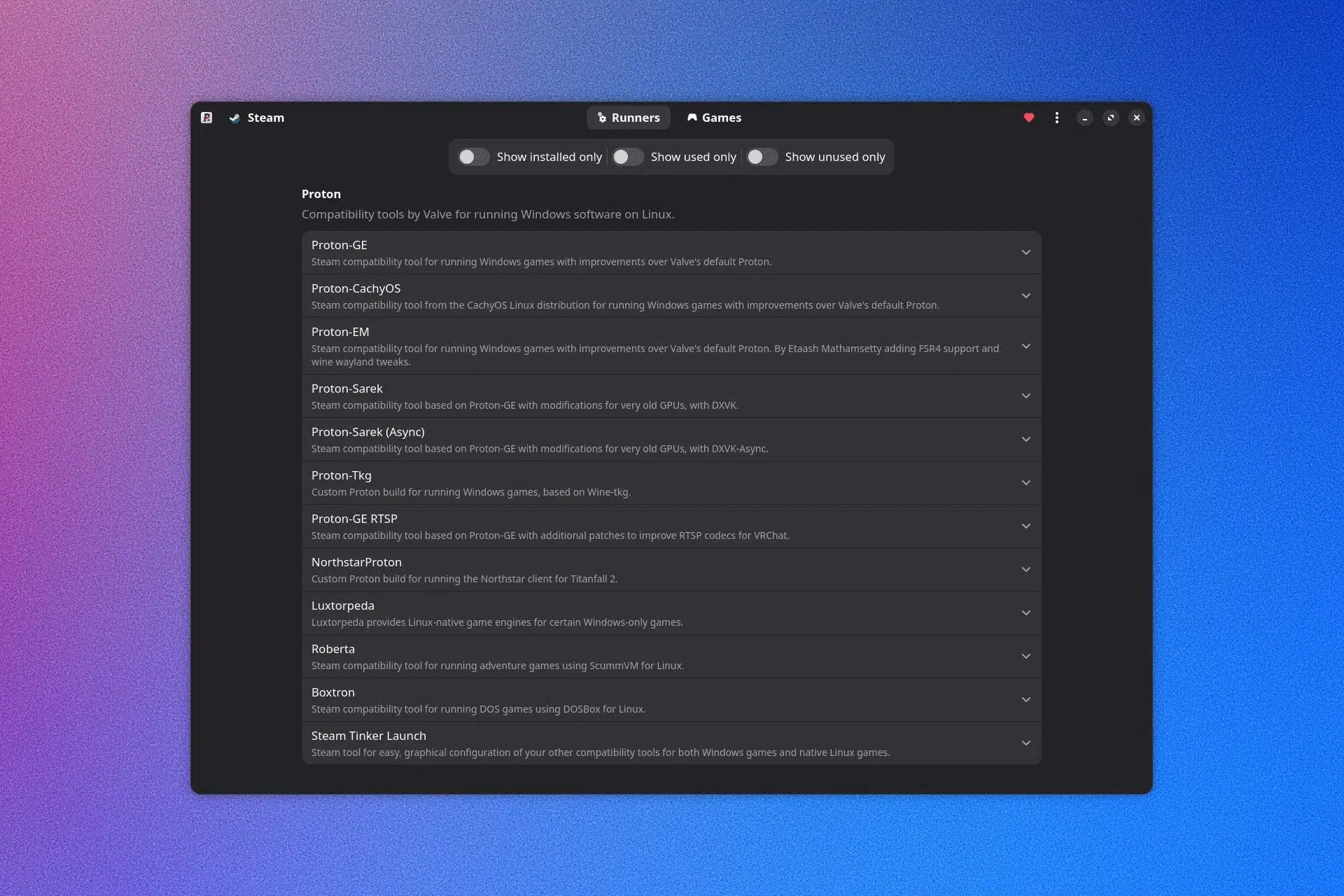
If you use Linux for gaming, you've probably heard of Proton, Proton-GE, DXVK, VKD3D, and a bunch of other names that sound like black magic. Keeping all of that up-to-date and well-organized can be a real hassle, especially if you're mixing Steam, Lutris, Heroic Games Launcher, and Bottles on the same system. That's precisely where ProtonPlus comes in.
ProtonPlus is a tool designed to save you the hassle of managing Proton, Wine, and other compatibility layers. Its concept is simple: centralize control of your compatibility tools in a single interface and easily apply them to your games, both on Steam and other popular Linux launchers.
What exactly is ProtonPlus for Linux?
ProtonPlus is a very lightweight application that acts as a unified compatibility tool manager for Linux. Its purpose is to allow you to install, update, and assign different builds of Proton, Wine, and components like DXVK or VKD3D through a single panel, instead of having to navigate hidden folders or complicated settings in each program separately.
Unlike other similar utilities, ProtonPlus is designed from the ground up to integrate with various Linux gaming ecosystems. Instead of being limited to Steam or a specific environment, this software aims to provide a single "command center" for all your platforms , which is especially convenient if you use games from Steam as well as titles from Epic, GOG, or other stores via alternative launchers.
Another key feature is its focus on simplifying the experience, even for curious but not necessarily expert users. You don't need to have a deep understanding of how Wine or Vulkan work to benefit from it. ProtonPlus takes care of downloading compatible versions, organizing them by type, and making it easy to choose the best option for each game with just a few clicks.
In addition to basic version management, ProtonPlus allows you to change important runtime parameters. You can modify the compatibility tool assigned to each Steam game, as well as its launch options , all directly from the program's interface, avoiding the need to go through your Steam library one by one or mess with configuration files.
Overall, ProtonPlus was created as an "all-rounder" designed for Linux users who want to get the most out of the Proton/Wine ecosystem, but with the least possible friction, minimizing the tedious part of manual configuration.
Launchers and platforms compatible with ProtonPlus
One of ProtonPlus's strengths is the variety of launchers it directly supports. It's not limited to Steam, but also offers integration with several of the most popular Linux game frontends and managers , making it a fairly complete solution for most setups.
Currently, ProtonPlus is compatible with the following launchers or environments:
Steam : Valve's platform is the foundation of the gaming experience on Linux; if you need help installing Windows titles, you can see how to install Windows games with Steam on Linux . ProtonPlus lets you easily manage which version of Proton or compatibility tool you use for each game, as well as access advanced launch options from a centralized location.
Lutris : This veteran Linux game manager lets you mix and match titles from different stores and emulators. ProtonPlus integrates with Lutris so you can apply custom Wine or Proton builds to supported runners without getting lost among profiles and configurations.
Heroic Games Launcher : If you frequently play Epic Games Store or GOG titles on Linux , you probably use Heroic. ProtonPlus is compatible with this launcher, allowing you to use advanced compatibility tools with these catalogs as well, just like you would with Steam.
Bottles : Bottles is a modern interface for easily managing Wine "bottles." With ProtonPlus, you can unify build management and compatibility layers, ensuring that the versions you use in Bottles are aligned with those you apply in Steam or Lutris.
WineZGUI : This front-end makes it easy to run Windows applications with Wine on Linux. ProtonPlus adds an extra layer of organization, helping to maintain consistency between the Wine configurations you use with your games and programs.
Thanks to this multi-platform support, it's possible to maintain a kind of "global catalog" of compatibility tools, instead of each launcher operating independently. This minimizes conflicts and makes it easier to reuse the same versions of Proton-GE, DXVK, or VKD3D across different platforms without duplicating effort.
Compatibility tools managed by ProtonPlus
The other major strength of ProtonPlus is the wide range of compatibility tools it can handle. It doesn't just rely on Valve's official Proton, but encompasses a whole collection of forks, alternative Wine builds, and graphical layers that are key to the good performance of many games on Linux.
Among the compatibility tools that ProtonPlus can manage are:
- Steam Tinker Launch: a very powerful utility that allows you to thoroughly customize the launch of Steam games, with advanced settings, mods and graphical tweaks.
- Proton-GE: the famous community fork created by GloriousEggroll, which includes extra patches and specific solutions for many problematic games or games with demanding DRM.
- Luxtorpeda: focused on replacing Windows executables with native Linux versions when they exist, or with specific builds that are more optimized for certain titles.
- Boxtron: designed primarily for older games based on DOS or classic engines, integrating them with Steam Play.
- Roberta: focused on classic graphic adventures and SCUMM-type engines, facilitating their integration with the Steam library.
- Proton-GE RTSP: a variation of the traditional Proton-GE, adapted to specific scenarios or with specific additional patches.
- Proton CachyOS, Proton EM, Proton Tkg: different modified versions of Proton, each with its own focus (performance, extreme compatibility, experimental patches, etc.).
- Kron4ek Wine-Builds: pre-compiled Wine collections in various versions: Vanilla, Staging, Staging-Tkg… designed for take advantage of advanced features or patches in testing without having to compile anything.
- DXVK, DXVK (Sarek) and DXVK GPL+Async (Ph42oN)Layers that translate DirectX 9/10/11 to Vulkan. Variants like Sarek or GPL+Async include patches to improve smoothness, reduce stuttering, or experiment with asynchronous queues.
- VKD3D-Lutris and VKD3D-Proton: responsible for translating DirectX 12 to Vulkan, essential for modern titles that use the latest version of Microsoft's API.
The beauty of ProtonPlus is that you don't need to manually download each of these tools or keep track of all the releases. The program maintains an up-to-date list of available versions and allows you to install, update, or remove them in an organized way.
This way, when a game won't start or performs poorly with standard Proton, you can try Proton-GE, a specific build by Kron4ek, or an alternative DXVK in seconds , without having to delve into GitHub or copy files to the wrong folder.
Reminder: What is Valve's Proton and why is it so important?
To fully understand the role of ProtonPlus, it's helpful to review what Proton is and how it has changed the gaming landscape on Linux. Proton is essentially a compatibility layer created by Valve in collaboration with CodeWeavers that allows Windows games to run directly on Linux systems through Steam.
Technically, Proton is a heavily patched and optimized for-game fork of Wine. It's not an emulator or a virtual machine: it translates Windows system calls and APIs to their Linux equivalents in real time, so the game "thinks" it's still running in a Windows environment, when in reality it's using the Linux kernel and native libraries.
This layer is integrated into Steam Play, allowing you to install a game marked as Windows-only and, upon clicking play, have it launch thanks to Proton without any complicated configurations. For the average user, it's practically a plug-and-play system: install, click play, and you're good to go . Underneath, however, there's a fairly complex system working to make it all function.
Proton includes several fundamental components:
- A modified wine, which is the core of the system, responsible for converting Win32 APIs, system DLLs and other typical Windows components into POSIX calls compatible with Linux.
- DXVK extension, which is responsible for translating DirectX 9, 10 and 11 to Vulkan, the modern low-level graphics API available on Linux.
- VKD3D-Proton, an adapted fork of VKD3D to handle DirectX 12 on Vulkan, with support for advanced API features.
- Synchronization tools such as esync and fsyncwhich improve how threads and I/O are managed, reducing bottlenecks and improving performance in many cases.
- fshack and various patches so that full-screen mode, Steam Overlay integration, achievements, cloud, Steam Input, or SteamVR work seamlessly.
- Additional codecs and libraries (dav1d, ffmpeg, etc.) so that cinematics, embedded videos, and other multimedia elements play correctly.
- Steam Linux Runtime, a container-like environment that isolates Proton and the game from system libraries, minimizing conflicts and ensuring a stable foundation.
When you install a Windows-only game from Steam on Linux, this set of components kicks into gear to enable it to run. Most of the magic happens without the user having to touch anything , although advanced gamers can choose specific versions of Proton or use forks like Proton-GE to improve compatibility with certain titles.
How gaming on Linux has changed thanks to Proton
Before Proton arrived in 2018, gaming on Linux was an exercise in patience. There were only a few official ports, many of them indie, and the rest depended on manually tinkering with Wine, running obscure scripts, or resorting to very specific solutions that didn't always work the same on all distributions.
With Steam Play and Proton, Valve revolutionized the landscape. Suddenly, thousands of games previously only compatible with Windows could now be played on Linux with a single click. The barrier to entry was lowered so much that many people began to consider Linux as their primary gaming system , something unthinkable just a few years earlier.
Today, thanks to the evolution of Proton and its forks, there are nearly 16.000 titles with good Linux support and over 21.000 marked as playable on Steam Deck, according to community databases like ProtonDB. This change in scale has led studios and publishers to take Linux compatibility more seriously, even when they don't release a native port.
In ProtonDB, games are classified into different compatibility levels:
- PlatinumThe game works perfectly, practically as if it were native. You install it, run it, and you don't need to touch anything.
- GoldIt also works very well, but perhaps requires some minor adjustments, such as adding a launch parameter or using Proton-GE instead of standard Proton.
- SilverThe game is playable but suffers from minor graphical glitches, uneven audio, or requires a slightly more elaborate configuration to run smoothly.
- BronzeIt can be started, but the experience leaves much to be desired: random crashes, poor performance, or serious bugs.
- Borked: directly unplayable in its current state; it either won't start or is critically broken.
With each new version of Proton, many games move up in category, from Bronze to Silver or Gold, and even to Platinum. It's an ongoing process in which Valve, CodeWeavers, and the community refine compatibility and fix bugs as new titles and technologies emerge.
Within this ecosystem, tools like ProtonPlus are especially useful because they allow you to take advantage of the advances of official Proton and its variants more easily , without forcing the user to manually control all the updates and specific builds.
Strengths and limitations of using Proton in Linux
The performance and compatibility that Proton offers today are surprisingly good. In many games, the FPS difference compared to Windows is minimal, and there are cases where, thanks to Vulkan and good driver implementation, Linux performs as well as or better than Windows with certain titles.
Proton also seamlessly integrates most of Steam's core features: overlays, achievements, cloud saves, controller support, Steam Input, and even virtual reality with SteamVR. All of this is managed without the user having to manually patch each game , making the user experience much more user-friendly.
In addition, Valve distributes several Proton forks, such as Stable, Experimental, and Bleeding Edge, which allow users to test recent patches and improvements not yet integrated into the stable branch . There are also forks like Proton-GE, which are very popular among those who want to maximize compatibility with specific titles.
However, some significant limitations remain. Kernel-level anti-cheat systems, such as Easy Anti-Cheat in some modes, BattlEye, or Vanguard, can still cause problems. Some games simply won't work under Proton because its protection assumes they only run on Windows and blocks any other environment.
Difficulties may also arise with titles that have very aggressive DRM or use non-standard proprietary video codecs, which sometimes require the use of Proton-GE or other specific variants. And, while performance is typically between 90 and 100% of what you get on Windows, some demanding DirectX 12 games may experience a 10-20% performance drop , depending largely on the GPU driver and how well the engine is optimized.
In the realm of specialized hardware, such as certain peripherals or highly specific accessories, there are still games that rely on Windows features not fully replicated in Proton. This forces users to tweak manual configurations or accept that not the entire Windows catalog is viable on Linux , at least for now.
It is precisely in this scenario, full of constant improvements but also nuances and specific cases, where a tool like ProtonPlus really adds value: it helps to combine different Proton, Wine builds, DXVK and VKD3D according to what each game needs , saving time and avoiding headaches for the end user.
Ultimately, ProtonPlus positions itself as an ideal companion for anyone who plays around with multiple launchers on Linux and wants to have their compatibility layers tightly controlled, without sacrificing the full potential of Proton, its forks, and the entire ecosystem of associated tools.


Table of Contents