- Building blocks are reusable pieces of content organized by type and category within templates. Word.
- Quick Parts is the visible gallery where these blocks are inserted, modified, and reused with just a few clicks.
- Word's object model allows you to create and manage building blocks using VBA for advanced solutions.
- Its use facilitates the standardization of documents, saves time, and reinforces consistency throughout the Office environment.
If you work daily with Word or other Office applications, you know that constantly repeating the same text, cover pages, signatures, or headers can be a real drag. To avoid this repetitive work, Office offers Building Blocks and Quick Parts , two features designed to save time, standardize document style, and minimize errors.
Far from being a mere novelty, building blocks and quick parts are part of a powerful system that Microsoft introduced in Word 2007 and that remains in current versions. With them, you can save reusable snippets of content (from a simple paragraph to entire sections with complex formatting) and reinsert them into any document with a couple of clicks or from a drop-down gallery.
What are Building Blocks in Office
Building blocks are, simply put, reusable pieces of content that are saved in Word templates and that you can insert as many times as you want into your documents. They can contain text, images, fields, paragraph formatting, table styles, headers, footers, cover pages, bibliographies, and much more.
Microsoft designed them as an evolution of the old AutoText, but with much greater organization and flexibility. Each building block is saved as an individual entry (BuildingBlock object) within a structure that Office understands, allowing you to filter, sort, and reuse content without having to repeat it or copy/paste.
In practice, a building block can range from a simple signature line to a complete corporate cover page, including standardized contract snippets, legal notices, FAQs, section titles, or ready-to-use graphic elements. The key is that these elements are stored centrally in a template , rather than as loose text within each document.
To handle all this content, the Word object model incorporates several specific elements: a single building block is represented by the BuildingBlock object ; the set of blocks of the same type and category is grouped in the BuildingBlocks collection; and the BuildingBlockEntries collection brings together all the building block entries available in a specific template.
Furthermore, the internal organization is based on types and categories. The block type is managed using the BuildingBlockType object and the BuildingBlockTypes collection , while further categorization is done with the Category and Categories objects . This structure allows, for example, different blocks to have the same name, as long as they belong to different types or categories.
Types and categories of building blocks
Building blocks are organized primarily by two criteria: block type and category . The type is defined by internal Word constants (the well-known WdBuildingBlockTypes ) and determines the block's general use: custom headers, bibliographies, cover pages, footers, preformatted tables, etc.
Word includes around 35 built-in WdBuildingBlockTypes, covering most common scenarios. You can't create new types from scratch, but you can use the existing ones to structure your blocks. This allows a single type to encompass many different categories, providing incredible flexibility when organizing content.
The second level of organization is categories. Unlike types, categories are simply text strings that you define to group building blocks in the way that best suits your needs. Word includes some default categories like "General" or "Built-in," but you're not limited to them: you can create as many categories as you need for your solutions.
This means you can have, for example, a block called “Title” of type wdTypeBibliography in the “Book Titles” category, another block also called “Title” of the same type in the “Movie Titles” category, and a third “Title” block of type wdTypeCustomHeaders in the “Book Titles” category. Thanks to this combination of type and category, repeated names are supported without conflict , and the system still knows which block to use in each context.
This entire framework makes building blocks extremely configurable: you can adapt the classification to your organization, a specific department, or even a client, without needing to change internal names or touch code if you don't want to. Even so, if you'd like to go a step further, Word offers full support for creating, editing, and deleting building blocks programmatically.
What are Quick Parts in Word
Quick Parts are the most visible and user-friendly aspect of this entire system. They are presented as a gallery of text snippets or other content that you have previously saved so that you can instantly reuse them in any document.
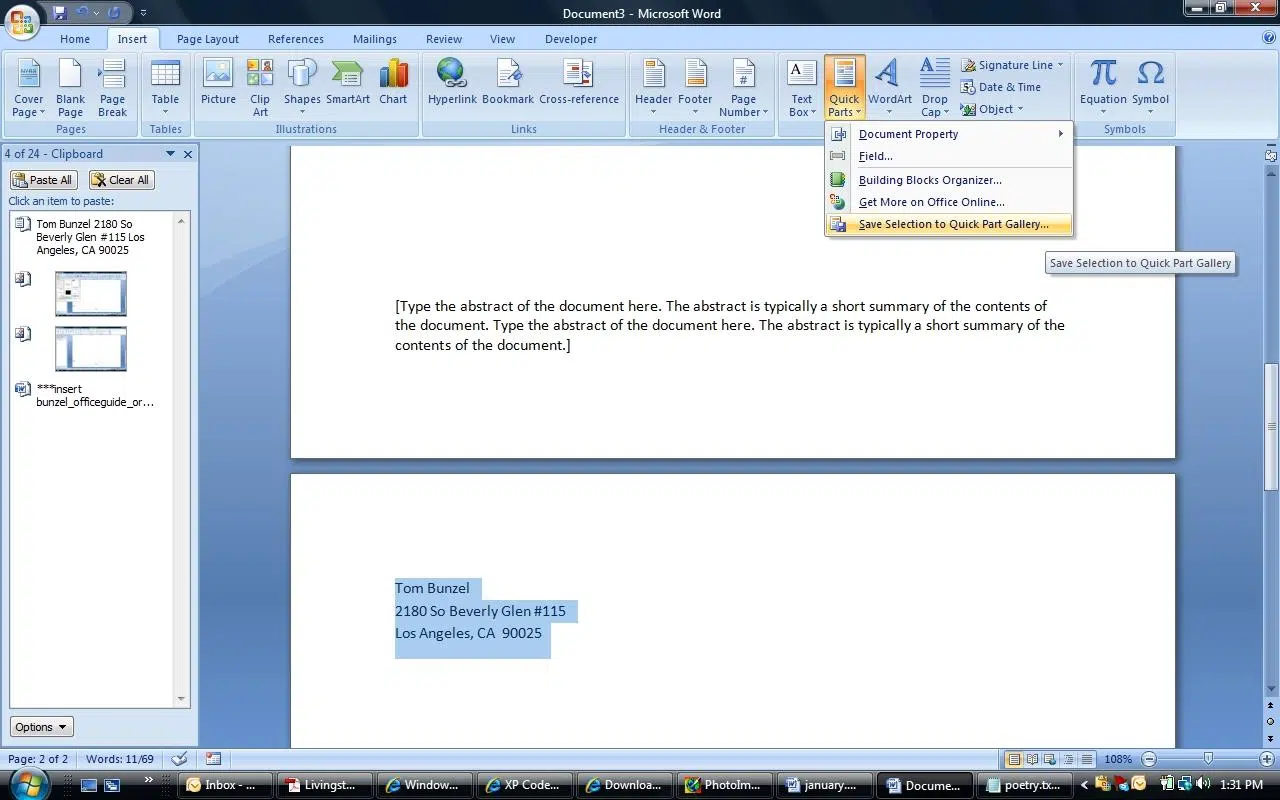
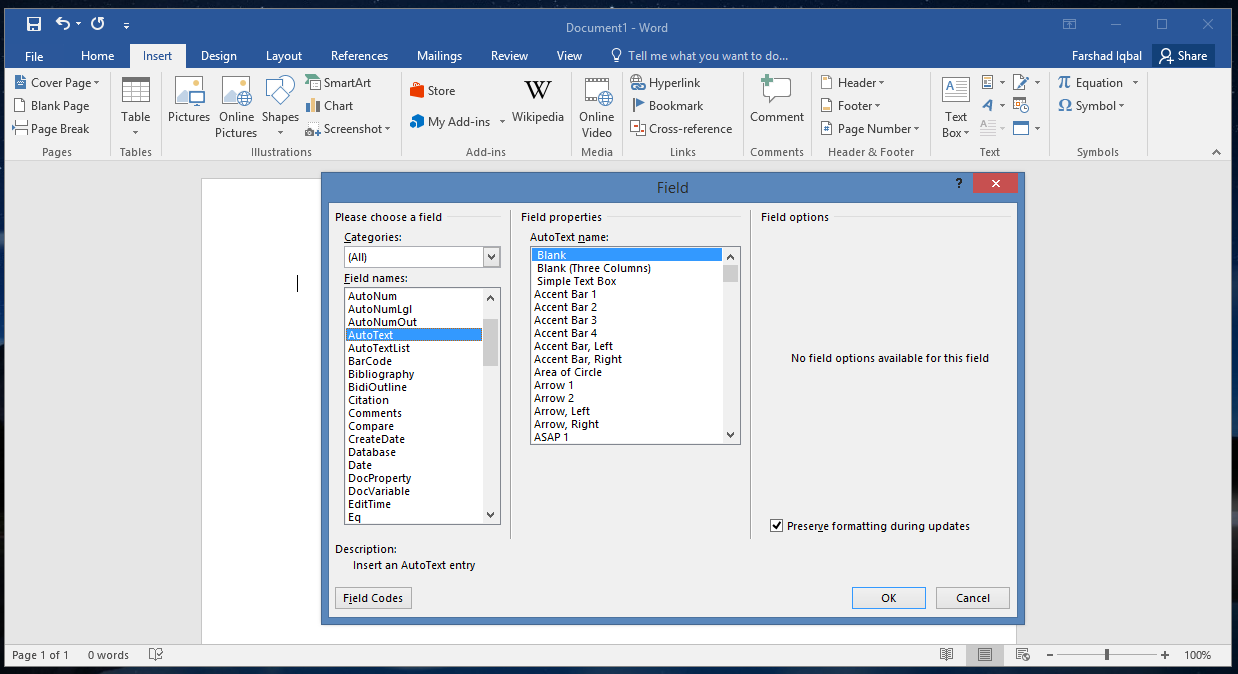
From the Word ribbon, the Quick Parts gallery is located on the Insert tab , within the Text group . Clicking the Quick Parts button displays a list of available options: fields, AutoText, document blocks, custom Quick Parts, and more. The idea is to allow you to insert complex content with a single click , without having to search through old documents to copy and paste.
Inserting one of these elements is very simple: place the cursor where you want to insert it, select Insert > Quick Parts , and choose the corresponding entry. The selected content is then inserted exactly as it was in the indicated location, preserving its paragraph formatting, styles, page breaks, and other attributes from when it was saved.
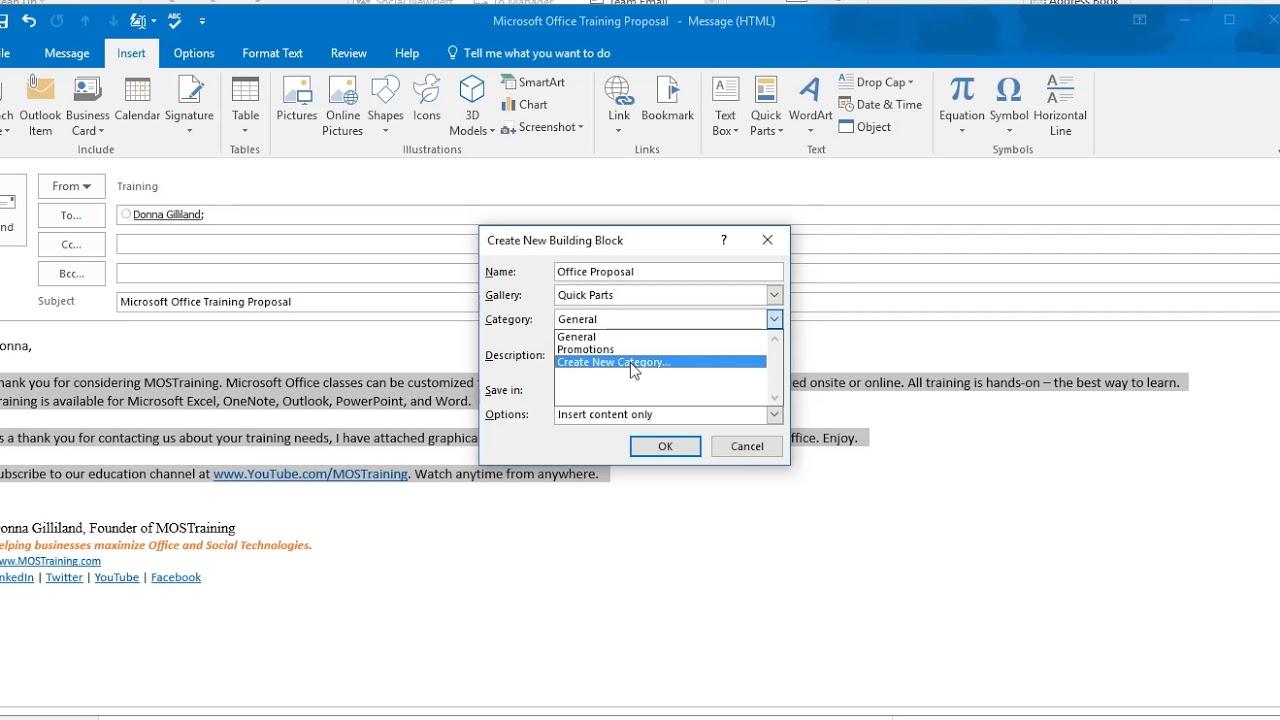
To create a new entry in the gallery, the process is just as straightforward. First, write the section you want to save in your document (for example, a sample paragraph from a sales proposal). Then, select that text and go to Insert > Quick Parts > Save Selection to Quick Parts Gallery . In the dialog box that appears, you can define the name, category, description, gallery where it will be saved, and other options related to the block's availability.
Essentially, Quick Parts relies on the building block system we discussed earlier. Each Quick Part you save becomes an internal building block entry associated with a template , allowing you to manage it from the Building Block Organizer, reuse it, redefine it, or even manipulate it using VBA if you're interested in automating tasks.
How to insert and modify building blocks and quick parts
When you want to insert a specific building block, the first step is to place your cursor where you want it to appear in your document. Then, on the Insert tab , in the Text group , click Quick Parts and select Building Blocks Organizer . This window displays a list of all available blocks, which you can sort by name, type, or gallery to quickly find the one you're looking for.
If you already know the name of the building block, simply click on the Name column header to sort the list alphabetically and locate it in a moment. Once selected, click Insert and Word will place that block at the cursor position.
Modifying a quick part or a building block is just as straightforward, except for an extra step to save it again. Typically, you first insert the block you want to change, edit it in the document until it's the way you want it, and then save it again using the same identifier so that it automatically replaces the previous version.
To ensure Word preserves not only the text but also the complete paragraph formatting (indents, alignment, line spacing, pagination, etc.), it's important to include the paragraph mark (¶) in your saved selection . This way, the block will retain the style and layout exactly as you see it on screen.
Once you've selected the new version of the content, go back to Insert > Quick Parts and choose Save Selection to Quick Parts Gallery . In the Create New Building Block dialog box, enter the exact same name, category, and gallery as the original entry, and confirm with OK. Word will ask if you want to redefine the existing building block ; if you answer yes, the old entry will be replaced by the new one.
Advanced management of building blocks with VBA
In addition to standard use via the ribbon, building blocks can be controlled programmatically using VBA or by creating Office add-ins . The Word object model exposes three main objects and several collections that allow you to create, read, update, and delete building blocks using macros or more complex solutions.
In programming terms, each building block entry is represented by the BuildingBlock object . Blocks of the same type and category in a template form the BuildingBlocks collection , while the BuildingBlockEntries collection brings together all the building blocks that reside in a specific template, regardless of type or category when accessing them.
The available block types are managed using the BuildingBlockType object and the BuildingBlockTypes collection , which correspond to the WdBuildingBlockTypes constants discussed earlier. Categories, on the other hand, are handled using the Category object and the Categories collection . There is no direct Add method for Categories, but when you create a new building block with a category that doesn't yet exist, Word automatically adds that category to the collection.
To create a custom building block programmatically, the most reliable method is to use the `Add` method of the `BuildingBlockEntries` collection. This is preferable to calling `Add` on the `BuildingBlocks` collection because the latter can generate a runtime error if no blocks of the specified type and category already exist. Instead, `BuildingBlockEntries.Add` works directly on the template associated with the active document.
A typical pattern involves collapsing the current selection, defining a range, assigning text to that range, and then calling the `Add` method of `BuildingBlockEntries` on the template attached to the document. There, you specify the block name, type (for example, `wdTypeCustomHeaders` ), category (such as "Book Titles"), and the range containing the content to be saved.
If you later want to access one of the existing blocks, you have two options. You can browse the BuildingBlockEntries collection , or, if you already know the type and category, it's much easier to go to the template's BuildingBlocks collection, filtering first by BuildingBlockTypes(type) and then by Categories("CategoryName") . This way, you'll go directly to the corresponding block, for example, by using something like .BuildingBlocks("Title") to get the desired entry.
Insert blocks using macros and control their use
Once you have a reference to a building block in VBA, you can insert it into the active document using the Insert method of the BuildingBlock object. Typically, you pass it a target range, such as Selection.Range , so that the block is inserted at the current insertion point or replaces the text the user has selected.
The typical macro logic for this case would be: obtain the template associated with the active document, locate the creation block using its type, category, and name, and finally call objBB.Insert Selection.Range (or another range) to insert the content. This approach is very useful for automating the creation of standard documents , such as contracts, reports, or corporate templates.
Another interesting feature is the BuildingBlockInsert event , which detects when a user inserts a building block into a document. By leveraging this event, you can record which blocks are used, prevent the insertion of certain elements in specific contexts, or trigger additional validations on the entered content.
If you combine building blocks with Word content controls , the control becomes even more extensive. The Document object's ContentControlOnEnter event lets you know when a user enters a specific content control. If that control is a building block gallery (like wdContentControlBuildingBlockGallery ), you can configure its BuildingBlockType and BuildingBlockCategory properties to filter the list of available blocks.
In practice, this means that a content control can display only blocks created with a specific macro (for example, those generated by an AddCustomBuildingBlock subroutine) or those belonging to a particular category. This ensures that the user can only insert pre-approved content into certain areas of the document, such as contracts, critical clauses, or sensitive corporate messages.
A typical example is having at least one content control in the document and, in the ContentControlOnEnter event, checking if that control is a gallery of authoring blocks . If it is, a type, such as wdTypeCustomHeaders, and a category, such as “Book Titles”, are assigned so that the control's dropdown list only shows blocks that match those filters.


Passionate writer about the world of bytes and technology in general. I love sharing my knowledge through writing, and that's what I'll do on this blog, show you all the most interesting things about gadgets, software, hardware, tech trends, and more. My goal is to help you navigate the digital world in a simple and entertaining way.