- Access a complete update history using wmic or PowerShell.
- Easily save or export information for viewing or sharing.
- Uninstall specific updates in case of errors or incompatibilities.

Understanding the history of installed updates in Windows is a common task for both home users and system administrators. Whether you need to identify a recent change that may have caused an error, check if you have all the latest security updates, or are simply curious, there are several ways to view the list of patches and updates your computer has received.
In this article, I'll show you, step by step and in detail , how to view your Windows update history using the `wmic qfe list` command . I'll also explain other complementary methods so you can choose the one that best suits your needs. Get ready to discover graphical options, advanced commands , and some tricks for saving this information and even uninstalling a problematic update—all explained clearly and accessibly.
Why is it important to review the update history?
Windows, in any of its modern versions, performs regular updates that refine security, fix bugs, and improve overall system performance. However, these updates can sometimes cause conflicts with already installed programs. For this reason, having access to the update history allows you to easily identify what changes have occurred and helps you troubleshoot potential problems resulting from a recent update.
- Lets you know if your system is up to date with security and improvements.
- Makes it easier to identify which update may have caused a failure.
- Helps with team management in businesses and professional environments.
- It allows you to recover your computer by uninstalling an update in case of emergency.
How to access history from Windows Settings
In newer versions of Windows, especially since Windows 10 and Windows 11 , there is a very straightforward graphical method for viewing all the updates that have been installed.
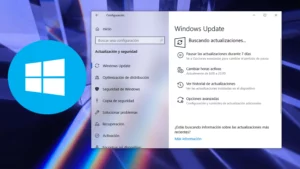
To do it:
- Open the app Configuration from your computer. You can do this from the Start menu or by pressing the key combination Windows + I.
- Once inside, access the tab System and then locate the section Windows Update in the left or top panel, depending on the version.
- Look for the option Update history and click on it.
- You'll see a list divided by categories: quality updates, security updates, driver updates, antivirus definitions, etc.
- If you are interested in a specific update, you can click on More Information to find out exactly what changes it includes.
This method is intuitive and fast , especially useful if you have no experience using the command console, and allows you to locate not only major patches but also other minor updates related to Microsoft drivers or software.
View update history using WMIC and the command line
For those seeking greater control or needing to export information, the `wmic qfe list` command is the perfect solution. WMIC (Windows Management Instrumentation Command-line) is a powerful tool widely used by administrators and advanced users to view technical details of the operating system.
How do I use it? Very simple:
- Open the start menu, type cmd, right click on the result and select Run as administrator to open the console with elevated permissions.
- In the window that appears, type:
wmic qfe list
- Balance Enter and wait a few seconds. You'll see a table on the screen with detailed information about each update: ID, description, installation date, and more.
Advantages of this command:
- Respond quickly even on older or heavily loaded computers.
- Displays installed updates even if they do not appear in the graphical interface.
- Provides useful technical details to identify a specific update.
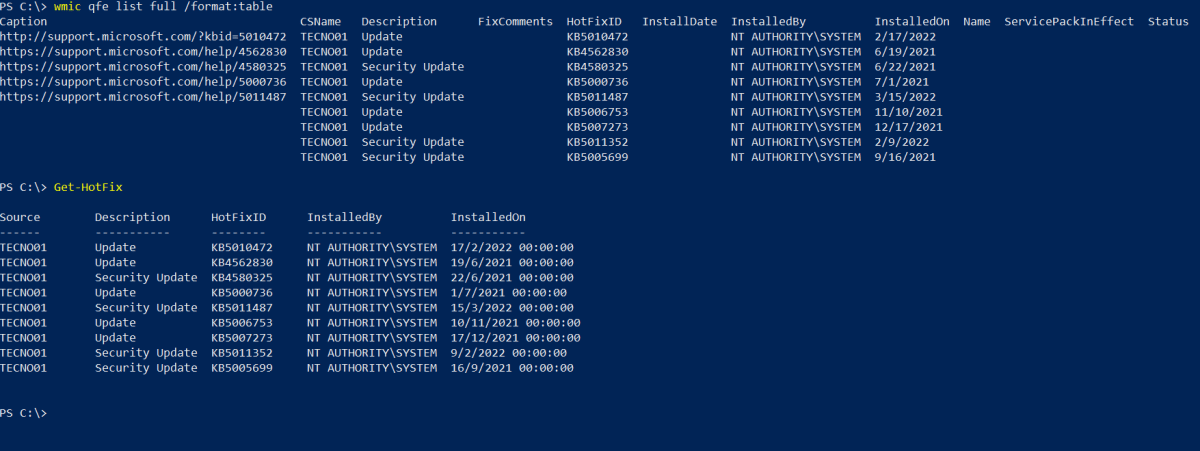
To make it even more practical, you can get a much more complete list with the following command:
wmic qfe list full /format:table
This will generate a larger table, ideal if you need to analyze each field in detail.
How to save update history to a file
If you need to share the history, archive it for future reference, or simply print it, you can redirect the output of the above command to a text file or even an HTML file. Here are the instructions for doing so:
- Open the command console as administrator, as we saw before.
- Run the following command, replacing 'youruser' with your actual username:
wmic qfe list full /format:table > C:\Users\youruser\Desktop\WindowsUpdatesReport.html
This command will generate an HTML file on your desktop with the entire history, ready to open in your browser or print directly. You can change the path and file name as desired.
If you prefer a plain text file, you would do it like this:
wmic qfe list > C:\Users\youruser\Desktop\updates.txt
Very useful if you are going to filter or process the information with other programs.
Advanced Options: Filter, Search, and Export with PowerShell
The PowerShell console, more modern and flexible than CMD, offers powerful alternatives for managing updates. One of its most popular commands is Get-Hotfix , which performs similar functions to wmic but with greater filtering and scripting capabilities.
Get-Hotfix
This will show you a list of installed updates , including the identifier (KB), description, the user who installed it, and the date.
Looking for a specific update? Here's how:
Get-Hotfix -id KB5011259
Additionally, you can easily export the results to a file with:
Get-Hotfix >> listing_updates.txt
This way you'll have the information ready to review or share.
Uninstall a specific Windows update
Sometimes it's necessary to remove a problematic update . You can do this from either CMD or PowerShell using the following steps:
- Identify the KB number (for example, KB5011259) of the update you want to remove. You can do this using the commands above.
- Open CMD or PowerShell as administrator.
- Type the following command:
wusa / uninstall / kb: 5011259
Replace 5011259 with the actual number of the update you are removing. The system will begin the uninstallation process and may prompt you to restart.
View updates from the classic Control Panel
If you prefer the traditional method, you can check the list from the old Control Panel, which is valid for all modern versions of Windows:
- Press the key Windows and writes appwiz.cpl followed by Enter to open the “Programs and Features” window.
- On the left side, click on View installed updates.
- A detailed list will be displayed showing the update type and its local installation date.
This method is simple and sometimes displays information that is not available with other tools.
Recommendations and good practices
Always make sure to open Command Prompt or PowerShell as an administrator to avoid restrictions and ensure you see the complete update history. Additionally, if you're going to uninstall an update, confirm that your system is backed up with a restore point or a recent backup, in case any unexpected problems arise.
Keep a regular checklist of updates if you manage multiple computers or if your business environment requires software audits and patches.
This process works on all current versions of Windows: Windows 7 , Windows 10, Windows 11, Windows Server 2012 R2, Windows Server 2016, etc. If you ever notice that a recent update interferes with the normal operation of your computer, review the update history to identify possible causes and, if necessary, uninstall the relevant update as described above.
- Check for updates in Windows It is simple both from the graphical interface and using advanced commands in the console.
- The wmic and PowerShell methods They offer detailed technical information and allow you to export or filter specific updates.
- In case of problems with a patch, it is possible to easily uninstall it. from CMD or PowerShell.

Passionate writer about the world of bytes and technology in general. I love sharing my knowledge through writing, and that's what I'll do on this blog, show you all the most interesting things about gadgets, software, hardware, tech trends, and more. My goal is to help you navigate the digital world in a simple and entertaining way.
Table of Contents
- 1 Why is it important to review the update history?
- 2 How to access history from Windows Settings
- 3 View update history using WMIC and the command line
- 4 How to save update history to a file
- 5 Advanced Options: Filter, Search, and Export with PowerShell
- 6 Uninstall a specific Windows update
- 7 View updates from the classic Control Panel
- 8 Recommendations and good practices