- Using Gantt chart wizards saves time and reduces errors in project management.
- The best tools offer real-time collaboration, customization, and automation of tasks and dependencies.
- Choosing the right assistant depends on the type of project, the size of the team, and the need for integration with other platforms.

Have you ever wondered if it's worth it to leave behind traditional methods and try a wizard to create your Gantt charts? If you manage projects, you've probably felt the need to efficiently control tasks, resources, and deadlines. The use of specialized tools and wizards has revolutionized the way we plan and monitor projects., allowing all types of teams and professionals to optimize their time and minimize errors.
Today there are multiple options, from free open source software to powerful cloud-based solutions., each with its advantages and limitations. In this article, we'll dive deep into all the possibilities available, comparing popular tools, detailing each step of using a wizard, and, above all, helping you figure out which one is right for you or your team.
What is a Gantt chart and what is it used for?
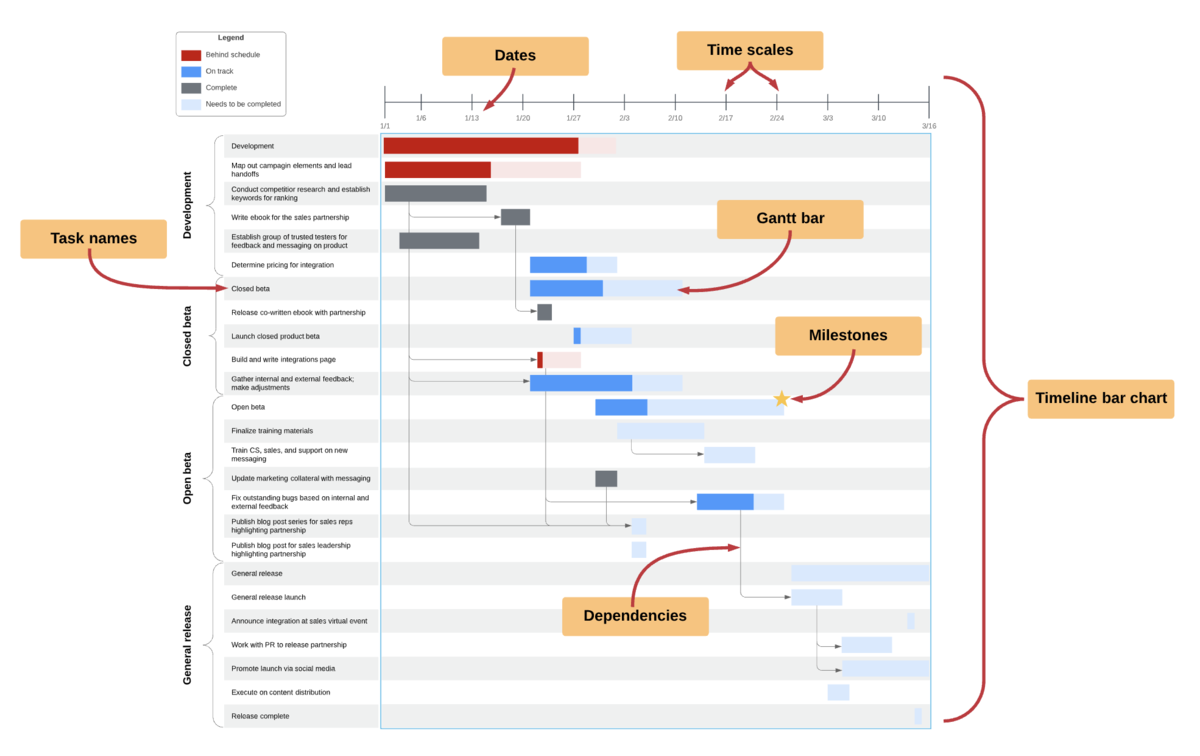
The Gantt chart is a fundamental tool in project management This allows you to intuitively view your task schedule. It consists of a horizontal bar chart, where each bar represents a task and its duration, with its start and end times located on the timeline. This representation not only offers a clear view of the programming, it also facilitates progress tracking, team coordination, and the identification of dependencies or bottlenecks.
The main value of Gantt charts lies in the ability to show at a glance the entire sequence of activities, the relationships between them and the key milestones.Whether you're working on projects large or small, this tool helps you predict delays, adjust resources, and ensure everything is running as planned.
The leap from manual diagrams made on paper or Excel to intelligent assistants has been a true revolution.Now, thanks to dedicated wizards and apps, you can create, modify, and share Gantt charts in minutes, with automated and collaborative features that save time and reduce errors.
Advantages of using a wizard to create Gantt charts
Choosing a specialized wizard to generate Gantt charts gives you numerous advantages over manual solutions.. Some of the most notable are:
- Saving time and minimizing errors: Wizards streamline task creation, scheduling, and dependency modification. Everything adjusts automatically when there are changes.
- Advanced display and customization: They allow you to easily apply colors, identify responsible parties, and highlight milestones.
- Real-time collaboration: Many wizards operate in the cloud and offer options for multiple users to edit or view the diagram simultaneously.
- Integration with other tools: The best platforms connect with CRMs, calendars, task managers, and communication systems, centralizing all relevant information.
In this way, an assistant not only makes your work easier, but also gives you the control and peace of mind of keeping everything up to date in case of any unforeseen events..
When is it worth using a Gantt chart wizard?
The key question is: do you really need a Gantt chart wizard? The answer depends on the complexity of your project and your management expectations. If you handle many tasks, multiple managers, frequent changes or complex dependencies, an assistant is almost essential..
In organizations where collaboration and transparency are a priority, the advantages of an assistant become even more evident.If you're looking for efficiency, clarity, and scalability in project planning and monitoring, using a Gantt chart wizard will be a great step forward.
Comparison of wizards and tools for creating Gantt charts
Today's market offers a wide variety of specialized assistants and programs., each with its own strengths and weaknesses. Below, we analyze the most notable ones based on user experiences and the most relevant information.
1. Asana: Accessible planning and collaboration in the cloud
Asana provides a simple, intuitive, and powerful experience for managing projects with Gantt charts.Its 'Schedule' system allows you to easily view tasks, set dates, define dependencies, assign responsibilities, and mark milestones. The best thing is that the changes are reflected in real time for the entire team..
Its main advantage is its flexibility: you can switch between list, board, calendar, and timeline views. Tasks can be color-coded, and it has predefined templates for different types of projects. In addition, its integration with other platforms makes it easy to import and export information for a continuous workflow..
2. ClickUp: Advanced Personalization and Automation
ClickUp has established itself as one of the most complete and versatile tools, perfect for teams that want to customize down to the last detail. Its Gantt chart view integrates into a powerful management ecosystem, allowing Transform lists, tables, or calendars into Gantt charts in just a few clicks.
Its benefits include the ability to draw relationships between tasks, define critical paths, color-code elements, and access a library of templates. Collaboration is done in real time and changes are immediately reflected in the diagram.It's recommended for those who need to automate processes, manage multiple projects, or take advantage of advanced integrations.
3. Instagantt: Simplicity and clear visualization
Perfect for those looking for a quick and easy solutionInstagantt stands out for its visual approach and ease of use, allowing you to create and modify diagrams using drag and drop. Ideal for initial planning tasks or creative sessions, and allows exporting in PDF easily.
In its free version, some advanced features are limited, but it's very useful for small teams or projects that require a simple roadmap.
4. Microsoft Excel and Google Sheets: The manual and versatile option
For those who prefer a classic method or do not want to depend on additional softwareBoth allow you to create Gantt charts from scratch or using templates, with the ability to customize the design and logic. They require more time and attention, as they are more prone to errors with complex projects..
Google Sheets facilitates real-time collaboration, while Excel offers greater control, albeit with less automation of dependencies and resources.
5. Edraw and EdrawMax: Auto-assistants and professional templates
Edraw includes specific wizards to build Gantt charts from data in Excel, CSV or TXT. Allows you to import and export information efficiently. The tool step by step guide throughout the entire process, from data import to customization and dependency definition. Offers to save custom settings and templates.
6. GanttProject and other open source solutions
GanttProject is a free and open source option that allows you to manage tasks, resources, dependencies and export projects.Although its interface may be less modern, it offers all the main features for creating and modifying Gantt charts independently.
7. Other popular platforms: Monday, TeamGantt, Smartsheet, Wrike, Bitrix24…
There are many alternatives, each with specific audiences. Monday stands out for its personalization and automation, TeamGantt for its online collaborative approach, and Smartsheet for its spreadsheet compatibility and advanced featuresWrike and Bitrix24 offer integration with multiple services and management of large teams.
When choosing, carefully consider aspects such as usability, collaborative features, integration, and the cost of free plans versus paid ones.
What should a good Gantt chart assistant have?
Before selecting an option, evaluate these essential aspects:
- Intuitive and easy to use interface: Ease of daily work and the learning curve are key.
- Import and export options: To manage your data and share results in different formats.
- Personalization and templates: Tailor visualizations and speed up deployment with templates.
- Automation of dependencies and updates: : That the modifications are automatically applied throughout the diagram.
- online collaboration: Allow multiple users to work simultaneously with real-time notifications.
- Resource and workload management: Visualize those responsible and detect over-allocations.
- Tracking milestones and progress: To mark important stages and check progress.
How to create a Gantt chart step by step with a wizard
The general process that the assistants follow is usually similar, guiding you through each step to build a complete and professional diagram.The typical logic is:
- Select or import data: From a template or external source, with the help of the wizard for correct formatting.
- Define tasks and dates: Enter names, start and end dates, or durations, which the wizard will automatically calculate if necessary.
- Establish dependencies: Indicate which tasks depend on others, displayed with arrows or lines.
- Assign responsibilities and resources: Designate managers and, in advanced solutions, link specific resources.
- Mark milestones and key points: Identify important deliveries or revisions.
- Customize the diagram: Adjust colors, styles, and display for clarity and appeal.
- Automate and save as template: For recurring projects, optimizing time on future occasions.
- Share and collaborate: Publish, give permissions, and receive suggestions or changes in real time.
Remember that automation is key: updating dates or dependencies in a task is instantly reflected throughout the diagram, reducing errors and keeping the plan current..
Practical examples of using a wizard to create Gantt charts
Let's see how to apply these concepts in real-life cases, based on user experiences on various platforms:
Planning a marketing campaign
A campaign involves multiple linked tasks, from content creation to final analysis.A wizard allows you to enter phases, assign responsibilities (design, content, social media), define dependencies, and visualize potential delays.
By marking release and review milestones, the team maintains a clear understanding of progress and can anticipate problems or bottlenecks.
Software development
Programming projects require coordinating sprints, reviews, and releases.A wizard makes it easy to organize tasks into iterations, establish dependencies, and automate relationships, saving management time.
The best platforms integrate version control, reporting, and custom fields to adapt to agile methodologies..
Product launch
From conception to implementation, it requires several phases and coordination between different teams.A Gantt chart helps visualize progress, adjust resources, and prevent delays.
It also allows generating reports for management, showing status, risks and next steps..
Management of educational events and projects
Organizing conferences, courses, or congresses requires detailed planning. Participants create diagrams that address parallel tasks, assign responsibilities, and mark milestones for effective control.
Main criteria for choosing the best assistant for your case
Before you decide, consider these key factors:
- Size and complexity of the project or teamWhat works for a small business may not be enough for a multinational.
- Ease of use and learning curve: A simple interface speeds up team adaptation and reduces resistance.
- Collaboration and mobilityOnline and cross-device availability is essential for remote teams.
- Integration capacity: Check that it supports your usual tools.
- Cost and scalabilityConsider free and paid plans, depending on the growth of your project.
- Personalization.: Templates, views, and automations tailored to your specific needs.
Trying free versions or demos is recommended to ensure the assistant meets your expectations before committing.
How to customize and share your Gantt charts professionally
Creating the diagram is just the beginning; the key is to share it effectively and keep it up to date.Many tools allow you to export to PDF, images, or Excel, or share web links that facilitate reference and collaboration.
Furthermore, Saving custom templates saves time on future projects and maintains visual consistencyYou can configure colors, styles, and formats to make it understandable and attractive to everyone, including clients and managers.
Collaborative features and automatic notifications ensure everyone involved is aligned on changes and progress.

Passionate writer about the world of bytes and technology in general. I love sharing my knowledge through writing, and that's what I'll do on this blog, show you all the most interesting things about gadgets, software, hardware, tech trends, and more. My goal is to help you navigate the digital world in a simple and entertaining way.