- The task manager Chromebook allows you to monitor and close processes that affect performance.
- Accessing the manager is easy with the Search + Esc keyboard shortcut.
- Provides advanced resource usage statistics to help optimize daily usage.

Many Chromebook users discover, as they experiment with their devices, that certain apps or tabs can sometimes freeze or run slower than expected. In these cases, you're probably wondering how to quickly and easily manage these performance issues without having to restart your computer. The truth is, while ChromeOS is considered a very lightweight and efficient operating system, it's not immune to situations where performance can be affected by demanding processes or unresponsive apps.
To resolve these issues and optimize your experience, there's a fundamental tool: the ChromeOS Task Manager. Did you know you can access details about each process, see how many resources each application is using, and easily close anything causing problems? In this article, I'll explain everything step by step, from what the Task Manager actually is to how to get the most out of it with the best keyboard shortcuts . Let's get started!
What is Task Manager on Chromebook?
The task manager is a built-in ChromeOS utility designed to monitor and manage active processes on your device. If you've used Windows before , the concept will be familiar: it's a window where you can see all your apps, tabs, extensions, and background processes , along with information such as RAM usage, CPU consumption, and even the impact on battery life or network usage.
Its main purpose is to provide users with tools to diagnose and resolve performance issues immediately. This way, you can find out exactly what's slowing down your Chromebook, or which process is consuming more resources than it should. It even allows you to easily and safely close or terminate unresponsive applications and processes without having to restart your computer.
Advantages of Task Manager in ChromeOS
- It allows to detect resource-intensive applications or that drain the battery quickly.
- It helps to improve performance from your Chromebook by closing unnecessary processes.
- Offer advanced statistics on memory and CPU usage, ideal for users who want to have absolute control over their device.
- Is quick access using a simple keyboard shortcut.
How do I access the task manager on a Chromebook?
One of the great advantages of ChromeOS is how easy it is to execute these commands . You don't need to navigate through endless menus or search through hidden settings. Just follow this keyboard shortcut:
- Press the Search key (also known as the Launcher or magnifying glass key) + Esc simultaneously.
Doing so will open a pop-up window where you'll see all the processes and applications running on your Chromebook. It's really quick and very useful when a tab or app stops working, or if you notice the device is running slower than usual.
What information does the task manager display?
When you view the task manager, you'll find a detailed list of processes , where you can see:
- Name of the process or application
- RAM memory consumption
- Processor (CPU) usage percentage
- Process ID
- Network speed used
- Battery consumed by each process (very useful in teams portable)
This information is essential for identifying processes that are causing slowdowns or those that are consuming excessive resources. For example, if you see that a website or browser extension is using a lot of memory or CPU, you can close it directly from here.
How to end apps and processes on Chromebook
Have you noticed your Chromebook is stuck because an app has stopped responding? Task Manager is your best friend. Just:
- Open the task manager with the keyboard shortcut Search + Esc.
- Locate the process or application you want to close in the list. (you can navigate using the touchpad or the arrow keys).
- Select the process (click on it).
- Click on the "End process" button that appears at the bottom of the window.
In a matter of seconds, that process will be completed, and the Chromebook will usually regain its speed. It's the most direct and reliable way to resolve occasional freezes or free up resources consumed by tasks that have become stuck.
Advanced statistics and column customization
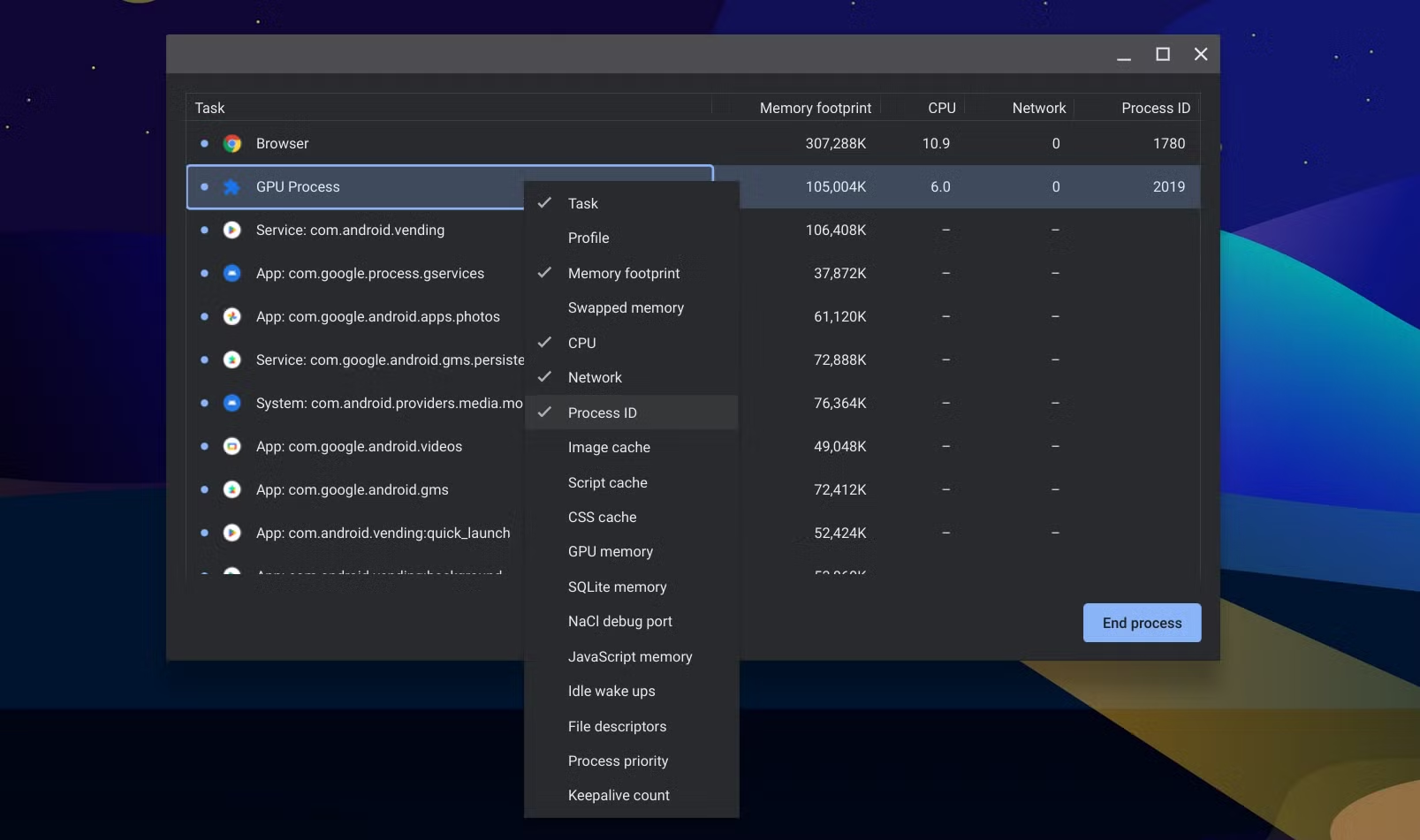
If you're someone who wants maximum control, ChromeOS lets you customize the task manager columns to display advanced information about each process. To do this:
- Open the task manager (Search + Esc).
- Right-click any of the column headings (such as “Memory” or “CPU”) or tap the touchpad with two fingers.
- A context menu will appear where you can select new metrics. such as process ID, network usage, power consumption, and much more.
This allows you to detect which applications or extensions are most impacting your Chromebook's performance and even monitor resource consumption when the device is plugged in or running on battery power.
Tips to improve the performance of your Chromebook
- Keep Close tabs or applications that you are not using to free up RAM and CPU.
- Uninstall unnecessary browser extensions, since many can run in the background and reduce agility.
- Periodically check the task manager to Identify battery-hungry apps or resources, especially if you notice that your Chromebook is getting hot or its battery life is noticeably reduced.
- Considers restart your device from time to time to close accumulated processes and start from scratch.
Essential keyboard shortcuts on Chromebook
One of ChromeOS's strengths is its extensive catalog of keyboard shortcuts , which allow you to get the most out of your Chromebook. In addition to the command to open the task manager, you should learn these shortcuts:
- Ctrl + Shift + Q (twice): : Logs the user out immediately.
- Ctrl + Shift + T: Reopens the last closed tab in the browser.
- Ctrl + W: Close the active tab.
- Ctrl + Shift + P: Take a partial screenshot.
- Ctrl + Alt + Z: Turn ChromeVox, the built-in screen reader in ChromeOS, on or off.
- Search key + Ctrl + H: Activates high contrast mode, ideal for accessibility.
- Ctrl + Search key + M: Enlarges the entire screen content.
- Ctrl + Alt + arrows: Navigate and scroll through areas of the screen when the magnifier is activated.
Knowing and mastering these shortcuts can dramatically increase your productivity and make managing the system easier, especially when you need to act quickly.
Solutions if the Search + Esc shortcut doesn't work
In rare cases, the Search + Esc command may not open the Task Manager . If this happens to you, I recommend the following:
- Make sure the system is up to dateChromeOS usually fixes these issues in new versions.
- Check that the search key (or Launcher) is working properly in other combinations.
- Restart your Chromebook to clear temporary freezes.
In rare cases, some models may change the keyboard layout. Consult your manufacturer's official support if the problem persists.
Manage extensions, applications and resources from the task manager
Within the Task Manager, you'll find not only applications, but also Chrome extensions and internal services that may be running in the background. This is especially useful for detecting if a recently installed extension is consuming too much memory or causing browser crashes.
To manage these elements:
- Locate the problematic extension in the process list.
- Select the extension and click “End Process.”
This way, ChromeOS only stops that specific extension, preventing the entire browser window from being affected. If you identify extensions that consistently consume a lot of resources , consider uninstalling them or looking for lighter alternatives.


Passionate writer about the world of bytes and technology in general. I love sharing my knowledge through writing, and that's what I'll do on this blog, show you all the most interesting things about gadgets, software, hardware, tech trends, and more. My goal is to help you navigate the digital world in a simple and entertaining way.
Table of Contents
- 1 What is Task Manager on Chromebook?
- 2 Advantages of Task Manager in ChromeOS
- 3 How do I access the task manager on a Chromebook?
- 4 What information does the task manager display?
- 5 How to end apps and processes on Chromebook
- 6 Advanced statistics and column customization
- 7 Tips to improve the performance of your Chromebook
- 8 Essential keyboard shortcuts on Chromebook
- 9 Solutions if the Search + Esc shortcut doesn't work
- 10 Manage extensions, applications and resources from the task manager