
There's nothing more frustrating than finishing installing a Linux distribution and realizing that the Wi-Fi isn't working . It's a classic: everything seems to be going smoothly until you try to connect to the internet and discover that your network card is invisible to the system. This usually happens because the drivers, or firmware , aren't included by default due to proprietary licensing issues.
If you're stuck in this situation, don't worry, there's a solution. Depending on whether you have a wired connection or are completely cut off, there are several ways to restore your wireless connection, from using the installation USB to enabling specific repositories in Debian or Ubuntu.

How to identify your network hardware
Before running commands blindly, it's crucial to know exactly which piece of hardware is installed in your laptop. If you don't know your card model, you can use the terminal to find out the chipsetIf your card is internal (PCI), the most effective command is lspci | grep WirelessHowever, if you're using a USB adapter, the ideal thing to do is run lsusb | grep WLAN.
For those who use Ubuntu or Mint-based distributions, there is also the option of using sudo lshw | grep BCM43 If you suspect you have a Broadcom chip. Having the exact chip model (for example, a Realtek RTL8188SU or a Qualcomm Atheros QCA61x4A) is the only way to avoid installing the wrong drivers.
Solutions for Debian: Repositories and Firmware
In Debian, the problem is usually that non-free drivers are not enabled. To fix this, the first step is to enable the non-free repositories in the source file. Once this is done, you can use the Synaptic Package Manager or the terminal to search for the appropriate firmware package.

Depending on your card brand, you will need to install a different package. For example, for Atheros requires the firmware-atheros packagewhile for Intel it is usually required firmware-iwlwifiIf you have a Realtek card, go for it. firmware-realtekAnd for Broadcom, there are options like broadcom-sta-dkms o firmware-b43-installerIf you still have no signal after this, a good tactic is to install the full set of generic drivers with sudo apt-get install firmware-linux firmware-linux-free firmware-linux-nonfree firmware-misc-nonfree and restart the computer.
The Live USB trick for Ubuntu and Linux Mint
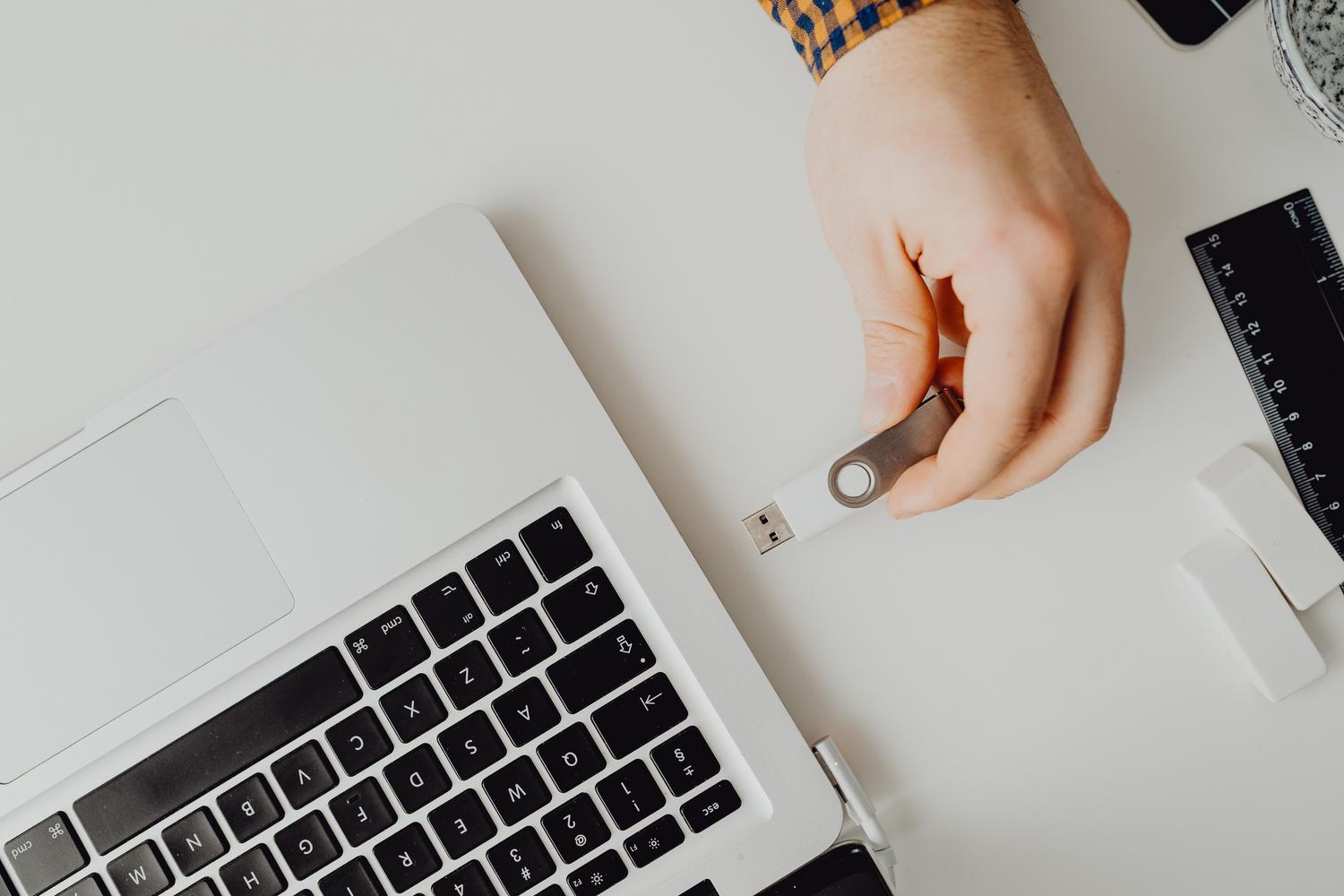
What if you don't have an Ethernet cable and can't download anything? That's where the Live USB installation comes in . The USB you used to install the system contains some essential packages that can be a lifesaver, especially in cases of Broadcom 4352 chips.
The process involves connecting the USB drive and navigating to the local packages folder. First, you must install the package. DKMS placing yourself in pool/main/d/dkms and running sudo dpkg -i dkms. Then go to pool/restricted/b/bcmwl and throw sudo dpkg -i bcmwlThis method is a lifesaver when you're completely offline.
Complex cases and manual compilation
Sometimes, official repositories aren't enough, and you have to get your hands dirty. In critical situations, such as with certain Realtek chips, it may be necessary to compile the module from GitHub using DKMS. Some users choose to install alternative kernels to improve hardware compatibility.
If the network manager is giving you trouble, try replacing Wicd with NetworkManager and make sure the network application is set to start automatically in your desktop control center (as it is in MATE). As a last resort, if none of this works, you can try using ndiswrapper to force the use of Windows drivers in Linux, although this is a more rudimentary solution.
To get the system ready, simply identify the chipset using the terminal, enable the proprietary repositories or use the Live USB packages depending on the distribution, and install the specific firmware of the brand, whether it be Intel, Realtek, Broadcom or Atheros, always restarting the computer for the changes to take effect.


Passionate writer about the world of bytes and technology in general. I love sharing my knowledge through writing, and that's what I'll do on this blog, show you all the most interesting things about gadgets, software, hardware, tech trends, and more. My goal is to help you navigate the digital world in a simple and entertaining way.