One of the most common errors that FIFA 22 PC players are currently facing is the error There is a problem with your game configurationThis error prevents you from launching your game and forces you to stay in the start menu indefinitely.
The additional message suggests that you should reinstall the game, but many affected users reported that it was not effective in resolving the issue. To learn how to resolve this glitch, I invite you to continue reading our post.
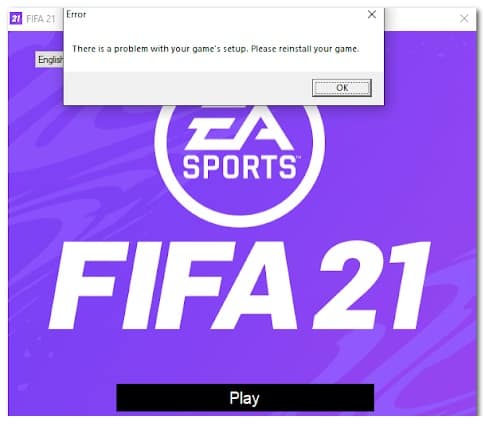
What causes the error there is a problem with your game settings in FIFA 22?
After more and more players have encountered this issue, we have conducted an in-depth investigation and have actually presented a list of culprits that could trigger this particular FIFA 22 error:
- Redist packages are missing from Visual C++: Players are reporting that this issue may be caused by missing Visual C++ Redist packages on the system. To fix this, you can download them from the official Microsoft page and follow the official prompts to install them.
- DirectX is missingThis error could also be caused by the lack of DirectX on your computer. Either this, or you don't have the required version. If this scenario is applicable, you can fix it by downloading and installing DirectX from the official Microsoft page.
- Corrupted files- Another scenario that could cause this issue is some corrupted or missing files that do not allow the game to work properly. In this case, the first thing you should do is verify the integrity of the files through Origin. In case the integrity scan discovers files that are actually corrupted, they will be replaced.
- Obsolete version of Windows: It turns out that this FIFA 22 game error is also related to an outdated version of Windows. This problem is mostly reported on Windows 10 and Windows 11 with versions that are missing a key infrastructure update. To fix this, you need to access Windows Updates within Settings and install all pending updates that are missing.
- Multimedia feature pack missing: Depending on your current version of Windows, this FIFA 22 error may also be caused by the Media Feature Pack being missing. This is specific to N versions of Windows and can usually be fixed by accessing the optional features within your settings and then manually installing the feature.
- Proxy Policy Interference: It turns out that this issue can also be related to a number of proxy walls applied at the File Explorer level via a Local Group Policy Editor. In this case, you can resolve the issue by changing the browser proxy settings via the Local Group Policy Editor.
- Cache data: The Temporary files Origin issues could also be the cause of this error. Especially in scenarios where you haven’t deleted Origin-related temporary files after reinstalling the game. In this case, you can fix it by deleting the cache data from the ProgramData folder and then deleting it from the AppData folder.
- Corrupted Windows host file: A less common scenario that could trigger this behavior with Fifa 22 is a scenario where the Windows host file has accumulated data that interferes with the game's connection to the server. In this case, you can fix the problem by effectively resetting the Windows host file.
How to fix there is a problem with your game settings error in FIFA 22?
Now that you are aware of each of the possible causes of this error, here is a list of methods we have come up with that can help you repair your game and fix the game configuration issue:
Install Redist. x32 and x64 bit packages
Since this is the most common problem that could ultimately produce the error There is a problem with the game configuration, the first thing you need to do is to troubleshoot a potential Visual C++-induced issue. According to many users, this error could be due to corrupted or missing Visual C++ Redist packages on your system.
So, the first thing you can try is to install all the missing Visual C++ Redist packages. You can download them from the official Microsoft site.
In case you don't know how to download and install Visual C++ Redist packages, here are the steps you need to follow:
- Open any browser you wish to use and access the Microsoft official download page where you can download the Visual C++ Redist Packages.
- Once you are inside this page, download the x86 and x64 bit files.
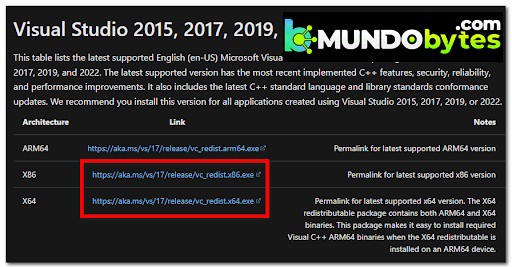
- Once the files have downloaded, click on them to open the installer. Now, click on Install if the option is available and follow the on-screen prompts. Otherwise, click Repair and let the installer replace any corrupt Visual C++ dependencies with healthy equivalents.
Nota: Once you're done, repeat the process for the other file.
- Once the installation is complete, restart your PC, then open the FIFA game settings menu to see if it works and then play again.
If the problem is not resolved after following the steps above or if you already had all the required Visual C++ dependencies, try the following method we have prepared for you.
Install the missing Direct X dependency
If the first method didn't work for you, another thing you can try to finally get past the FIFA 22 splash screen is to make sure you install all the DirectX dependencies the game needs. This solution seems to have a lot of players, specifically those who aren't yet on Windows 11 (which supports the latest version of DirectX natively).
Nota: You can find the most recent version of this file on the official Microsoft website.
But before installing DirectX, our recommendation is to go to the system folder and delete a file called D3DCompiler_43.dll after creating a backup of it. This will help resolve file system inconsistencies related to DirectX dependencies.
Here are the steps you need to follow in case you don't know how to install DirectX:
- Opens File Explorer and access the disk where Windows is installed.
- Then go to the folder Windows, now open the folder System32.
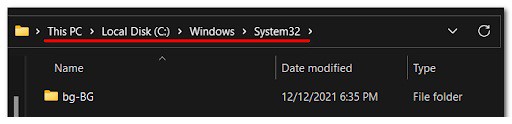
- After that, look for the file D3DCompiler_43.dll and create a backup by copying and pasting the file wherever you want.
- Once you've done that, right click on the file and press Remove.
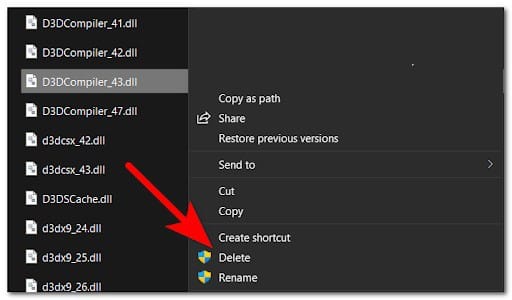
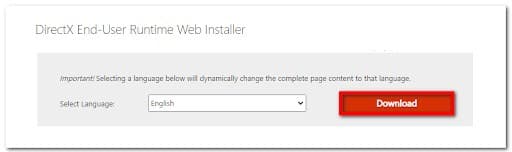
- After that, open your default browser and go to the Microsoft official download page where you can download the file.
- When you are inside the page, click on the button Download to download the file.
- Once the file has downloaded, double-click the executable and continue with the installation.
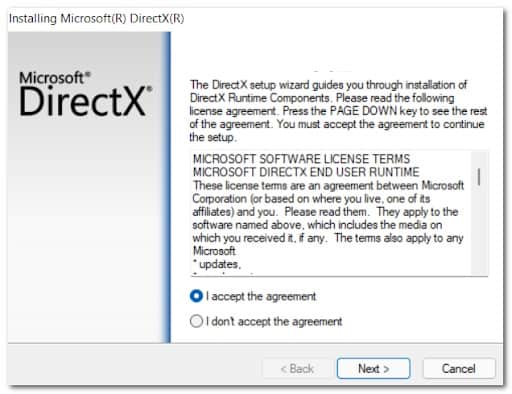
- Once the installation is complete, restart your computer and try to see if the error still appears after it restarts.
If you still get the same error, please see the next possible solution below.
Verify file integrity via Origin
It turns out that the error There is a problem with your game configuration It may also be due to some corrupt files that your FIFA 22 has accumulated with ThereIn most documented cases, this type of issue can be fixed by repairing the game from Origin.
By doing this, the integrity of the game files will be verified and repaired if the local installation contains corrupt files.
In case you don't know how to verify file integrity, here are the steps you need to follow:
- Start by opening the Origin app, then go to My game library.
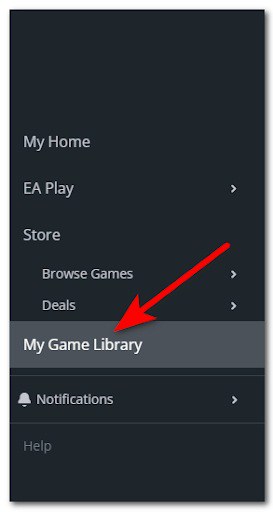
- Once you are inside the Origin library, find the FIFA 22 game and click on it.
- Then, from the context menu that just appeared, click on the Settings gear icon and click Repair to start the process.
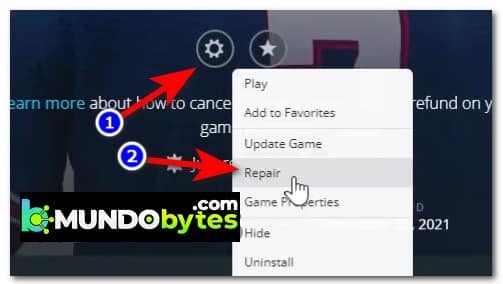
- Wait until the process is complete and the integrity of the files is verified. Corrupted files will be repaired if there are any.
- After that, try the game launcher to see if the error persists.
If you are still unable to get past the initial splash screen in Fifa 22, move down to the next potential solution below.
Install all pending Windows updates + install media feature pack
It turns out that this issue can also occur due to a missing media feature pack dependency. This is usually reported to occur with N versions of Windows 10 and Windows 11. However, the issue can also be caused by a missing feature update that is available with all versions of Windows (Windows 10 and Windows 11).
Most community members who experienced this issue on Windows 11 managed to fix it by installing the pending Windows updates that were available. But if you are using an N version of Windows, you will also need to install the media feature from the Settings tab. Optional features (within Windows settings).
Here is the guide you should follow in case you don't know how to do it:
- You must start by opening a dialog box Run pressing the Windows key + R.
- Then write 'ms-settings:' and press Log in to open the Configuration of your Windows.
- Once you are inside the Setting, click on the section Windows update.
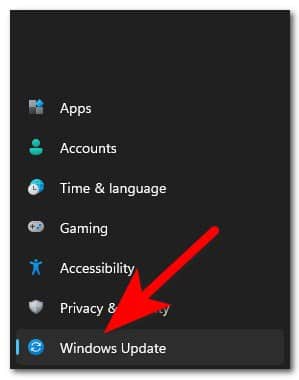
- When you are inside the dedicated menu of Windows Update, go ahead and install any pending updates that are currently available.
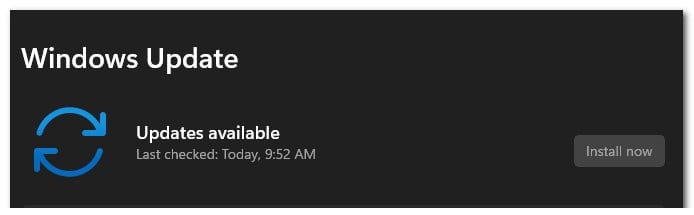
Nota: If you are prompted to restart before having a chance to install all pending updates, restart as instructed, but be sure to return to this screen once the next startup is complete and continue installing any remaining updates.
- When all pending updates have finished installing, return to the Windows start menu. Configuration and click Applications, then access the section Applications and features.
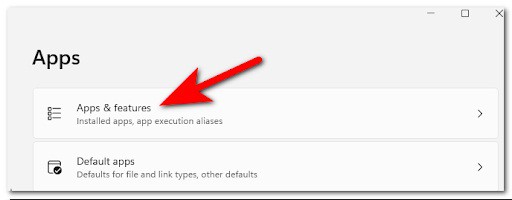
- Following this, once you are inside Apps and Features, Click on Optional functions.
- Now you must click Add function. Within the new menu that has appeared on your screen, look for Media Feature Pack and select it.

- In the next menu, follow the prompts to complete the Media Feature Pack installation.
- After installing the feature, restart your PC, then test your FIFA 22 game settings to see if you still encounter the error.
If you are still dealing with the same terrible issue that prevents you from launching the game, move on to the next potential solution below.
Change Internet Explorer proxy settings
It turns out that this particular issue may also be rooted in an issue caused by a custom Explorer proxy policy that ends up preventing the game from launching.
This issue is exclusive to Pro and Enterprise versions of Windows 10 and Windows 11.
If you are dealing with this type of problem, you can fix it by accessing the Local Group Policy Editor (mpedit.msc) and enabling the policy Disable proxy settings changeDoing this will ensure that no custom File Explorer settings end up affecting your connection to EA servers.
Follow the instructions below to disable the Internet Explorer-related proxy policy using the Local Group Policy Editor:
- Press the Windows key + R to open a dialog box Run, then type 'gpedit.msc' into the search box to open the Local Group Policy Editor.
- Now that the Local Group Policy Editor appears on your screen, click on User settings, then click Administrative template. Now click on Windows components and look Internet Explorer, then click on it.
- After that, in the right side menu, you need to search for Disable changing proxy settings.
- Once you find it, double-click on it to open settings, then click on Enable to disable the browser proxy settings and click Apply To save the changes.
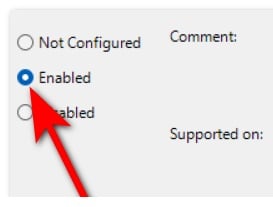
- Now you need to restart your computer. When it restarts, try opening the FIFA 22 game settings to see if the error still appears.
Please go to the next method in case this method did not help.
Clear the origin cache data
This error could be due to some corrupted temporary files that are stored in the folders ProgramData and AppData for FIFA 22. Most of the users who are facing this type of issue have reportedly fixed it by accessing the files and deleting them.
By doing this you will essentially force Origin to download all the files again, without any corrupted files.
In case you don't know how to clean up folders ProgramData y AppData from the cache data, here's what you need to do:
- Opens a dialog box Run pressing the key Windows + R, then write '%programdata%' inside the search box and press Log in to open the folder ProgramData.
- Now that you are inside the folder ProgramData, find and open the folder Origin
- After that, select everything inside this folder except the folder LocalContent, then delete the files.
- When you've done that, press the Windows key + R again to open another dialog box Run in which you should write '%appdata%', then press Log in to open the folder AppData.
- After that, look for the folder Origin and delete it.
- When the folder is completely removed, click on the folder AppData located at the top of the screen to exit the folder Roaming. Then access the folder Place.
- Now you need to find the folder Origin and remove it completely as well.
- Once you have deleted this folder as well, restart your PC, then open FIFA 22 to see if the in-game settings are still not working.
In case none of the above methods helped you fix this FIFA 22 error, check out the last potential method below.
Reset Windows Host File
If none of the above methods have proven effective in your case, the last thing you can try is resetting the Windows Host file. This method has been repeatedly confirmed for Windows 11, but you can replicate it on Windows 10 as well.
When creating a default host default and replace the current equivalent with this new file, you should be able to resolve some connectivity issues and the There is a problem with your game configuration error in FIFA 22.
Here are some step-by-step instructions to help you create a new hosts file to replace the current one in your Windows installation:
- Press Windows key + R to open a dialog box Run.
- Then write 'notepad' and press Ctrl + Shift + Enter to open a notepad window with administrator rights.
- At the User Account Control (UAC), click Yes to grant administrator access.
- Once you are inside the elevated Notepad window, paste the following text:
# Copyright (c) Microsoft Corp. 1993-2009.
#
# This is a sample HOSTS file used by Microsoft TCP/IP for Windows.
#
# This file contains the mappings of IP addresses to host names. Each
# entry must be kept on a single line. The IP address must
# be placed in the first column followed by the corresponding host name.
# The IP address and host name must be separated by at least one
# space.
#
# Also, comments (like these) can be inserted in
single # lines or after the machine name indicated by a '#' symbol.
#
# For example:
#
# 102.54.94.97 rhino.acme.com # origin server
#38.25.63.10 x.acme.com #x client host
# Local hostname resolution is handled within DNS itself.
# 127.0.0.1 local server
# ::1 crazy serverl
- After pasting the text, click Archive, then click Save as. Name the file «hosts», then save it to the desktop.
- Now close Notepad, then search for %WinDir%\System32\Drivers\Etc using the search option of the File Browser.
- Inside that folder, rename the file hosts and type 'Hosts.old'.
- Once you've done that, move the hosts file you previously saved on your desktop into this folder.
- Once you complete the previous step, you should launch the game and test to see if you still encounter the problem.
I hope that each of the methods presented in this post will help you resolve the error there is a problem with your FIFA 22 game configuration. If you liked it, do not hesitate to share our guide with the rest of your friends. Also, within our comments box you can leave us your opinions and recommendations. See you in a future post.

My name is Javier Chirinos and I am passionate about technology. Ever since I can remember, I have been interested in computers and video games, and that passion has turned into a job.
I have been publishing about technology and gadgets on the Internet for over 15 years, especially in mundobytes.com
I am also an expert in online marketing and communication and have knowledge in WordPress development.