- Most errors in the Microsoft Store are due to configuration errors, permissions, or network issues.
- There are detailed steps for each type of error, from date and time adjustments to clearing cache and using commands advanced.
- User restrictions, parental controls, and pending updates can also block the installation of apps.
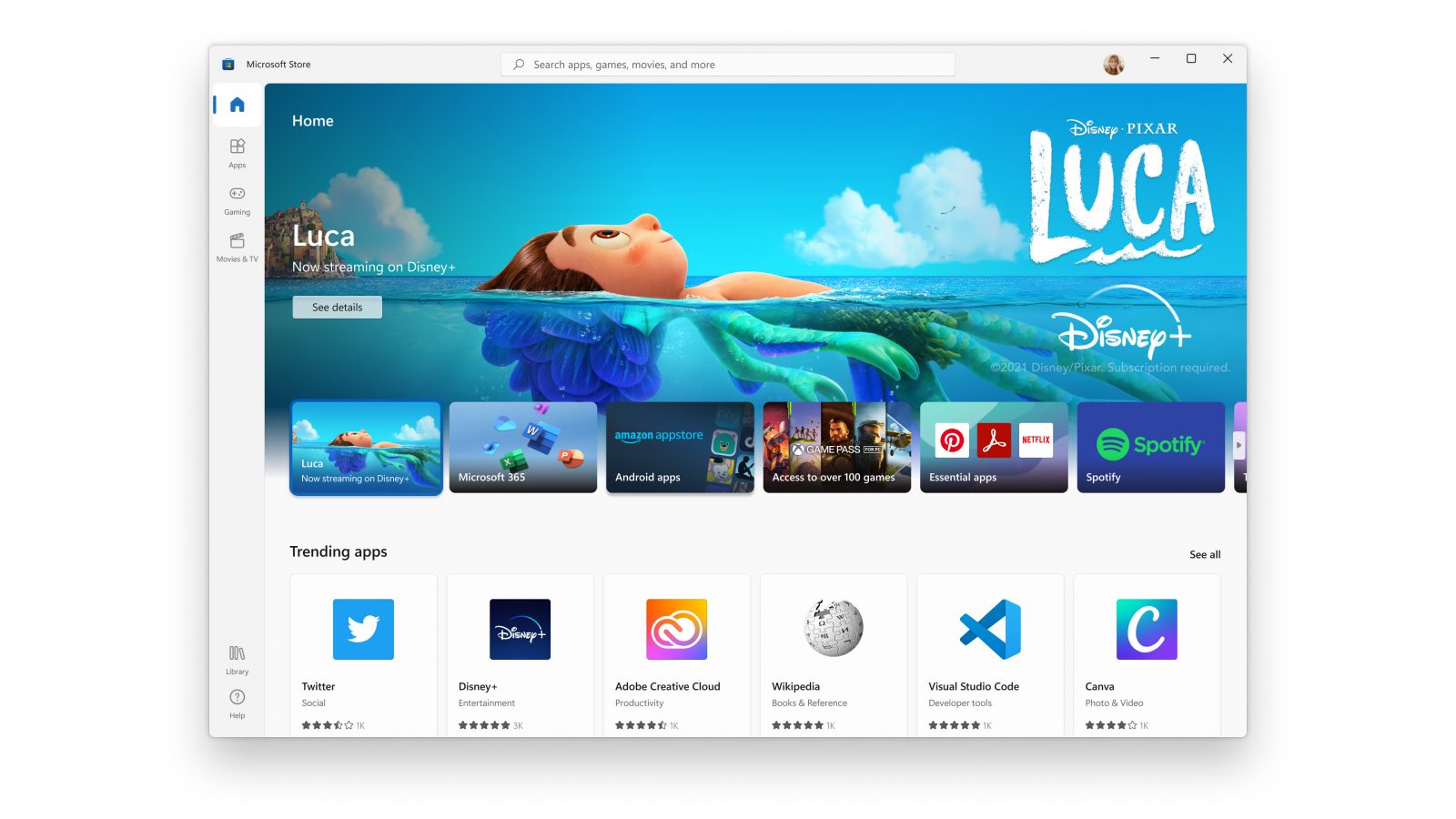
At some point, almost every user of Windows have encountered issues when trying to install apps from the Microsoft Store. These errors can be frustrating, as they prevent you from enjoying new applications or updating existing ones. Fortunately, most of these errors are solvable, and with the right steps, they can be easily resolved, even if you don't have advanced computer skills.
In this article, we'll go over the most common causes of Microsoft Store installation errors in detail, and we'll provide you with the best step-by-step solutions for each case. Whether it's issues with your connection, administrator permissions, operating system issues, or policy lockouts, you'll find the way to get back to using the store normally and without complications here.
Why do I get errors when installing apps from the Microsoft Store?
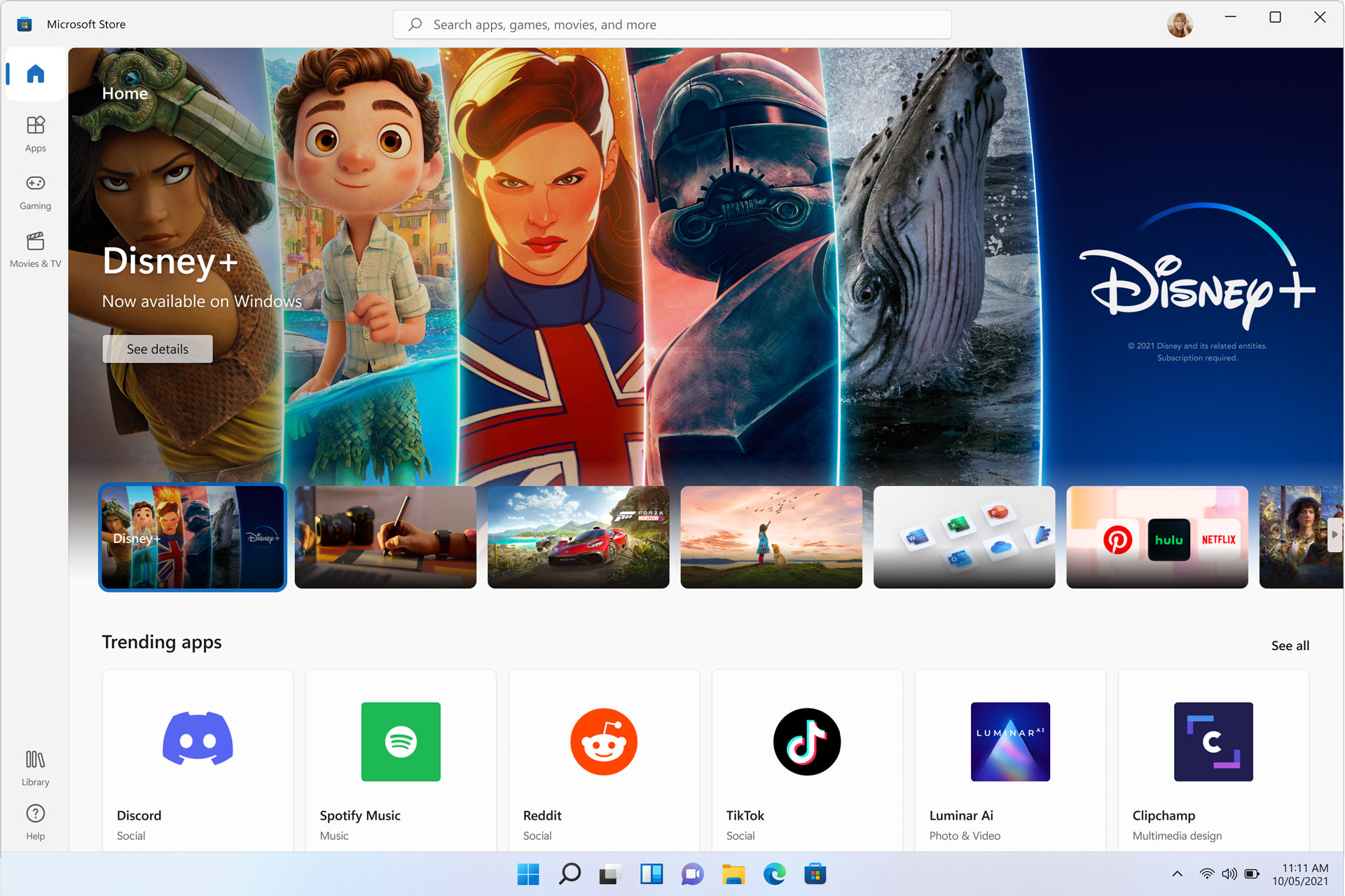
The Microsoft Store is the official app store for Windows 10 and 11. Its main advantage is security: all apps are reviewed and approved by Microsoft, which significantly reduces the risk of installing malicious software such as viruses or spyware. However, despite this guarantee, various problems can arise when installing or updating apps.
The causes can be very varied: From incorrect date/time settings, firewall interference, internet or DNS connection failures, permission errors, store cache issues, or even administrative or antivirus policy blocks, identifying the source is often the first step in resolving the issue.
Common mistakes and what causes them
- 0x80070005 (Access denied): It occurs due to lack of administrator permissions, problems with updates or corrupt files.
- 0x80073d23: Indicates corruption in installation records, usually of apps downloaded from the Store.
- 0x80080206: It usually appears due to connection problems, either on Microsoft's own servers or on the user's network.
- 0x80070141, 0x8004e108, 0x000001F7, 0x80D02017, 0x80070520, 0x800704cf, 0x801901f4, 0x80073cf4, 0xc03f40c8: All of them have different causes such as license conflicts, unstarted sessions, blocking by VPN or Proxy, lack of disk space, DRM issues, age restrictions or service outages.
In addition, it is common that even the "Get" or "Install" button is not activated, which may be due to child account restrictions, device incompatibilities, or session issues.
Step-by-step solutions for the most common installation errors
1. Check your computer's date and time
Incorrect date and time settings may prevent the Microsoft Store from working properly. In order to solve it:
- Access the Configuring Windows (Windows key + I).
- Go to “Time & language” and turn on “Set time automatically.”
- Make sure the “Adjust for Daylight Savings Time” option is enabled.
This will ensure that the store and Microsoft servers are synchronized.
2. Check your Internet connection, VPN and Proxy
Connections through VPNs or proxy servers may cause store crashes and errors.
- Go to “Network & Internet” from Settings (Windows + I).
- Disable any active VPNs and make sure the “Use proxy server” option is disabled.
- If you have connection problems, try restarting the router or change the DNS to Google (8.8.8.8) or Cloudflare (1.1.1.1).
3. Use the Microsoft Store troubleshooter and clear the cache
Windows includes a tool to detect and fix common errors in the Microsoft Store.
- Open Settings and go to “Update & Security.”
- Select “Troubleshoot” and search for “Microsoft Store Apps.”
- Run the troubleshooter and follow the steps it provides.
To clear the store cache: Press Windows + R, type wsreset.exe and press Enter. A window will open and close automatically, restarting the Store and leaving it as new.
4. Delete the local Store cache manually
If the above step does not resolve the issue, the cache may be too full or corrupted.
- Press Windows + R, type
%localappdata%and accept. - Navigate to
packages/Microsoft.WindowsStore_8wekyb3d8bbwe/LocalCache. - Delete all files inside that folder.
5. Scan your PC for viruses or malware
El malware may interfere with the operation of the store. Use Windows antivirus (Windows Defender) or whatever solution you have installed to perform a full system scan.
Don't limit yourself to quick scanning: Select full scan to detect hidden threats that may be causing the error.
6. Edit the registry if there are connection errors
Some errors can be fixed by adjusting permissions in the Windows registry. Only do this if you are experienced, as incorrect changes can cause damage:
- Open Run (Windows + R), type
regeditand accept. - Navigate to
HKEY_LOCAL_MACHINE/SOFTWARE/Microsoft/Windows NT/CurrentVersion/NetworkList/Profiles. - Right-click "Profiles," select "Permissions," and adjust the entries as needed. Then restart.
7. Reset Windows Update components
Many times the Store depends on updating system components. Microsoft offers a script to reset them:
- Download the official script ResetWUEng.cmd from Microsoft and run it as administrator to reset Windows Update.
- Follow the on-screen steps and reboot.
8. Review account or age restrictions
If you don't see the "Get" or "Install" button, there may be an age restriction or parental control. Manage these restrictions through Microsoft Family Safety, adapting the user profile to allow downloading.
9. Update Windows to the latest version
Windows updates fix multiple bugs and improve Store compatibility.
- Open Settings > Update & Security > Windows Update.
- Tap "Check for updates."
- If there are updates, install them and reboot.
If a recent update caused the error, you can uninstall it from "View update history" and see if that resolves the issue.
10. Check disk space
If your disk is full, the Microsoft Store won't be able to install new apps. Go to "This PC," check your main drive, and free up space if necessary. You can follow Windows' suggestions to remove Temporary files or uninstall apps you don't use.
11. Re-register or reinstall Microsoft Store
If all else fails, you can reinstall or re-register the store:
- Opens PowerShell with administrator permissions.
- To uninstall, run:
Get-AppxPackage *WindowsStore* | Remove-AppxPackage - To reinstall, run:
Get-AppXPackage -AllUsers -Name Microsoft.WindowsStore | Foreach {Add-AppxPackage -DisableDevelopmentMode -Register "$($_.InstallLocation)AppXManifest.xml" -Verbose}
12. Use the winget tool and the program solver
Windows includes advanced tools like winget for managing packages and troubleshooting installation errors. You can search for and install apps using commands:
- Search for an app:
winget search NombreApp - Install an app:
winget install NombreApp
Reasons why apps may not be available in the Microsoft Store
- Geographic restrictions: Not all apps are available in all countries.
- Parental control: Child accounts may have restrictions on downloading apps from certain categories.
- Incompatibility of hardware: Some apps are not compatible with all devices.
- PC Authorization: Make sure you're signed in with your Microsoft account and that your computer is authorized to install apps from the store.
- Pending updates without reboot: After installing updates, it is recommended to restart before downloading new apps.
- Application withdrawn or unavailable: The app may no longer be published on the Store.

Passionate writer about the world of bytes and technology in general. I love sharing my knowledge through writing, and that's what I'll do on this blog, show you all the most interesting things about gadgets, software, hardware, tech trends, and more. My goal is to help you navigate the digital world in a simple and entertaining way.