- Pixelation usually results from a low source resolution or an unstable internet connection that reduces the streaming bitrate.
- Adjusting brand-specific picture modes (such as Reality Creation on Sony or Sharpness on Samsung) can mitigate blurriness.
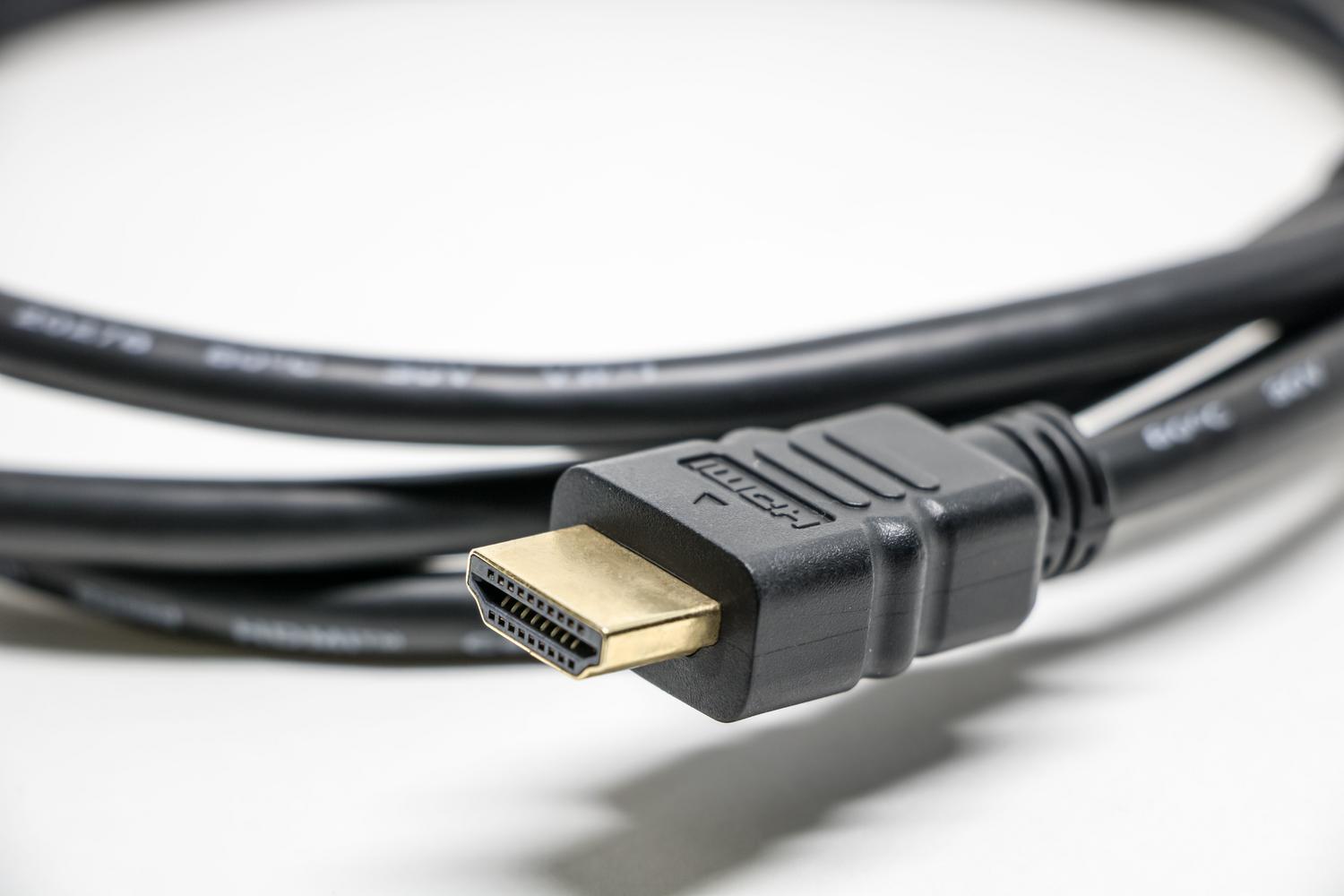
- Using high-speed HDMI cables and updating the firmware are essential steps to optimize signal transmission.

There's nothing more annoying than settling comfortably on the sofa to enjoy your favorite show or Sunday's game only to realize the picture is blurry or pixelated . It's a frustrating feeling, especially when you have a modern TV and were expecting crystal-clear clarity, but instead find the image is too pixelated or the edges are undefined.
This phenomenon is more common than you might think, and it doesn't always mean your TV is broken. Often, the problem lies in an incorrect setting or the quality of the source you're playing. In this article, we'll take a closer look at why this happens and how you can get your screen working perfectly so everything looks flawless, regardless of your Smart TV brand.

Why does my TV look pixelated or blurry?
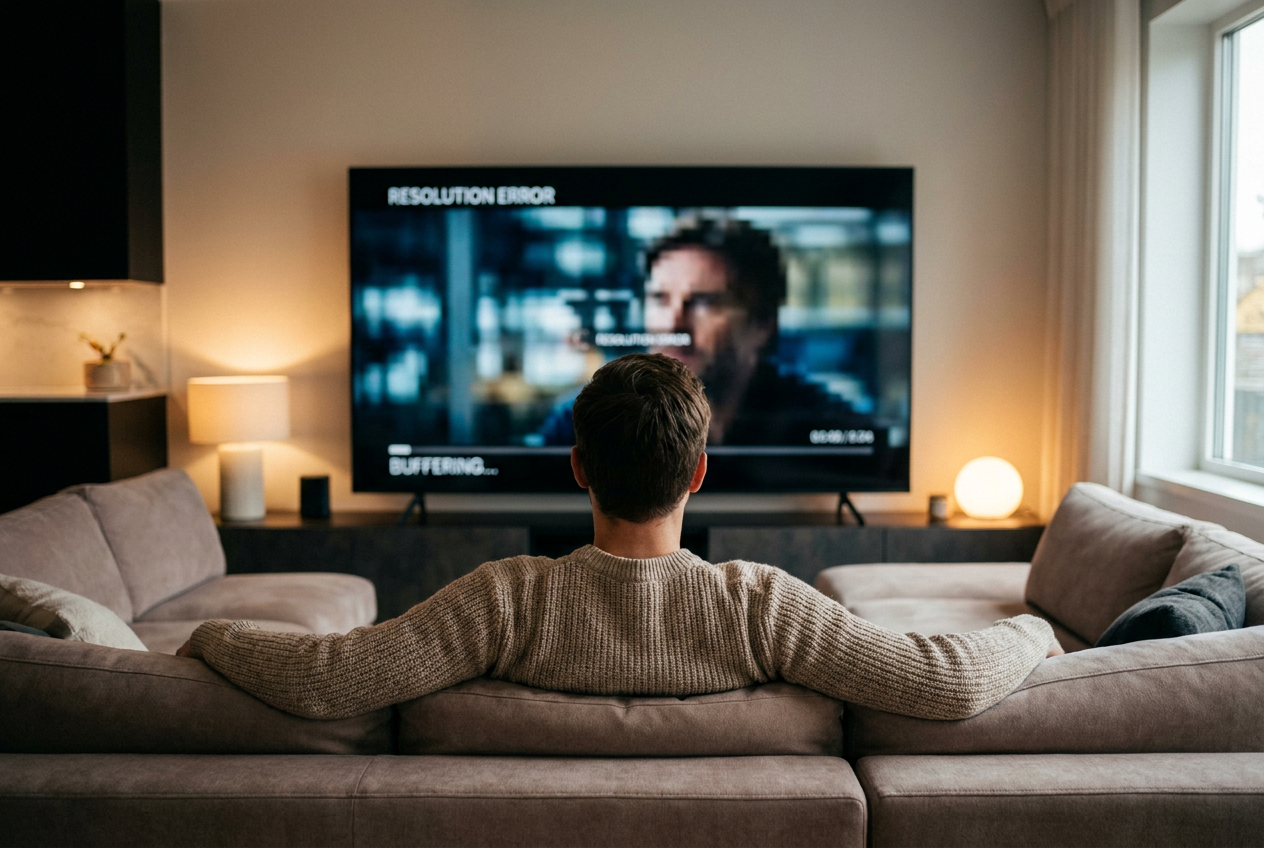
Before tweaking the settings, it's helpful to understand what's happening behind the scenes. One of the most common causes is a low original resolution . If you're watching an old YouTube video or a broadcast TV channel that doesn't transmit in high definition, the TV has to stretch the image to fill the entire screen, which makes the pixels visible, especially on very large panels. Therefore, it's worth asking whether 720p is sufficient for a 32- inch TV or similar size.
Another crucial factor is the stability of the internet connection . When using streaming platforms like Netflix or Disney+, the system adjusts the video quality in real time based on the available bandwidth. If the Wi-Fi signal weakens, the quality drops drastically to prevent the video from buffering, resulting in a blurry and noisy image.
Furthermore, we cannot forget the poor image upscaling . Each television processes information differently; more basic or older models do not handle the transition from low to high resolution as well, making the pixelation effect much more noticeable than on a high-end device.

The impact of hardware: Panels and Size
The technology of your screen directly influences how you perceive sharpness. For example, OLED panels typically offer much more natural and fluid upscaling. On the other hand, QLED TVs have specific processors designed to reduce visual noise and improve the definition of non-native 4K content.
A crucial detail is the size of the device. If you have a giant screen, for example, 75 inches, any resolution issues are amplified . The larger the panel, the more noticeable the lack of pixels becomes if the original content is low quality, which can create that blurry look even on new televisions.

Step-by-step guide to improving image quality
If you feel your TV isn't performing at its best, you can try several DIY solutions before considering taking it to a repair shop. The first thing to do is ensure the content resolution is correct ; whenever the platform allows it, manually select the highest quality (Full HD or 4K) in the playback settings.
Regarding TV settings, there are tricks depending on the brand:
- On LG televisions: Access the settings menu and look for "Picture Mode." Trying "Standard" or "Vivid" mode may help restore clarity.
- On Sony devices: Take advantage of the "Reality Creation" feature, which is specifically designed for remove blur in low-quality content.
- On Samsung models: Adjust the "Sharpness" setting in the image settings menu. Be careful, because if you raise this value too much, the image may look artificial, but if it's too low, it will appear blurry, so you might need to adjust the settings. How to fix motion blur on my Samsung TV.
Connectivity also plays a vital role. A poor-quality or outdated HDMI cable can limit data transmission. Make sure you're using HDMI 2.0 or higher cables to ensure a clear signal. Additionally, if you're using Wi-Fi, try switching to the 5GHz band or, even better, connect your TV via Ethernet cable to avoid bitrate drops during streaming.

Maintenance and complex cases
Don't neglect your device's software. Manufacturers constantly release firmware updates to optimize image processing and correct scaling errors. Keeping your system up to date can make a noticeable difference in image sharpness.
However, there are situations where the problem is more persistent. If you use your TV as a PC monitor and see blurry images in low-resolution games or apps, the automatic 4K upscaling might be causing that effect. While WebOS offers more limitations than Android TV, trying to adjust the output resolution from the source device (such as your computer's graphics card) can help achieve a sharper image.
If the image quality remains poor after trying all of these steps, your TV's processor may be too basic for the screen size. In such cases, upgrading to a model with advanced processors, such as those powered by artificial intelligence that analyze the scene in real time, would be the definitive solution.
The shift towards 8K resolutions and technologies like microLED promises to eliminate these problems, integrating processors that automatically optimize faces and landscapes. Meanwhile, optimizing your network, using high-quality cables, and properly adjusting picture modes are the best tools to combat pixelation and enjoy an immersive and detailed viewing experience.

Passionate writer about the world of bytes and technology in general. I love sharing my knowledge through writing, and that's what I'll do on this blog, show you all the most interesting things about gadgets, software, hardware, tech trends, and more. My goal is to help you navigate the digital world in a simple and entertaining way.