- ospp.vbs allows you to manage Office keys, licenses, and activation by volume, including changes between MAK and KMS.
- slmgr.vbs manages the KMS host and Windows, controlling host keys, ports, DNS, and activation counts.
- VAMT offers a graphical interface to centralize the management of volume activation for Office, Project, Visio, and Windows.
- Proper preparation of gold images and correct use of CMID, GVLK, and rearm prevent most activation problems.
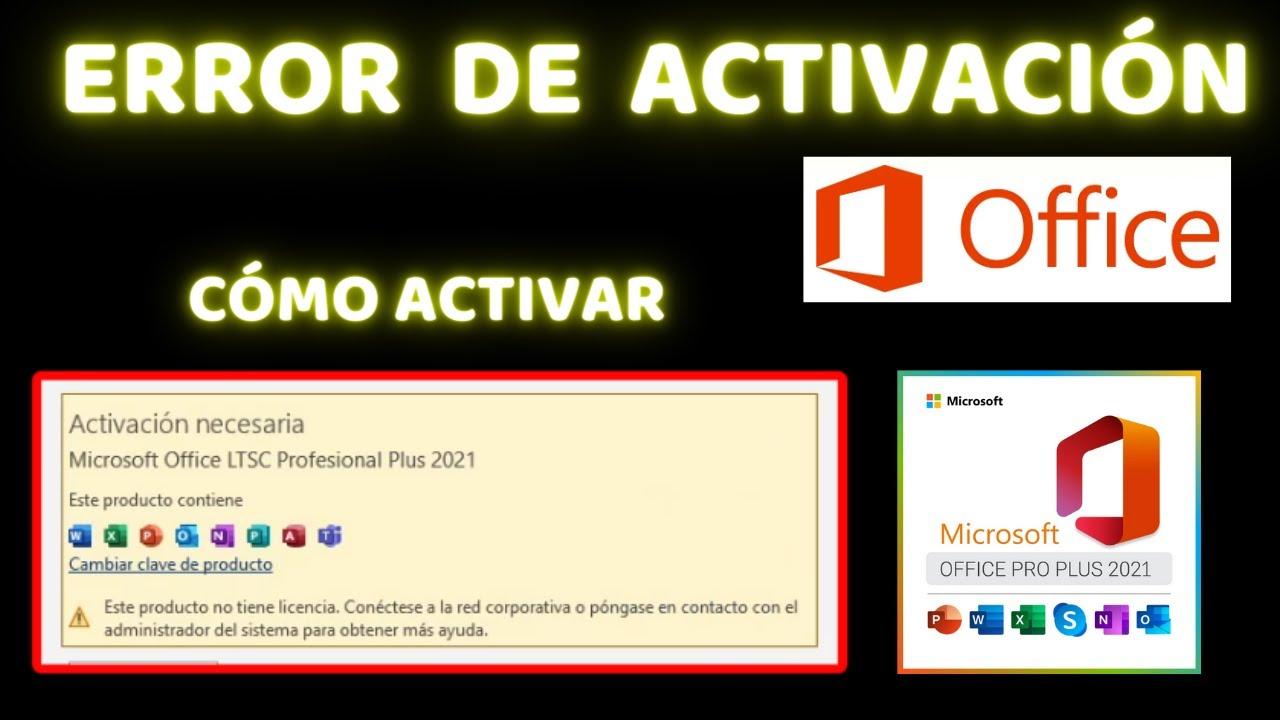
When Office stops being activated just when you need it most , it's easy to panic: unlicensed product warnings, disabled features, and error messages that don't tell you much. Behind many of these problems lies the way volume activation is managed, and that's where tools like ospp.vbs , slmgr.vbs , and VAMT come in, allowing you to control licenses, keys, and KMS servers in detail.
If you work with Office LTSC 2024, LTSC 2021, Office 2019, or Office 2016 (including Project and Visio) in corporate, VDI, or server environments, understanding how these scripts work can save you countless hours of testing and support tickets. Throughout this article, you'll see, step by step and with actual commands, how to reactivate Office using ospp.vbs , configure and diagnose KMS, switch between MAK and KMS activation, use slmgr.vbs on the host and VAMT as a graphical interface, as well as several tricks that make a real difference in practice.
Which versions of Office and environments are covered
All the tools and commands you'll see apply to volume-licensed editions of Office , specifically Office LTSC 2024, Office LTSC 2021, Office 2019, and Office 2016, including volume editions of Project and Visio. In these scenarios, activation is usually done through a corporate KMS server or using MAK (Multiple Activation Key) keys.
In server and VDI environments, starting with the correct image is crucial : for Office LTSC 2024, Windows Server 2019 is recommended as a minimum; for LTSC 2021, at least Windows Server 2016; and for Office 2019, Windows Server 2012 or later. Choosing an outdated base image can complicate compatibility with activation services and the latest tools.
The installation process typically begins with XML configuration files that the support team or administrator generates specifically for each version of Office. You will usually receive a set of files (setup.exe, configuration XML, etc.) that you copy to a folder on the server or your machine (for example, a folder called Office on the desktop) and then launch the installation and KMS activation from there.
An important point is that volume versions of Office come pre-installed with a GVLK (Generic Volume License Key) intended for activation via KMS or Active Directory-based activation. If you switch to a MAK key at any point and later want to revert to KMS, simply re-enter the appropriate GVLK, either using VAMT or ospp.vbs /inpkey.
Script ospp.vbs: the key tool to reactivate Office
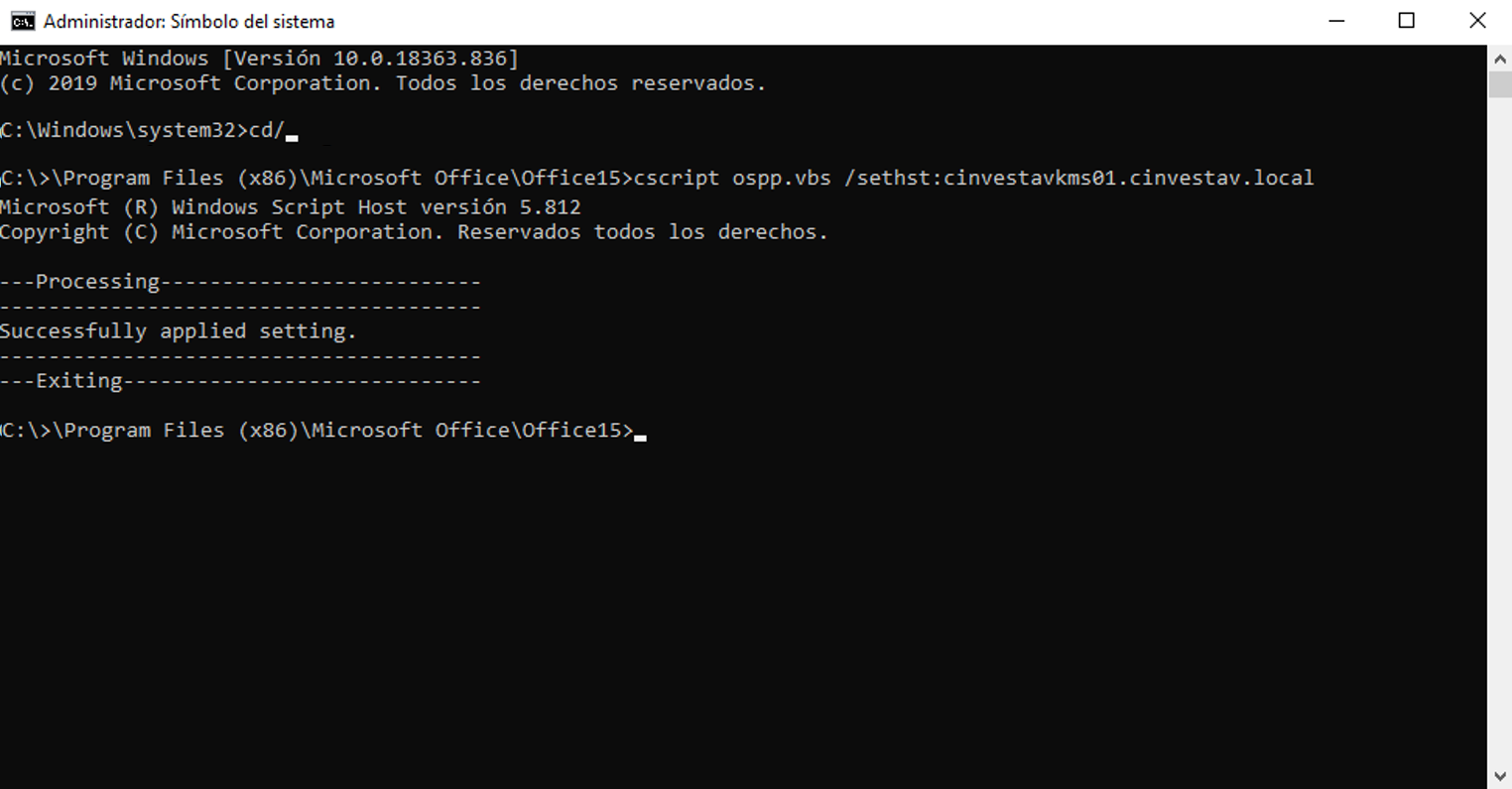
The ospp.vbs (Office Software Protection Platform) script is the core of Office license management in high-volume environments. It allows you to install and remove keys, force activations, check license status, configure the KMS host, and reset activation status, among many other things.
The path to the ospp.vbs file depends on the architecture and of the version, but in modern editions it is usually found in Program Files\Microsoft Office\root\Office16If you have installed the 32-bit version of Office on a 64-bit operating system, the usual path will be Program Files (x86)\Microsoft Office\root\Office16In older installations, the path may not include the folder root.
To run ospp.vbs, you need to use the scripting engine cscript.exe , always from an elevated command prompt (Run as administrator). If you want a quick look at the script's help, simply run:
cscript ospp.vbs /?
The general syntax of ospp.vbs includes several parts that allow you to specify the action to be performed and, optionally, against which machine it is to be executed:
cscript ospp.vbs
The additional parameters allow you to act on remote machines : if you provide ComputerName , Username , and Password , the script will execute the action on that remote machine, provided the account used has the necessary permissions. If you omit the computername, the command acts on the local machine, and if you don't specify credentials, the current user's credentials will be used.
ospp.vbs global options for licensing and activation
The global options in ospp.vbs focus on managing license status and activating installed Office products. Here are some of the most commonly used options and what each one does:
/act – This option attempts to activate all Office product keys already installed on the computer. It is the basic command to "force" activation when we know that everything is configured correctly.
/inpkey:value – This parameter installs a new product key , replacing the existing one. It is essential to specify the complete key value, for example, a MAK or a GVLK. This is used both to change from one KMS key to another, and to convert from MAK to KMS or vice versa.
/unpkey:value – This option uninstalls a specific product key using only the last five characters of the key to be removed. These last five digits are easily obtained with the /dstatus command , which displays information about installed keys.
/inslic:value – It is used for manually install an .xrm-ms license file specifying the file path. This is commonly used when converting retail licenses to volume licenses, loading the KMS license files from the folder Licenses16 before entering the KMS customer key.
/dstatus – Displays license information for the currently installed Office product keys . This is very useful for quickly checking which edition is active, whether the license is in KMS or MAK mode, and the last five characters of the key.
/dstatusall – Similar to the previous command, but lists all installed licenses , not just those associated with active keys. This is useful when there are remnants of old installations or multiple Office/Visio/Project products on the same computer.
/dhistoryacterr – Displays the activation error history of MAK or commercial keys , helping to detect if there have been failed attempts, network problems, key locks, etc.
/dinstid – Generates and displays the installation identifier required for offline activation (via phone). This identifier is then sent to the Microsoft activation center to obtain the confirmation identifier.
/actcid:value – Once you have the confirmation identifier, this command uses it to manually activate the product offline . It requires you to specify the CID value provided by Microsoft.
/rearm – This option resets the license status of all installed Office keys , resetting the grace period and clearing the activation state. It is very common when preparing gold images for VDI, ensuring that all deployed machines boot with a clean state.
/rearm:value – A more precise variant of the previous command, which rearms only the license corresponding to a specific SKU ID . The SKU ID is obtained beforehand with /dstatus . This is especially useful if the number of rearms has been exhausted and the license is reactivated via KMS or AD-based activation to obtain an additional rearm cycle.
/ddescr:value – Given an activation error code (for example, 0xC004F042 or 0xC004F074), this command displays a detailed description of the error. This is very helpful in understanding whether the problem originates from the network, the KMS server, the key, or the local configuration. For more information about errors, see activation error codes.
ospp.vbs options specific to KMS clients
In addition to managing licenses, ospp.vbs allows fine-tuning the behavior of the KMS client , especially in environments where automatic DNS discovery is not used or where the KMS server is on a different network.
/dhistorykms – Displays the activation history as a KMS client , including which KMS host responded, how many attempts were made, and if there were any errors. This is essential for verifying that the client is indeed communicating with the correct server.
/dcmid – Displays the Client Machine ID (CMID) of the KMS client. In gold images for VDI, it is crucial that this value appears empty before capturing the image, to prevent multiple machines from sharing the same identifier and distorting the KMS server activation count.
/sethst:value – Explicitly configure the hostname of the KMS server to be usedThis value is stored in the register under the key HKLM\Software\Microsoft\OfficeSoftwareProtectionPlatform\KeyManagementServiceNameThis is the key command when we want to force a client to use a specific KMS host, such as kms-office.oasixcloud.es or an internal FQDN.
/setprt:value – Define the TCP port of the KMS serviceThe default value is 1688, but in some organizations it is modified for security or network segmentation reasons. The setting is saved in KeyManagementServicePort within the same branch of registration.
/remhst – Removes the manually configured KMS host and resets the port to 1688 , returning the client to automatic DNS discovery mode. This is useful when you stop using a test server and want the machines to revert to locating the production KMS host without explicit configuration.
/cachst:value – Enables or disables KMS host caching on the client . It is passed TRUE or FALSE. This allows you to control whether the client remembers the host it has used or if it should attempt to rediscover it more frequently.
/actype:value – In Windows 8.1 and later, this parameter indicates the preferred volume activation type : a value of 1 is for Active Directory-based activation, 2 for pure KMS, and 0 allows both. This is very useful in mixed organizations migrating from classic KMS to AD-based activation.
/skms-domain:value – Also for Windows 8.1 and later, this allows you to define a specific DNS domain in which the KMS service's SRV records will be searched . You must specify the full FQDN; this doesn't affect configuration of a single KMS host using /sethst , but it does affect the process when you want to limit automatic discovery to a specific domain.
/ckms-domain – Clears the DNS domain defined for KMS SRV records . If no host is configured with /sethst , the client reverts to using standard DNS autodiscovery to find the KMS server.
Practical scenarios with ospp.vbs: reactivating and diagnosing Office
In practice, we almost always end up using specific combinations of commands to cover typical scenarios: changing keys, troubleshooting KMS errors, testing hosts, adjusting cache, etc. These are some of the most useful.
1. Change the key to MAK and activate it on a remote computer
Imagine you have a remote team called contoso1 And you want to install and activate a MAK key. From a command prompt with elevated privileges, you can do the following:
cscript ospp.vbs /inpkey:XXXXX-XXXXX-XXXXX-XXXXX-XXXXX contoso1
cscript ospp.vbs /act contoso1
The first command installs the new MAK key on the remote computer , using your current credentials (or those you explicitly specify). The second command attempts online activation against Microsoft servers from that same remote computer.
2. Diagnose activation errors with KMS
When Office fails to activate against KMS, follow this sequence in the KMS client:
cscript ospp.vbs /dstatusall
cscript ospp.vbs /dhistorykms
cscript ospp.vbs /act
First, you check all licenses and their status , then you review the communication history with KMS, and finally, you force an activation. If the message contains a code like 0xC004F042 , you can request the description from the script using:
cscript ospp.vbs /ddescr:0xC004F042
3. Enable or disable the KMS host cache
In some deployments, it may be desirable for the client to remember the KMS host it has already used for a longer period, while in others it is preferable for it to search for it again, for example when there is load balancing:
cscript ospp.vbs /cachst:TRUE
cscript ospp.vbs /cachst:FALSE
TRUE activates KMS host caching , and FALSE deactivates it to force the client to rediscover the server.
4. Test a test KMS host and return to automatic discovery
If you want to validate a lab KMS server, you could do the following:
cscript ospp.vbs /sethst:kmstest.contoso.com
cscript ospp.vbs /act
cscript ospp.vbs /dhistorykms
This verifies that the client is correctly reaching the test host . Once verified, you can remove that host so that the production KMS is used again via DNS.
cscript ospp.vbs /remhst
Configure and reactivate Office against a specific KMS (e.g., Oasix)
Many cloud providers use their own KMS server to activate Office.A typical example is an environment where the KMS is advertised as kms-office.oasixcloud.es and the support team provides you with a set of installation and configuration files.
The usual flow in this type of scenario typically includes several steps : first, connectivity with the KMS is checked, then Office is installed with the appropriate XML file, the Office directory is accessed, and the activation is launched against the server.
1. Check connectivity with the KMS server
From the Windows machine where you are going to install Office:
ping kms-office.oasixcloud.es
If the ping responds, the machine sees the KMS host and, barring firewall blocks, should be able to activate.
2. Install the Microsoft Office suite using the volume XML file
Assuming you have copied all the files into an “Office” folder on your desktop, and that the XML file is called, for example, Office2021ProfPlusKMS.xml:
.\setup.exe /configure Office2021ProfPlusKMS.xml
After running this command, the silent or semi-silent installation will begin , as indicated in the XML file. It is important to wait for it to finish completely before proceeding with activation.
3. Access the Office directory
Once installed, go to the corresponding Office folder, for example:
cd C:\Program Files\Microsoft Office\Office16
In 32-bit environments over 64-bit you would have to use Program Files (x86) , but the logic is the same: locate the folder where the OSPP.VBS script is located.
4. Configure the KMS server and activate
In this case, you explicitly tell the client to use the Oasix host and then force activation:
cscript.exe .\OSPP.VBS /sethst:kms-office.oasixcloud.es
cscript.exe .\OSPP.VBS /act
5. Check the license status
Finally, you can check the activation information and channel type:
cscript -nologo "ospp.vbs" /dstatus
In addition to reviewing the command output, it's always a good idea to open an Office application , go to File > Account , and check that the product appears as activated and without license warnings.
slmgr.vbs: KMS and Windows host administration
While ospp.vbs focuses on the Office client, slmgr.vbs is oriented towards the KMS host and Windows.This script, located in Windows\system32It allows you to configure the KMS server, install host keys, view the activation count, adjust ports, and publish or not in DNS.
slmgr.vbs can be run both locally and remotely , provided you use an account with administrator privileges on the target computer. If a standard user attempts to run it, many operations will be blocked and the displayed license information may be incomplete.
By default, slmgr.vbs uses the script host wscript.exe , but it is strongly recommended to use cscript.exe for working from the command line, as it provides much more manageable text output:
cscript slmgr.vbs
When you make significant changes to the licensing configuration (for example, installing a new KMS host key or changing the port), you need to restart the Software Licensing Service for the changes to take effect. You can do this from the Services console or with:
net stop sppsvc && net start sppsvc
Among the many options in slmgr.vbs, some are especially important for managing the Office and Windows KMS host:
- /ipk ProductKey – Install the product key on the KMS host (or on Windows by default). This is the standard way to register the KMS host key provided by Microsoft.
- /ato ActivationID – Activate the KMS host against Microsoft servers using the previously installed key. If no ActivationID is specified, it will operate on the default Windows system.
- /dti ActivationID – Displays the installation identifier for telephone activation of the KMS host, in case online activation is not possible.
- /atp ConfirmationID ActivationID – Complete the KMS host activation using the confirmation identifier received by phone.
- /dlv ActivationID – Displays detailed licensing information for the indicated product, including customer count (km) and activation statusTo check the status of the Office KMS host, a specific ActivationID is usually used, for example:
cscript slmgr.vbs /dlv 70512334-47B4-44DB-A233-BE5EA33B914C - /dli ActivationID – Shorter variant that shows only basic license information.
- /upk ActivationID – Uninstall the product key for the specified application. Without the ActivationID, you can uninstall all keys, including the Windows key, so exercise extreme caution.
- /xpr ActivationID – Displays the expiration date associated with the current license status.
- /sprt PortNumber – Adjust the TCP port on which the KMS host listens for requests (default 1688).
- /cdns y /sdns – They disable or enable the automatic publication of SRV records in DNS by the KMS host.
- /cpri – Reduce the priority of KMS processes to minimize impact on performance.
- /sai y /sri – Activation and renewal intervals change for KMS customers, indicated in minutes (for example, 120 for activation attempts, 10080 for weekly renewal).
Additionally, slmgr.vbs includes specific parameters for Active Directory-based activation , which allow you to activate an AD DS forest with a special product key:
- /ad-activation-online ProductKey – Activate the AD DS forest with the provided key, using an online connection.
- /ad-activation-apply-get-iid ProductKey – Displays the installation identifier for telephone activation of the forest.
- /ad-activation-apply-cid ProductKey ConfirmationID – Forest activation ends with the confirmation identifier.
Useful slmgr and ospp commands for KMS hosts and clients
In environments where VDI desktops are being prepared or several versions of Office are being migrated , it is very useful to manage a small collection of common commands for both the KMS server and the clients.
For the KMS host , some recurring examples are:
- Verify the KMS count for different versions of Office
Office 2013:cscript slmgr.vbs /dlv 2E28138A-847F-42BC-9752-61B03FFF33CD
Office 2010:cscript slmgr.vbs /dlv bfe7a195-4f8f-4f0b-a622-cf13c7d16864
Office 2016:cscript slmgr.vbs /dlv 98ebfe73-2084-4c97-932c-c0cd1643bea7 - Activate the KMS host
cscript slmgr.vbs /ato - Show all configured hosts
cscript slmgr.vbs /dlv all - Install the key for the KMS host
cscript slmgr.vbs /ipk <product key> - Verify the host's DCMID
cscript slmgr.vbs /dcmid - Deactivate a specific KMS host (according to version) using
/upkwith the appropriate ActivationID.
For Office client machines, with the working directory in the corresponding Office folder (for example, C:\Program Files (x86)\Microsoft Office\Office16), it is common to use:
- Verify customer ID (DCMID), which should be empty in a gold image:
cscript ospp.vbs /dcmid - View license information of the installed product:
cscript ospp.vbs /dstatus - View detailed KMS host activation status from the client:
cscript slmgr.vbs /dlv - View the KMS hostname the client is connecting to:
cscript ospp.vbs /dhistorykms - Uninstall a partial Office key, indicating the last five characters:
cscript ospp.vbs /unpkey:<ULTIMOS5> - Install a new key, MAK or customer KMS:
cscript ospp.vbs /inpkey:<product key> - Force Office activation:
cscript ospp.vbs /act - Set the KMS server and port from the client machine:
cscript ospp.vbs /sethst:serverfqdn.your.org
cscript ospp.vbs /setprt:1688
cscript ospp.vbs /act
In parallel, similar settings can also be applied to Windows using slmgr , for example:
slmgr.vbs /skms serverfqdn.your.org:1688
slmgr.vbs /ato
Reassemble, clean facilities and prepare gilded images
One of the critical points in VDI and massive deployments is how to prepare a "clean" image , so that each resulting machine has its own identifier and can be activated without problems against KMS.
Before capturing the image, it is vital not to open any Office applications or run ospp.vbs unless absolutely necessary for installing licenses. Opening an application fixes the CMID and can invalidate the image preparation.
The recommended workflow is usually : install Office at the end of the preparation process, apply the necessary patches, and just before capturing, reassemble the installation with:
cscript ospp.vbs /rearm or, in some versions, using the tool ospprearm.exe.
After rearming, it must be verified that the DCMID is empty. with cscript ospp.vbs /dcmid And then, yes, capture the golden image. Otherwise, all the clones will share the same identifier, and the KMS host will see them as a single machine.
If you need to completely clean up remnants of previous Office installations (for example, when migrating from one version to another or troubleshooting persistent problems), you can use Office's "scrub" tools, which remove settings and files from older versions. These typically include options such as:
- Run the Offscrub tool with different parameters, including /bypass to skip specific stages (1, 2 or 3) and /q for silent operation.
- Use
setup.exe /repair,/uninstallo/modifydepending on your needs (repair, uninstall or replace components).
Finally, remember that the Office Customization Tool (OCT) is still useful in certain scenarios , especially with older volume releases, and runs with:
<ruta de setup.exe> /admin
Manual method to activate Office 365/2016 with a KMS customer key
Although Office 365 is subscription-based, many organizations use Office 2016-type installers deployed with volume licenses , which also involve KMS client keys (GVLK). The manual process for activating this type of installation with a specific GVLK is very illustrative.
1. Open Command Prompt as administrator
The first step is always to launch the command prompt with elevated privilegesWithout administrator privileges, ospp.vbs commands will not be able to write to the registry or modify the license status.
2. Go to the appropriate Office folder
Depending on whether Office was installed on Program Files o Program Files (x86)These commands are used (you can run both, one will fail if the path does not exist):
cd /d %ProgramFiles%\Microsoft Office\Office16
cd /d %ProgramFiles(x86)%\Microsoft Office\Office16
3. Upload volume KMS licenses if applicable
In Office retail installations converted to volume, you must load the VL license files before entering the KMS key. This is done as follows:
for /f %x in ('dir /b ..\root\Licenses16\proplusvl_kms*.xrm-ms') do cscript ospp.vbs /inslic:"..\root\Licenses16\%x"
This command scans all ProPlus VL KMS license files in the Licenses16 folder and installs them one by one using ospp.vbs.
4. Install GVLK and clear previous keys
Once the VL licenses are loaded, you can enter the corresponding KMS client key. For example, for Office Professional Plus 2016, the known KMS client key is:
XQNVK-8JYDB-WJ9W3-YJ8YR-WFG99
The script would look something like this (including cleaning up residual keys):
cscript ospp.vbs /inpkey:XQNVK-8JYDB-WJ9W3-YJ8YR-WFG99
cscript ospp.vbs /unpkey:BTDRB >nul
cscript ospp.vbs /unpkey:KHGM9 >nul
cscript ospp.vbs /unpkey:CPQVG >nul
This ensures that only the GVLK you are interested in remains active , removing old keys whose last five characters are BTDRB, KHGM9 or CPQVG, for example.
5. Define the KMS host, port, and activate
Finally, the client is instructed which KMS server to use and activation is forced:
cscript ospp.vbs /sethst:107.175.77.7
cscript ospp.vbs /setprt:1688
cscript ospp.vbs /act
If you encounter error 0xC004F074, it usually indicates connectivity problems or a overloaded KMS server . In these cases, you should check the connection to that host (ping, telnet to port 1688, firewall) and retry the /act command until activation is complete.
The detailed output of these commands shows information such as the SKU, license type (VOLUME_KMSCLIENT) and the last digits of the key, confirming that the KMS configuration has been applied correctly.
Tips and best practices with KMS, MAK, and VAMT
Beyond the commands, there are a number of recommendations that help make the entire activation system more stable and less prone to surprises in production.
1. In Office 2016 and later, you do not need to enter a key in KMS clients.
In most cases, it is sufficient to correctly activate the KMS key on the host; client machines use the pre-installed GVLK and connect automatically. Only the following will be required: /inpkey if it has been changed to MAK or if you want to force a specific GVLK.
2. Client machines must be joined to the domain
The KMS model typically assumes that computers are part of an Active Directory domain, allowing SRV records to be resolved and communication with the KMS host to be validated. For computers outside a domain, it is usually more convenient to use MAK or manual activation.
3. Do not open Office or run ospp.vbs before capturing the base image
As mentioned, this can fix a unique CMID and "break" the image. Install Office last, apply patches if necessary, and run /rearm, check that there is no DCMID and only then capture.
4. Install VAMT on the KMS server when you want a more user-friendly GUI
The Volume Activation Management Tool (VAMT) provides a graphical interface for View keys, manage activations, and diagnose problems without relying exclusively on the command line. This is especially useful when managing many different products (Windows, Office, Project, Visio) from a single panel.
In the case of Office LTSC 2024, VAMT requires some support files that are copied into the VAMT folder itself (for example, C:\Program Files (x86)\Windows Kits\10\Assessment and Deployment Kit\VAMT3Typical files are:
- pkeyconfig-office24-client.xrm-ms y pkeyconfig-office24-kmshost.xrm-ms, which are copied to the subfolder
VAMT3\pkconfig. - The file Office24.cilx, which is imported into VAMT from the option of Import list from the actions panel.
Once the list is imported, VAMT displays the Office LTSC 2024 editions and allows you to assign keys, view statuses, and run activation tasks on inventoried computers.
4. Be aware of MAK's limitations behind authenticated proxies
If your internet connection goes through a proxy that requires authentication, automatic MAK activation usually fails. In those cases, you'll have to resort to... activation by phone, first generating the installation ID and using the telephone channel to obtain the confirmation ID.
5. Use error codes to your advantage
Each activation error (such as the typical 0xC004F074, 0xC004F042, etc.) has an associated text that you can obtain with ospp.vbs /ddescr:<Codigo>Understanding that message helps you go straight to the real problem: DNS, firewall, blocked key, missing KMS count, etc.
Mastering ospp.vbs, slmgr.vbs, and VAMT gives you real control over Office and Windows activation , whether on individual machines or large deployments with hundreds or thousands of computers. While the number of options might initially seem overwhelming, working with these commands systematically transforms reactivating Office with ospp.vbs, diagnosing KMS errors, or switching between MAK and KMS from an ordeal into a routine and predictable task.

Table of Contents
- 1 Which versions of Office and environments are covered
- 2 Script ospp.vbs: the key tool to reactivate Office
- 3 ospp.vbs global options for licensing and activation
- 4 ospp.vbs options specific to KMS clients
- 5 Practical scenarios with ospp.vbs: reactivating and diagnosing Office
- 6 Configure and reactivate Office against a specific KMS (e.g., Oasix)
- 7 slmgr.vbs: KMS and Windows host administration
- 8 Useful slmgr and ospp commands for KMS hosts and clients
- 9 Reassemble, clean facilities and prepare gilded images
- 10 Manual method to activate Office 365/2016 with a KMS customer key
- 11 Tips and best practices with KMS, MAK, and VAMT
