If your laptop with Intel Iris Xe graphics is overheating, you're not alone : thin laptops pack a lot of power into a small space, and any neglect in ventilation, software, or maintenance can cause temperatures to spike and lead to the infamous thermal throttling.
The good news is that with simple adjustments, proper habits, and a little preventative maintenance, you can keep it cool , maintain performance, and extend its lifespan, whether you use it for office work, video calls, light editing, or e-sports gaming.
Intel Iris Xe: What it is and why it matters for temperature
Intel Iris Xe is the reference integrated GPU in 11th and 12th generation Intel processors , a big leap from Intel UHD by offering more execution units (80 or 96 EUs), modern API support and hardware video acceleration without the need for a dedicated graphics card.
Being integrated into the same chip as the CPU means it shares resources, power, and heat dissipation , allowing for thinner and more efficient chassis, but also making the overall thermal management of the device critical to maintaining frequencies and stability.
The two most common variants are the Iris Xe G7 with 80 EUs and 96 EUs : both share a base clock of ~400 MHz and can scale up to ~1350 MHz depending on the load, available power and, very importantly, the thermal margin of the system.
The Xe architecture provides unified shading, a 10nm manufacturing process, and full DirectX 12.1 support ; it also includes QuickSync for highly efficient video encoding/decoding, reducing CPU usage and heat during playback and editing.
How overheating manifests itself and why it is a problem
When a laptop gets too hot, it automatically loses performance to protect itself (throttling), and symptoms such as crashes, blue screens, or unexpected restarts may appear.
- Falling performance when opening apps or playing games due to the drop in frequencies.
- Hangs or shutdowns by thermal peaks that trigger the protection mechanisms.
- Potential component damage (CPU, VRM, battery) if prolonged heat is maintained.
- Battery degradation or swelling, with less autonomy and mechanical risk.
- Fans on full blast and noise constant, a sign that the system is struggling to dissipate.
- Data loss if it turns off in the middle of a job.
- Reduced lifespan of all equipment due to accumulated thermal stress.
If you notice one or more of these signs, it's a good idea to review your habits, settings, and cleaning before the problem gets worse.

Typical causes of heat in Iris Xe laptops
The cause is almost always a mixture of physical limitations of the chassis and small bad habits that block airflow or force unnecessary loads.
Hardware
- Accumulation of dust and lint in grilles, filters and fans that restrict the output of hot air.
- Clogged air inlets due to dirt or by resting the equipment on soft surfaces.
- Fan with low revolutions or broken on the processor heatsink or thermal assembly.
- Defective or very hot mechanical hard drive which adds heat to the chassis; a SSD reduces this heat input.
- Faulty components (chips, capacitors) that get hotter than normal.
- Use in bed, sofa or on your legs covering air inlets and outlets.
- Pet hair vacuumed up by the cooling system, clogging the heatsinks.
- Environments with tobacco smoke, whose tar forms a sticky paste with dust that is very difficult to remove.
Software
- Demanding applications in the background (editing, games, indexers, virtualization) saturating CPU/GPU.
- Lack of maintenance of system and drivers that prevents energy optimizations.
- Poorly done internal cleanings that damage anchors or fans if not performed with professional care.
Also, remember that a laptop's GPU is usually not upgradeable , so it's a good idea to take care of the iGPU and its thermal environment from day one.

Ventilation and cleaning: the basis of any solution
Use the laptop on a firm, flat surface to allow the vents to breathe; avoid beds, sofas, or cushions, which block airflow and trap heat in the chassis.
Slightly raise the back or use aluminum bases , which help dissipate heat; if you like to work on the sofa, place at least one rigid base that keeps the entrances clear.
Frequently clean the grilles and visible dust with low-pressure air or an air blower; never bring the turbine of a blower close to the fan at full speed because you can damage it.

If the device hasn't been opened for a while, a professional internal cleaning makes all the difference : removing matted lint from heat sinks and renewing thermal paste restores heat exchange capacity.
Before attempting any work, turn off the device, disconnect the charger, and, if possible, the battery ; opening it without experience can break tabs or cause short circuits, so don't force it and consider calling a technician.
Software and energy settings that lower temperatures
Close what you're not using and keep an eye on resource-intensive processes with Task Manager on Windows or Activity Monitor on macOS; many overheating issues come from background apps that go unnoticed.
Keep your system and drivers up to date to benefit from improvements in power management, video acceleration (QuickSync), and patches that prevent high-consumption loops.
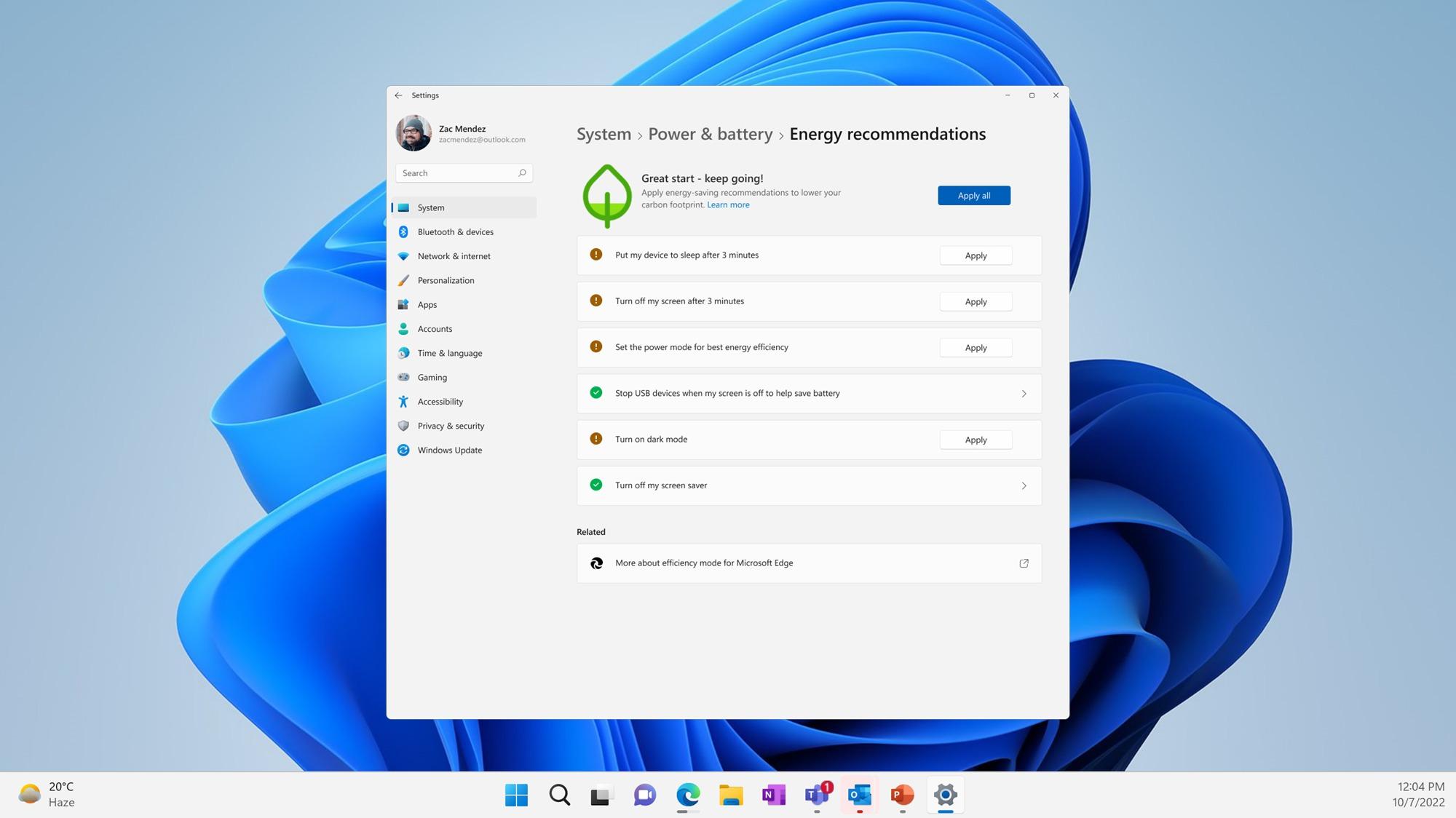
Check the power plan : On Windows, go to Control Panel > Hardware and Sound > Power Options and choose Balanced or a custom plan that limits spikes; on macOS, go to System Preferences > Energy Saver to adjust sleep and performance.
If your laptop has a dedicated GPU and MUX Switch, force the iGPU when you're not gaming : for light tasks, the Iris Xe is more efficient and generates less heat than the dGPU; when you need graphics power, it switches to the dedicated GPU and accepts the temperature increase.

Additional cooling and preventive maintenance
A cooling pad with fans provides cool air right where it's needed ; it's an inexpensive accessory that helps maintain boost for longer without increasing noise.
Monitor temperatures in real time with tools like HWMonitor, Core Temp, or SpeedFan; they will give you clues as to whether something is wrong and when to take action.
Guideline ranges for Iris Xe and equivalent CPUs : idle 35-45 °C, light load 45-55 °C and gaming/render 65-75 °C; if you frequently exceed these limits, it is advisable to check thermal paste, fans or habits.
Upgrading to SSD and expanding RAM in dual channel offloads the system ; less mechanical access and more bandwidth for the iGPU allow the same to be achieved with less time spent at high temperatures.
If the fan makes strange noises or spins slowly, consider replacing it ; this component is inexpensive compared to a motherboard and makes the difference between a quiet laptop and a toaster.
For equipment in dusty, pet-friendly or smoky environments, shorten the cleaning cycle and avoid smoking nearby: tar sticks and makes any maintenance much more complicated.
Graphics performance without overheating: what to expect from Iris Xe
In e-sports and light gaming, the Iris Xe performs surprisingly well if you adjust the graphics ; titles like League of Legends or CS:GO can run at 1080p with playable frame rates with the 80 EUs variant and even better with the 96 EUs variant.
Approximately, LoL can achieve around 75-85 FPS with 80 EUs and 85-95 FPS with 96 EUs in suitable configurations; in CS:GO, with low settings, it is possible to see between 85 and 100 FPS at 80 EUs, always with good airflow.
For light creation, QuickSync accelerates 1080p/4K playback and basic exports ; the 96 EUs version is typically 15-20% faster than the 80 EUs version in iGPU-dependent workloads.
If you raise the demands too much (modern AAA or complex effects), the thermal and shared memory limits become noticeable ; use low resolution or presets and avoid sustained peaks in ultra-thin chassis.
Remember that Iris Xe offers extras such as HDR , multiple displays and adaptive sync , useful for work and leisure, provided the thermal design of the device is up to par.
Special cases: mini PCs and computers with dGPU
Mini PCs with CPUs like the i5-1135G7 and Iris Xe share the same thermal rules : tiny chassis, 28W target, and the need for good airflow in the location where you place them.
If your laptop combines an iGPU and a dGPU, take advantage of the MUX Switch, where available, to alternate between efficiency and power; in low-power tasks, prioritize the iGPU to reduce temperatures and noise.
On some motherboards, external outputs are wired to the dGPU to squeeze latency or performance ; if you're looking to work cool, use the internal display or a port governed by the iGPU when you have that option.


Passionate writer about the world of bytes and technology in general. I love sharing my knowledge through writing, and that's what I'll do on this blog, show you all the most interesting things about gadgets, software, hardware, tech trends, and more. My goal is to help you navigate the digital world in a simple and entertaining way.