- Microsoft allows you to view Office files in Android without logging in, facilitating quick access to documents shared via link.
- Editing and commenting on files still requires signing in with a Microsoft account, while anonymous viewing is limited to reading.
- This feature is being integrated starting with version 16.0.18827.20066 of the Office apps on Android, matching the experience already available on iOS.

Mobile document management is a daily necessity for millions of users, whether for reviewing notes, work reports, or school presentations. Until recently, accessing Word , Excel, or PowerPoint files from an Android device often required logging in with a Microsoft account , which could be cumbersome, especially if you just wanted to take a quick look at a shared file. Fortunately, that has changed, and Android has also implemented features that its users have been requesting for some time, having seen them available on iOS for months.
This article provides an in-depth look at how to open Office documents on Android without logging in, outlining limitations, what you need to know about different versions and alternatives , and offering practical tips and solutions if you encounter problems or need more control over your files. Everything is explained in a clear, engaging way, with enough detail to ensure you don't miss a thing.
Before and after: Opening Office files on Android without signing in
Until very recently, opening a Word, Excel, or PowerPoint document on Android required an active Microsoft account and logging in every time a shared file was received . This slowed down the process, especially when the goal was simply to quickly view the document and not manage anything more advanced.
Furthermore, it was a real nuisance for those who received files sporadically or worked with multiple accounts, since the session could close automatically due to inactivity , and every time you received a new document, the system would ask for your credentials repeatedly. This, as many users acknowledge, resulted in a clunky user experience compared to other, more flexible alternatives.
The situation has changed: Microsoft has launched anonymous viewing mode for its Office apps on Android . Now, simply receiving a shared link to a Word, Excel, or PowerPoint file is enough to open and view it directly, without needing a username, password, or registration—something that was previously exclusive to iOS. With this improvement, Android is moving closer to the modern experience already offered by services like Google Drive.
How does anonymous viewing of Office files work on Android?
It works simply and very practically. Users who need to share a file (Word, Excel, or PowerPoint) generate a link from their Office mobile app (version 16.0.18827.20066 or higher) . This link can then be sent via email, WhatsApp , Telegram, or any other preferred method.
- The person receiving the link only has to click on it from any Android device.
- The file opens in the corresponding Office application, directly in read-only mode.
- If a prompt to log in appears, You can ignore it and continue reading the document without any problems..
This feature is especially useful in everyday life: for reading contracts from your mobile phone while traveling, reviewing class notes, consulting reports sent by a colleague, or simply checking a presentation before joining a meeting. And all this without having to remember passwords or deal with additional authentication processes.

What can you do anonymously… and what can’t you?
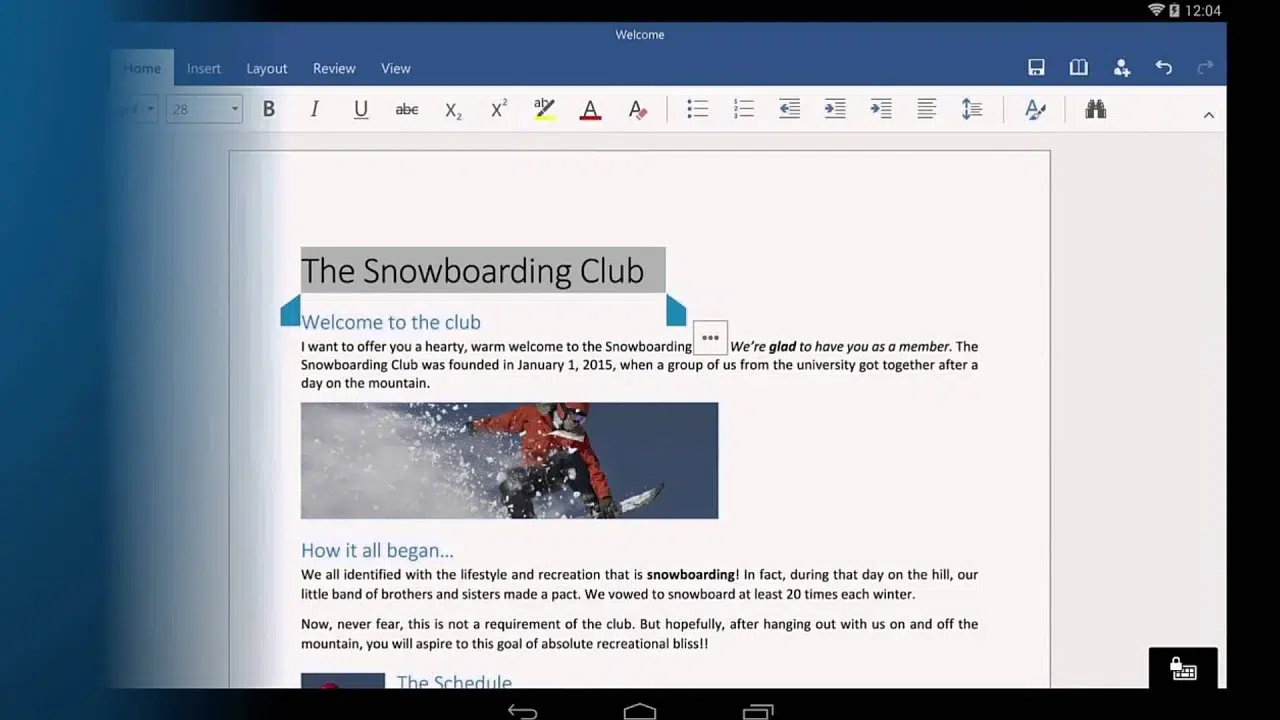
Office's anonymous mode on Android is designed primarily for speed and convenience. It allows you to view shared content, but not edit it or leave comments or annotations . This is clearly specified by Microsoft in its official announcements and within the app's interface itself.
This means that if you only need to view a document, you won't have any limitations . However, if you want to edit, add comments, or make any modifications, you will need to sign in with a Microsoft account . The system will remind you of this with a message at the top of the document, prompting you to sign in if you want to access more features.
In practice, this limitation poses little problem for most everyday situations: most of the time you only need to view the content, and if editing is necessary, simply add your user account when prompted. Furthermore, anonymous viewing poses no risk or unauthorized access : only the recipient of the link can view the file, respecting standard Microsoft Office security policies.
Technical requirements for using anonymous viewing on Android
To use this feature, the file sender must have Office applications version 16.0.18827.20066 or higher installed . Simply updating Word, Excel, or PowerPoint from the Google Play Store is sufficient . It's important to note that the recipient doesn't need to update anything or install anything extra : they simply open the link, and that's it.
Additionally, while most users stick to the standard versions of apps, in the case of large companies, institutions, or educational environments, there may be additional restrictions in the permission settings. So if this isn't working for you, the first thing you should check is whether you have the app updated and whether your company's policy allows anonymous access to shared files.
Quick comparison: Microsoft Office vs. Google Drive vs. other options for opening documents on Android
The arrival of anonymous mode in Office for Android represents a small but significant improvement for many users, something they've been enjoying for some time in Google Drive. For years, Google Drive has allowed users to open and view documents without an account, provided access was enabled via a link . Microsoft has finally caught up, although it has taken longer than expected.
However, Google Drive still has the advantage of its ease of integration into the Android ecosystem and native compatibility with multiple file formats , a point that Office tries to match with its own apps and constant performance improvements.
In addition to the Microsoft and Google options, there are other apps that can help you open Office documents on your Android phone:
- Lightweight document viewers: Apps like Polaris Office, OnlyOffice, or the Document Viewer recommended on several websites allow you to open and view Word, Excel, or PowerPoint files without recharging your phone.
- Third party apps: Other apps may be full of ads or lack compatibility, so it's best to stick with the best-rated ones and avoid those that only seek to monetize with little functionality.
- Storage on the cloud: Platforms like OneDrive or Dropbox also allow you to open documents directly from the web or app, and even edit them if you're logged in.
Step by Step: How to Share and Open Office Files on Android Anonymously
If you want to take advantage of this feature to share a document so someone can view it from their Android phone without asking them to log in, follow these steps:
- Open the document in Word, Excel or PowerPoint from your Android mobile.
- Press the button Share (usually appears in the upper right corner).
- Enter the recipient's email or select the option copy link generated.
- Sends the link by the means you prefer (mail, messaging, etc.).
- The recipient simply opens the link from their Android phone to view the document directly. If a prompt to log in appears, they can ignore it.
Important: If the recipient intends to edit or add comments to the document, they will need to sign in with their Microsoft account.
What benefits does this change bring to Android users?
Anonymous viewing of Office documents on Android offers several clear advantages:
- Speed: Immediate access to shared files without intermediate steps or wasting time with unnecessary authentication.
- Accessibility: It facilitates the exchange of information without the need for a Microsoft account, ideal for personal, work, or educational settings.
- Comfort in mobility: Perfect for those on the go, on the street, or in transit who need to look something up instantly.
- Compatibility: The operation does not require registration, removing barriers for less experienced users.
For example, if you're on your way to a meeting and receive a spreadsheet on WhatsApp, you can open it instantly without worrying about whether you're logged in or not.
Limitations and points to consider
While this feature is a substantial improvement, there are some limitations that are important to be aware of:
- Read only: You cannot edit or comment on the document unless you sign in with a Microsoft account.
- Minimum version of the apps: Make sure the sender has updated Office applications (minimum version 16.0.18827.20066).
- Business policies: In professional environments, there may be restrictions where the file is protected or locked only to users within the organization.
- Privacy & Security: Documents are only accessible to those who receive the link. If the information is highly sensitive, it's preferable to use more restrictive methods.
What happens if I want to edit or save files from my mobile?
To modify, save changes, or create new files on Android, you must sign in with a Microsoft account . This applies to both individual apps (Word, Excel, PowerPoint) and the Microsoft 365 suite.
Editing, commenting, cloud saving, and access to premium features are reserved for users with a registered Microsoft 365 account or subscription, just like on iOS.
Even the Microsoft 365 Copilot app for Android allows you to use it without a subscription if you have a free Microsoft account to manage files on your device . Some advanced (premium) features require additional payment.


Table of Contents
- 1 Before and after: Opening Office files on Android without signing in
- 2 How does anonymous viewing of Office files work on Android?
- 3 What can you do anonymously… and what can’t you?
- 4 Technical requirements for using anonymous viewing on Android
- 5 Quick comparison: Microsoft Office vs. Google Drive vs. other options for opening documents on Android
- 6 Step by Step: How to Share and Open Office Files on Android Anonymously
- 7 What benefits does this change bring to Android users?
- 8 Limitations and points to consider
- 9 What happens if I want to edit or save files from my mobile?