- Understand ACLs, inheritance, and SIDs to apply permissions without surprises.
- Automate with ICACLS/TAKEOWN and PowerShell (Get-Acl/Set-Acl).
- Manage NTFS and Registry with SetACL and use DACL backups.
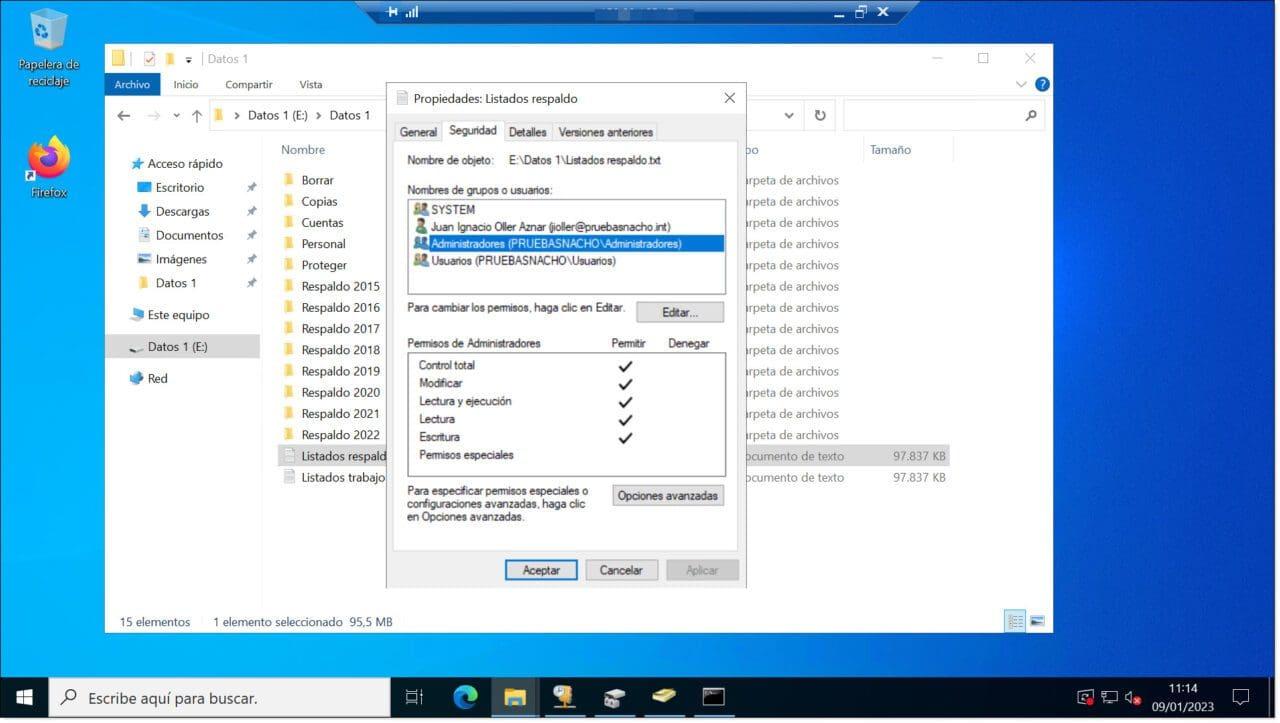
Working with permissions in Windows can seem like a maze, but it doesn't have to be. If you master NTFS, access control lists (ACLs), and the right tools (ICACLS, PowerShell, SetACL), applying bulk permissions to files, folders, and registry keys becomes a reliable and repeatable process.
In this guide, you'll find everything condensed and explained in detail: key concepts (ACL, ACE, DACL, SACL, SDDL), inheritance and evaluation order , special accounts and SIDs, using ICACLS and TAKEOWN from CMD , the PowerShell cmdlets Get-Acl and Set-Acl with practical examples , and how to access both NTFS and the Registry with SetACL. You'll also find best practices, conflict resolution, and audit notes to help you avoid surprises.
Essential Basics: NTFS, ACL, ACE, Inheritance, and Evaluation Order
The Windows NTFS file system supports a robust security model based on ACLs. An ACL is a list of Access Control Entries (ACEs) that define permissions allowed or denied to identities (users, groups, SIDs). Each secure object (file, folder, registry key, service, etc.) has a Security Descriptor (SD) containing: owner, primary group, DACL (who can access), and SACL (what is audited).
The order of evaluation is critical: explicit denials are considered first , then explicit grants , then inherited denials , and finally inherited grants . Once an ACE satisfies the query, the others are not evaluated . If a resource has no DACL, the system grants access; if it has a DACL but it is empty, access is denied.
NTFS has six basic permissions (Read, Write, List Contents, Read and Execute, Modify, Full Control), which are comprised of advanced permissions such as RD (Read Data), WD (Write Data), AD (Append), REA/WEA (Extended Attributes), RA/WA (Attributes), X (Execute/Traverse), DC (Delete Secondary), DE (Delete), RC (Read Control), WDAC (Write DAC), WO (Write Owner), S (Synchronize), and the generic sets GR/GW/GE/GA. Composite masks facilitate fast assignments (e.g., M, F, RX) without loss of precision.
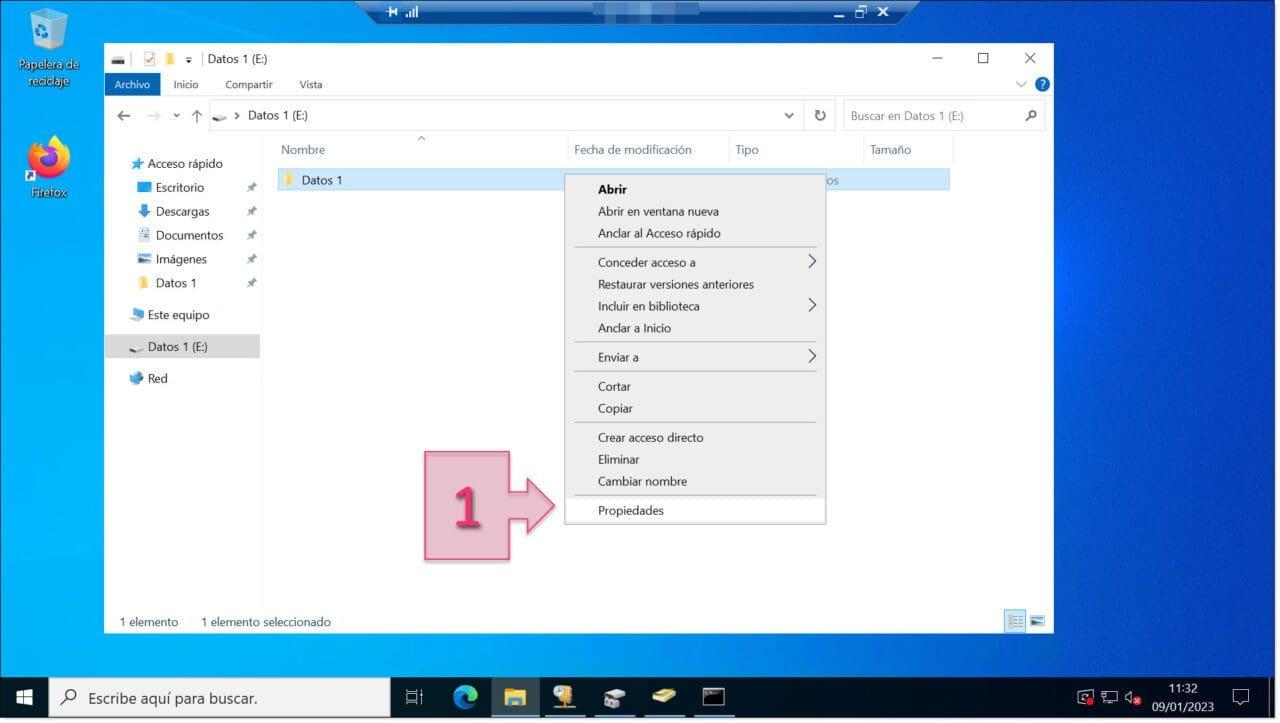
Special accounts and common SIDs that affect permissions
Windows uses different identities with well-known SIDs. Creator Owner (S-1-3-0) and Creator Group are markers that, when evaluating permissions, are replaced by the current owner or their parent group. Owner Rights (introduced in Vista/7) allows you to restrict what the owner can do, for example, preventing them from changing the ACLs of their own objects if you choose.
TrustedInstaller (Component Installation Service; SIDs beginning with S-1-5-80) maintains control over critical system files and keys to secure Windows. Other system identities include LOCAL SYSTEM (S-1-5-18) , NETWORK SERVICE (S-1-5-20) , LOCAL SERVICE (S-1-5-19) , and groups such as Authenticated Users (S-1-5-11) , Interactive (S-1-5-4) , and Remote Interactive Logon (S-1-5-14) . Understanding these SIDs helps you write portable rules, avoiding language issues (Administrators/Administradores).
For well-known local groups, such as Administrators , the SID is S-1-5-32-544 . Assigning permissions using the SID avoids location-based ambiguities. Local account SIDs start numbering from S-1-5-1000 (created users), reserving S-1-5-500 for Administrator and S-1-5-501 for Guest.
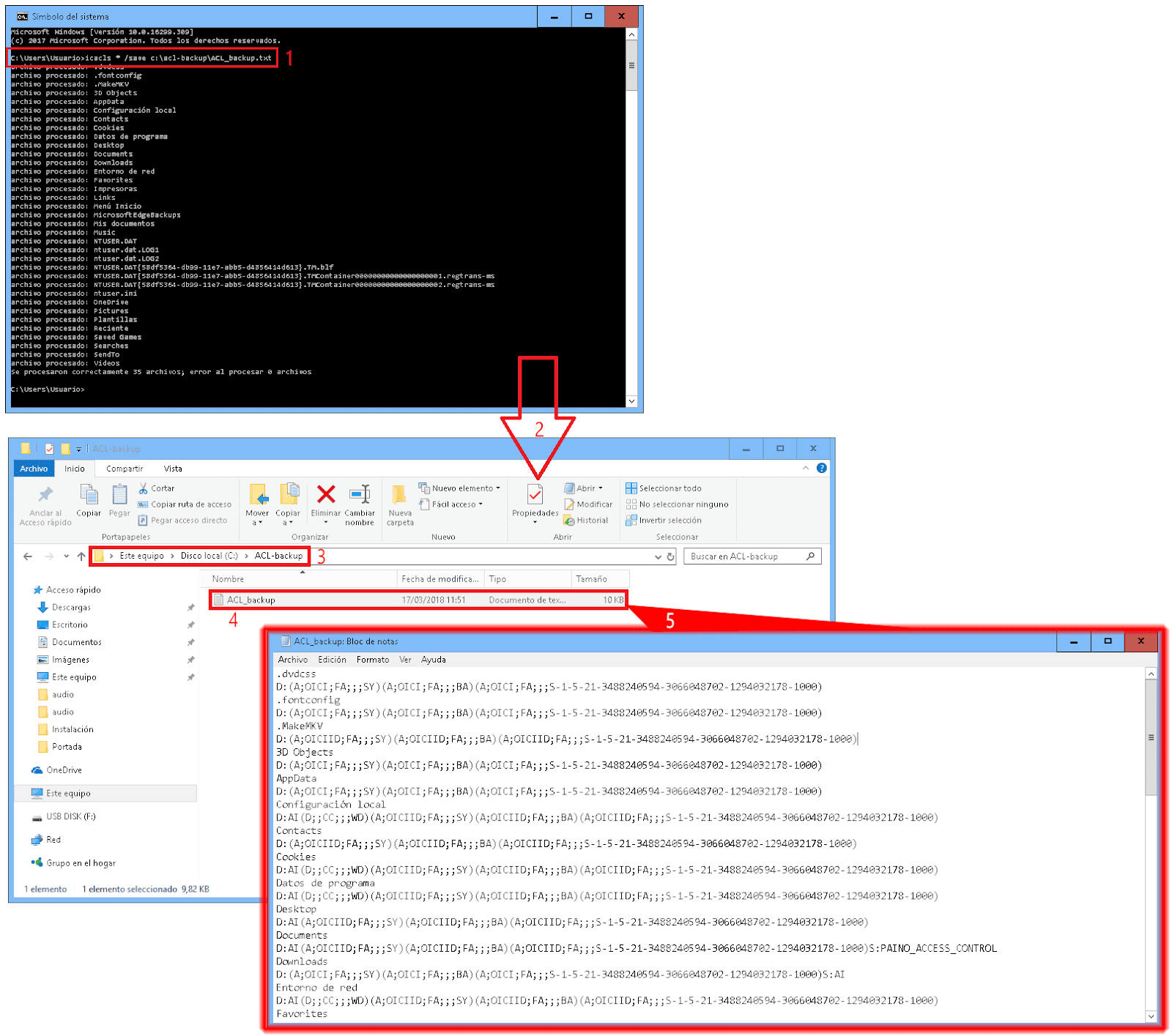
ICACLS and TAKEOWN from CMD: Mass Granting, Heritage, and Restoration
Typical concessions and inheritance:
Reading access to a user/group in a specific folder:
icacls "\\Path\to\share\folder" /grant DOMINIO\USUARIO:R
Modify inheritable subfolders and files, recursively:
icacls "\\Path\to\share\folder" /grant DOMINIO\USUARIO:(OI)(CI)M /T
Inheritance and restoration:
Enable canonical inheritance on a tree:
icacls.exe "%ruta%" /Q /T /inheritance:e
Remove inheritance and replace explicit permissions (a common example for hardening):
icacls "C:\test" /inheritance:r /grant:r DOM\Todos:(OI)(CI)(F)
Restore to default inherited permissions on all child devices:
icacls "C:\test\ejemplo\*" /c /t /reset
Using SIDs avoids language problems:
Administrators (S-1-5-32-544) and SYSTEM (S-1-5-18) with full control in each subfolder:
for /F "eol=* tokens=*" %%%%i in ('dir "%ruta%" /b /AD') do icacls.exe "%ruta%\\%%%%i" /Q /grant:r *S-1-5-32-544:(OI)(CI)(F) /grant:r *S-1-5-18:(OI)(CI)(F)
Taking possession early when you don't have access:
takeown.exe /f "%ruta%" /R /A /D S
Note: In English systems, automatic confirmation is Y instead of S.
More ICACLS operations to master:
Save DACL for backup :
icacls C:\test\* /save C:\acl-backup\ACL_backup.txt /T
Restore DACL from backup:
icacls C:\test\ /restore C:\acl-backup\ACL_backup.txt
Search for SIDs in ACL :
icacls nombre /findsid SID
Verify canonicity :
icacls nombre /verify
Useful simple permissions: N (none), F (full control), M (modify), RX (read and execute), R (read only), W (write only), D (delete). Specific permissions include DE, RC, WDAC, WO, S, AS, MA, GR, GW, GE, GA, RD, WD, AD, REA, WEA, X, DC, RA, WA. For inheritance: (OI) object, (CI) container, (IO) inheritance only, (NP) do not propagate, (I) inherited.
A very practical general pattern with ICACLS is:
icacls USUARIO_O_SID:(herencias)(permisos)
First think about inheritance (OI/CI/IO), then about the permission mask you need, and finally decide whether to replace (:r) or add entries.
PowerShell with Get-Acl and Set-Acl: Copy, Apply in Bulk, and Granularity
PowerShell provides fine-grained control over security descriptors. `Get-Acl` retrieves the security descriptor (SD) of an item (file, folder, registry key), and `Set-Acl` applies it. This cmdlet is available only on Windows and works with the FileSystem and Registry providers.
Apply a bulk descriptor to many files:
$model = Get-Acl -Path "C:\temp\File0.txt"
Get-ChildItem -Path "C:\temp" -Recurse -Include "*.txt" -Force | Set-Acl -AclObject $model
Council: try first with -WhatIf to see what would be played.
Disable inheritance while preserving inherited ACEs:
$acl = Get-Acl -Path "C:\Pets\Dog.txt"
$acl.SetAccessRuleProtection($true, $true)
Set-Acl -Path "C:\Pets\Dog.txt" -AclObject $acl
With $isProtected=$true you break inheritance; with $preserveInheritance=$true you make inherited traits explicit.
Grant full control to Administrators by creating a FileSystemAccessRule :
$acl = Get-Acl -Path "C:\Pets\Dog.txt"
$rule = New-Object System.Security.AccessControl.FileSystemAccessRule("BUILTIN\Administrators","FullControl","Allow")
$acl.SetAccessRule($rule)
Set-Acl -Path "C:\Pets\Dog.txt" -AclObject $acl
Key Set-Acl parameters you'll use often:
-Path or -LiteralPath (either one) to specify the element; -AclObject to pass the SD; -InputObject to work directly with objects; -PassThru if you want the SD returned; -WhatIf and -Confirm for operational safety. It supports filters, include/exclude , and can clear Central Access Policies (-ClearCentralAccessPolicy) on systems with DAC.
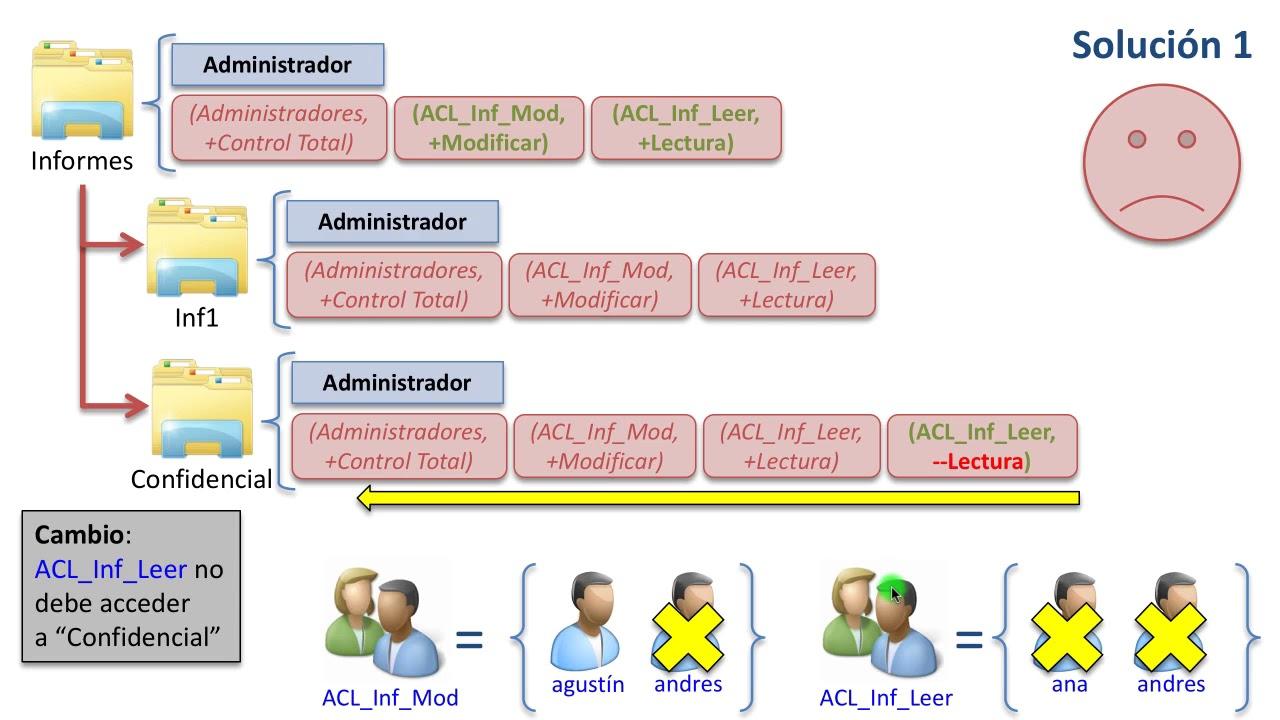
Mapping Basic and Advanced Rights: How to Think About the Right Mask
When you select basic permissions in the GUI (Read, Modify, Full Control…), you're actually activating combinations of advanced rights . For example, Modify includes read, execute, write, and delete; Full Control also includes WDAC (change permissions) and WO (change owner). Understanding this mapping prevents surprises and helps you write accurate rules in ICACLS, PowerShell, or SetACL.
When documenting or comparing configurations, remember that command -line tools use abbreviations (RD, WD, AD, X, DE, DC, RC, WDAC, WO, etc.). Standardizing your documentation with these abbreviations will allow you to quickly recognize whether a DACL grants, for example, write-free execution, or if it allows deleting children but not the object itself.
Working with the Registry and NTFS from SetACL / SetACL Studio
SetACL (and its Studio version) is a classic tool for managing permissions in both the file system and the Registry. Its advantage lies in its consistent syntax for different objects and the ease of chaining actions in a single line.
Practical examples:
Change permissions on a Registry key to give a domain user full control:
SetACLexe -on "HKEY_LOCAL_MACHINE\SOFTWARE\Proveedor\Producto\Clave" -ot reg -actn ace -ace "n:DOMINIO.local\Usuario;p:full"
Grant full control of a folder to a local/AD group:
SetACLexe -on "C:\Ruta\Carpeta" -ot file -actn ace -ace "n:usuarios;p:full"
With SetACL you can also manipulate inheritance, delete existing ACEs, and work with explicit SIDs. If you need reporting and interactive editing , SetACL Studio provides a visual interface while maintaining conceptual compatibility with the command line.
Real-life scenarios: owners, conflicts, effective permits and auditing
Owning an object doesn't magically grant you full control, but it does give you the right to change the DACL . Therefore, in environments where you don't want creators to elevate themselves, apply restricted Owner Rights (e.g., denying WRITE_DAC to the owner) in the root directory. This prevents the creator from altering permissions on the objects they create.
Typical conflicts: A user belongs to the Employees group (read-only) but has an explicit ACE that allows writing. The explicit ACE wins . If you want the denial to prevail, place an appropriate explicit denial . Always remember the evaluation order to avoid gaps.
Break inheritance: When you uncheck "Include inheritable permissions" in the GUI, Windows offers to copy inherited ACEs as explicit or remove them all . Removing everything can leave the object inaccessible if you don't add new ACEs immediately. In large-scale deployments, plan and validate using `-WhatIf` or DACL backups.
Effective Permissions and Audit: The tab Effective permits allows you to check what a user or group receives after evaluating all ACEs. To audit access (hits/fails), configure SACLs on the object, and enable object access auditing in local policies; review events in eventvwr.msc. Audit selectively reduces noise and helps diagnose.
User Account Control (UAC) doesn't change NTFS or Registry permissions, but it does control elevation . Admins with high UAC will see more warnings; with low UAC, there's less friction but a larger vulnerability . Adjust the level according to your organization's security policy.
Automation Patterns: From a Quick Bat to PowerShell and Backups
For repetitive tasks, you can combine TAKEOWN + ICACLS in a script in batches. For example, a template that asks for the path and allows: setting the owner as Administrators, granting Administrators/SYSTEM, enabling inheritance, etc. The important detail is to automatically confirm with /D S in TAKEOWN on Spanish systems (or /D Y in English).
If PowerShell is your thing, encapsulate patterns like copy DACL from a model, break inheritance while preserving inherited ACEs, or create rules with FileSystemAccessRule. With -Include, -Exclude, -Filter y Get-ChildItem -Recurse, you can adjust the scope very precisely and of course test with -WhatIf before applying.
Don't forget the strategy of saving and restoring DACLs with ICACLS for fast rollback:
icacls C:\ruta\* /save C:\acl-backup\ACL_backup.txt /T
icacls C:\ruta\ /restore C:\acl-backup\ACL_backup.txt
Version those backups if you're going to make several waves of changes.
This entire arsenal—ACL concepts, inheritance, and evaluation order; identities and SIDs; ICACLS/TAKEOWN; PowerShell Get-Acl/Set-Acl; SetACL for NTFS and the Registry—allows you to consistently define, apply, and document permissions. When you combine recursion, well-thought-out inheritance, and testing with -WhatIf or DACL backups, you'll find that even large deployments become manageable and trouble-free.


Passionate writer about the world of bytes and technology in general. I love sharing my knowledge through writing, and that's what I'll do on this blog, show you all the most interesting things about gadgets, software, hardware, tech trends, and more. My goal is to help you navigate the digital world in a simple and entertaining way.