- The closures of Minecraft They are usually linked to incompatibilities of mods, plugins, Java or drivers graphics, rather than flaws in the game itself.
- The launcher and Bedrock on Windows depend on the Microsoft Store, Xbox and Gaming Services, so errors in these services cause many crashes.
- Memory configuration, server files, and the correct versions of Java and plugins are key to preventing continuous crashes.
- Updating Windows and drivers, clearing the Store cache, and checking Xbox services are often crucial for stabilizing Minecraft.
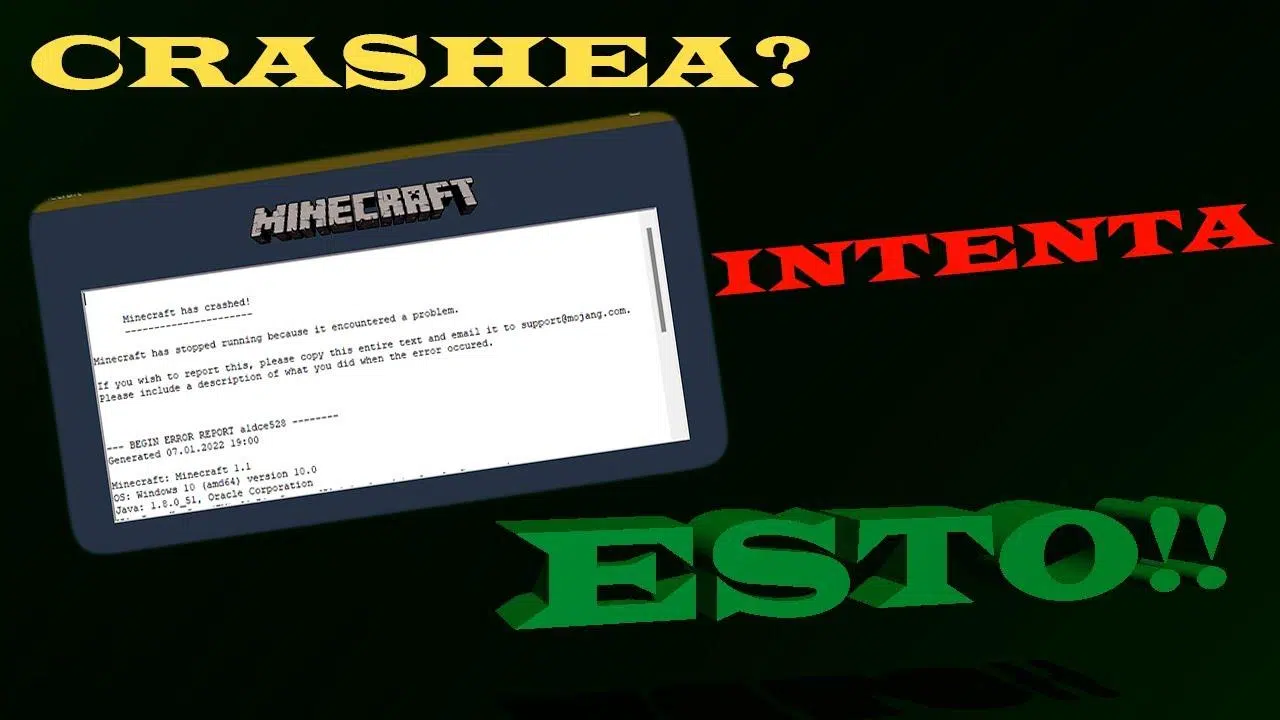
If you're reading this, it's because Minecraft keeps closing on its own, crashing for no reason, or returning to the launcher just when you're deep into a game. Don't worry, you're not alone; if you're looking for solutions, check out "Minecraft not working ." From random crashes with strange codes and blue screens of death on Windows, to the typical case where the Minecraft launcher doesn't even open or crashes to the Mojang screen , these are very common problems in both the Java and Bedrock versions.
In this article, you'll find a comprehensive guide to understanding why Minecraft closes or crashes and what you can do to fix it . We'll cover real-world examples (such as crashes with codes 1, -1073741819, -805306369, or error 0x87E5003C), issues with Optifine and shaders, launcher problems, server errors caused by plugins or mods, and also the typical problems with the Microsoft Store, Xbox, Gaming Services, and graphics drivers . Everything is explained in clear, straightforward Spanish (from Spain).
Minecraft Java crashes: exit codes and blue screens
One of the most frustrating cases is when Minecraft Java starts up fine but, after a few seconds or minutes, it suddenly closes and returns to the launcher . Sometimes a message appears with an exit code like 1, -1073741819, or -805306369 ; other times there's no clear explanation other than the game crashing.
On many relatively new computers, even with powerful hardware and demanding games running flawlessly ( Cyberpunk 2077 , Forza Horizon 5, Star Wars Jedi: Survivor, etc.), the only program that constantly crashes is Minecraft . This is quite baffling because it seems like a problem with the game itself or with Java, not with the PC in general.
To complicate matters further, some users, when using Optifine and heavy shaders like BSL Shaders for version 1.20.1, are experiencing occasional blue screens with errors such as INTERRUPT_EXCEPTION_NOT_HANDLED, UNEXPECTED_KERNEL_MODE_TRAP, or DRIVER_IRQL_NOT_LESS_OR_EQUAL , in addition to game crashes. Even if these errors only appear once, it's a clear sign that something is wrong with the drivers or the system. If you suspect the cause is graphics-related or OpenGL-related, see how to troubleshoot common OpenGL errors in Windows.
Many attempts to fix the problem have involved increasing Minecraft's allocated memory to absurd levels, such as 24 GB of RAM in both the launcher and Java environment variables, reinstalling the launcher (both the Minecraft website and Xbox app versions), reinstalling Java, and tinkering with countless Optifine graphics and shader options. Even so, crashes continue to occur in both single-player and multiplayer worlds , with and without mods.
Common technical causes of crashes in Minecraft Java
When Minecraft Java closes with error codes like 1, -1073741819, or -805306369 , there's almost always an underlying issue related to Java, drivers, memory, or conflicts with mods/shaders . It's rarely just a simple bug.
Negative error codes usually indicate errors at the operating system or Java Virtual Machine level . For example, -1073741819 is often related to memory access problems or driver conflicts, while code 1 is a more generic error, but very typical when there are mod incompatibilities, incorrect startup arguments, or extreme memory configurations.
It should also be noted that if blue screens appear at the same time with messages such as DRIVER_IRQL_NOT_LESS_OR_EQUAL or UNEXPECTED_KERNEL_MODE_TRAP , it is very likely that the origin is in the graphics card driver, chipset drivers or some low-level software that conflicts with Minecraft and Java.
Another key factor is the combination of Optifine and advanced shaders . Although the game might "hold up" for a while, certain graphics functions that the driver doesn't handle well may be being pushed too hard, causing not only the game to crash but, in extreme cases, a blue screen of death.
Finally, allocating too much memory to Java (for example, the 24 GB of RAM some have tried) not only doesn't help, but can actually worsen stability . Minecraft usually runs well with much more moderate amounts, and if Java's garbage collector goes haywire managing that massive amount of memory, crashes and other strange behavior will occur.
The Minecraft launcher won't open or keeps closing on its own
Another fairly common problem is when the Minecraft launcher doesn't even open properly, closes on its own after a few seconds, or stops working after a few hours . In some cases, after restarting the Gaming Services from Windows, the launcher works again for a while, but then the problem returns.
Some users, in desperation, have reinstalled the launcher repeatedly hoping to repair Xbox and Gaming Services dependencies. This sometimes works temporarily, but the same problem soon returns: the game won't start, the launcher crashes, or an error message appears saying "we couldn't start the game."
To try and fix this, many have resorted to using built-in system tools, running commands like DISM /Online /Cleanup-Image /RestoreHealth and sfc /scannow repeatedly. These commands repair corrupted system files in Windows and, indeed, they usually complete successfully , but in many cases the Minecraft launcher still crashes.
More aggressive things have also been tried, such as delete JSON and BIN files from the launcher in the route %LOCALAPPDATA%\Packages\Microsoft.MinecraftLauncher_* to force a complete reset of the cache and settings. After this, initial errors of the following type usually appear “We were unable to sign in to Xbox Live”But even when the login issue is resolved, the launcher crashes again later on.
Sometimes, the system says "the game is already running" when in reality no window is open. Checking the Task Manager shows the Minecraft.exe process is still active, and killing it resolves the message, but not the underlying problem: the launcher continues to crash randomly and remains unstable.
Relationship with Xbox, Gaming Services and errors 0x87E5003C
The Minecraft ecosystem on Windows 10/11 is closely tied to Xbox, the Microsoft Store, and Gaming Services . When something breaks in that chain, the typical result is a launcher that won't start, gives a game launch error, or simply closes silently.
Many launcher problems are accompanied by errors like 0x87E5003C in the logs, which usually indicates a game launch failure related to Gaming Services . While this code alone doesn't provide a solution, it clearly points to the core problem lying with Microsoft's gaming services rather than Minecraft itself.
To try and stabilize the situation, some users have configured Xbox services (such as Xbox Accessory Management, Xbox Live Authentication Manager , Xbox Live Networking Service, etc.) to start automatically with Windows. They have also tried manually restarting these services from the Services console. In some cases, this has allowed the Xbox app to update or the launcher to start temporarily, but it doesn't always provide a permanent solution.
Another common attempt is to change permissions and ownership of folders related to Gaming Services to avoid "Access Denied" errors. While this can be helpful when the services can't even read or write correctly, it doesn't always resolve the launcher crashing issue , especially when the problem stems from corrupted files or internal conflicts within the Microsoft Store itself.
PowerShell commands have also been used to terminate and reinstall packages related to Xbox, Gaming Services, and Minecraft. These steps can help rebuild the environment, but even after restarting the system, in many cases the launcher exhibits the same symptoms again.
Minecraft Bedrock closes to the Mojang screen or a blank screen
In the Bedrock version, a very common bug is that you open Minecraft, the Mojang logo appears, then the screen goes blank and the game closes . This has happened quite frequently after an update that gets stuck or is interrupted mid-process.
Some players, seeing that the update wasn't progressing, have opted to uninstall Minecraft Bedrock and reinstall it from the Microsoft Store . The problem is that, after reinstalling, the game continues to behave the same way: it starts, displays the logo, the screen goes blank, and it closes. Other times it manages to open, but crashes shortly after starting to play.
While a clean reinstall might seem like it should fix the problem, often leftover configuration files or corrupted data remain in the Store, cache, or game services . That's why, even after several attempts to uninstall and reinstall, the crashes continue as if nothing has changed.
In these cases, attempts have even been made to locate and preserve the Bedrock saved worlds in the route %LOCALAPPDATA%\Packages\Microsoft.MinecraftUWP_*\LocalState\games\com.mojang\minecraftWorldscompressing each world into .zip to then import them from the game's "Import World" option. However, The import function doesn't always work well.giving the impression that the worlds do not get charged or corrupted.
All of this increases the frustration because, in addition to the game constantly crashing, the progress of your worlds is at stake , and it's not always easy to recover them or move them to a new installation without errors.
Server issues: crashes due to plugins, mods, and configuration
When we move from local play to a Minecraft server , a different set of problems arises. Crashes can be caused by a thousand different things, but there's one important point to clarify: most of the time it's not the hosting provider's fault , but rather the way the files have been configured or the plugins and mods installed.
One of the most frequent causes is incompatibility between plugins or mods and the server's Minecraft version . For example, a plugin designed for Minecraft 1.20.1 might not work correctly in 1.19, and vice versa. Something similar happens with mods: a mod designed for a specific version of Forge or Fabric can cause everything to crash if used in another version.
On servers with many plugins, it's very common that when you add a new plugin or update an old one, the server will suddenly start crashing, freezing, or displaying errors in the console . If something new was installed just before the problems started, the first thing to do is deactivate that plugin or mod and see if the server becomes stable again.
Another source of headaches are the improperly edited configuration filesTouching by hand server.properties, spigot.yml, paper.yml or other advanced files without really knowing what each parameter does can end up causing the server not to start or to crash as soon as it is turned on.
That's why it's important to always back up your configuration files before making any changes, follow the official guides for plugins and mods , and if in doubt, ask your hosting support or consult the specific documentation. Many server crashes are resolved simply by reverting to a previous configuration file that was working.
Memory and resources: allocating RAM properly in servers and clients
In both server and client-side games, RAM is a key factor in preventing crashes . However, the problem isn't just "lack of memory," but also allocating more memory than is actually recommended.
On servers with many plugins or mods, not allocating enough RAM can cause extreme lag, crashes, and sudden shutdowns . But the opposite can also happen: reserving too much memory for the server, leaving the operating system without enough resources to handle other processes, generates instability and crashes.
The same thing happens with the Minecraft Java client. It's common to see players who, having 32 GB of RAM in their PC, decide to allocate only 16 or 24 GB to the game, thinking it will run better. In practice, Java doesn't handle huge amounts of memory well for Minecraft, and the garbage collector can cause stuttering, game crashes, or even system-wide freezes.
The general recommendation is to allocate a moderate amount of RAM based on the mods and shaders you use, and not exceed what the game actually needs. In many cases, values between 4 and 8 GB are more than enough for intensive use with mods, leaving the rest of the RAM free for the system itself and other applications.
On specialized hosting providers, there are usually options to adjust server memory settings from the web control panel . If you're unsure how much RAM you need, it's best to consult with the hosting provider's technical support to avoid both insufficient and excessive memory allocation.
Java, versions and compatibility with plugins and mods
Another critical point to prevent Minecraft from crashing is ensuring that your Java version is compatible with your Minecraft version and any installed plugins or mods . Each game version has specific requirements, and using incorrect Java versions can lead to errors that are very difficult to diagnose.
For example, certain servers based on Spigot, Paper, or modloaders like Forge and Fabric require a specific version of Java (Java 17, Java 8, etc.) . If the server runs with an unsupported version, it is likely to experience shutdowns, startup errors, or performance issues that can lead to crashes.
In the realm of mods, there are some very common mistakes, such as installing a mod that requires Forge on a server configured with Fabric . If you have any doubts about installation or compatibility, review how to install Forge and Fabric to avoid mixing incompatible versions and loads.
Before installing any mod or plugin, it's advisable to check the official documentation, the version it's designed for, and its dependencies . Whenever possible, it's most convenient to use pre-configured modpacks from reliable sources like CurseForge , which already include the correct versions of mods and loaders ready to work together.
If you start experiencing crashes right after adding a new mod or plugin, the quickest solution is to temporarily remove it and relaunch the game or server . If that fixes the problem, you've identified the issue and can look for a compatible version or a replacement.
Microsoft Store, cache, and graphics drivers in Windows
When crashing problems primarily affect Minecraft Bedrock or the launcher managed by the Microsoft Store and Xbox , the root cause is most likely in the store cache, pending Windows updates, or outdated graphics drivers.
A helpful first step is to reset the Microsoft Store cache . To do this, you can use the Windows + R shortcut , type wsreset in the "Run" window, and click "OK." After a few seconds, the store will reopen, having cleared some of the cache that might be corrupted and causing download or update errors.
It's also a good idea to go to Settings > Update & Security > Windows Update and click "Check for updates" to make sure your operating system is up to date. Sometimes a pending or incomplete update can cause compatibility issues with Gaming Services, Xbox, or the Microsoft Store itself.
Regarding graphics drivers , it's essential to keep them updated, especially if you're using demanding shaders or texture packs. You can go to Device Manager (right-click Start > Device Manager > Display adapters), right-click on each adapter, and choose "Update driver" > "Search automatically for updated driver software."
For graphics cards like NVIDIA or AMD Radeon , it's usually even better to use their official software (GeForce Experience, AMD Software Adrenalin, etc.) to check for recent drivers compatible with your version of Windows . Having an incompatible or corrupted graphics driver can explain everything from Minecraft crashes to driver-related blue screens of death.
Finally, it's worth checking if the "Antimalware Service Executable" process ( Windows Defender ) is saturating the CPU while you're trying to play. While not always directly related, on some systems it can interfere with game performance. Temporarily disabling real-time scanning or adding exceptions to the Minecraft folder might help, but always be careful not to compromise your computer's security.
All of the above shows that Minecraft crashes and closures, whether on Java, Bedrock, or servers, are usually due to a combination of factors : incompatibilities between mods or plugins, improperly allocated memory, incorrect Java versions, outdated graphics drivers, issues with the Microsoft Store and Gaming Services, or corrupted configuration files without a backup. By reviewing each of these points step by step and adjusting configurations, versions, and services, it's possible to restore a stable Minecraft experience without constant crashes, even in cases that initially seem impossible to fix.


Table of Contents
- 1 Minecraft Java crashes: exit codes and blue screens
- 2 Common technical causes of crashes in Minecraft Java
- 3 The Minecraft launcher won't open or keeps closing on its own
- 4 Relationship with Xbox, Gaming Services and errors 0x87E5003C
- 5 Minecraft Bedrock closes to the Mojang screen or a blank screen
- 6 Server issues: crashes due to plugins, mods, and configuration
- 7 Memory and resources: allocating RAM properly in servers and clients
- 8 Java, versions and compatibility with plugins and mods
- 9 Microsoft Store, cache, and graphics drivers in Windows