- Mica integrates the user's desktop background and theme to create unique backgrounds in Windows 11.
- It offers visual customization without penalizing performance, adapting to system states and modes.
- Mica and its variant Mica Alt are essential in the visual hierarchy and extend to applications and browsers.
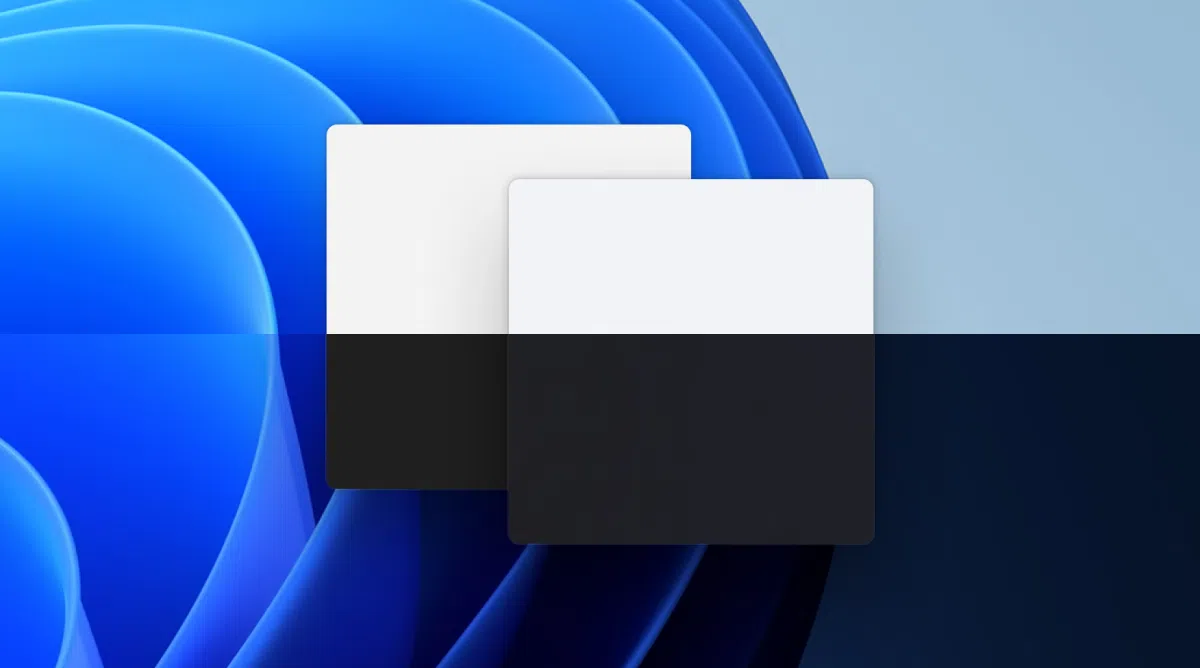
Windows 11 has brought with it a visual transformation that hasn't gone unnoticed by any user, and one of the key elements of this aesthetic overhaul is the material called Mica . If you're someone who's noticed the details and wondered why certain applications and windows look more elegant and personalized than ever, this article will clear up all your doubts clearly and thoroughly.
Throughout this text, you'll discover exactly what Windows 11's Mica material is, how it works within the interface, how it differs from other visual effects, and, above all, how it enhances the experience for both everyday users and developers. Get ready to delve into the intricacies of the new Windows design and understand how Mica is setting trends even in browsers and third-party applications.
What is Mica in Windows 11?
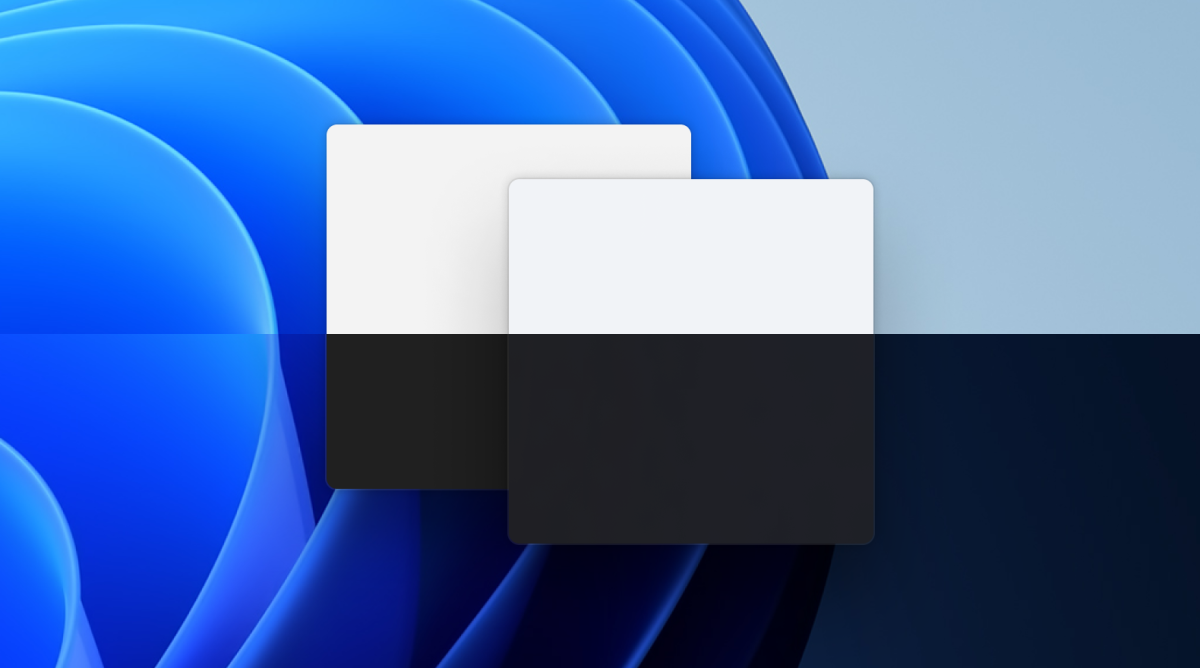
Since the arrival of Windows 11, Microsoft has focused on a modern and fluid interface, and Mica has become its signature element . It's an opaque, dynamic visual material used as a background for application windows, menus, and other interface elements. What makes Mica special is that it not only adds elegance but also integrates the user's wallpaper and active theme to create a unique visual effect, adapting in real time to the desktop and system preferences.
Unlike the classic acrylic effect in Windows 10 or the older Aero Glass in Windows Vista, Mica prioritizes performance : it only takes a snapshot of the desktop background and applies it to the window background. This optimization allows for high-quality visuals without compromising system speed or fluidity, avoiding the high resource consumption issues that older transparencies could cause.
Visual Materials in Windows 11: Mica, Acrylic, and Smoke
The Windows 11 interface isn't limited to just Mica. Microsoft has designed various visual materials to build a rich, organized, and functional user experience. The main materials currently available are:
- Mica: Dynamic opaque background for persistent windows and applications. Adapts to the theme and desktop background.
- Acrylic: A semi-transparent material that simulates frosted glass. In Windows 11, it's brighter and more translucent, used in floating controls, menus, and transitional surfaces. Supports light and dark modes.
- Smoke: A black translucent surface that dims what's underneath, used to highlight dialog or blocking modal areas. Does not vary with color mode.
Each one serves a specific purpose in the visual hierarchy and user interaction. For example, Acrylic is perfect for highlighting quick controls and pop-ups, while Mica is reserved for main and persistent backgrounds , providing depth and cohesion.
How does Mica work and what does it add to the experience?
Mica uses a technology that captures the user's wallpaper and dominant theme color , applying a subtly tinted layer that covers the selected window or area. This process occurs only once per active window, ensuring low resource consumption even when multiple applications are open.
Furthermore, the Mica material is intelligent and automatically adapts to the system's light or dark mode, as well as the window's status (active or inactive). When a window loses focus, Mica reduces the color emphasis, becoming more neutral and helping the user easily concentrate on the relevant task.
Thanks to this approach, personalization and visual clarity reach new heights in Windows 11. Not only is the design more attractive, but productivity is also improved, as it becomes very clear which window is being used and which are running in the background.

Mica Variants: Alt Mica and its use for increased contrast
Microsoft has also developed Mica Alt , a variant of the Mica material that enhances the tint in the background of the window or application. The goal? To offer even stronger contrast in environments where the title bar has tabs or where it's necessary to clearly distinguish different command areas within an application.
Mica Alt is designed for situations where extra visual hierarchy is essential, such as in navigation apps with multiple tabs or distinct command areas. Like Mica, this variant adapts its color to the user's wallpaper and theme , and also displays active and inactive states.
For developers, both Mica and Mica Alt are available for Universal Windows Platform (UWP) apps running WinUI 2, using the Windows App SDK version 1.1 or higher, and running on Windows 11 version 22000 or later.
Layer hierarchy with Mica and best practices for use
One of Mica's greatest strengths is its ability to serve as a base layer in the interface hierarchy . Microsoft recommends using the Mica material as the window background, and adding other layers on top of it as needed for the application.
- Base coat: Mica or Mica Alt, depending on the contrast sought.
- Command layer (in the case of Mica Alt): Semi-opaque solid base coat that captures the shade of the base coat.
- Content layer: Area where the main content of the application will be displayed, using solid color brushes with low opacity to allow the lower layers to be seen.
This makes it easier to create organized interfaces where the different levels and areas of the app are easily visible. Microsoft suggests following two main patterns:
- Standard pattern: Used for applications that need to differentiate large areas from the base background, for example, in grids, frames, or navigation lists.
- Card pattern: Ideal for apps with multiple components and sections, separating each one into independent cards on the Mica background.
A key aspect for achieving seamless visual integration is maintaining a transparent background in the intermediate layers . This ensures the Mica style remains visible and consistent throughout the window, especially in the title bar if you choose to customize it.
When to use Mica and Mica Alt
In what cases is it advisable to use Mica or its variant Alt? Microsoft is clear: if you want to provide a consistent, modern, and personalized user experience , use Mica as the base in the main window of your applications, especially when visibility in the title bar is a priority.
For scenarios with prominent command areas or tabbed title bars , Mica Alt offers that extra contrast that can make the difference between a cluttered interface and a perfectly structured one. In any case, both Mica and Mica Alt adapt to a wide variety of devices and contexts, always delivering an elegant visual result.
Advantages of Mica over other materials and effects
The main advantage of Mica over materials like classic acrylic or the older Aero Glass is the balance between visual customization and performance. The acrylic effect in Windows 10 offered transparency and blurring, but could slow down the system when many windows were open. Aero Glass, on the other hand, was even more resource-intensive.
Mica solves this problem at its root : it only captures the background once and doesn't continuously recalculate the effect . This reduces CPU and memory usage, allowing for a smooth experience even on devices with modest hardware . Furthermore, the material is intelligent and stops displaying if the window is inactive, if the system enters battery-saving mode, or if transparency is disabled in the settings.
Another strength is the native integration with light and dark modes , automatically adjusting tones and contrast. All of this translates into fewer distractions, greater focus, and improved aesthetics.
Mica in popular applications: from Microsoft Word to web browsers
The rollout of Mica isn't limited to Windows' built-in tools. Microsoft is progressively incorporating Mica into its Office applications, starting with Microsoft Word , where it's already available in the Insider Beta version. The effect appears in the main window, enhancing the editing experience without impacting performance.
But that's not all. Browsers like Edge, Chrome, and Firefox are also experimenting with or have already implemented support for Mica in their interfaces when running on Windows 11. In Firefox, for example, Mica material can be activated from the Nightly version by modifying advanced parameters, although for now it only affects the tab bar.

Integration and technical requirements for developers
If you're a developer looking to integrate Mica into your Win32 or UWP apps, you'll need to meet a few requirements:
- Use the Windows App SDK (version 1.1 or higher) or, in the case of UWP, WinUI 2.
- Run the application on computers with Windows 11 version 22000 or later.
- For advanced interaction, use classes like MicaController to manage the material and its visibility, as well as integration with light/dark mode and window states.
- Recognize that in certain contexts (high contrast, battery saving, limited hardware), Mica will be automatically replaced with a predefined solid background, ensuring accessibility and performance.
Developing with modern materials like Mica allows us to offer users consistent and vibrant visual experiences that until recently were only available to large companies or highly specialized software.
Examples and patterns of visual use of Mica
Some of the most common practical examples of Mica integration into Windows 11 and its applications include:
- NavigationView in left modeThe navigation area and title bar use the standard Mica background content layer pattern. This is ideal for applications with sidebar menus.
- NavigationView in top mode: Similar to the previous one, but with the navigation at the top, maintaining the consistency of the background.
- Card pattern in NavigationView: Each component or visual block of the app becomes a card overlaid on Mica, making it easier to differentiate sections.
In any case, the key is to maintain transparency and let the Mica or Mica Alt material be the protagonist across the entire window.
Tips and recommendations when applying Mica
Microsoft itself suggests certain good practices when working with this material in application design:
- Set the background to transparent in all the intermediate layers so that Mica is visible from the bottom to the surface.
- Do not apply the material more than once. in the same application or window, as this could cause inconsistencies.
- Do not attempt to apply Mica to specific interface elements. (such as loose buttons); always works best as an overall base layer.
- Remember that in situations where transparency is disabled or the device is limited, Mica will automatically be replaced with a solid fallback color, ensuring readability and accessibility.
These recommendations help you get the most out of Windows 11 visually without sacrificing performance or usability.
The Mica material has revolutionized visual design in Windows 11, combining customization, performance, and visual clarity in a way no other system has achieved before. Its adoption is growing daily, including Microsoft applications, browsers, and new third-party tools, setting trends in desktop aesthetics. Whether you're a user or a developer, Mica is one of those small but significant surprises that makes you want to use your Windows 11 computer even more.

Passionate writer about the world of bytes and technology in general. I love sharing my knowledge through writing, and that's what I'll do on this blog, show you all the most interesting things about gadgets, software, hardware, tech trends, and more. My goal is to help you navigate the digital world in a simple and entertaining way.