- Precise calibration of black and white levels prevents loss of detail in critical scenes.
- Correct gamma curve adjustment is essential to maintain image fidelity according to the sRGB standard.
- Disabling artificial processing and eco modes is vital to preserving the director's original intention.

It's probably happened to you: you spend a fortune on a state-of-the-art OLED TV, you meticulously configure it, and when you watch a trailer, the picture blows you away. However, when you start watching a real movie, you find that there are scenes where you can't see anything at all , or the dialogue is lost in dense shadows, even though the panel is technically spectacular.

The dilemma of brightness and contrast
The first thing we need to clarify is that brightness is not the same as backlight. While backlight controls the power of the LEDs, brightness determines the depth of the blacks . If you increase it too much, the image will look washed out and the blacks will appear gray; if you don't increase it enough, you'll lose the rich detail that only OLED technology can offer.
To get it perfectly smooth, it's best to use test patterns. Increase the value very slowly until the transitions between the dark squares are perfectly distinguishable without the pure black turning into gray. It's a delicate balance to avoid making the shadows too dark.
On the other hand, contrast controls the whites. If we set it to the maximum, the image gains impact, but we run the risk of oversaturating the highlights , losing detail in the clouds or explosions. It's best to find the point where the white tones are clearly distinguishable, although in very dark content, increasing it slightly more than usual can help recover some light information.

Mastering the Gamma curve and backlighting
Gamma is the parameter that determines how information is recovered in the midtones of the image. Lowering the value makes the screen appear brighter but sacrifices detail in the highlights . Increasing it softens the highlights but makes the shadows denser. The standard is usually 2.2 (sRGB), but for a more cinematic look in SDR, many experts suggest stretching it to 2.4 or BT1886.
Regarding backlight (or OLED panel brightness), remember that it's the raw illumination power. There's no magic number because it depends on whether you're in a dark basement or a brightly lit living room. In SDR, to avoid glare and protect the panel's lifespan , a moderate value (between 30 and 50%) is usually recommended, while in HDR the system is designed to run at 100%.
Recommended settings by brand and mode
If you own a Sony TV, Cinema or Custom modes are your best allies for avoiding artificial colors. It's essential to disable Motion Flow smoothing if you want to avoid the dreaded "soap opera effect" and let the film unfold at its original pace. On Sony TVs, a warm white balance (6500K) ensures that skin tones look natural.
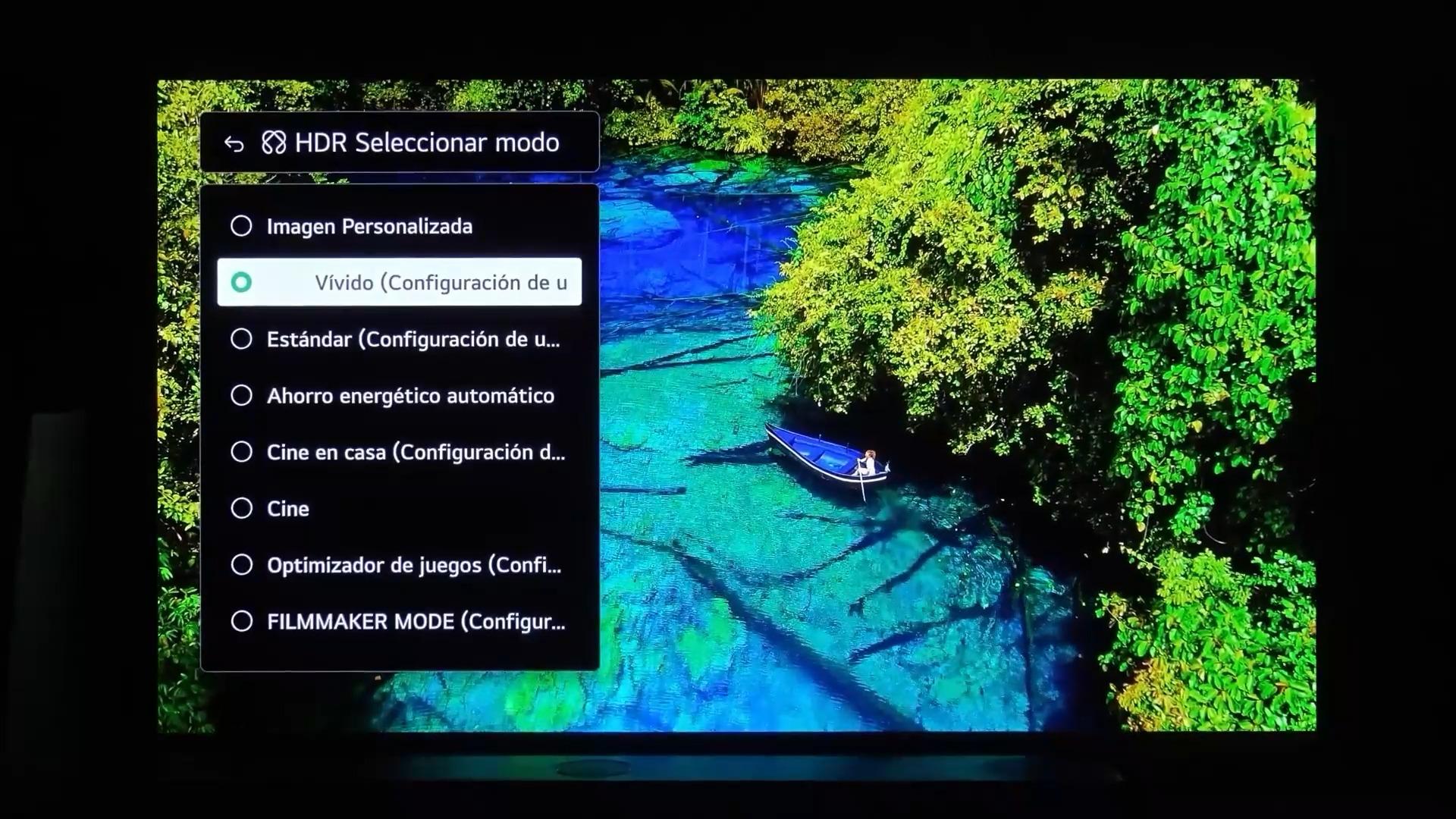
In the case of LG, the crown jewel is Filmmaker Mode . Activating it eliminates most unnecessary processing. A critical point with LG is disabling Eco or Power Saving mode, as this tends to aggressively reduce brightness, ruining any previous calibration. Furthermore, it's vital that the color range is set to automatic and never to native to avoid unrealistic saturation.
For those using their TV with consoles like the PS5 or Xbox Series X, Game Mode is essential for reducing input lag . However, it's advisable to check that the black level on the console is set to "Limited" to match the TV's black level and prevent black clipping. If you're an advanced user, you can learn how to measure input lag on your TV.

Advanced tricks and panel care
For those who are more detail-oriented, there's a sharpness adjustment. The wisest course of action is to set it to zero . Any higher value adds artificial edges to objects that weren't in the original recording. It's also advisable to turn off all AI features that attempt to "guess" the content's genre, as these often introduce color errors or erratic contrast.
We can't forget the health of our investment. To prevent pixel burn-in , it's essential to take care of your OLED monitor by avoiding leaving static images on for hours and taking advantage of the system's pixel cleaning features. Moderating the brightness of SDR content is the best way to ensure the panel lasts for many years without degradation.
Properly adjusting an OLED screen requires patience and the use of specific patterns, but the result is a dramatic leap in quality. By prioritizing modes like Filmmaker, disabling automatic processing, and balancing brightness and gamma, we achieve a home theater experience that is true to the director's vision , protecting the panel technology and optimizing every nuance of color.


Passionate writer about the world of bytes and technology in general. I love sharing my knowledge through writing, and that's what I'll do on this blog, show you all the most interesting things about gadgets, software, hardware, tech trends, and more. My goal is to help you navigate the digital world in a simple and entertaining way.