- Plugins extend the functionality of Word, Excel, PowerPoint and Outlook.
- There are different types of plugins and their installation varies depending on the application.
- Proper plugin management ensures security and customization.

Add-ins in Microsoft Office are one of the most versatile and practical ways to add new features to your existing applications, such as Word, Excel, PowerPoint, and Outlook. You may have heard them referred to as 'add-ins,' extensions, or even plugins, especially if you use versions in different languages, but ultimately they all serve the same purpose: to enhance the performance and customization of the most popular office tools without having to install external programs or search for complicated solutions.
In this detailed guide, you'll find all the information you need to install, manage, and customize add-ins in Microsoft Office applications. There are different paths and procedures depending on the version you're using or the type of add-in you want to install; here's a simple, step-by-step guide with tips , recommendations, and warnings to help you get the most out of them and avoid potential compatibility or security issues.
What are Microsoft Office add-ins and what are they used for?
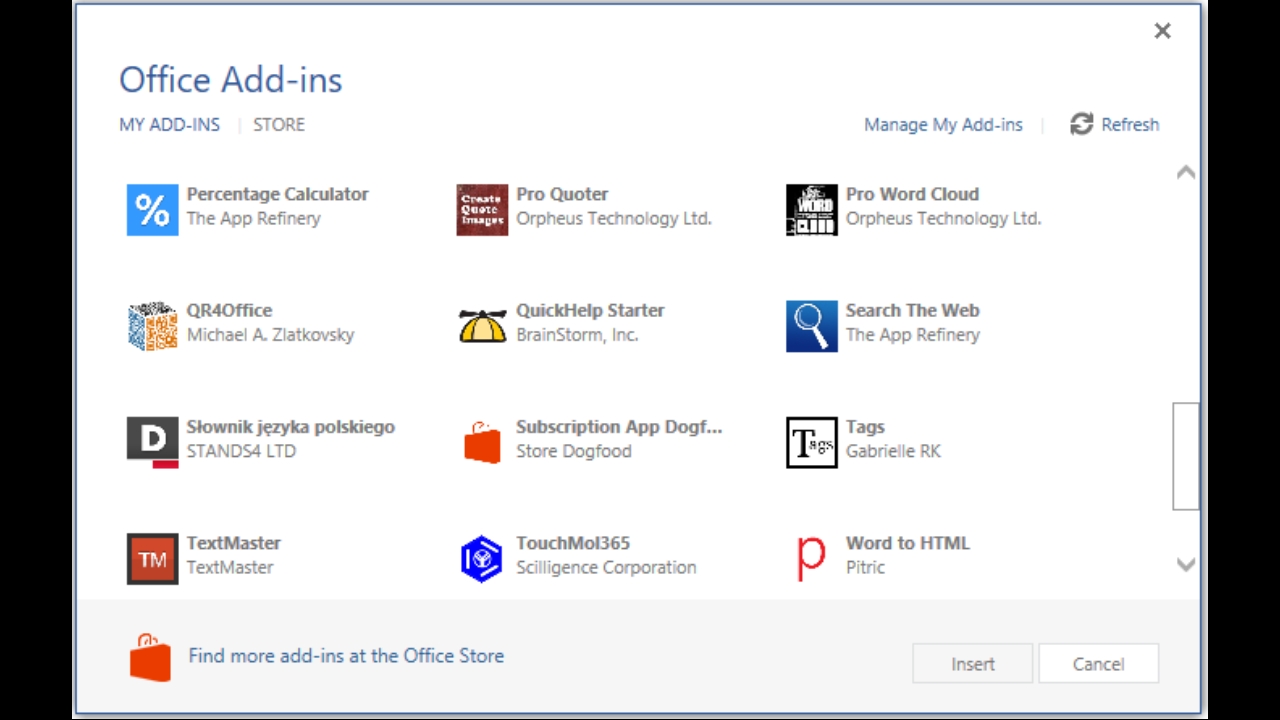
An Office add-in is a small application that integrates directly into Office tools, such as Word, Excel, or PowerPoint, to add extra features or simplify repetitive tasks. These add-ins can be developed by Microsoft, third-party companies, or even members of your own organization, offering solutions for automating processes, searching the web, creating advanced charts, converting files, translating text, and countless other functions.
The advantage of these add-ins is that they are installed and managed directly from within the Office environment, without technical complications or the need for advanced knowledge. Furthermore, you can obtain them from the Office Store , thus ensuring a basic level of review and security in most cases.
Types of plugins and where to find them
Within the Microsoft Office ecosystem, there are several types of add-ins, each tailored to different needs and usage scenarios. Let's differentiate them so you know exactly which ones you're interested in and how to find them:
- Integrated plugins: Some come pre-installed with Office applications, such as the famous Solver or the Analysis ToolPak in Excel. They are usually hidden until you activate them manually.
- Official downloadable add-ons: Available in the Office Store (which you can open from Word, Excel, PowerPoint, or Outlook), these add-ins are minimally reviewed by Microsoft and are typically free or paid depending on their features.
- Add-ons developed by third parties: Third-party companies or independent developers may offer custom add-ins for specialized tasks. These typically require manual installation, and it's important to ensure they're reliable.
- COM and VBA Add-ins: More advanced, generally designed for businesses or users with technical knowledge. They allow for expanded functionality through programming customized and are usually installed like any additional program, downloading them from official pages or specialized portals.
Remember that outside the Office environment there are also extensions for alternative suites such as LibreOffice or Google Docs , although in this article we will focus on the Microsoft environment.
Steps to install add-ins in Microsoft Word, Excel, PowerPoint, and Outlook
Installing add-ons is a straightforward and quick process if you follow these steps. Let's look at it in parts, given the slight differences between applications and versions:
Installing from the Office Store
- Open the Office application where you want to install the add-in (for example, Word or Excel).
- Sign in with your Microsoft account If you haven't already, you'll usually find the option "Sign in" in the upper right corner.
- Go to menu Insert and look for the option Accessories o Shop. In some applications it may appear as My accessories o Get plugins.
- Explore the available add-onsYou can filter them by category or search for a specific one using the search box.
- Click on the add-on you're interested in to see its description, reviews, and details. If it meets your needs, select it. Add (o Add to Cart if it is paid).
- Confirm the permissions requested and accept the terms if you agree.Some add-ons will ask for access to features like your camera, microphone, or location; if you're concerned about privacy, be careful what you authorize.
- The add-in will be installed and ready to use from the assigned location in the ribbon (it may appear in Home, Data, Add-ons, or another tab depending on the characteristics of the complement).
This procedure is valid for most modern versions of Office, including Office 2016, Office 2019, and Microsoft 365. If your version is very old, you may need to search for the add-in manually and follow a different installation process.
Activate plugins already integrated into the application
Some add-ins, such as Solver or Analysis ToolPak for Excel, are included in the initial installation, but they may not be enabled by default. To enable them, follow these steps:
- Sign in File > Options and navigate to the section Accessories.
- At the bottom a drop-down menu will appear called Manage. Select the type of add-on you want to manage (for example, Excel add-ins) and click on To go…
- A window will open with a list of available add-ons. Check the ones you want to activate and click on Accept.
- Once this is done, the commands or associated features will appear in your application's ribbon.
Installing add-ons downloaded from websites or developed by third parties
When the add-in isn't available in the Office Store, you'll likely need to download it directly from an official or trusted website. The steps are usually:
- Download from the developer's website, preferably making sure it has good reviews and doesn't contain malware.
- Run the installer and follow the instructions. Many of these add-ons are files .xlam, .xla or .xll in the case of Excel, or they can be executable files to install COM-type add-ins.
- Once installed, follow the usual procedure through File > Options > Add-ons to activate them and start using them.
Important: Never install add-ons that haven't undergone security checks, especially if they come from unknown sources. If you have doubts about the developer's reputation, check reviews or ask in specialized forums.
Managing and administering installed add-ons
Once you've installed several add-ons, it's essential to know how to view, activate, deactivate, or remove them to avoid overloading your application and keep your system clean and secure.
Enable, disable, and remove plugins
- Open the menu File > Options > Add-ons in the corresponding application.
- Select the type of plugin from the menu Manage from the bottom and press To go…
- In the window that appears, Check or uncheck the add-ons to activate or deactivate them. To remove an add-on, select it and click on Remove or use the corresponding delete button.
Some add-ons, especially the basic integrated ones, cannot be removed, but they can be disabled to prevent them from appearing and consuming resources.
Permissions and security in plugins
When you install an add-on, it may request access to certain sensitive functions on your device, such as the camera, microphone, or location. For security and privacy reasons, before granting these permissions, make sure they are strictly necessary for the add-on to function.
- Allow: The plugin will remain accessible until you uninstall it or clear your browser cache.
- Allow once: Access is granted only as long as you do not close the application window or tab.
- Deny: The plugin won't be able to access that feature; if it ever requests it again, it will ask you for access again.
If you change your mind about the permissions you've granted, you can usually revoke access by uninstalling the add-on or clearing your browser cache.
How to use the add-ons once installed
After installing an add-on, it's common to wonder where it appears and how to use it. This can vary depending on the application and type of add-on:
- In Word, Excel and PowerPoint: Add-ins are usually added to the ribbon, under a specific tab such as Home, Data or even in a proper tab created by the plugin.
- Some add-ons create context menus or sidebars from where you can quickly access its functions.
- If you manage add-ins in Outlook, they may appear as buttons at the top of the window or as additional options in the context menus of emails and events.
If you ever lose sight of an add-in, use the built-in Office search by typing its name, or check the add-in management options.


Passionate writer about the world of bytes and technology in general. I love sharing my knowledge through writing, and that's what I'll do on this blog, show you all the most interesting things about gadgets, software, hardware, tech trends, and more. My goal is to help you navigate the digital world in a simple and entertaining way.