- Compatibility and connections: Direct HDMI, adapters and wireless options.
- Key settings of Windows 11: modes, resolution, orientation and organization.
- Extra features: projection to another PC, Miracast/WiGig and Multiview.
- When to choose a TV or monitor and tips for low-latency gaming.
Convert your Smart TV on a second monitor in Windows 11 Using an HDMI cable is one of the easiest and most stable ways to gain workspace, enjoy content in a big way or improve your gaming sessions. Although Windows 11 also offers wireless methods and advanced settings, it is advisable to know all the options to ensure a smooth experience from the start.
In this practical guide we have gathered, rewritten and expanded, all the key information from the best sources: from the keyboard shortcuts to project and choose display modes, to how to rearrange monitors, adjust resolution or orientation, use WiGig and Miracast docks, project to another PC, and even tips when connecting Mac to a TV. We've also added recommendations on when to choose a TV or monitor, gaming options, and extra features like Multiview on select TVs.
Connecting via HDMI cable in Windows 11: Preparation and Getting Started
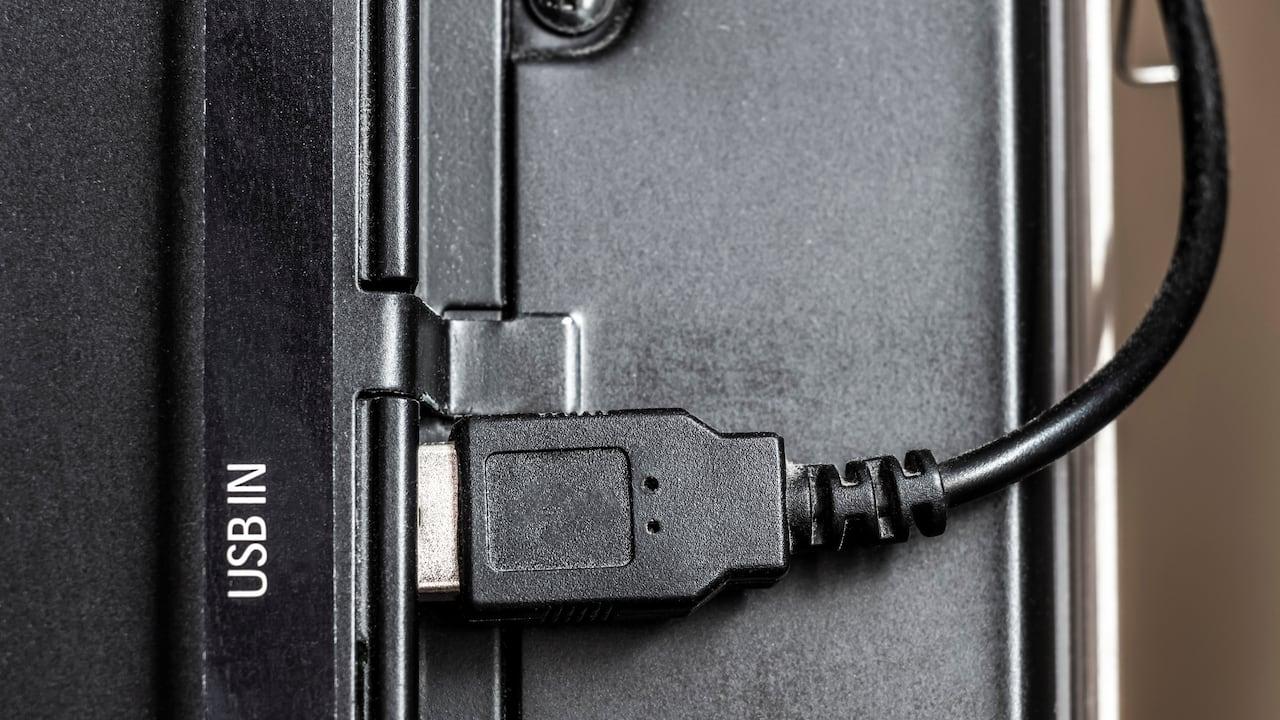
The first thing is to decide the connection method and confirm which inputs you have on the PC and on the Smart TVIf both devices have HDMI, a standard HDMI cable will suffice; It is the most direct way and you don't need separate audio cables..
If your computer and TV do not share the same type of port, you will need a suitable adapter: for example, DVI to HDMI when the PC has DVI and the TV only has HDMI. Keep in mind that DVI does not carry audio, so in that case the sound will not travel through HDMI and you will have to use an alternative audio output.
Connect the cable between the HDMI port on your computer and the HDMI input on your TV.With older VGA connections, it may be advisable to turn off your TV and PC before connecting; with DVI and HDMI, this isn't necessary.
Select the correct input on the TV (HDMI 1, HDMI 2, etc.). You'll usually see the desktop immediately. If nothing appears, switch to another HDMI input or check that the cable is properly inserted at both ends.
Open Windows 11 display settings To choose how you want to use your TV: right-click on the desktop and go to 'Display Settings', or use the Win + P shortcut to instantly switch modes.
Choose display mode: duplicate, extend, or second screen only
With the Win + P combination you can choose on the fly what is displayed on each screen. You'll see these essential options:
- PC screen only: : everything is seen only on the computer monitor.
- Double: The TV and PC display exactly the same thing, useful for presentations or viewing the same content at a larger size.
- Extender: The desktop is shared between both screens; you can drag windows from one to the other and gain workspace.
- Second screen only: : All content is displayed only on TV.
From Settings > System > Display you can also open the 'Multiple displays' section to fine-tune the mode, detect missing monitors, or connect to a wireless display if needed.
Organize, identify, and detect screens in Windows 11
When Windows detects more than one monitor, it assigns them numbers so you can distinguish them.This allows you to place the TV to the left or right of your main monitor, depending on where you have them physically on your desk or in the living room.
To identify which number corresponds to each screen: Go to Start > Settings > System > Display and tap 'Identify'. You'll see a large number superimposed on each panel.
If you have connected the TV and it does not appear in SettingsIn the same path, go to 'Multiple displays' and click 'Detect'. Sometimes this step is enough for Windows to recognize the new video output.
To reorganizeDrag the display thumbnails into Display Settings and arrange them as they appear. Click "Apply" and test by moving your mouse from one to another to confirm that the layout matches your physical configuration.
Fine-tuning: resolution, scale, orientation, and disconnect behavior
Sharpness depends on using the TV's native resolution. On most HDTVs, it's 1920x1080 (Full HD); on 4K models, it's 3840x2160. Go to Settings > System > Display and, in each monitor's section, set 'Screen Resolution' to 'Recommended' for clarity.
The orientation can also be changed (landscape or portrait) from 'Scale & layout' on the same settings screen. If you physically rotate an external display to use it in portrait, remember to select the correct orientation.
Windows 11 lets you remember where your windows were. when you remove and replace monitors. In Settings > System > Display > Multiple displays, you can enable 'Remember window locations based on monitor connection' and 'Minimize windows when a monitor is disconnected'.
If you want to connect a wireless display from these settings, go to System > Display > Multiple displays and select 'Connect' to start searching for compatible devices.
TV or computer monitor? Pros and cons
Using a TV as a monitor can be cheaper and offer a larger size., ideal for home theater or casual gaming. Plus, many TVs come with multiple HDMI inputs for connecting consoles, PCs, and media players.
Monitors, on the other hand, tend to stand out for lower latency, higher refresh rates and sharpness at short distances.If you play fast-paced games, you might prefer a monitor with 144Hz or higher and a slower response time.
If you're interested in the idea of a modern TV, brands like TCL offer a variety of sizes., models with 4K HDR and technologies like QLED, as well as options tailored for gaming. Consider the panel type, refresh rate, and available ports.
Playing on a TV: How to Get the Most Out of It
It is totally feasible to play using the TV as a monitor, and increasingly recommended with 4K (and even 8K) panels that deliver large, detailed images.
Activate 'Game Mode' on your TV if available, as it reduces input latency and makes the response to the controller or mouse more immediate.
Make sure you use the HDMI version supported by your equipment. (e.g., HDMI 2.0 or 2.1) to obtain the maximum supported resolution and refresh rate between your graphics card and TV. It is also recommended to check What is the maximum resolution supported by your screen?.
In Windows 11, combine 'Extend' mode with color profiles and HDR where appropriate to optimize each screen according to its use: work on the main monitor and leisure on the TV.
Multiview 2.0 on some Smart TVs
Some televisions incorporate multi-screen functions such as Multiview 2.0, which allows you to view up to four devices simultaneously on a single panel, ideal for watching sports, series, games, and news side by side with family and friends.
In the TCL ecosystem, this feature is present in models such as C935, C835 or C735If you're interested in this versatility, check the compatibility of your specific model before purchasing.
Connecting a Mac to a TV: Basic Connectors and Settings
On Mac or MacBook you can find ports like HDMI, Thunderbolt, Mini DisplayPort or Micro-DVI. Identify which one you have to choose the correct cable or adapter. For more details, see How to use your iPad as a secondary display in Windows.
If your TV supports HDMI and your Mac only has Thunderbolt or Mini DisplayPort, use an HDMI adapter and a standard HDMI cable; all price ranges tend to perform similarly at the signal level.
Connect cables and adapter to the Mac, put the TV in the appropriate input, and go to Apple > System Preferences > Displays to adjust the 'Best for external display' options.
In the organization tab, you can drag the menu bar to the TV if you want it to be your primary display, and go back to Preferences > Sound to select the TV as your audio output when appropriate.


Passionate writer about the world of bytes and technology in general. I love sharing my knowledge through writing, and that's what I'll do on this blog, show you all the most interesting things about gadgets, software, hardware, tech trends, and more. My goal is to help you navigate the digital world in a simple and entertaining way.