- Tablet mode is automatically activated when the keyboard is disconnected on 2-in-1 devices.
- The interface is adapted with larger icons, touch gestures and a virtual keyboard.
- Manual activation from settings is not available as in Windows 10.
- Windows 11 optimizes the touch experience in apps and the taskbar.

Do you have a touch device running Windows 11 and are wondering what the famous tablet mode is? This feature isn't new, but it has changed compared to previous versions of the operating system, especially if you're coming from Windows 10. In this article, we'll break down all the secrets of this tool, from how to detect it to how to configure it to get the most out of it.
Whether you use a convertible laptop, a 2-in-1 hybrid, or a Windows 11 tablet, the system is designed to provide a more comfortable and intuitive experience . You'll also discover how it works internally, what gestures you can use, how to optimize the taskbar, and how to configure the touch keyboard. Everything is explained step by step, without any fuss.
What is tablet mode in Windows 11?
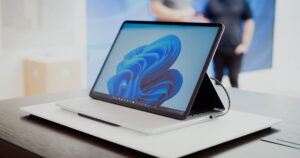
Windows 11's tablet mode is a touch-optimized interface that appears automatically when the system detects that the physical keyboard has been disconnected.
Instead of being a manually activated button, as was the case in Windows 10, Microsoft has redesigned this experience to work automatically . In other words, if you're using a convertible device or a pure tablet with Windows 11 and the computer detects that the keyboard is no longer connected, it will automatically adjust the interface to facilitate touch navigation.
This interface includes changes that affect icon size, desktop layout, and system behavior . For example, the Start menu is larger, easier to use with your fingers, and a virtual keyboard appears on-screen whenever a text field is displayed. This way, you can continue using the system without a physical keyboard.
Additionally, if you rotate the device, the system will detect the change and automatically rotate the screen , provided you haven't locked the rotation. You can also lock it if you want a specific orientation at all times.
Advantages of tablet mode in Windows 11
Using tablet mode in Windows 11 has multiple benefits, especially if your device has a touchscreen.
To begin with, the touch experience is much smoother . The system recognizes multi-touch gestures such as swiping from the edges to open widgets or notifications, which speeds up access to different functions without the need for physical buttons.
The interface adapts to remove elements that would hinder touch navigation . For example, icons are enlarged and spaced further apart to prevent accidental taps, open windows are automatically repositioned, and full-screen mode is prioritized in certain touch apps like Microsoft Edge or Photos.
In addition, you have a virtual keyboard that activates automatically when you touch a text field. This keyboard can be moved around the screen and customized in the settings to appear whenever you prefer.
Tablet mode also adjusts the taskbar to be more comfortable in touch format , allowing settings such as automatically hiding it when a window is opened or grouping icons differently.
How to enable tablet mode in Windows 11
One of the main questions among users is how to activate this mode. In Windows 11, there is no longer a specific button in Settings or the Action Center to manually activate tablet mode. This is a clear difference compared to Windows 10, where it was possible to force it manually.
Now, it all depends on the device and its features. If you're using a convertible laptop, the system will recognize the change in format when you rotate or detach the keyboard . At that moment, the interface will adapt to facilitate touch input. If you have a dedicated tablet, the system is already configured to work directly in this mode.
Windows 11 uses sensors like accelerometers and gyroscopes for this detection, eliminating the need for user intervention. Therefore, it doesn't need to be manually activated, nor can it be forced from a menu.
Key settings for tablet mode
Although you cannot manually activate or deactivate the mode, you can customize certain relevant aspects of the touch experience from the settings options.
To optimize the taskbar, go to Settings > Personalization > Taskbar . Once there, in the Behaviors section, you can select the option "Optimize the taskbar for touch interactions when this device is in tablet mode ." This will make the icons larger and their arrangement more comfortable for touch.
You can also decide whether the taskbar hides automatically when you're in an app, which is useful for freeing up screen space.
In the "Time and Language" > "Typing" > "Touch Keyboard" section , you will find options such as showing it whenever a text field is touched or customizing its behavior so that it does not appear if you are temporarily using a Bluetooth keyboard.
To configure screen rotation, go to Settings > System > Display and adjust the orientation from there. You can also enable or disable rotation lock as needed.
Touch gestures in Windows 11
One of the biggest improvements to tablet mode in Windows 11 is the introduction of a much more advanced touch gesture system . This allows you to navigate, open menus, or switch between applications using only your finger.
The gestures are very similar to those of modern trackpads. For example, you can perform these actions:
- Swipe from the left: Opens task view or the app switcher.
- Swipe from the right: Opens the notification and action center.
- Swipe up from the bottom: displays the list of open applications, similar to what happens in mobile devices.
- Swipe down from the top: closes the current application.
This makes navigating Windows without a mouse or keyboard much more comfortable and efficient. You don't need to learn new gestures if you're already used to using a trackpad , because most have been retained or improved.
Tablet mode compatibility
Not all devices allow you to activate tablet mode , at least not automatically. For the system to activate it, your device must be compatible; that is, a convertible laptop or a tablet with a touchscreen.
If you have a desktop PC, a laptop without a touchscreen, or a device that doesn't report physical changes to the system, you won't see tablet mode in operation . You also won't be able to force it on through the system settings.
Windows 11 only adapts if it detects that the keyboard has been detached or rotated (on convertibles), or if it recognizes that it's in a full touch environment. This is verified through drivers and sensors that inform the system of the change in physical state.
Configurations for businesses and manufacturers
In enterprise environments or on custom devices, there are more advanced ways to manage tablet mode . For example, manufacturers can use hardware or BIOS settings to enable or disable automatic tablet mode behavior.
The operating system uses a value called ConvertibleSlateMode to detect the device's physical state (laptop mode or tablet mode). This value can be managed by GPIO (General Purpose Input/Output) controllers or sensors.
In addition, developers can use Windows APIs to react within their own applications to mode changes . This is useful for adapting touch or desktop interfaces based on how the user is using the device at that moment.
On the other hand, companies that want to control whether a prompt is displayed to the user when changing modes can use the ConvertibleSlateModePromptPreference parameter to force the system to ask, not ask, or apply a default value.
Frequently asked questions about tablet mode
Here are some of the most common questions related to this feature:
- Can I activate tablet mode manually? No. This option has been removed in Windows 11. It's just activated automatically.
- Does the touch keyboard activate in tablet mode? Yes, it appears when you tap text fields. You can configure this in the options.
- Does my Bluetooth keyboard disable tablet mode? No. Only physically disconnecting an integrated keyboard can change the mode.
- Does tablet mode affect my programs or files? No. It just changes the way you view and interact with the system.
Tablet mode offers a smoother, more responsive, and more efficient way to interact with Windows 11 on compatible devices. Its intelligent nature allows it to appear precisely when you need it. From icon rearrangement to multi-touch gestures and window optimization, this mode provides an experience tailored to the modern mobile user's needs. To get the most out of it, you need to understand its automatic features and properly configure essential elements such as the taskbar, screen rotation, and on-screen keyboard.

Passionate writer about the world of bytes and technology in general. I love sharing my knowledge through writing, and that's what I'll do on this blog, show you all the most interesting things about gadgets, software, hardware, tech trends, and more. My goal is to help you navigate the digital world in a simple and entertaining way.