- The sudo command allows you to perform specific administrative actions without logging in as root, reducing risks.
- The configuration of permissions and authorized users is managed through the sudoers file and the /etc/sudoers.d/ directory.
- Options such as -u, -so, -i allow you to run commands or open shells as other users, while maintaining traceability.
- Using sudo carefully and limiting direct access to root is key to maintaining the stability and security of the Linux system.

If you use Linux daily, sooner or later you'll come across the `sudo` command , that little command that appears in almost every tutorial when you need to work on something sensitive in the system. Adding a user, installing a package, editing a configuration file, or restarting a service... as soon as something starts to look like "administration," `sudo` comes into play to give you special permissions without you having to log in as root permanently.
Understanding how to use `sudo` in Linux is key to working securely with the system . It's not just about typing `sudo` before a command and entering a password: there's a whole system of permissions, groups, expiration times, and a configuration file (`sudoers`) that dictates who can do what. Let's look at it calmly, in plain English, but without leaving out any important details.
What exactly is sudo in Linux and what is it used for?
The `sudo` command in Linux allows you to run programs with the privileges of another user , usually the root superuser . Its name is often explained as "superuser do" or "substitute user and do," and its purpose is simple: to allow you to perform administrative tasks without logging in as root.
In most modern distributions (Ubuntu, Debian, openSUSE, etc.), sudo comes pre-installed and configured for use by a group of users. This allows a regular user to maintain limited permissions for everyday tasks but to "borrow" root privileges when needed.
This approach is much safer than always working as root . If you browse the internet, run graphical applications, or open attachments with a normal account, any potential attack is significantly limited. Only when you really need to modify the system do you add `sudo` to the command and authenticate.
Important: `sudo` does not grant you permanent root privileges . Depending on your configuration, it grants elevated privileges only for the command you execute or for a specific duration within that terminal session. After that time, you will be prompted for your password again.
In short, sudo is the controlled bridge between an ordinary user and administrative tasks : it allows you to install software, change critical permissions, or manage services, but always under the supervision of a policy defined in the system.
How does sudo work internally and what is its basic syntax?
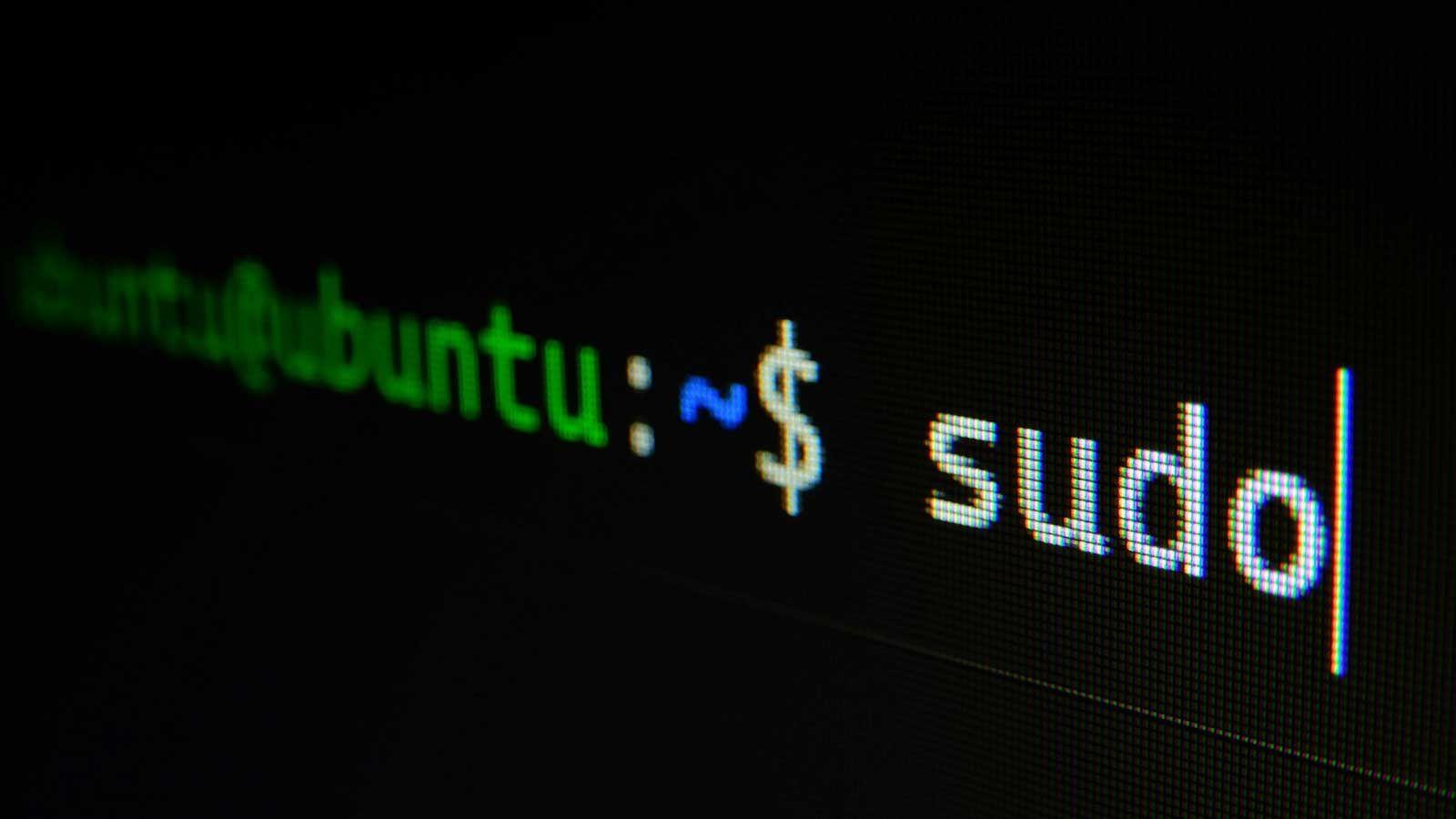
The basic use of sudo is very straightforward: you place it before the command you want to execute with privileges . The general format is:
sudo comando argumentos
When you press Enter, the system first checks if your user is authorized to use sudoThat authorization is defined in the file /etc/sudoers and in the files of the directory /etc/sudoers.dIf you have permission, the system will ask you for a password.
The password entered with `sudo` is usually your regular user password, not the root password , except in specific configurations or certain enterprise distributions. When you type it in the terminal, you won't see any asterisks or special characters; it's entered "blindly," although this behavior can be changed, as we'll see later.
Once you've successfully authenticated, `sudo` executes the command as if you were the target user (usually root). Additionally, a record is typically left in the system logs so the administrator can audit what was done with `sudo`.
By default, sudo authentication has a time limit (usually around 15 minutes). As long as you don't close the terminal and that time hasn't passed, subsequent sudo commands won't prompt you for your password again. You can force a refresh or reset this time limit using certain options.
Common options and parameters of the sudo command
Besides serving as a simple prefix, sudo has a number of very useful options that allow you to view information, renew credentials, or run commands as other users. Some of the most important are:
- -h: displays a brief help message with the syntax and all available options for sudo.
- -V: displays the installed version of the sudo program and compilation details.
- -v: Renews the authentication "grace period" without executing any commands. It is used to refresh the password validity period. and prevent it from expiring while you continue working.
- -k: immediately invalidates cached credentials. After using -k, the next sudo will ask you for your password again.even though 15 minutes haven't passed.
- -l: shows the list of privileges your user has with sudo. It's very useful for knowing which commands you are allowed to run. according to the configuration of sweaters.
- -s: Opens a shell using sudo, inheriting the environment of your current user.
- -i: opens a "clean" login shell for the target user, similar to logging in directly as that user.
- -u USER: indicates that you want to execute the command as a user other than root, for example
sudo -u pedro whoami.
By combining these options you can adapt the behavior of sudo to what you need at any given time , from viewing your list of permissions to obtaining a shell with another user's environment.
Differences between sudo and su: two ways to get permissions
In Linux, there are two classic ways to obtain administrative privileges: `sudo` and `su` . They are often confused, but they actually serve different needs, and it's important to understand the difference.
The `su` (substitute user) command allows you to switch users within the same terminal . If you don't specify which user to switch to, it assumes you want to log in as root. It will then prompt you for the password of the user you want to switch to.
su pedro
Contraseña: **
When you use `su`, the original user's session is not closed.You simply start a new session "nested" inside the previous one. If you chain several `su` commands, you can end up with a curious stack of sessions nested within each other. To go back, you type exit as many times as necessary.
The practical problem with using `su` for everything is that people end up working as root for long periods, with all the risks that entails: any poorly written command can wreck half the system.
Sudo was created precisely to solve this problem . Instead of completely switching users, you maintain your normal session and only elevate privileges for the specific commands that require it. Many distributions don't even recommend logging in as root via the graphical interface.
To summarize the key idea: `su` switches users (usually to root) while maintaining that identity until you exit , whereas `sudo` executes a specific command (or a limited series) with elevated permissions and then you automatically revert to being a normal user.
Practical examples: using sudo with common administrative commands
The best way to see the power of sudo is with everyday examples of system administration , where a normal user would run into the classic "Permission denied".
Installing or updating packages : If you try to use the package manager without privileges, it will usually fail when writing to system directories. For example, in Debian or Ubuntu:
apt-get update
Without sudo, the system will not be able to open the locked files in /var/lib/apt/ You'll see permission errors. If you repeat the command with `sudo`, you'll be prompted for your user password (if you're authorized), and the process will work.
sudo apt-get update
Managing users : Creating a new user, changing their password, or modifying their groups requires privileges. A typical example would be:
sudo useradd edward
Without the sudo prefix, a normal user cannot access the account system. and the command would fail. The same applies to utilities like usermod o deluser.
Edit system configuration filesMany settings are stored in text files in /etcTo open one of these files with an editor, you need sudo. For example, to edit /etc/hosts:
sudo nano /etc/hosts
On systems that use systemd, you'll also need sudo to manage services . For example, to restart Apache:
sudo systemctl restart apache2
Note that for actions that only read information and do not modify the system (such as checking the status of a service), sudo is often not necessary, for example:
systemctl status NetworkManager
Run commands as another user with sudo (-u, -s, -i)
In addition to running as root, sudo also allows you to act as other system users , which is very useful when you want to test permissions, review files belonging to another account, or launch processes with another identity.
The most direct way is to use -u followed by the username and then the command you want to execute:
whoami
sudo -u pedro whoami
In the first line, whoami returns your real username.; in the second one, thanks to sudo -u pedroThe command is executed with the identity of “pedro”. Of course, for this you also need permission in the sudoers configuration.
If what you want is a complete shell like another user, you have two very important options:
- sudo -sOpens a privileged shell, inheriting your current environment. The target user (root by default) starts in the same directory and with your environment variables.
- sudo -i: opens a login shell for the target user. In this case, its "clean" environment is loaded., its startup scripts are executed (such as
.profileo.bash_profile) and starts in its$HOME.
Both methods leave a trace in the command history , which is interesting for auditing purposes and for remembering what was done in previous sessions.
The sudoers file: the heart of sudo configuration
All sudo behavior (who can use it, with which commands, and under what conditions) is controlled from the sudoers file, located in /etc/sudoers and supplemented by the files in the directory /etc/sudoers.d/.
This file should not be edited with a standard editor.Because a syntax error can render sudo unusable and seriously complicate things. The correct way is to use the command visudo, which opens the file with the configured editor and validates its content before saving it.
To edit the main sudoers file, you usually use:
sudo visudo -f /etc/sudoers
Within the file you will see several key lines , for example:
- root ALL=(ALL:ALL) ALL: indicates that the root user can execute any command on any host, just like any other user and group.
- %admin ALL=(ALL) ALLThe % symbol before a name refers to a group. Users in the admin group have privileges equivalent to root.
- % sudo ALL = (ALL: ALL) ALL: same, but for the sudo group, widely used in Debian and Ubuntu.
- #include /etc/sudoers.dThis directive automatically includes all configuration files in that directory.
The recommended practice is to avoid messing with the main root line too much. and instead, create specific files in /etc/sudoers.d/ for specific groups or users. This makes it easier to keep the configuration organized and reduces risks.
Grant sudo permissions to a user: groups and custom entries
In many distributions, the first user created during installation already belongs to the sudo (or admin) group, and therefore can use sudo from the start. If you want to grant permissions to more users, the easiest way is usually to add them to that group.
To see which users belong to the sudo group you can use:
grep 'sudo' /etc/group
If you want a user named “bill” to have full sudo privileges , simply add them to the corresponding group:
sudo adduser bill sudo
After this, Bill will be able to execute any command with sudo (except for specific restrictions added in sudoers). If you later want to remove these privileges, remove him from the group.
sudo deluser bill sudo
When you need finer control, sudoers allows you to define very detailed rules . For example, you can create a special group (netadmin) and restrict it to specific network commands using command aliases:
Cmnd_Alias CAPTURE = /usr/sbin/tcpdump
Cmnd_Alias SERVERS = /usr/sbin/apache2ctl, /usr/bin/htpasswd
Cmnd_Alias NETALL = CAPTURE, SERVERS
%netadmin ALL=NETALL
With this configuration, anyone belonging to the netadmin group will be able to use tcpdump and some Apache commands with sudo, but they won't have full control over the entire system. To complete the setup, you would add bill to the netadmin group:
sudo adduser bill netadmin
Configure "secure" and "comfortable" sudo (with or without a password)
One of the most frequent practical decisions is whether sudo should always ask for a password or not.Both methods are possible and are configured in sudoers or in files. /etc/sudoers.d/.
"Safe" mode: always requires a password . This is the most prudent option: the user can execute any command as root with `sudo`, but must enter their password each time. A typical entry for this would be:
usuario ALL=(ALL:ALL) ALL
"Convenient" mode: no password (NOPASSWD) . In desktop environments or test machines, some users prefer that sudo doesn't prompt them for the password each time. To do this, you can use something like:
usuario ALL=(ALL) NOPASSWD: ALL
In both cases the idea is the same: an authorization file is created in /etc/sudoers.d For the user in question, this can be done either manually with Visudo or via a script. Some people automate this with small bash scripts that copy the appropriate line to that directory using su -c to write as root.
Keep in mind that disabling the password prompt reduces security . A command you run without realizing it (or a malicious script) will be able to use sudo without any additional barriers.
Customize password entry: Show asterisks with pwfeedback
By design, passwords entered with `sudo` are not displayed on the screen —neither letters nor asterisks. This was intended as a security measure to avoid revealing the password length, but many users find it unfriendly.
For years, sudo has allowed you to change this behavior with the `pwfeedback` option . If you enable it, you'll see an asterisk for each character you enter when typing your password.
To enable it, edit the settings with visudo:
sudo visudo
Inside the file, add a line like this:
Defaults pwfeedback
Save the changes and close . From that moment on, when you run a command with `sudo` and it prompts you for your password, you'll see asterisks appear. If you ever prefer to revert to silent behavior, simply remove that line of `sudoers`.
Risks of using sudo and root carelessly
Working with sudo or as root is incredibly powerful, but it can also be disastrous if you're not careful. Linux is designed to be secure by default, but when you elevate privileges, many of those safeguards are removed.
One of the most obvious risks is deleting critical system files. Commands like rm -rf / or variations with misspelled paths can render the system completely unusable. Even something seemingly innocent like rm -rf "$directorio"/* It can be lethal if the variable is empty.
Another serious danger is running scripts or binaries downloaded from the internet with sudo without checking them . With superuser privileges, they can install rootkits, backdoors, and all kinds of malware that are very difficult to detect afterward.
You can also break the system by modifying permissions of essential files.Playing things like this in a crazy way /etc/passwd, /boot or GRUB itself with chmod o chown It can even prevent the machine from starting, forcing you to reinstall or use advanced recovery tools.
The golden rule is clear: when using sudo or as root, think twice before pressing Enter . And, whenever possible, copy commands from reliable sources, read them, and understand what they do.
Disable or restrict the root account by holding sudo
In many shared environments, it's important to limit direct use of the root account . If the root password is shared among too many people, anyone can make significant changes to the system without any traceability.
A common strategy is to block the root account. so that it cannot be directly logged in or used su with it, but still allow certain users to use sudo. For example:
sudo passwd -l root
This command locks the root password . You won't be able to log in as root or use `su` to switch to root without a valid password, but users authorized in the `sudo` group (or with rules in `sudoers`) will still be able to execute administrative commands.
If you want to re-enable root laterSimply assign a new password using passwd root from an environment with appropriate privileges (for example, a recovery mode).
Alternative commands and related tools: your and doas
Besides sudo and su, in some systems an alternative command called doas (and run0, a sudo substitute ) is becoming popular , inspired by OpenBSD and with a simpler and more minimalist philosophy.
Doas is not usually installed by default.Therefore, the normal procedure is to incorporate it from the repositories and then create its configuration file. /etc/doas.confA basic example would be:
sudo apt-get install doas
sudo nano /etc/doas.conf
Within that file you can define very simple rules , for example:
permit nopass manz
This line indicates that the user “manz” can use doas without a password. You can also use deny to block, or configure finer permissions, but the philosophy is that the syntax should be more direct than that of sudoers.
Even so, in most Linux distributions the de facto standard remains sudo , due to its flexibility, the large amount of documentation available and its integration with auditing tools.
Mastering the use of sudo in Linux allows you to move smoothly between normal user tasks and administrative duties , keep the system more secure by avoiding persistent root sessions, and adapt the permissions of each account according to what it actually needs to do; understanding the difference with su, knowing how to manipulate sudoers with visudo, controlling options like pwfeedback or NOPASSWD, and being aware of the risks of a poorly executed command is what marks the boundary between "just trying out commands" and managing a Linux system intelligently.


Passionate writer about the world of bytes and technology in general. I love sharing my knowledge through writing, and that's what I'll do on this blog, show you all the most interesting things about gadgets, software, hardware, tech trends, and more. My goal is to help you navigate the digital world in a simple and entertaining way.