- Presenter view lets you control notes, timing, and tools while you present.
- Correctly setting up your monitors is key to using all the features.
- Annotation and navigation tools streamline audience engagement.
Having complete control over a presentation is essential for anyone who has to speak in public. PowerPoint includes a very practical feature called Presenter Mode , designed specifically for those who want to have everything under control: slides, notes, tools, and time. However, despite its usefulness, many users barely explore it and simply display the slides without taking advantage of all its possibilities.
In this article, we'll show you how to activate and get the most out of PowerPoint's Presenter View , whether you're a beginner or an experienced presenter. We'll explore its purpose, how to configure it, and its advantages, as well as all the hidden tools and tricks it offers. If you tend to get nervous when presenting or simply want to maintain a professional and engaging pace during your speech, don't miss this detailed guide to becoming a much more effective presenter.
What is presenter view or mode in PowerPoint?
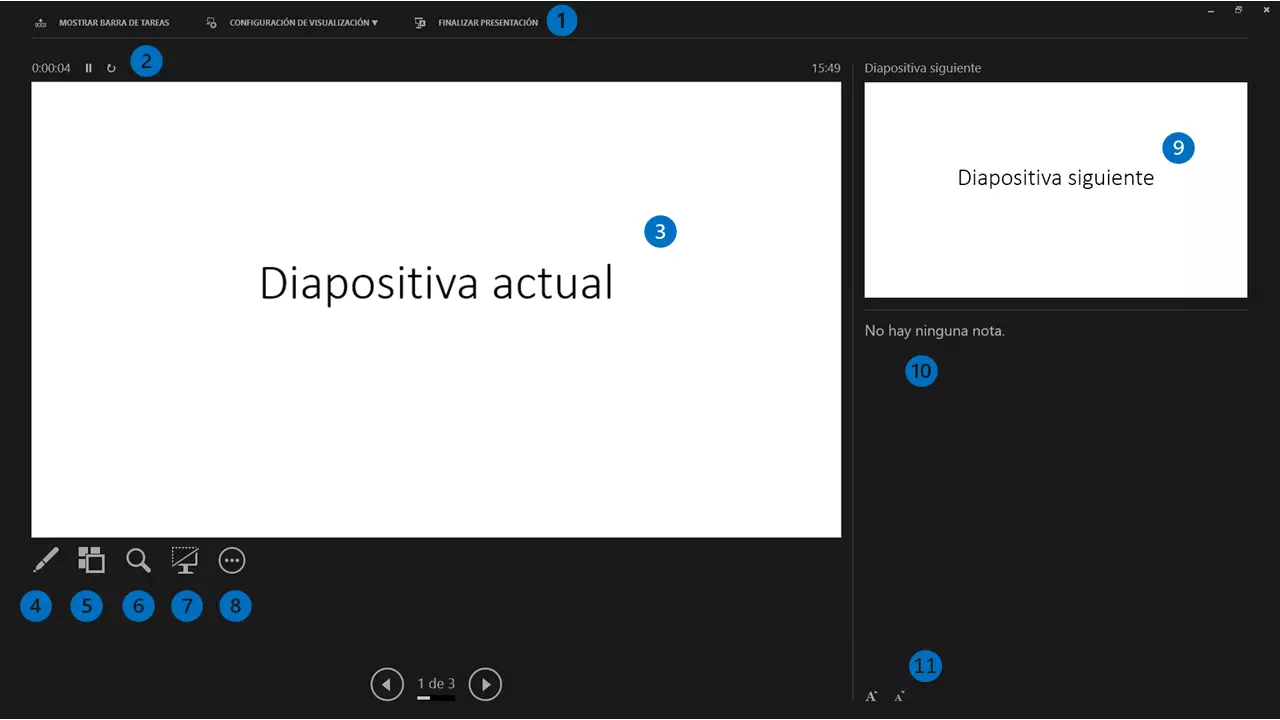
Presenter view is a feature that allows the speaker to see different information on their own monitor than what the audience sees on the main screen or projector . While your audience only sees the current slide, your screen displays a full panel with notes, the next slide, thumbnails of the entire presentation, a timer, and a handy set of tools to help you stay in control of the session.
This feature is especially useful when you're giving technical presentations, needing to refer to your notes, or wanting to interact with your audience without missing a beat. It also makes it easier to navigate between slides in a non-linear fashion (e.g., jumping from one to another out of order), something impossible in conventional presentation view.
Main advantages of moderator mode
- Total control of the presentation:
You can see the next slide, review your notes, and anticipate what's coming up without your audience even noticing. - Ease of management There:
It includes a clock and stopwatch so you don't lose track of time and avoid presentations that are too long or too short. - Advanced tools:
Quick access to a pen, highlighter, laser pointer, zoom, and the option to dim the screen for pauses and focus. - Slide organization:
Possibility of jumping between them using thumbnails and avoiding chaotic searches during the exhibition.
When to activate moderator view
Presenter mode is recommended when giving in-person presentations and your computer is connected to a projector or additional screen. In this situation, it's most useful because you can leave the main screen for the audience and reserve your monitor for controlling and reviewing the presentation.
If you have a presentation with a lot of technical information, complex content, or need to follow a detailed script, using this feature will give you the confidence and agility to continue your presentation without losing your train of thought . However, it does require that your computer supports at least two screens and that they are correctly configured in extended mode.
How to set up presenter mode in PowerPoint
Before you begin, make sure your computer is connected to the projector or external display. It's essential that your operating system is in extended desktop mode, not mirrored. This way, each screen will display different information, and you can choose where the presenter view and the audience presentation are shown .
Step by step to activate the moderator view
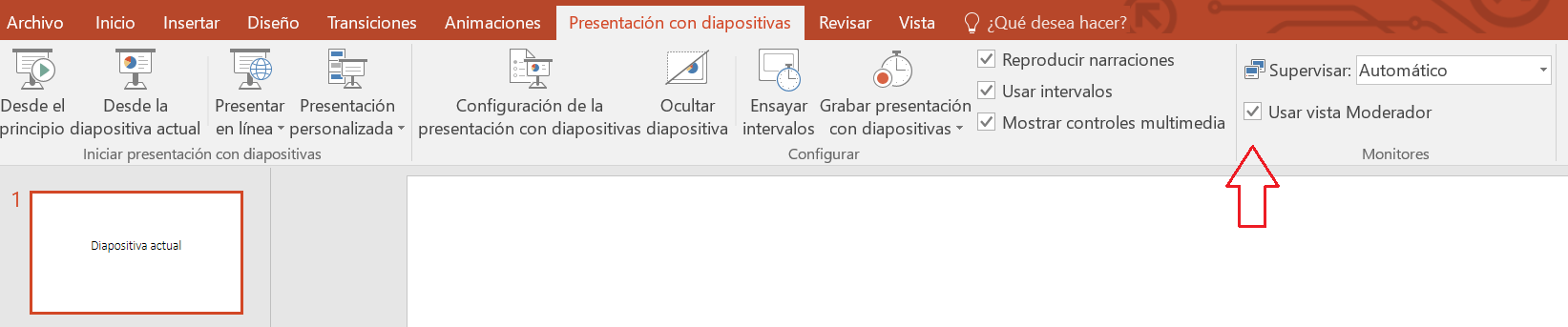
- In PowerPoint, go to the tab Slide show at the top of the program.
- In the group Monitors, select the box Use Presenter view.
- Choose the monitor where you want the presenter view to be displayed from the drop-down list (usually your laptop monitor).
- Balance From the beginning or the key F5 to begin the presentation. If everything is set up correctly, your screen will become the command center, and your audience will see only the slides.
In some versions, you can find these options at the bottom of the Configure Layout dialog box. If you're unsure, check that your Windows desktop is extended and not just duplicated.
Moderator view elements and tools
Once activated, you will see that the moderator screen is divided into several areas:
- Main slide:
It occupies the left side, showing the same thing that the audience sees. - Next slide:
Above the notes panel, you can see what the next note will be so you can anticipate and prepare your speech. - Speaker Notes:
On the right side, the text you have added as notes for each slide is displayed, with the option to make the text larger or smaller. - Thumbnails of all slides:
button that allows you to view a panorama and easily jump to any part of the presentation (very useful for questions or to change the order on the fly). - Navigation tools:
arrows to move forward or backward, timer, real-time clock and bar commands.

Graphic and annotation tools
In addition to managing slides, you can enhance your presentation using tools like the pen or highlighter , the virtual laser pointer , or the zoom function to highlight specific areas of the slide. Simply click on the corresponding icon, usually located below the main slide or at the bottom of the screen.
You can also darken the screen (turn it black) from the presenter panel, which is ideal for pausing, answering questions, or redirecting attention without having to close the presentation.
Advanced Configuration and Troubleshooting
Sometimes, PowerPoint may not automatically detect the correct display for presenter view. Check your Windows display settings and make sure your desktop is in extended mode and that the primary monitor is the speaker's monitor. Within PowerPoint, verify under 'Slide Show > Monitors' that everything is assigned correctly.
The Windows taskbar can interfere with your presentation. From the moderator view, you can choose to show or hide the taskbar to avoid distractions.
If you need to end Presenter View without finishing the presentation, go to More Slide Show Options and select Hide Presenter View . To completely end the presentation, simply press the Esc key.

Passionate writer about the world of bytes and technology in general. I love sharing my knowledge through writing, and that's what I'll do on this blog, show you all the most interesting things about gadgets, software, hardware, tech trends, and more. My goal is to help you navigate the digital world in a simple and entertaining way.