- Bottles simplifies Wine with isolated bottles that organize and protect your Windows applications on Linux.
- The recommended installation via Flatpak offers better insulation, runner management, and full support for DXVK.
- Game and application templates make it easy to set up optimized environments without advanced knowledge.
- Bottles complements Proton and Steam Play to run software outside of Steam with fine control over Wine.
If you use Linux daily but still depend on some programs designed only for WindowsYou've probably struggled with Wine more than once. It works, yes, but between prefixes, strange libraries, and mysterious configurations, many people end up throwing in the towel prematurely.
That's where Bottles comes in, a tool that turns all that mess into something much more manageable. Thanks to a A very polished and easy-to-understand visual interfaceIt allows you to install, isolate, and run Windows applications and games on Linux without becoming a Wine expert. And as a bonus, it adds a welcome extra layer of security and organization.
What is Bottles and how does it relate to Wine and Proton?
To understand what Bottles does, it's first necessary to be clear about what exactly it is. Wine and how it works underneathWine is not a typical emulator, but a compatibility layer that translates in real time the calls that a Windows application makes to the operating system, converting them into instructions that Linux can understand and execute.
When a Windows program tries to access a DLL, draw a window, or read a file, those requests are redirected to equivalent implementations prepared by the Wine projectIt is a huge reverse engineering project that has been under development for many years and has become a true gem of free software, especially appreciated in Unix environments and Unix-like systems such as GNU/Linux or FreeBSD.
The big problem with Wine is that, although its engine is extremely powerful, its configuration is not exactly user-friendly. Many of its settings are managed through... Spartan windows, environment variables, and tons of cryptic optionsIf you don't have prior experience, setting up a stable environment for each application can become a headache.
Bottles appears just to solve that: it's a A modern graphical interface that relies on Wine as its engineBut it simplifies management to the extreme. Instead of struggling with manual prefixes, you work with "bottles": isolated environments where your Windows programs and games are installed, each with its own configurations, Wine versions, and dependencies.
In addition to working with different Wine builds, Bottles integrates reimplementations and improvements such as Runners based on Lutris, Proton, and variants like Glorious EggrollThis is especially useful for video games, because it allows you to take advantage of specific optimizations and patches designed to improve performance or compatibility.
Why Bottles is especially useful for gaming and security
Over time, most productivity applications have come natively to GNU/Linux, so Wine's role has become primarily focused on run video games, highly specific software, or legacy corporate toolsBottles embraces this reality and gives a lot of prominence to games, although without forgetting more traditional "window" programs.
In the case of video games, Bottles makes it easy to download and use different versions of DXVK, the DirectX 9/10/11 to Vulkan translatorwhich is one of the pillars of Proton (the compatibility layer used by Steam Play). Being able to switch DXVK versions per bottle allows you to fine-tune performance or resolve graphical glitches in specific titles.
Another strength is its focus on isolation. When you run Windows applications directly with Wine, those applications can end up having read and write access to your personal folder with your same permissions. If you install something malicious or misconfigured, it can wreak havoc on your files.
Bottles greatly reduces this risk thanks to its bottle system, which acts as Independent containers for each program or set of programsIf something goes wrong inside a bottle, its impact is usually confined to that environment. Combined with the Flatpak version, which adds system-level sandboxing, security is further enhanced.
In short, Bottles not only makes using Wine more user-friendly, it also establishes order and clear boundaries: each game or application within its own "container," with configuration, dependencies, and access to controlled and separate resources.
Installing Bottles on Linux (Flatpak recommended)
The developers of Bottles clearly recommend that the best way to install the application is through Flatpak and the Flathub repositoryThis method guarantees all the isolation and encapsulation capabilities that the application needs to function securely and consistently across different distributions.
Many modern distributions, such as Fedora Workstation or Manjaro, already include Flatpak pre-installed and ready to useIn others, such as Ubuntu, you may have to manually add Flatpak support from the official repositories and then link Flathub as an application source.
Once you have Flatpak up and running, install Bottles It boils down to a very simple command that you can run from the terminal. Just execute:
flatpak install flathub com.usebottles.bottles
During the installation you will see that the process stops to ask for confirmation, so you will have to answer with a “Y” and press Enter To continue, the system will download both Bottles and the necessary dependencies, which may take a few minutes depending on your connection and computer.
Once the installation is complete, you can start the application with another equally straightforward command:
flatpak run com.usebottles.bottles
The first time you run it, some output will appear in the terminal because Bottles takes advantage of this to Perform initial configuration, download components such as DXVK, and prepare the base environment.Shortly afterwards, the welcome screen will open with a quick wizard.
Bottles may also appear in your desktop environment's application menu. In GNOME, for example, simply press the Super key (the Windows key on many keyboards), type "Bottles" in the search box, and Open the application icon as if it were any other program.
Getting started with Bottles and downloading components
When you open Bottles for the first time, the app displays a Welcome screen with several introductory screens They give you a brief overview of what the bottles are and how the interface is organized. You can then use the arrow to advance to the final step of the wizard.
On one of those initial screens, Bottles will begin downloading the Latest version of DXVK available on their serversThis step is automatic and is part of preparing the environment to run video games that use DirectX.
In addition, the assistant takes the opportunity to download and install the Wine reimplementation that will be used by defaultThe reference content mentions, for example, the "Chardonnay 6.8" version as the standard runner at a given time, although this may vary over time as the project is updated.
When you reach the screen marked “Almost Done”, you just have to press the blue button Continue so Bottles can complete the internal configuration.Once that process is complete, you will see a message indicating that everything is ready to start using the application.
When you first enter the main section, the Library view will appear empty because you haven't created any bottles yet. You'll see a clean interface that displays Options for creating new bottles and managing existing ones as soon as you start working with them.
At this point you have Bottles installed and running, with Wine and DXVK automatically configured, ready to start creating environments for your Windows games or programs.
Important adjustments to Bottles preferences
Although you can jump right into creating bottles without touching anything else, it's worth taking a look at the section on Preferences, accessible from the application's main menuFrom there, global aspects that affect how the bottles are created and managed are controlled.
Within the preferences you will see options to choose from runners, specific versions of Wine or Proton, and component setsBottles allows you to download and install different reimplementations and alternative versions, so you can assign to each bottle the engine that best suits the program or game you want to run.
Another relevant section in the preferences is the one that lets you change the path where the bottles are physically stored in your file systemIn the Flatpak version, the default directory is usually something like this:
~/.var/app/com.usebottles.bottles/data/bottles/bottles/
Although the "/bottles/bottles" at the end might sound a bit odd, it's perfectly fine and not a typo. In many cases, it's perfectly acceptable to leave this location untouched, especially if you don't have space issues on your main partition and prefer keep all data encapsulated within the Flatpak space.
If you want to change that path because you have a faster SSD, a different hard drive, or a partition with more capacity, you can do so very easily. Just go to the menu (the three horizontal lines), enter... In Preferences, open the General tab and locate the Bottles Directory optionClicking the button on that line will open a file explorer to choose the new destination.
After selecting your preferred folder and confirming with the corresponding button, Bottles will begin using that directory to manage your bottles. It's a convenient way to Move your environments to a faster disk or a volume with more free space. without changing anything in the rest of the system.
Bottle types: games, apps, and custom settings
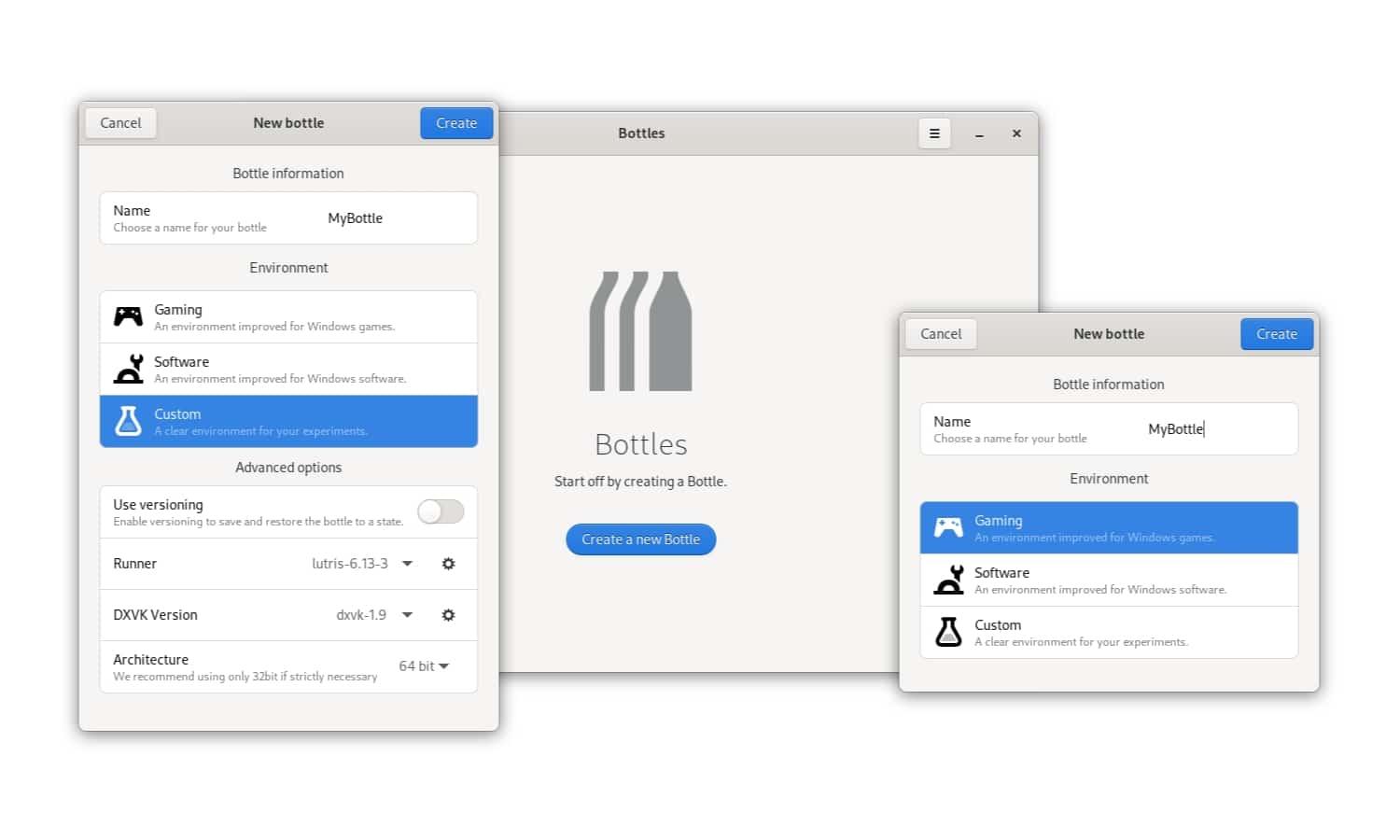
One of Bottles' great strengths is that, every time you create a new bottle, it offers you a series of pre-designed templates that come already fine-tuned for typical use casesThat way you don't have to start from scratch with complex configurations.
The first template is geared towards gaming, with parameters designed for Improve graphics performance and compatibility with demanding titlesIt usually includes adjustments to DXVK, synchronization, and GPU management options that help you get more out of video games.
The second template is focused on general applications, ideal for productivity software such as advanced text editors, office suites or utilities that only exist on WindowsHere, stability and a more classic "desktop" experience take precedence over purely graphical performance settings.
Finally, there's the custom template, which lets you adjust almost all the parameters from the start. This option is very useful if you need, for example, force a 32-bit environment for older programs or control every detail of the configurationIt can also be useful when you're testing solutions for particularly sensitive software.
For most users, especially if you're just starting out with Bottles, it's recommended to use game or app templates. They're already set up for the more common scenarios and minimize the need for advanced manual adjustmentswhich saves time and headaches.
Creating your first bottle for Windows applications
Once you're familiar with the basic interface, it's time to create your first bottle. To do this, you can click on Bottles in the top bar and then press the blue Create New Bottle button which is clearly visible in the main window.
Let's say you want to install an advanced text editor like Notepad++, which is officially available only for Windows. A convenient approach is give the bottle the same name as the app, for example “Notepad++”, and select the Application template in the creation wizard.
When you confirm by clicking the Create button, Bottles will begin downloading and preparing the necessary components for that environment. For a few minutes, it will configure the chosen Wine version, the base dependencies, and the elements of the Application template that optimizes behavior for this type of software.
When finished, a message will appear indicating that the configuration is complete. Closing that window will show you the details view of the bottle you just created, with various sections for installing programs, managing dependencies, and reviewing configuration of the environment.
From that moment on, that bottle will act as an isolated "mini Windows" where you can install Notepad++ and any other tool you want to keep grouped with it, without interfering with the rest of your system.
Install and run applications within Bottles
When you enter the view of a specific bottle, Bottles shows you several key options for managing the software you're going to use. One of the most visible is Install Programs, which accesses a catalog of known applications Prepared by the community with recommended configurations.
Another important section is Dependencies, which is used to Add additional components such as Visual C++ packages, parts of the Microsoft .NET framework, Windows fonts, or other DLLs that many applications need to function properly.
If you already have the installer for the application you want to use downloaded, the most direct way is to use the blue button. Run Executable, which allows you to run any .exe or .msi file from inside that bottle. You'll usually find the installers saved in your Downloads folder or in a specific directory.
For example, to install Notepad++, simply select the downloaded file in ~/DownloadsClick Run and follow the typical Windows installation wizard. You'll see the installer window appear with its Classic interface, with the usual Next, OK, and Finish buttons.
After completing the wizard, you can choose to run the program immediately or close it and launch it later from Bottles. In the Bottle view, Notepad++ will appear listed as an installed application, with an arrow icon. Open it directly whenever you want to use it on your Linux desktop..
The result is that the application behaves almost natively: you can open files, edit, save and work with it without much complication, while Bottles takes care of translating all the calls to Windows to your Linux system.
Advanced settings for each bottle: Wine, DXVK and yield
One of the biggest advantages of Bottles is that each bottle can have its own Custom configuration of Wine version, DXVK and other performance parametersThis allows you to experiment with different combinations until you find the one that best suits each game or application.
To access these settings, you can open the specific bottle and look for the Runner section or equivalent, where there is usually a gear icon that leads to the executor optionsFrom there you can choose between the various Wine reimplementations available, including variants based on Lutris, Proton, or custom builds like those from Glorious Eggroll.
In the same view, it's also possible to change the version of DXVK used, which often makes a difference with video games that rely heavily on DirectX 9, 10 or 11Being able to switch from one version to another without breaking other bottles is very convenient when solving specific graphics problems.
Another interesting setting for those with an AMD Radeon graphics card is the option to activate the ACO compilerThis can improve shader compilation and, consequently, performance in many games. It's configured per bottle, so it only affects the environments where you actually need it.
In addition, Bottles allows you to control synchronization (such as different thread synchronization techniques) for Improve performance in specific titles and reduce stuttering or micro-cutting issuesAlong with options to override specific DLLs and adjust dependencies, you have a powerful yet accessible set of tools.
All of this means that Bottles doesn't completely eliminate the inherent complexity of Wine, but it does present it in a much more organized way. Each bottle becomes a dedicated environment, where you can Test changes without fear of affecting other applications or the system.
Using Bottles to install video games from physical media
Besides digital games from platforms like Steam, Bottles is especially useful if you want to rescue video games in physical format or old installers that only exist on DVD or CDThe workflow is very similar to that of a Windows installation, but encapsulated within the bottle.
The first step is to create a new bottle using the template designed for games. This will automatically apply the appropriate settings. to achieve the best possible graphics performance and good DirectX compatibilityYou can leave the default recommended Wine version and select options like the ACO compiler if you're using an AMD GPU.
Once the bottle is created, you'll see the Run .exe button on its main view, designed specifically to launch classic installers. You'll need to click it and Select the typical “setup.exe” file located in the root of the DVD or in the folder where you copied the contents of the disc.
From there, the installation process follows the usual script: a succession of "Next, Next" windows until the game is installed. In some cases, you may need to install additional dependencies or change the Wine version within the bottle for optimal performance.
Once the game has been successfully installed, it will appear in the app list on that bottle with its own entry and a Execution button on the side to launch it whenever you want to playIf the game requires the original disc to boot, a practical solution is to create an ISO image from Linux using tools like K3B or Brasero and mount it when you're ready to play.
In real-world experience, games like The Elder Scrolls: Oblivion have been successfully run on Linux using the Flatpak version of Bottles on modern distributions like Fedora. While performance and stability may require further adjustments, the fact that to be able to play from the same Linux system without resorting to a full Windows system It's a considerable step forward.
Relationship between Bottles, WineHQ and Steam (Proton)
When we talk about running Windows games and applications on Linux, it's common to mix up names like WineHQ, Bottles, Steam Play, and Proton. Each one occupies a different place, so it's worth distinguishing between them. Understanding how they complement each other and what each tool is best suited for.
WineHQ is the base project, the implementation of the compatibility layer that translates Windows calls to Linux. Bottles sits on top of Wine, offering a clear graphical interface, bottle management, and easy access to... different variants and patches of Wine and DXVKUltimately, Bottles makes Wine usable for many more people.
On the other hand, you have Valve's Protonwhich is the technology that Steam Play uses to allow Games designed only for Windows can now run on Linux directly from the Steam client.Proton relies on Wine but adds its own patches, DXVK tweaks, and specific measures for video games.
If you use Steam on Linux and want to play your Windows game library, what you need to do is go to Settings > Steam > Compatibility > Steam PlayTo enable compatibility, select Proton Experimental (or your preferred version of Proton). This should make most games in your library playable on Linux.
In contrast, Bottles shines most when you need run games and applications that are not on SteamThis includes software that comes on DVD, manually downloaded installers, or productivity applications that are only available for Windows. It's also very useful when you want complete control over which version of Wine or DXVK is used in each case.
Ultimately, it's not so much about choosing between Wine, Bottles, or Proton, but about understanding that Proton is ideal for the Steam integrated experience, while Bottles is a A versatile and visual solution for bringing the rest of your Windows software to Linux.
Given all of the above, Bottles establishes itself as a very complete tool for those who live on Linux but still need Windows programs and games: it combines the power of Wine with a clear interface, bottle-based isolation, integration with DXVK and advanced runners, and a template system that facilitates both basic tasks and very fine configurations without forcing you to give up your favorite operating system.

Passionate writer about the world of bytes and technology in general. I love sharing my knowledge through writing, and that's what I'll do on this blog, show you all the most interesting things about gadgets, software, hardware, tech trends, and more. My goal is to help you navigate the digital world in a simple and entertaining way.