Just like for children, a regular bed has many health benefits for adults. Poor sleep, for example, can also increase the risk of anxiety, memory loss, obesity, hypertension, and diabetes. It's very important that you maintain regular sleep and bedtime routines. This is actually quite simple. You just need to set your alarm clock so that (a) you go to bed at the same time every night and (b) you get up at the same time every day, even on weekends. This may seem difficult for many people.
See also: The alarm clock of iPhone not working, solution
Fortunately, your iPhone and your iPad can help you maintain your sleep habits. Your iPhone can also track your sleeping and waking hours. This gives you a better view of your sleep habits. The Bedtime feature in the Clock app can help you maintain a normal bedtime. This article explains how to use the Bedtime feature in the Clock app on your iPhone or iPad.
See also: What does the alarm clock icon mean in an app (iPad)?
What does bedtime mean?
When you adjust your bedtime
- Remember to go to bed.
- Automatically set alarms to wake you up.
- You can track your sleep history.
- The Do Not Disturb feature is activated when you are supposed to be in bed. You can disable it if necessary.
- Weather Tracking is on. Check if and when you use your iPhone at night. This feature can also be turned off if desired.
- You can monitor your sleep history in the Health app.
See also: How to increase iPhone alarm volume
How to go to bed
Follow these steps:
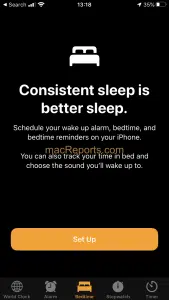
1. Open the Clock app on your device. Next, tap the “Bedtime” tab. When you first open the app, you’ll see a welcome screen that says, “Consistent sleep is better sleep. Set up wake-up time, bedtime, and sleep reminders on your iPhone. You can also track your time in bed and choose the sound you want to wake up to.” Tap Settings.

2. The next screens help you choose your settings. You can change these settings later at any time. You will first be asked to set the alarm time. Select a time and press Next.

3. On the next screen you will be asked to select your alarm. Then tap Next

4. On the next screen you will be asked to enter your bedtime. Then press Next

5. Finally, you will be asked to enter your sleep days. On which days do you want to do it? It is important to note that the more consistent you are, the better your sleep will be. Click Next and Done.

How to turn bedtime on and off
It's very simple. You can easily turn bedtime on or off at any time. Here's how:
1. Open the Clock app and play at bedtime.
2. Bedtime or wake-up time sheet.

3. Then deactivate or activate the sleep program. This deactivates or activates the sleep program

Other bedtime adjustments
You can change all your settings. Here's how:
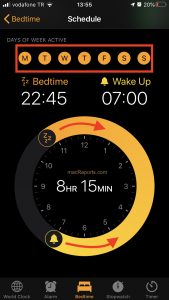
To change your bedtime or wake-up time, open the Clock app and tap Bedtime. Then tap Sleep Time or Wake Time. You'll see a large clock icon. You can drag the moon icon to change your bedtime, and you can drag the bell icon to change your wake-up time. You can also set the days of the week. Orange days are active.

To view your sleep stats, open the Clock app and tap Sleep Time. Then tap See more under Health
To change other settings, open the Clock app, tap Sleep Time, then tap Options (top left corner). There are a few parameters you can adjust:
- You can set your bedtime reminder. The alarm goes off exactly when you need to go to bed, or a few minutes before.
- You can turn the “Bed Time Tracking” feature off or on.
- You can turn the Do Not Disturb button on or off at bedtime. If you turn this feature off, calls or messages will not be silenced.
- You can adjust the alarm level
- You can also change the alarm tone


My name is Javier Chirinos and I am passionate about technology. Ever since I can remember, I have been interested in computers and video games, and that passion has turned into a job.
I have been publishing about technology and gadgets on the Internet for over 15 years, especially in mundobytes.com
I am also an expert in online marketing and communication and have knowledge in WordPress development.