- Office's AutoRecover feature saves temporary copies of your documents to minimize data loss in the event of crashes or unexpected shutdowns.
- Word, Excel, and PowerPoint offer a Document Recovery panel, temporary files, backups, and previous versions to recover your work.
- Properly configuring automatic saving, AutoRecover location, and backups minimizes the risk of losing important files.
- Complementing AutoRecover with cloud backups or specialized software is the safest strategy to protect your documents.
Losing a Word document, an Excel spreadsheet, or a PowerPoint presentation Half-finished is one of those things that can ruin your day: your PC freezes, the power goes out, or you accidentally close it and feel like all your work has been lost. The good news is that Microsoft Office has included a fairly robust self-recovery system for years, which, when properly configured, can save you from almost all of these problems.
That system is based on AutoRecover, AutoSave, and various types of temporary files and backups that Word, Excel, and PowerPoint generate in the background while you work. If you know where to look and how to use the recovery options, you can likely recover unsaved documents, intermediate versions, and even seemingly damaged or deleted files.
What is AutoRecover and how does it work in Office?
AutoRecover is a built-in feature in Word, Excel, and PowerPoint. This feature periodically saves a working copy of your file while it's open. It doesn't replace manual saving, but it creates temporary versions that are used when the application closes unexpectedly or the system crashes.
When a failure occurs (power outage, Windows freeze, abrupt closure of Word, Excel or PowerPoint), The next time you open the application, the “Document Recovery” panel will appear.This panel displays a list of all open files that have been recovered thanks to AutoRecover, indicating the date and time of each version so you know which is the most recent.
In modern versions of Microsoft 365, if you work with files in OneDrive or SharePoint, AutoRecover is combined with Continuous AutosaveChanges are automatically saved to the cloud every few seconds, and previous versions of the document are also recorded so you can go back if needed.
It is very important to understand that AutoRecover is not a complete backupbut rather an emergency mechanism for recovering recent work. That's why it's crucial to combine it with regular backups and good storage habits.
Use the Document Recovery panel after a failure
When Word, Excel, or PowerPoint suddenly closes before saving the latest changes, When you reopen the application, the “Document Recovery” panel will automatically appear. On the side. There you'll see all the files that have been recovered since the last time you saved them manually or since the last auto-recovery.
If the panel comes out narrow, you can Hover your cursor over the right edge until a double arrow appears. and drag to the right to enlarge it. This makes it easier to see the name of each file, its creation time, and distinguish between versions.
Each panel entry typically includes the document name, date and time of the version And sometimes, a label indicates whether it was created when you closed the program without saving or during an automatic recovery. If you see multiple versions of the same file, you should open the one with the most recent time, as it's likely to contain the most changes.
By clicking the drop-down arrow that appears next to each file in the Document Recovery panel, Several common options are shown: “Open” or “View” to review it, “Save As” to save it with a final name, “Delete” to discard that version, “Close” if you don’t want to open it at that moment and, in some cases, “Show Repairs” to see what errors have been detected in the file and how they have been corrected.
When you have finished reviewing what interests you and have saved the versions you want to keep, You can click on “Close” in the panelOffice will ask if you want to see these recovered files again later ("Yes, I want to see them later," a more prudent option if you're unsure) or if you'd rather remove them because you've already saved them and don't need them ("No, I want to remove them. I've already saved the ones I need").
Recover files saved at least once
If the document, Excel workbook, or presentation has been saved before, Office usually offers a relatively simple way to revert to the last recovered version. provided AutoRecover was active. The procedure varies slightly depending on the application, but the idea is the same.
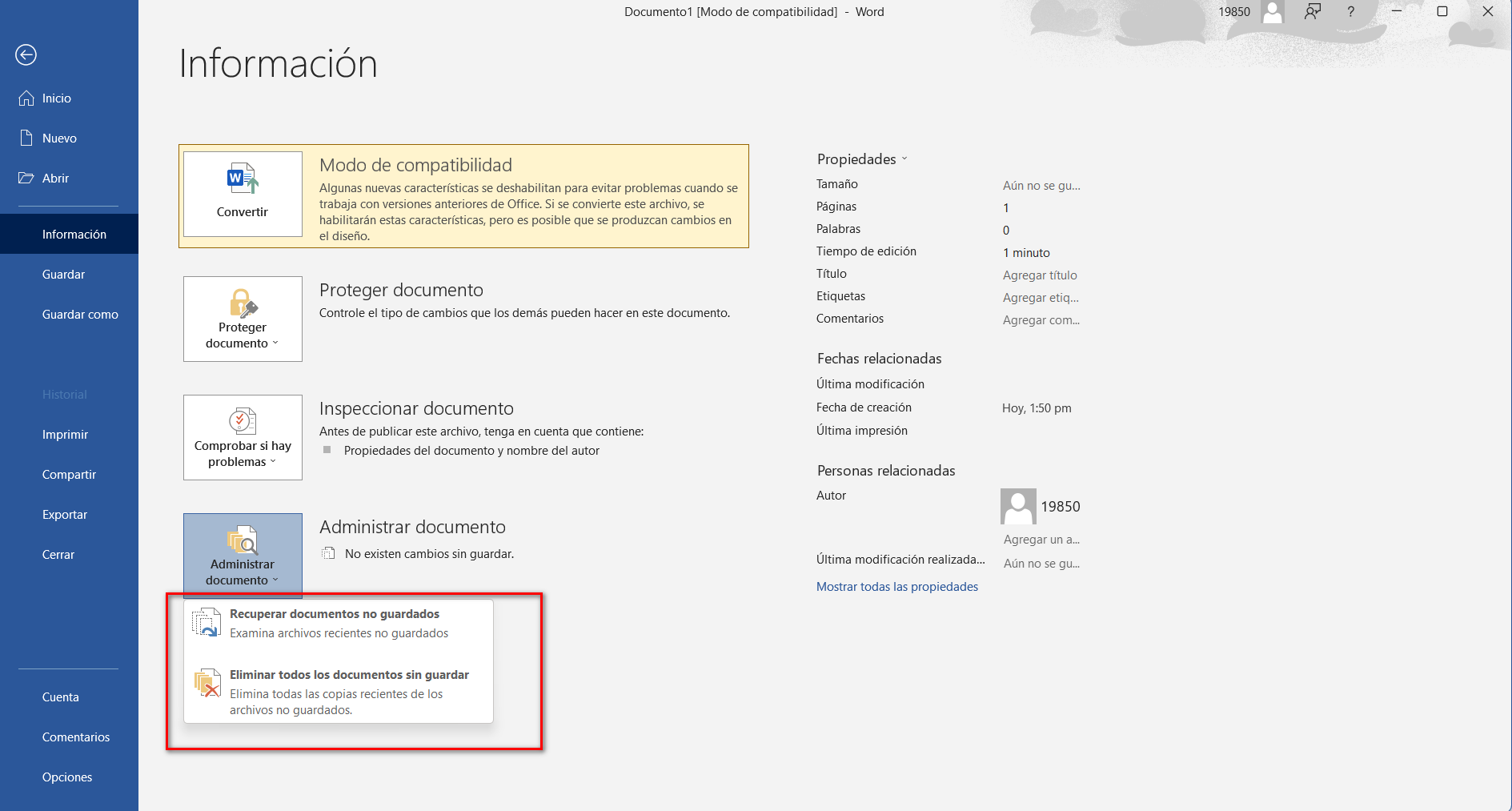
In Word, for example, you can Open the file you were working on Then go to “File > Info”. On that screen you will see a section called “Manage Document” or “Manage Versions” with a list of labeled previous versions, including some with text such as “when I closed without saving”.
If you choose one of those versions, Word will open the retrieved content and display a notification bar at the top.From there you can choose "Restore" to overwrite the current version with that copy or "Compare" if you want to see the differences between the two before deciding.
In Excel the mechanism is very similar: Open the workbook and go to “File > Info > Manage Workbook”There you can select the file marked as "when it was closed without saving" and, once opened, use "Save As" to save it with the name you prefer.
PowerPoint works the same way, showing in “Manage Presentation” the latest recovered versions of the presentation When there was an unexpected closure. You just have to open the one you're interested in and save it.
Recover files you never saved
One of the most typical scenarios is having a completely new document that has never been saved (not even once) and then suddenly lose it due to a system failure or accidentally closing the application. Even if it seems like there's nothing you can do, AutoRecover can save you if it was enabled.
In Word for Windows, you have a direct option: Go to “File > Info > Manage Document > Recover Unsaved Documents”A window will open pointing to the folder where the .asd files of documents that were never saved are stored.
From that window you will be able to select the file with the appropriate date and time (You'll usually see generic names or recent files) and click "Open". Once loaded, Word will display a bar at the top indicating that it's a recovered file, and it's recommended to click "Save As" immediately to convert it into a normal document.
Excel offers something equivalent through the option “Recovering unsaved books”This is accessible from “File > Info > Manage Book”. There you will find a list of books that were never saved, in temporary format, and you can open and save them as permanent files.
In PowerPoint, the process is very similar: “File > Info > Manage Presentation > Recover Unsaved Presentations”You just need to locate the lost presentation, open it, and save it with a recognizable name before continuing to edit.
Recovering text from damaged files in Word
Not all losses are due to a lack of savings; sometimes the problem is that The file becomes corrupted and Word cannot open it normally. (for example, after a power outage: you can check) How to fix corrupted files after a power outage). On Mac and Windows there is a specific option to try to extract text from damaged documents.
In Word for Mac, for example, you can Go to the “Word > Preferences” menu and enter “General”Within that section, make sure to check the box “Confirm file format conversion on opening” and close the window.
Next, from “File > Open”, Use the open dialog box and in the file type menu select “Recover Text”Then you choose the damaged document, open it, and let Word attempt to extract as much text as possible.
In Windows the approach is similar: in the Word "Open File" dialog box, You can choose the file type “Recover text from any file”The recovery process doesn't usually preserve formatting, images, or tables, but it often allows you to recover the textual content, which is critical in reports, papers, or contracts.
AutoRecover in Excel: Automatic Recovery and Limits
Excel also relies on AutoRecover to minimize data loss, which is key when dealing with huge tables, financial reports, or lists of sensitive data. The feature is enabled by default in Excel 2010, 2013, 2016, 2019 and Microsoft 365.and saves temporary files at regular intervals.
After an unexpected outage or shutdown, Excel usually displays a Document Recovery tab or panel. on the left side of the window. From there you can select the recovered version of the book, review the data, and use "Save As" to save it to a secure location.
If the file you're looking for doesn't appear in the panel, you can always resort to “File > Open” and, at the bottom, click “Recover unsaved books”This will open the folder where Excel stores AutoSave files (in special binary formats, such as .xlxb or similar) so you can choose the one that corresponds.
It should be noted that Excel automatically deletes AutoRecover files in various situations.For example, when you save a workbook with a different name or when you close it before the next AutoSave interval. Additionally, AutoRecover worksheets are only retained for a few days, usually around four.
If an AutoRecover file disappears, There's no way to restore it directly from ExcelThe really important thing is to try to recover the books as soon as possible using the recovery options mentioned and keep Autosave active, reducing its interval so that changes are saved as quickly as possible.
Configure AutoRecover, AutoSave, and Backups in Word
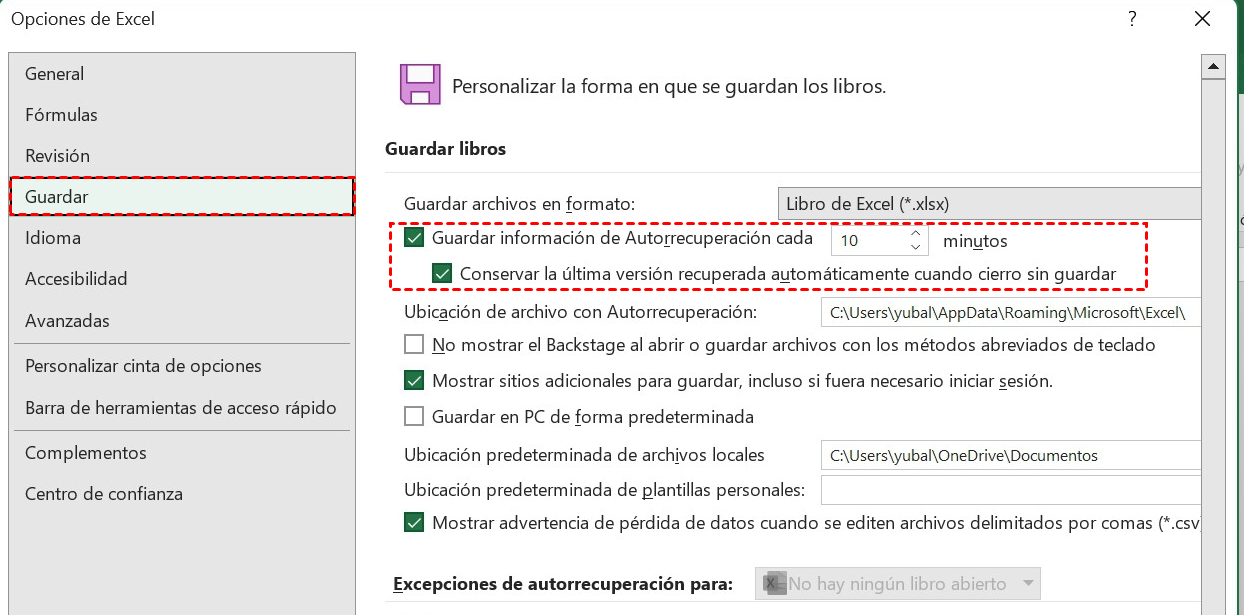
To minimize damage, the first thing is to make sure that The autosave options are well set up.In Word for Windows, with the program open, you can go to “File > Options > Save” to review all the settings related to AutoRecover.
On that screen you will find several important boxes, such as “Save AutoRecovery information every X minutes” and “Keep the last AutoRecover version if I close without saving.” It is recommended to select both and reduce the interval in minutes, for example to 1 or 2, so that Word saves data frequently.
Below, you can activate the option “Always create a backup”By doing so, Word will generate backup .wbk files in the same folder as the original document, with names like “Backup of (Filename).wbk”. These backups can save you from file corruption or human error, although, just like with AutoRecover, they only reflect the state of the document at the time of the last save.
In the same settings window you will see the “Location of the AutoRecovery file”There you can view or change the path to the folder where temporary .asd files are stored. By default, it's usually a subfolder within AppData, something like “C:\Users\Your_username\AppData\Roaming\Microsoft\Word\”.
If needed, you can also disable the default Autosave for online files. Enable local autosave (in supported versions) or adjust details of how Word behaves with documents stored in OneDrive and SharePoint to suit your workflow.
Typical locations of AutoRecover and temporary files
When the Document Recovery panel doesn't appear or you need to manually search for a lost version, it's good to know where Office stores temporary and AutoRecover filesThey are usually located in paths like AppData in Windows and within the Library folder in macOS.
In Windows, the most common paths for Word documents are something like C:\Users\Your_user\AppData\Local\Microsoft\WordC:\Users\Your_username\AppData\Local\Temp or C:\Users\Your_username\AppData\Local\Microsoft\Office\UnsavedFiles. In those folders you will find files with extensions .asd, .wbk or .tmp that may correspond to copies of your work.
The names of these files are not always intuitive. Often They begin with a tilde (~) and have suffixes like “xxxx.tmp”For example, ~wrdxxxx.tmp for temporary Word documents, ~wraxxxx.tmp for AutoRecover files, etc. .wbk files are usually full backups that you can open directly from Word.
If you prefer a more aggressive search, you can Open File Explorer (Windows key + E) and use the search box in the upper right corner To locate files with the .asd or .wbk extension throughout your computer ("This PC"). This will allow you to find copies you may have forgotten where they were saved.
On macOS, the usual AutoRecover path for Word is typically something like this: /Users/Your_username/Library/Containers/com.Microsoft/Data/Library/Preferences/AutoRecoveryFor Excel and PowerPoint, there are similar paths in their respective container folders. Since the Library folder is hidden, the easiest way is to open Finder, choose "Go > Go to Folder," and paste the full path.
Previous versions and cloud storage with OneDrive and SharePoint
In addition to AutoRecover, current versions of Office rely heavily on OneDrive and SharePoint for managing file versionsWhen you save documents to the cloud and have Autosave enabled, a new version of the document is created periodically and recorded in the "Version History".
To access these versions in Microsoft 365 from Word, Excel, or PowerPoint, Open the file and go to “File > Info > Version History”You'll see a list of versions with date and time. Clicking on one will open it in a separate window so you can review it at your leisure.
If you confirm that this is the copy you want to restore, You can click "Restore" to make it the current version of the document.This is especially useful if you've accidentally overwritten an important file or if you need to revert to previous versions after making significant changes.
Office 2019-2016 also has a similar option, although the path may vary slightly: “File > History” Or, if that tab doesn't appear, access the history from "Info". On a Mac, the equivalent function is in "Browse Version History" from the document name in the title bar or from the File menu, depending on the version.
In personal Microsoft accounts, normally The last 25 versions are preserved of each file. In corporate or educational environments, the number of available versions depends on the configuration of the SharePoint or OneDrive for Business library administrator.
Find Word documents that you know you saved
Sometimes the problem isn't that the file has been lost, but that You don't remember where you stored it or exactly what you named it.In those cases, Windows and Word offer several tools to locate it without driving you crazy.
In Windows 10 and 11 you can use it directly the taskbar search barEnter the document name (or part of it) or even a keyword from the content. The system will search your computer and OneDrive, displaying grouped results; if you want to restrict them to documents, simply click on the "Documents" tab.
You can also open File Explorer, Go to "This PC" or the "Documents" folder Use the search box to search by name, extension (.docx, .doc, .xlsx, etc.), or even by file type. Switching to "Details" view lets you sort by modification date to quickly find your most recent changes.
From Word, you have the option to go to “File > Open > Recent”There you'll see a list of recently opened documents. If you suspect the file is in a specific folder, you can use "Browse" and, once inside, change the filter from "All Word documents" to "All files" to also show backups and files with less common extensions.
When Word has the backup option enabled, In the directory where you work, you will often find files named “Backup of (document)”These .wbk files can be opened like any Word document and often contain just the version you need.
Recovering documents that have been deleted or permanently erased
If the problem is that you have deleted a file by mistakeThe chances of recovering it depend on how much time has passed and whether you have active backups. The first place you should check is the Windows Recycle Bin.
By opening the Recycle Bin, you can search for the document by name, type, or deletion dateIf you find it, restoring it will automatically return it to its original location, and then you can open it from Word, Excel, or PowerPoint without any problems.
If you've emptied the Recycle Bin or deleted the file with Shift+Delete, things get complicated: Windows will mark the disk space as free, but the data remains until it is overwritten.In the meantime, it is possible to attempt recovery using backup tools (File History, System Image Backups, third-party solutions such as Acronis or others) or specialized data recovery software.
In Windows 10 and 11, for example, you can use Backup and Restore (Windows 7) or File History If you enabled them before losing the file, these features allow you to restore specific folders or documents to previous versions if backups were made.
If you have a more advanced backup system (local or cloud-based) that does full images of your systemThe usual practice is to open the backup program, select the appropriate restore point, and choose only the files you need to recover, instead of restoring the entire system.
Tips to avoid losing Office documents again
Beyond knowing how to use AutoRecover, the ideal is to adopt A few habits and adjustments that minimize the possibility of losing your jobIt's nothing extraordinary, but it makes a difference.
On the one hand, it's a good idea Lower the Auto-Recovery interval to 1-2 minutes In Word, Excel, and PowerPoint, enable automatic backups when available. This ensures that a recent, recoverable version is available almost anytime.
It is also recommended combine local and cloud storageFor example, save your active documents to OneDrive or SharePoint to take advantage of AutoSave and Version History, while keeping regular copies on an external drive or a dedicated backup service with encryption and malware protection.
Another useful measure is Avoid overloading the system with too many open programs or ignore recurring errors. The more crashes or freezes you experience, the more you'll rely on AutoRecover, and it won't always save you. Keeping your system updated, using a good antivirus, and avoiding nearly full hard drives helps a lot.
Finally, although AutoRecover and Autosave are a lifesaver, create the habit of pressing “Save” after every major change (End of section, after a key calculation, after adding many slides, etc.) remains the best insurance policy. If you also protect your critical files with read-only permissions or hide them when you don't want anyone to touch them, you'll reduce the chances of accidental deletions or modifications.
With AutoRecover properly configured, cloud versions, backups, and a few sensible habits, Recovering Office documents is no longer an impossible mission, but a minor setback. that can be resolved in a few minutes instead of turning into a drama of lost hours or days of work.


Passionate writer about the world of bytes and technology in general. I love sharing my knowledge through writing, and that's what I'll do on this blog, show you all the most interesting things about gadgets, software, hardware, tech trends, and more. My goal is to help you navigate the digital world in a simple and entertaining way.