- ONLYOFFICE for Linux integrates a flexible AI plugin that connects cloud and local models, without being activated by default.
- The plugin allows the use of providers such as Mistral, Claude, Gemini, LocalAI, Ollama or LM Studio, configuring each model for specific tasks.
- Current features focus on chat, summarizing, translation, and text analysis, applicable to documents, spreadsheets, and presentations.
- Privacy, user control, and future advanced customization of the AI agent are prioritized within the ONLYOFFICE environment.
If you use Linux and spend your days working with documents, spreadsheets, and presentations , you'll want a good AI assistant at your fingertips. ONLYOFFICE has stepped up its game and offers a highly flexible system that lets you connect everything from large cloud-based models to local solutions running on your own PC.
In this guide you will see, in great detail and without beating around the bush, how to use an AI in ONLYOFFICE for Linux , which providers you can connect (Mistral, Claude, Gemini, LocalAI, Ollama, LM Studio and many more), what hardware you need, how to configure the plugin and what you can then do with it in documents, spreadsheets and slides.
How AI works in ONLYOFFICE for Linux
At its heart is an AI plugin that installs like any other extension within ONLYOFFICE. It's not enabled by default, so you decide whether you want to use it or stick with the classic, traditional editing method without any assistance.
This plugin acts as a bridge between your editors and various AI providers and models : you can use cloud services (OpenAI, Anthropic, Mistral, Google Gemini, DeepSeek, Groq, Together AI, Stability AI, Zhipu, etc.) or models you have set up locally (LocalAI, Ollama, LM Studio, GPT4All, etc.). The system is fully modular: you can add, change, or delete models whenever you want.
In the current version, the plugin no longer ties you to a single provider. You can combine multiple templates at once and assign each one to a specific task : one for chat, another for summarizing, another for translating, another for text analysis… and switch between them on the fly from the settings window.
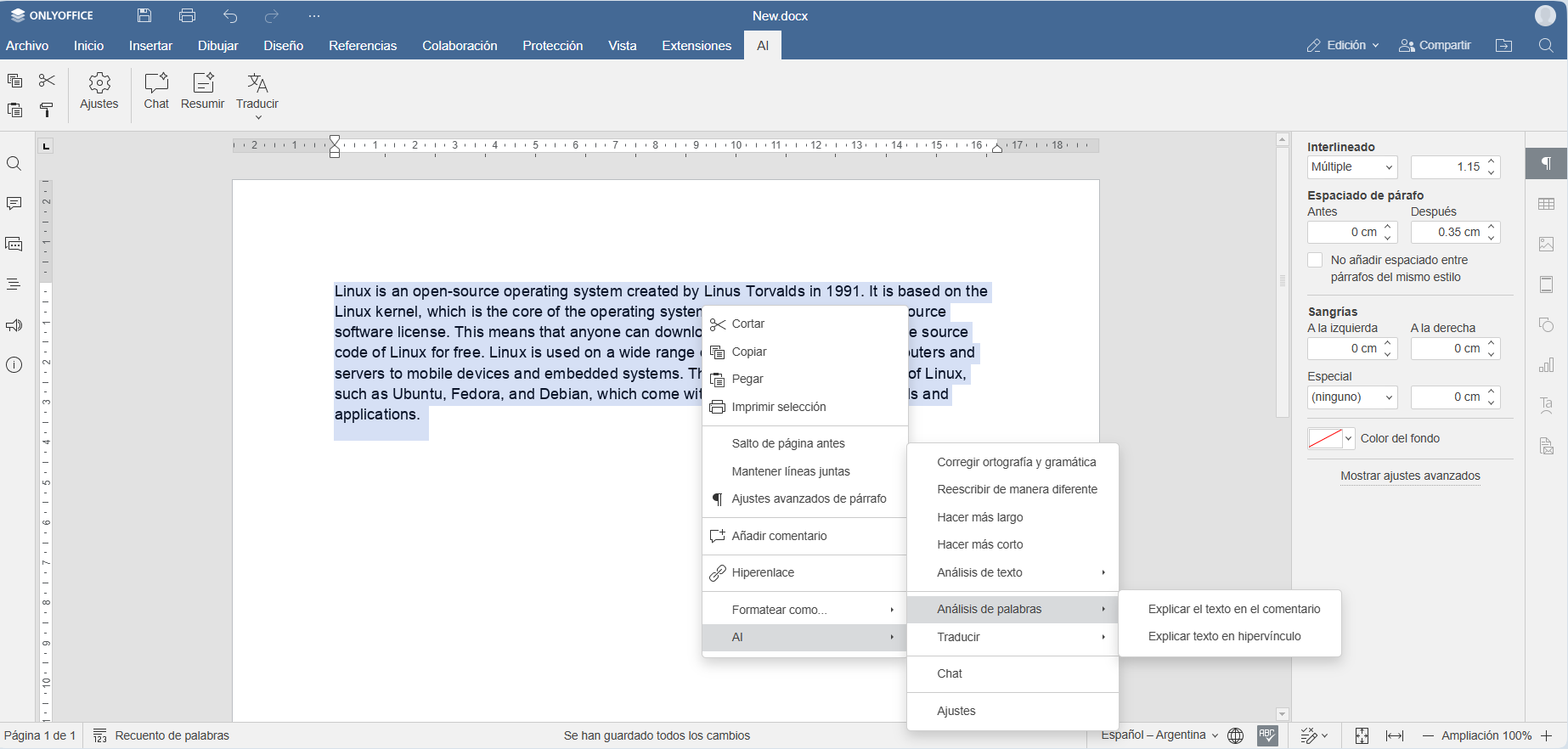
Once the models are set up, you can access the AI from the "AI" tab in the top bar or from the context menu when you right-click on selected text. From there, you can chat with the assistant, rewrite paragraphs, generate new content, correct grammar and spelling, translate, summarize, analyze words or phrases, and much more.
Installation and activation of the AI plugin in ONLYOFFICE
The first step to enjoying AI on Linux is to install and activate the AI plugin from within the ONLYOFFICE editors . Whether you're using ONLYOFFICE Desktop Editors or ONLYOFFICE Docs integrated into a platform like Nextcloud, ownCloud, Moodle, WordPress, Odoo, or similar, the procedure is virtually the same.
Open any editor (document, spreadsheet, or presentation) and go to the "Extensions" tab in the top toolbar. From there, launch the Plugin Manager , locate the plugin called "IA," and click "Install ." It will be added to your suite in a few seconds.
After installing it, you need to activate it. To do this, go back to the "Extensions" tab and enter "Background Plugins ." Within that list, you'll see the AI plugin with a toggle switch; activate it, and if everything is correct, a new tab called "AI" will appear at the top of the editor.
At this point, you already have the key component working, but the most important thing is still missing: adding your AI models and deciding what you want to use each one for . This is done from the Settings panel, which we will examine in detail in the following sections for different providers.
API keys, local providers, and privacy
For all cloud-based models, ONLYOFFICE uses API keys that you must obtain directly from the provider . The suite does not provide you with its own keys or act as a payment intermediary; you are responsible for registering, configuring your account, and generating your credentials.
Each provider has its own rules: some offer free plans with limits , while others require payment from the start. Therefore, it's important to review the terms of service and pricing on the official website of the service you intend to use (OpenAI, Anthropic, Mistral, Google Gemini, etc.). The plugin itself is free, but usage of the model is billed according to the provider's rates.
If you don't want to rely on third parties or send your data externally, you can opt for local models that run on your own computer or Linux server . In this scenario, you don't need an internet connection to use AI (only to download the models initially or to update them), and you maintain control over privacy because all processing is done in-house.
Among the most interesting local options for Linux are LocalAI, Ollama, and LM Studio . All of them integrate with the AI plugin via a compatible API and allow you to load open-source models (for example, variants based on Llama, Mistral, or other LLMs) for text, image, or even audio tasks.
Hardware requirements for using AI locally on Linux
If you opt for a local model, it's important to consider the hardware requirements to avoid bottlenecks. While you can run some lightweight models on modest machines, for a smooth experience it's recommended to meet certain minimum CPU, RAM, and storage specifications.
Ideally, you'd have a multi-core CPU , and the more modern the better. Larger models benefit from multiple threads to respond in reasonable times, especially if you're making multiple requests or working with long documents.
In terms of memory, the key factor is the amount of RAM available for the model and for ONLYOFFICE . For basic tasks, a minimum of 8 GB is recommended, but if you want to handle more demanding models smoothly and without the system slowing down, it's ideal to aim for 16 GB or more.
Regarding storage, it's highly recommended to use an SSD with at least 20 GB of free space to store the models and manage temporary files. Modern language models take up several gigabytes each, so it's best not to run out, especially if you plan to test different variants.
Regarding the network, solutions like LocalAI work offline once installed , but you need a stable connection to download models and apply future updates. Once this is done, you can work perfectly offline with ONLYOFFICE and your local AI.
Connect LocalAI on Linux with ONLYOFFICE
LocalAI is a powerful option if you want to run AI models entirely locally on Linux and use them directly from ONLYOFFICE. The idea is simple: install LocalAI, download a model, launch it with CORS enabled, and then add it as a provider in the AI plugin.
Step 1: Install LocalAI on Linux
To begin, you can install LocalAI with a single command in the terminal, which greatly simplifies the process. Simply run:
curl https://localai.io/install.sh | sh
This script automatically downloads and installs LocalAI . Alternatively, you can follow the official instructions and use Docker, which is very useful if you want to isolate the service or easily move it between machines.
Step 2: Download a model for LocalAI
With LocalAI already installed, the next step is to add at least one supported language model . For example, you could install one like this:
local-ai models install hermes-2-theta-llama-3-8b
This command downloads and registers the model in LocalAI so that it can then be automatically detected by the AI plugin in ONLYOFFICE when you configure the local provider.
Step 3: Launch LocalAI with CORS enabled
For ONLYOFFICE to communicate with LocalAI from the browser or desktop editor, you need to allow CORS requests . The quickest way to do this is to start the server with:
local-ai run --cors
Alternatively, you can edit the configuration file. /etc/localai.env and add a line like this:
CORSALLOWEDORIGINS="*"
This indicates that any source is allowed , which simplifies integration with ONLYOFFICE. From this point on, LocalAI will listen by default at http://127.0.0.1:8080 , although you can customize the URL and port if needed.
Step 4: Configure LocalAI in the AI plugin
Now it's time to connect everything to ONLYOFFICE. Open any web editor in your ONLYOFFICE solution (Docs, DocSpace, etc.), go to Extensions → Plugin Manager , and install the AI plugin if you don't already have it. Activate it from Background Plugins and make sure the AI tab appears at the top.
Within the AI tab , go to Settings and tap on “Edit AI models” . There you will see the list of models (which will initially be empty) and a button to Add a new model.
In the form, enter something descriptive as the supplier name, for example “LocalAI”, and enter the URL http://127.0.0.1:8080 if you haven't changed the default settings when launching the service.
The models available in LocalAI will load automatically; simply select “hermes-2-theta-llama-3-8b” or another model you have installed and save with OK . From that point on, you can assign this local model to chat, summarization, translation, or analysis tasks from the main Settings menu.
Connect Claude and Anthropic with ONLYOFFICE on Linux
If you prefer a cloud provider with a strong focus on security and responsible use, Anthropic and its chatbot Claude are a powerful option. ONLYOFFICE is compatible with Claude 3.7 Sonnet and other models in the family via the AI plugin.
Anthropic focuses on developing large, reliable , and secure language models with advanced capabilities in step-by-step reasoning, information analysis, creative content generation, and image comprehension. This makes Claude an ideal assistant for complex office tasks.
To use Claude from Linux, the flow is similar: you install and activate the plugin, connect Anthropic as a provider, enter your API key obtained from their official website , and select your preferred model from the list.
Install and activate the plugin for Anthropic
Open a document in ONLYOFFICE, go to Extensions → Plugin Manager , and locate the AI plugin . Click Install and wait a few seconds. Then, from Extensions → Background Plugins , activate the plugin's slider to display the AI tab.
Connect Anthropic and choose Claude models
On the AI tab , tap Settings to access the configuration. Tap Edit AI models , then tap the + button to add a new model. The list of available providers will open; select Anthropic.
In the editing window, paste your Anthropic API key into the corresponding field. If you don't already have one, you must create an account on the official Anthropic website and generate your credentials there. ONLYOFFICE does not provide keys and is not responsible for any costs associated with their use.
After entering the key, press the "Update model list" button . The different supported Claude variants will be displayed, including Claude 3.7 Sonnet as the featured model. Select the one you want to use and confirm with OK.
Assign tasks to Claude within ONLYOFFICE
Return to the main AI Settings screen . From there, you can choose which model to use for each function from the dropdown list: Ask AI, Summarize, Translate, and Text Analysis . If you want Claude to be your main assistant, assign it to all tasks or only those where it will truly make a difference.
From now on, you can use Claude directly from the AI tab or by right-clicking on selected text in your document. The chatbot will help you with essays, reports, data analysis, programming, planning, language services , and just about any text-based task you can think of.
Connect Mistral AI in ONLYOFFICE for Linux
Mistral AI is a French company that has gained significant traction in a short time thanks to its open-source models and European focus . For many users concerned about data sovereignty and seeking alternatives to the American giants, Mistral is the natural choice.
ONLYOFFICE allows you to connect different Mistral models , for both cloud and self-hosted environments, and use them on Linux to edit documents, spreadsheets, presentations, and PDFs. Integration is available in ONLYOFFICE Docs, ONLYOFFICE Desktop Editors, and DocSpace.
The key requirement is to have an instance of ONLYOFFICE running on Linux (either integrated into another platform or as a desktop app) and a Mistral API key , which is obtained by registering a free account on their website.
Step 1: Install the AI plugin
Open any ONLYOFFICE editor, go to the "Extensions" tab , and open the Add-ons Manager . Find the AI plugin and click Install . Once the process is complete, go to Background Plugins and activate the AI plugin so that the AI tab appears in the top bar.
Step 2: Add a Mistral model
With the AI tab now visible, go to Settings and tap Edit AI models . Since you won't have any yet, the list will be empty. Click the Add button to create a new model.
In the Add AI Model menu , select Mistral from the list of default providers, which also includes OpenAI, Together AI, Anthropic, DeepSeek, Google Gemini, and others. Then, enter your Mistral API key in the corresponding field.
In some versions, you simply enter your password and choose a model from the drop-down list; in others, you'll need to click the "Update Model List" button to refresh the options available in your plan. You can choose between general models, code-oriented models (Codestral), or multimodal models like Pixtral , depending on your needs.
Once you've decided which one you want to use, select it and confirm with OK . The model will then be saved in the plugin's model list, ready to be assigned to specific tasks.
Step 3: Configure the use of the Mistral model
Return to the AI Settings window . From there you can decide which model will be used for each of the functions available in the current version of the plugin:
- Ask the AI to have conversations and ask all kinds of questions to the chatbot.
- Summary to compress long texts into a few clear sentences.
- Traducción to translate text from one language to another.
- text analytics to break down meanings, nuances, definitions and other linguistic aspects.
Select the Mistral model you just added to the tasks where you want it to be used. Once the configuration is saved, you can use it directly from the AI tab or from the context menu when selecting text, just like with other providers.
Other compatible providers: Gemini, DeepSeek, Groq, Ollama, LM Studio and more
The ONLYOFFICE AI plugin is designed to be as vendor-agnostic as possible . That's why, in addition to Mistral, Anthropic, and LocalAI, you can seamlessly connect a wide range of services and models.
Among the pre-configured providers you'll find OpenAI, Together AI, Mistral, Groq, GPT4All, Anthropic, Google Gemini, DeepSeek, Ollama, Stability AI, LM Studio, and Zhipu AI . Furthermore, starting with version 2.2.2 of the plugin, support for custom providers was added , meaning you can integrate virtually any service compatible with the appropriate API.
For example, if you want to use Google Gemini , simply generate a valid key from your Google AI Studio account and follow the step-by-step guide to configure it in the plugin. Gemini appears as the default provider, so the integration is quite straightforward.
If you're looking for European solutions, in addition to Mistral, you can explore other EU-based AI options and connect them as custom providers , provided they offer a compatible API. If you want to completely avoid non-EU providers, the plugin doesn't force you to use any: you choose who you work with.
In the case of platforms like Ollama or LM Studio , the idea is similar to LocalAI: you start the local service on your Linux machine (or on a server), select or download the model you want (for example, an optimized Llama 3, GPT-OSS or another compatible LLM) and then point the ONLYOFFICE plugin to the local URL of that API.
What you can do with AI in documents, spreadsheets, and presentations
Once you have AI integrated, that's when the productivity boost really becomes noticeable. Combining ONLYOFFICE with one or more templates allows you to automate a wide range of content tasks , from the most basic to quite advanced.
In the document editor, you can ask the assistant to generate drafts of articles, reports, letters, business emails, blog posts, or educational texts . It can also rewrite entire sections to suit a different tone, level of formality, or audience.
For the more analytical part, many models allow you to summarize very long blocks of text , extract key ideas, compare information, explain trends, or help solve problems step by step (something especially useful if you work with technical or academic reports).
If you program, some models (like Mistral's code-oriented ones, or those from OpenAI and other providers) help you generate code snippets, explain functions, review scripts, and locate errors . It doesn't replace an IDE, but it's a very convenient tool while you're writing documentation or including examples in a report.
In the area of planning, AI can create project outlines, timelines, task lists, or templates that you then customize. This speeds up the initial phase of many documents, especially if you have to prepare them frequently (proposals, minutes, checklists, etc.).
Regarding language services, all text-compatible models can translate, correct grammar and spelling, improve style, paraphrase, and explain vocabulary . For multilingual documents or users who are not fluent in one language, this is a huge advantage.
Using AI in presentations and collaboration with DocSpace
In the presentation editor, AI lets you work much faster when preparing slides. You can ask it to generate text for each slide , shorten or lengthen it, make it more informal or more corporate, or correct spelling and grammar mistakes on the fly.
With the "Ask AI" feature within presentations, you can request an ideal structure for a talk , suggestive titles for each section, examples that make the content more enjoyable, or even advice on how to present the topic to a large audience.
In collaborative environments, ONLYOFFICE DocSpace is undergoing deeper AI integration. The idea is that the assistant can leverage the context of documents stored in collaboration rooms to offer smarter suggestions, while always maintaining a focus on security and privacy.
The development team has already announced plans to expand chat interaction with document content , so you don't have to manually copy and paste between the AI window and the file you're editing, and to allow more direct operations on the selected text.
Current limitations, customization, and future improvements
Currently, the plugin's main functions are focused on four areas: AI chat, summarization, translation, and text analysis . This covers a good portion of the use cases, but the developers have announced that they want to go much further.
One of the most frequent requests from the community is the ability to fully customize the plugin's functionalities : define prompt templates, change the behavior of default actions, decide whether the generated text replaces the selected text, is inserted below, is copied to the clipboard, etc.
Work is also underway on the interface. Currently, the plugin appears as a floating pop-up window , but the roadmap includes enabling its use as a fixed side panel on the left, making the experience more similar to other assistants embedded in office suites.
Regarding updates, the AI plugin doesn't update automatically. This has its pros and cons: you control when to install a new version (and thus avoid unexpected changes), but at the same time, you have to remember to check the marketplace from time to time to stay up-to-date.
Regarding the accuracy of the responses, ONLYOFFICE makes it clear that it assumes no responsibility for the accuracy or reliability of the information generated by the connected AI models . Ultimately, the quality depends on the provider and the specific model you use, so it's always advisable to review the information the assistant provides.
Finally, you can't currently define custom functions within the plugin itself , but this feature is planned for future versions. The idea is that each user can adapt the AI agent to their workflow, using their own commands and tools.
Use ONLYOFFICE without AI or with other additional AIs
If you're someone who prefers to avoid artificial intelligence whenever possible, ONLYOFFICE has you covered. The suite doesn't include any AI assistants enabled by default : if you don't install the plugin from the marketplace, AI simply won't be present in your work environment.
If you change your mind, simply install and configure the plugin . And if after trying it you decide it's not for you, just uninstall or deactivate it from the plugin manager and return to the traditional editing process.
In addition to the general AI plugin, the ONLYOFFICE marketplace offers other specific add-ons, such as ZhiPu Copilot , based on ZhiPu AI's ChatGLM model. This assistant offers similar tools (summary, translation, explanations, text analysis, custom prompts, etc.), but is focused on that particular provider's ecosystem.
In any case, the philosophy is the same: you choose which AI agents you want to integrate, how you configure them, and when you use them . There are no AI features imposed by default, something many users appreciate compared to other suites where integration is enabled by default.
With this entire ecosystem, using AI in ONLYOFFICE for Linux becomes extremely flexible: you can set up a local LLM with LocalAI, Ollama or LM Studio, use Claude, Mistral or Gemini in the cloud, combine several models depending on the task and still maintain total control over your environment, your data and your way of working day to day with documents, spreadsheets and presentations.

Passionate writer about the world of bytes and technology in general. I love sharing my knowledge through writing, and that's what I'll do on this blog, show you all the most interesting things about gadgets, software, hardware, tech trends, and more. My goal is to help you navigate the digital world in a simple and entertaining way.