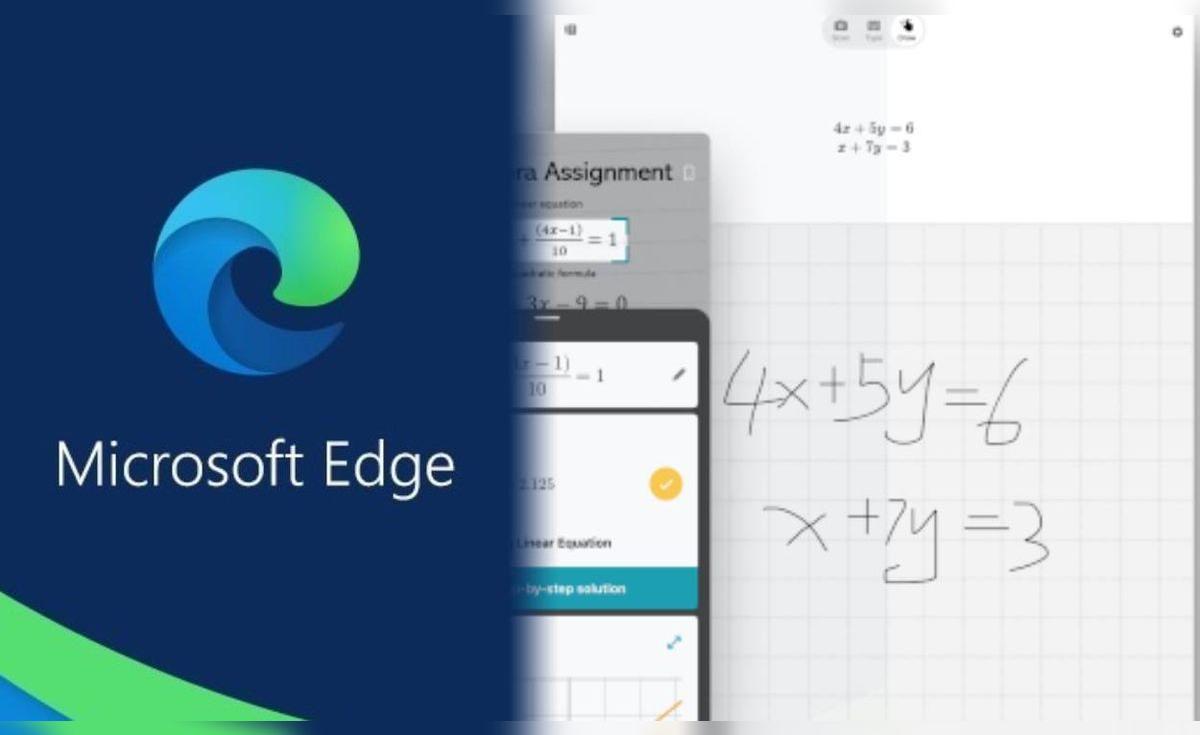
- Microsoft Math Solver is integrated into Edge as a side panel and toolbar button to solve problems without leaving the browser.
- It allows you to enter exercises by selecting the statement on the screen or by writing them by hand with a very complete virtual mathematical keyboard.
- It offers immediate results, detailed troubleshooting steps, and additional educational resources such as videos and quizzes.
- It is available on several platforms and reinforces Edge's educational focus, designed especially for students.

If math is a challenge for you, having a good computer tool can make all the difference between getting stuck for hours and finally understanding what's going on with that pesky equation. Among the many tools available today, Microsoft Math Solver, integrated into the Edge browser, has become one of the most powerful and convenient options for solving math problems without leaving the webpage you're working on.
This integration brings to Edge a technology that Microsoft already offered in mobile apps and on the web, but now places it directly in the browser toolbar to allow for on-the-fly photography, selection, and advanced calculations . In addition to providing the result, the system shows you the intermediate steps and offers extra learning resources, which is especially useful for students studying online or who need an extra boost in this subject.
What is Microsoft Math Solver and how does it integrate into Edge?
Microsoft Math Solver is essentially a math problem solver capable of recognizing handwritten, printed, or typed equations and providing a detailed, step-by-step solution . It began as a web service and as an app for Android and iOS , but Microsoft decided to go a step further and integrate it into its Edge browser starting with version 91.
With this integration, Math Solver is no longer just a standalone app but a native browser feature . This means you can use it directly while reading a PDF with exercises, working on an online learning platform, or reviewing a worksheet on any website, without needing to switch applications.

The underlying idea is clear: to make life easier for students and any user who needs help with math problems within their existing work environment . Instead of taking a photo with your phone, transferring it to your computer, or copying the problem by hand into another tool, Edge lets you select the problem on the screen or type it in a side panel.
Initially, this feature began testing in pre-release versions of the browser, such as Edge Canary, Dev, and Beta , where Microsoft refined details and gathered user feedback. Later, it arrived in the stable release channel as a preview feature, with the stated intention of evaluating its reception before making it permanently available.
Besides its convenience, one of Microsoft Math Solver's strengths is its educational approach : it not only tells you the result, but also breaks down the operations and offers explanations, quizzes, and related videos to reinforce learning.
Where it is available and in which versions of Edge it can be used
Microsoft has been progressively expanding the reach of this feature, so Math Solver is now available in Edge for multiple platforms: Windows , macOS, Android, and iOS . As long as you're using a sufficiently recent version, you can access the math solver from the browser interface.
During the initial phase, the integration was tested in the Canary, Dev, and Beta versions of Edge . These development channels allow more advanced and curious users to try out new features before they are released to the general public, including the Math Solver side panel and its dedicated toolbar icon.
With the arrival of Edge version 91 to the stable channel, Microsoft activated Math Solver as a preview feature, available to everyone but not necessarily enabled by default . In fact, the Edge team itself explained that they were launching the feature as a test and were still evaluating whether to keep it permanently in the browser in the future.
Importantly, this feature doesn't conflict with the stable version of the browser or other Edge installations . If you decide to install Edge Beta, Dev, or Canary to try Math Solver early, you can run them alongside the stable version of Edge without uninstalling anything. The different versions coexist seamlessly as separate programs.
Over time, as the browser has been updated, Math Solver has become a staple in Edge's suite of exclusive Chromium-based features . Despite using the same engine as Google Chrome , Microsoft leverages this foundation to add its own unique value, and the math solver is one of the clearest examples.
How to activate and enable the Math Solver in Microsoft Edge
In many cases, the Math Solver feature is disabled by default, so the first thing you need to do is enable it to access its icon and sidebar . This process may vary slightly depending on the browser version and when it was activated.
In the initial phases, Microsoft allowed users to activate the math solver through Edge's experimental features page. To do this, users had to type the special path edge://flags/ into the address bar and search for the "Math Solver in Microsoft Edge" option . Once located, they had to change its status to "Enabled" and restart the browser using the blue "Restart" button that appeared at the bottom.
After that restart, Math Solver became available within the browser, although its icon still had to be displayed in the toolbar . This is managed from the main settings menu, accessible via the three horizontal dots (or ellipsis) located in the upper right corner of the window.
Within that menu, you need to go to the "Settings" option and then to the "Appearance" section . In this panel, Edge offers several options to customize the toolbar, including a list of buttons that can be shown or hidden according to your preferences.
In the "Customize Toolbar" section, you'll find the "Show Math Solver Button" toggle . Activating it will automatically display the math calculator icon in your browser's toolbar, ready to use whenever you need it on any compatible webpage or document.
Where is the button located and how do I access the Math Solver panel?
Once the feature is enabled in settings, accessing Microsoft Math Solver in Edge is possible in two main ways, depending on how your browser is organized . One is through the dedicated icon in the toolbar, and the other is via the three-dot menu.
If you've enabled the option to show the button, you'll see a calculator icon at the top of the window, next to items like Favorites, Collections, and other tools . Clicking this icon will open a side panel on the right side of the browser, which displays all of Math Solver's features.
If you prefer not to clutter your toolbar with icons, you can also access the math solver from the Edge main menu . To do this, click the three dots in the upper right corner, scroll to the "More tools" section, and select "Math Solver" (or "Math Solver," depending on your browser's language).
Doing this will also load the Math Solver side panel, from which you can choose whether to type the problem manually using the virtual keyboard or select the problem statement from the open page . This panel is designed for convenience, allowing you to continue viewing the page content on the left while working on the solution on the right.
The integration into the interface is quite discreet, yet visible enough for students to access it with a click when they get stuck on an exercise . In this way, Edge becomes more than just a simple browser; it transforms into a kind of interactive notebook for practicing math.
Ways to enter problems: on-screen selection or manual typing
One of the great advantages of Microsoft Math Solver in Edge is that it allows you to enter math problems in two different ways to accommodate various types of exercises and materials . This is especially useful when switching between PDFs, web pages, and online notes.
The first way, and probably the most convenient in many cases, is to directly select the problem on the page you're viewing . To use this method, simply click on the math solver icon, select the "Select Math Problem" option in the side panel, and then drag the cursor to draw a rectangle around the operation or equation you want to solve—something that several equation-solving programs also offer.
As soon as you release the mouse, Edge will capture the highlighted area as if it were a screenshot and send that image to Math Solver for analysis . The system will recognize the symbols and numbers, adjust the problem statement, and show you the interpreted problem before proceeding to the solution.
The second way to enter problems is to type them manually into the Math Solver panel. If you choose the "Type Math Problem" option, a virtual calculator will appear with a specialized math keyboard , which includes not only basic numbers, but also advanced symbols, fractions, powers, roots, functions, and other notation elements that are usually missing from a conventional keyboard.
This keyboard is designed so you don't have to struggle with keyboard shortcuts or complicated symbols, but can instead build the equation visually and neatly . It also makes it easy to type fractions and other symbols that would be cumbersome on a standard keyboard. Once you've entered the problem, simply press the paper airplane icon or the submit button for Math Solver to begin processing it.
How to solve a problem using Microsoft Math Solver in Edge
The workflow for solving a problem is quite simple, and Edge is designed so you can repeat this process as many times as you like with different exercises . Typically, you start with a document or page containing the problems and then use the Math Solver sidebar to work through them one by one.
For exercises already written on a website or in a PDF opened in Edge, the most direct method is automatic problem selection . Open the document, click on the calculator icon, select "Select math problem," drag the cursor over the problem statement, and confirm the selection when the outline appears.
After this step, you will see a "Solve" button in the math solver panel . Clicking it will send the problem to the calculation section, perform the corresponding analysis, and, after a short processing time, display the numerical or symbolic result, depending on the type of exercise.
The interface is designed so that, at a glance, you can see the detected problem, the main result, and several additional options related to the solution . In many cases, you'll have access to learning resources, possible alternative methods, and, crucially, the steps taken to arrive at the answer.
If, on the other hand, you're writing your own exercises or need to type in a problem that isn't listed on any website, you can use the built-in math keyboard . Enter the expression, tap the submit icon, and Math Solver will display the solution just as if it had recognized it from a screenshot.
Visualization of results and detailed solution steps
Where Microsoft Math Solver truly shines is in the way it presents solutions to math problems, combining clarity with didactic content . It doesn't just tell you "X = 4" or display a final number; instead, it breaks down the entire process in a way that's much more helpful for learning.
When the calculation is complete, Edge displays the main result in a prominent section of the sidebar, often under the heading "Calculate" or similar . Just below, you'll find the option to expand the intermediate steps taken to arrive at that result.
Clicking on “Show solution steps” opens an ordered list with each algebraic transformation, arithmetic operation, or rule applied, explained point by point . They are usually numbered, with clarifying text, and sometimes with small notes indicating the mathematical property used (for example, distribution, simplification of fractions, etc.).
This approach is ideal for students because it allows them to review the procedure just as a teacher would on the board, instead of simply copying the result . This way, you can stop at the step where you usually get stuck, see what specific transformation takes place there, and repeat the process with other similar exercises.
In addition, the Math Solver panel often includes links and supplementary content related to the type of problem detected . For example, if the operation involves linear equations, integrals, or limits, it may suggest explanatory videos, guided practice exercises, or external resources to reinforce the concepts.
Additional learning resources integrated into the browser
One of the key advantages of integrating Math Solver into Edge is that it's not just a simple advanced calculator, but also acts as a gateway to additional educational resources . This perfectly aligns with the idea of supporting students in this era of massive online learning.
Once a problem is solved, the panel itself can display suggestions for videos, quizzes, worksheets, and online tutorials related to the type of operation you are studying. Among these resources are materials from platforms like Khan Academy, which are integrated as direct links from the browser.
Thanks to this, you not only see how to solve a specific exercise, but you can also delve deeper into the theory and practice with more similar examples . To expand your study options, Math Solver can be complemented with AI-powered study apps that make it easier to review concepts and exercises.
Furthermore, the tool makes it easy to share your work. If you want to show the results and steps to your classmates or teachers, Edge allows you to share the generated links or the page you're working on via social media and other integrated channels . This way, you can discuss questions or compare solution methods without needing manual screenshots.
Microsoft's focus is heavily on the educational environment, as the Edge team itself has stated, noting that this feature was largely designed to support students attending online classes who are struggling with a subject as traditionally challenging as mathematics . Math Solver is complemented by its mobile version, available on Android and iOS, so students can also practice on their phones.
Advantages of using Math Solver in Edge compared to other solutions
There are other tools capable of scanning equations and providing results, such as certain modes of Google Lens or other specialized apps for solving mathematical problems , but the integration of Microsoft Math Solver directly into Edge offers several benefits that make it especially attractive.
First, there's the convenience: since it's integrated into the browser itself, you don't need to switch applications or copy and paste statements or images . Simply select the relevant screen area or type in the problem, and you'll have the solution and steps in seconds.
Secondly, Edge's interface is designed so that the sidebar coexists with the content you're viewing . This means you can read the solution explanation while simultaneously reviewing the original problem statement, without losing context or having to constantly switch windows.
Another advantage is that the built-in math keyboard is very comprehensive and makes it easy to enter complex problems that would be a nightmare with a standard keyboard . This is especially relevant at educational levels where integrals, trigonometric functions, or long algebraic expressions appear.
Finally, the didactic approach and extra resources make Math Solver more than just a quick trick for copying answers. Used properly, it can be a genuine support tool for better understanding procedures and practicing with a variety of exercises , rather than simply being used to "cheat" on homework. Furthermore, it's part of an ecosystem of tools and guides on the best AI for each task , helping students choose resources based on their educational needs.
With this comprehensive set of features, Microsoft Edge positions itself as a particularly attractive browser for students and users who frequently work with mathematical content . It not only matches its direct Chromium-based rival in general functionality, but also adds an extra dimension geared towards educational productivity and solving complex problems without leaving the webpage you're currently viewing.
Having Microsoft Math Solver integrated into Edge means having an advanced calculator right in your browser that can read problems from the screen, display the result, and break down the steps with explanations and supporting resources . Combined with an active learning approach and a desire to understand the reasoning behind each operation, it can become a powerful and flexible study tool that helps overcome the fear of math and make better use of time in front of the computer.

Passionate writer about the world of bytes and technology in general. I love sharing my knowledge through writing, and that's what I'll do on this blog, show you all the most interesting things about gadgets, software, hardware, tech trends, and more. My goal is to help you navigate the digital world in a simple and entertaining way.