- Configure the Communication section in the app Alexa It allows you to activate calls, messages, and synchronize contacts.
- With commands With simple voice commands, you can call specific people or Echo devices and manage the call without touching your phone.
- The announcement and Drop In functions turn multiple Echo devices into a very practical two-way home intercom.
- Integrating Alexa communications into a smart home improves voice control and everyday convenience.
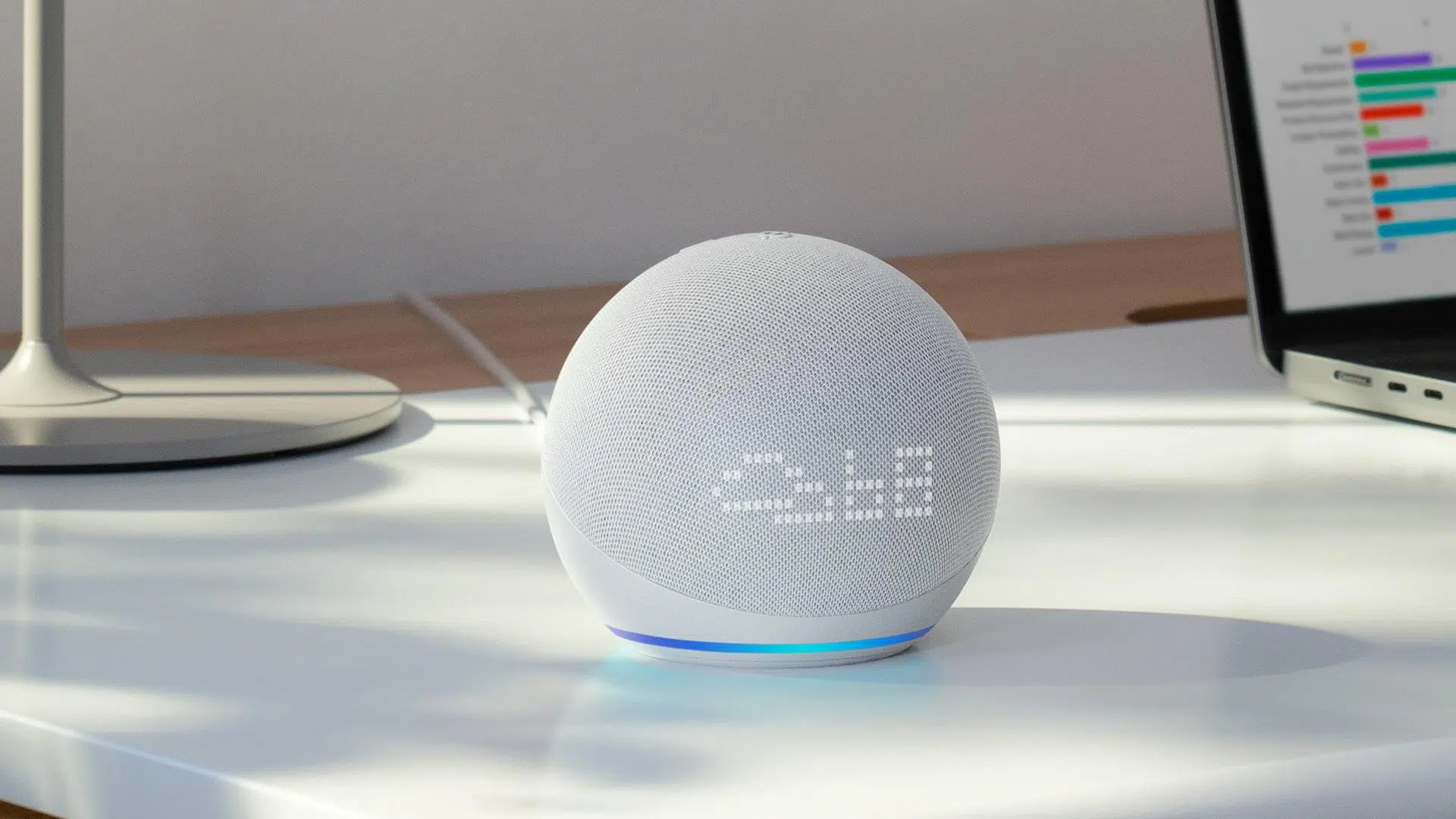
If you have an Amazon Echo at home and are wondering how to get more out of it, you'll be interested to know that it's not just for playing music or asking about the weather . Alexa can become a kind of central hub for talking to your family, friends, and even other devices around your house . With a little setup, your Echo transforms into an intercom, a hands-free phone, and even a video call screen.
In the following lines, you'll see, step by step, how to use Amazon Echo to communicate with others using the Alexa app, the Communication features, calls, announcements, and the Drop In option . You'll see it's not complicated: simply activate the options correctly, grant the appropriate permissions, and learn a few very simple voice commands to start talking to whomever you want without picking up your phone.
Setting up Alexa communications step by step
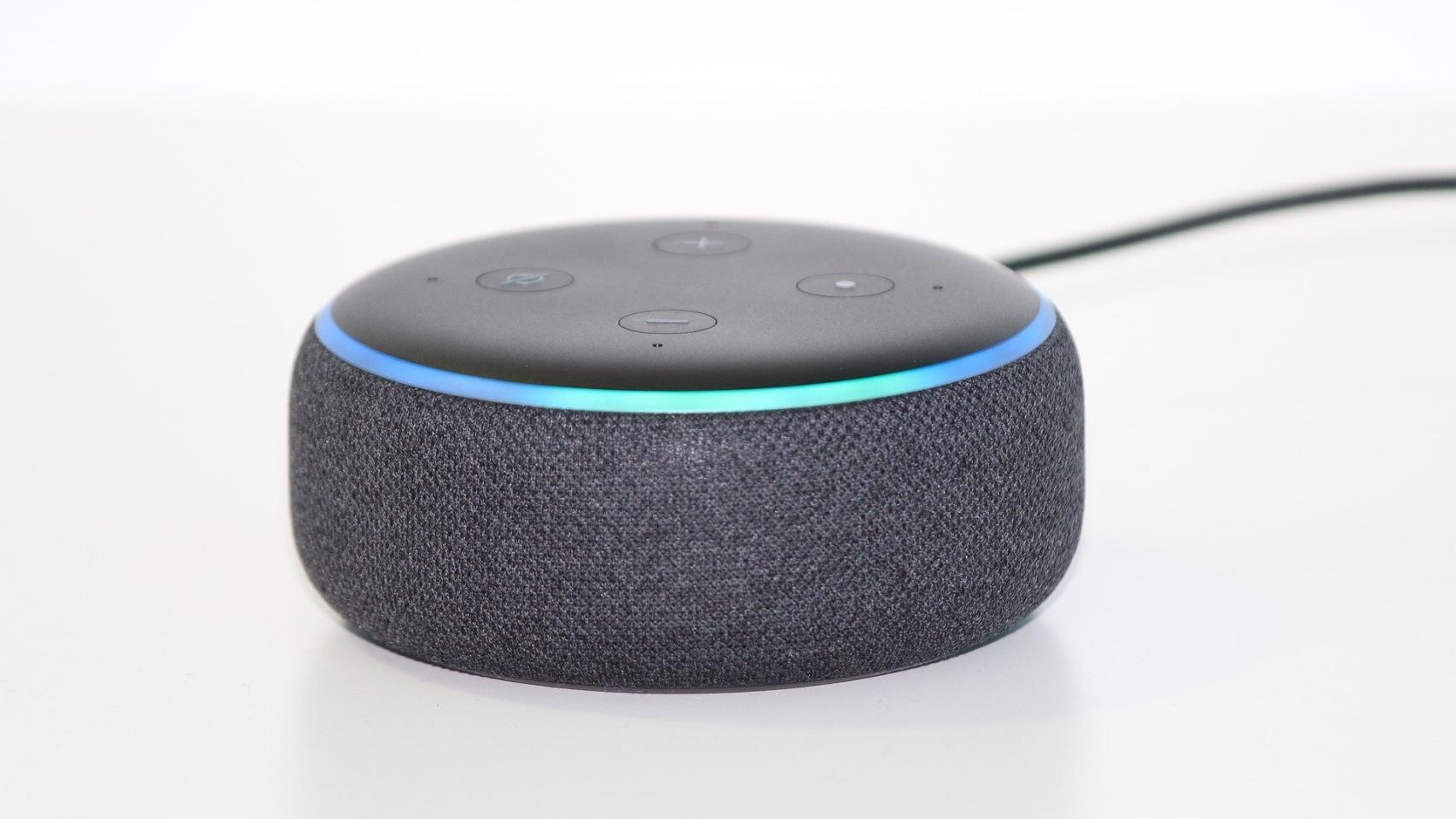
Before you can make calls or send messages using your Echo, you must activate the Communications feature in the Alexa app . This setting only needs to be done once, and from then on your devices will be ready for calls, messages, Drop In, and announcements.
To activate communication from your mobile device, open the Alexa app and sign in with your Amazon account if you haven't already . It's recommended that you use the same account you used to set up your Echo device, so everything is linked and you won't have any problems with your devices appearing correctly.
Within the app, tap the "More" section in the bottom right corner . From this menu, you'll access several advanced options, including the one we're interested in: Communication. You don't need to be an expert; the interface is quite simple and the sections are clear.
Once you're in "More," go to the "Communication" option to start the setup wizard . The first time you use this section, Alexa will ask you to confirm some basic information, such as your name and mobile phone number, because it will use this information to identify you when you call or send messages.
During this same process, the app will request permission to access your phone's calling and messaging functions, as well as your contact list . It's essential to grant these permissions so Alexa can recognize who you want to call when you use voice commands and so your phonebook can be integrated into the system.
As an additional and entirely optional step, the Alexa app will offer to import your phone's contact list . If you accept, all those contacts will appear in the Communication section, making calls and messages much easier because you can ask Alexa to call someone using their name exactly as it's saved in your phone.
How to make calls with Alexa from your Echo or mobile phone
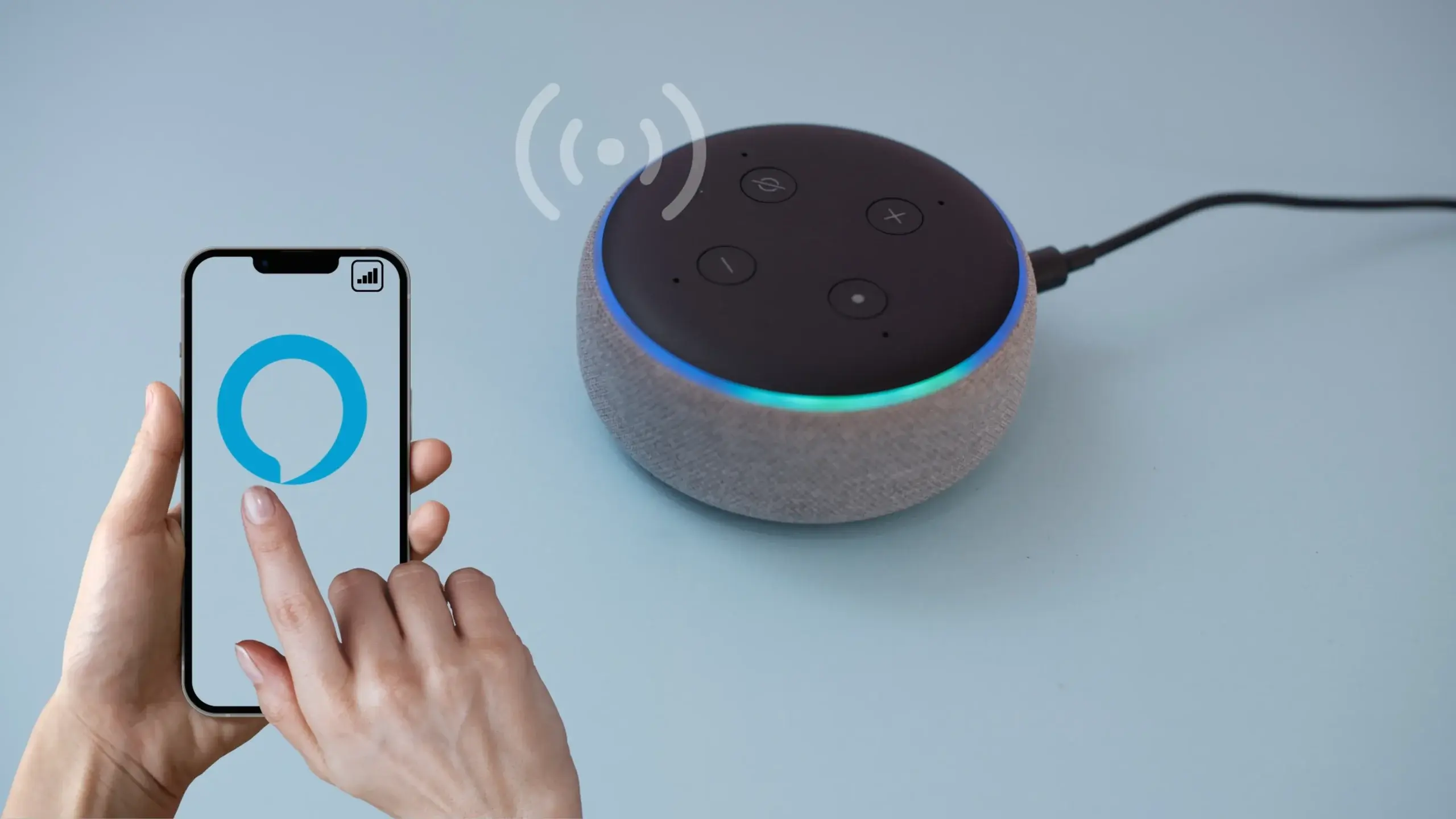
Once you've activated communications, your Amazon Echo becomes a hands-free phone that lets you make and receive calls using your voice . You can also make calls directly from the Alexa app on your phone, in case you're not near a speaker.
To make a call from within the app, go back to the "Communication" menu and look for the "Call" option at the top of the screen . This option may also appear as a suggestion on the main screen when you first open the app, depending on your home screen settings.
When you tap "Call," you'll see your contact list synced with the Alexa app . From there, you can select the person you want to call, whether they have the Alexa app installed or if you're going to use the mobile or landline call feature, in countries where this feature is available.
To make voice calls from an Echo, it's crucial to remember how the contact is saved in your address book . Alexa will use that exact name, so if you ask "Alexa, call Mom" but it's saved in your address book as "Mobile Mom," Alexa might ask you to specify which name you want to use or might not recognize it at first.
If you receive a call through Alexa, you can answer without touching your phone using your Echo. Just say “Alexa, answer” to accept and start talking. And when you want to end the conversation, simply say “Alexa, hang up” to end the call immediately.
Basic voice commands for calls with Alexa
Once everything is set up, the easiest way to control calls is through simple, natural voice commands . Alexa understands everyday phrases, so you don't need to memorize complicated formulas for it to work.
The most common command is something as simple as “Alexa, call (NAME)” . With that phrase, the assistant will search for the contact in your list and place the call. If there are several very similar matches, Alexa will ask you to specify the last name or to spell it exactly as it appears in your contacts.
You can also directly call a specific Echo device that's linked to your account or your home's account . In that case, the command would be something like "Alexa, call the Echo in the living room" or "Alexa, call Marta's Echo Show," using the exact device name as you assigned it in the app.
To answer an incoming call using your voice, simply say “Alexa, answer” when you hear the ring on your Echo. This way, you won't have to search for your phone or interact with the screen. It's especially useful if you're cooking, your hands are full, or you simply can't remember where you left your phone.
When the conversation is over or you want to end it, say “Alexa, hang up” to end the call from any Echo device you're using. This command works for calls between Echo devices as well as calls to phones compatible with the Alexa service.
Use multiple Echo devices as home intercoms
If your home has already embraced a smart home and you have more than one Echo device or a combination of smart speakers and displays, you can use them to communicate between rooms like modern intercoms . This is especially convenient in large homes or for families with several members.
A very practical way to use Echo devices as an alert system is through the announcements feature. With the command “Alexa, announce,” you can record a short message that will play on all compatible devices in your home . It’s ideal for letting people know that dinner is ready or that it’s time to leave without having to shout down the hallways.
When you use this type of general announcement, the message is sent to all devices linked to your home account . There are no distinctions between rooms: it will play in the living room, the kitchen, the office, or on any Echo device that's online and associated with the same home setup.
However, to have a two-way conversation with someone in the house without everyone overhearing, announcements aren't the best option because they only send a message in one direction . In those cases, it's better to use Drop In, which allows you to talk continuously and directly to a specific Echo device.
The great thing about having multiple devices distributed throughout different rooms is that Alexa will hear you perfectly no matter where you are . With a speaker or screen nearby, voice commands are detected much more accurately and executed quickly, without having to raise your voice or repeat yourself.
What is Drop In and how does it work as an intercom?
The Drop In feature is one of the most useful when you have more than one Echo device at home, because it allows for instant, two-way communication between two devices, without the other person having to answer the call each time . It's like a classic intercom, but much more convenient.
With Drop In, you can choose exactly which Echo you want to connect to, whether it's the one in the living room, the one in the kids' room, or the Echo Show in the kitchen . Instead of the message playing on all of them at once, only the audio (and video, if there's a camera) channel you've selected will open.
This communication is real-time and doesn't require pressing any buttons while you speak, so both devices remain connected for the duration of the conversation . You don't have to keep saying "over" like on walkie-talkies or take turns speaking; everything flows naturally, as if you were in the same room.
Another advantage is that Drop In works with devices with or without cameras . You can start a Drop In from an Echo Show and connect to an Echo without a screen, another Echo Show, a compatible tablet, a Fire TV, or even some Smart TVs that have Alexa built in. Audio is always transmitted, and video only when both devices have a camera.
If both devices involved have screens, the experience is very similar to a classic video call , except in this case it's internal communication within your own home or between accounts that have Drop In enabled. It's especially useful for keeping an eye on the kids in another room or for talking to someone on another floor without having to move.
How to start and end a Drop In with Alexa
To use this feature, you can launch a Drop In directly from an Echo Show screen or the Alexa app , choosing the device you want to connect to. However, for everyday use, the most convenient way is to use a short, easy-to-remember voice command.
The typical phrase to start with would be something like “Alexa, drop in with (device name)” . It's a good idea to name your Echo devices descriptive (for example, “Echo Kitchen”, “Echo Master Bedroom”, or “Echo Office”) to avoid confusion and make it more intuitive to call them by name.
When Drop In is established, the communication remains active continuously until you end it . This means you can have a smooth conversation and speak naturally, without worrying about the call being disconnected after a few minutes or having to accept anything on the other end.
To hang up, you can either tap the end call icon if you're on a device with a screen or end the connection by saying "Alexa, stop" or "Alexa, hang up." As soon as you give that command, the Drop In channel closes and the audio (and video, if there was one) stops streaming.
It's important to note that conversations conducted via Drop In are not stored or saved for later playback . Everything remains within your network and the Amazon Alexa environment in real time, so once you hang up, there is no replayable record of the conversation.
Call other people's Echo devices
A common question is whether it's possible to call a friend's or family member's Echo directly, instead of just calling their mobile phone or the Alexa app on their phone . This often happens when someone has taken their smartphone out of the house and you want to talk to someone who's left there with their Echo on.
For example, imagine your father leaves with his mobile phone (which is linked to his Amazon account) and your mother stays home with the Echo Dots turned on, but without access to the phone . It could be very useful to call those Echo Dots directly, so they ring in the house and she can answer without relying on her mobile phone.
To achieve this, you need to correctly configure the communication and Drop In options between accounts and devices . For you to call someone else's Echo, you typically both need to have the feature enabled, the other person needs to have you listed as an authorized contact, and in some cases, Drop In access between accounts needs to be explicitly enabled.
If, when you try to call that contact, Alexa only directs the call to your mobile phone or the phone app, it means that, as currently configured, the system is prioritizing the phone number associated with the account . To enable Echo devices in your home to be used as call destinations, you would need to review the shared settings, create an Alexa Home with multiple users, or use an account and device specifically designed for that purpose.
In practice, many families choose to set up their Echo devices with a shared account or with household profiles and appropriate permissions . This makes it much easier to make calls between devices, activate Drop In, and ensure that even if someone takes their phone, the rest of the house remains accessible through the smart speakers.
Smart home and voice control with Alexa
Beyond calls and intercoms, having multiple Alexa-enabled speakers or displays throughout your home allows for more precise control of your other smart home devices . Lights, smart locks , plugs, thermostats, televisions, and many other appliances can be integrated and respond to your voice commands from any room.
The more Echo devices you have distributed throughout your home, the greater the feeling of control and convenience, because you'll always have a voice assistant relatively close by . This means that when you give a command, the device hears it and executes it quickly, without you having to raise your voice or repeat the phrase several times.
Furthermore, the communication layer integrates seamlessly with this ecosystem: you can be in the kitchen preparing a meal, ask Alexa to let everyone know it's ready, and, at the same time, turn off the living room lights or turn on the TV in the dining room . Everything is part of the same home network and is managed through the Alexa app and your Amazon account.
With the arrival of increasingly advanced artificial intelligence models, interactions with Alexa are becoming more natural and fluid , and, as with other assistants like Siri , the experience is gradually moving closer to a more human conversation, in which you can ask for several things in the same sentence or continue the thread of what you were talking about before.
Even so, for now, the most reliable way for Alexa to understand what you want is to use specific commands for calling, communicating between rooms, or making announcements. The system is designed to recognize these commands very accurately, so if you get used to using them, the success rate will be very high.
If you activate the Communication section in the app, grant permission to your contacts, and learn a few basic commands, your Amazon Echo will transform from a simple smart speaker into a powerful tool for communicating both inside and outside your home . Calls, intercom functionality with Drop In, announcements to the whole family, and internal video calls combine with smart home control to provide you with an always-available assistant without ever needing to touch your phone.


Passionate writer about the world of bytes and technology in general. I love sharing my knowledge through writing, and that's what I'll do on this blog, show you all the most interesting things about gadgets, software, hardware, tech trends, and more. My goal is to help you navigate the digital world in a simple and entertaining way.