- Configure the Communication section in the app Alexa It allows you to activate calls, messages, and synchronize contacts.
- With commands With simple voice commands, you can call specific people or Echo devices and manage the call without touching your phone.
- The announcement and Drop In functions turn multiple Echo devices into a very practical two-way home intercom.
- Integrating Alexa communications into a smart home improves voice control and everyday convenience.
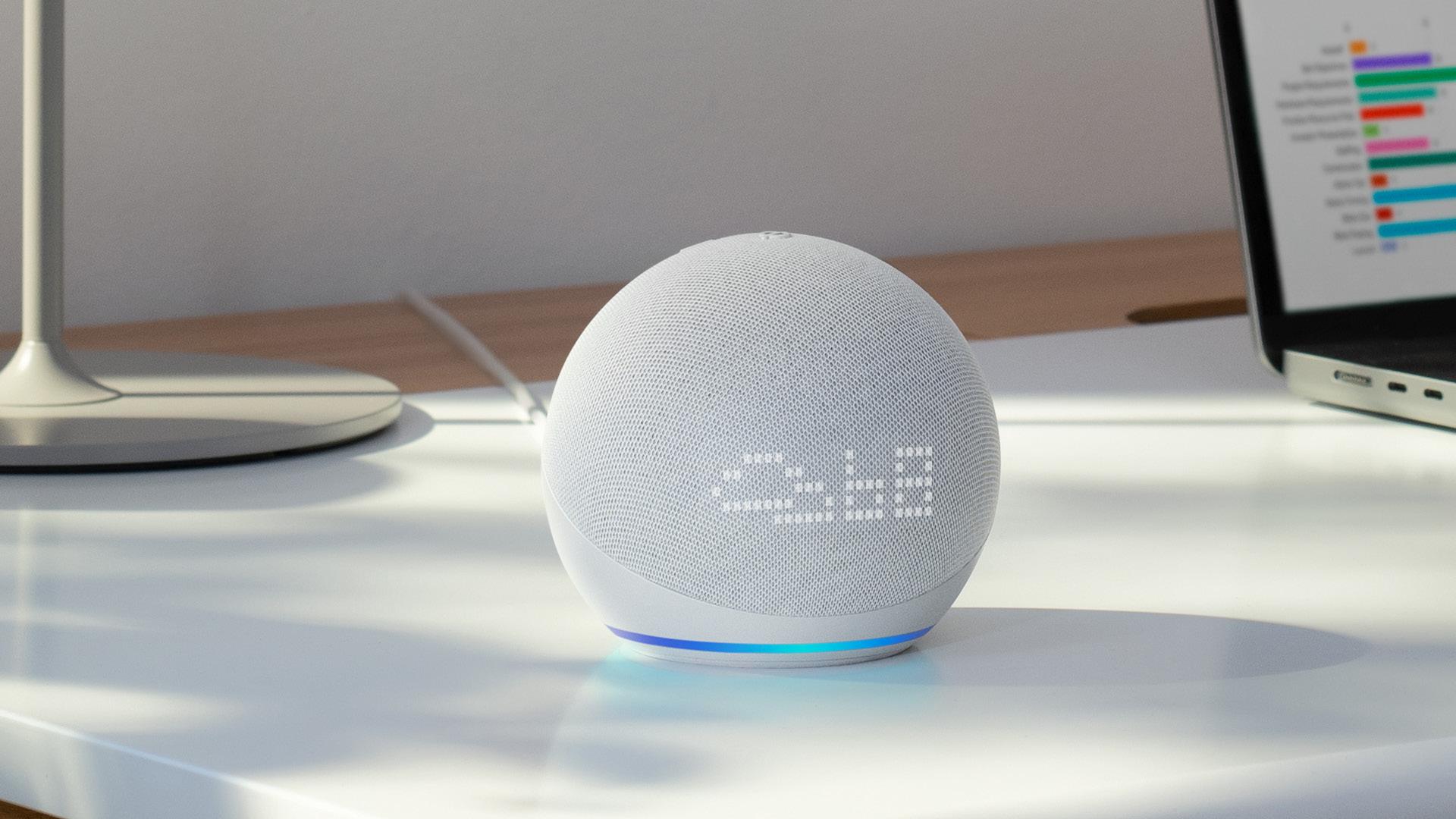
If you have a Amazon Echo If you're at home and wondering how to get more out of it, you'll be interested to know that it's not just for playing music or asking for help. There. Alexa can become a kind of central hub for talking to your family, your friends, and even other devices scattered throughout your home.With a little setup, your Echo transforms into an intercom, a hands-free phone, and even a video call screen.
In the following lines you will see, step by step, How to use Amazon Echo to communicate with others using the Alexa app, Communication features, calls, announcements, and the Drop In optionYou'll see it's not rocket science: just activate the options correctly, grant the right permissions, and learn a few simple voice commands to start talking to whomever you want without picking up your phone.
Setting up Alexa communications step by step
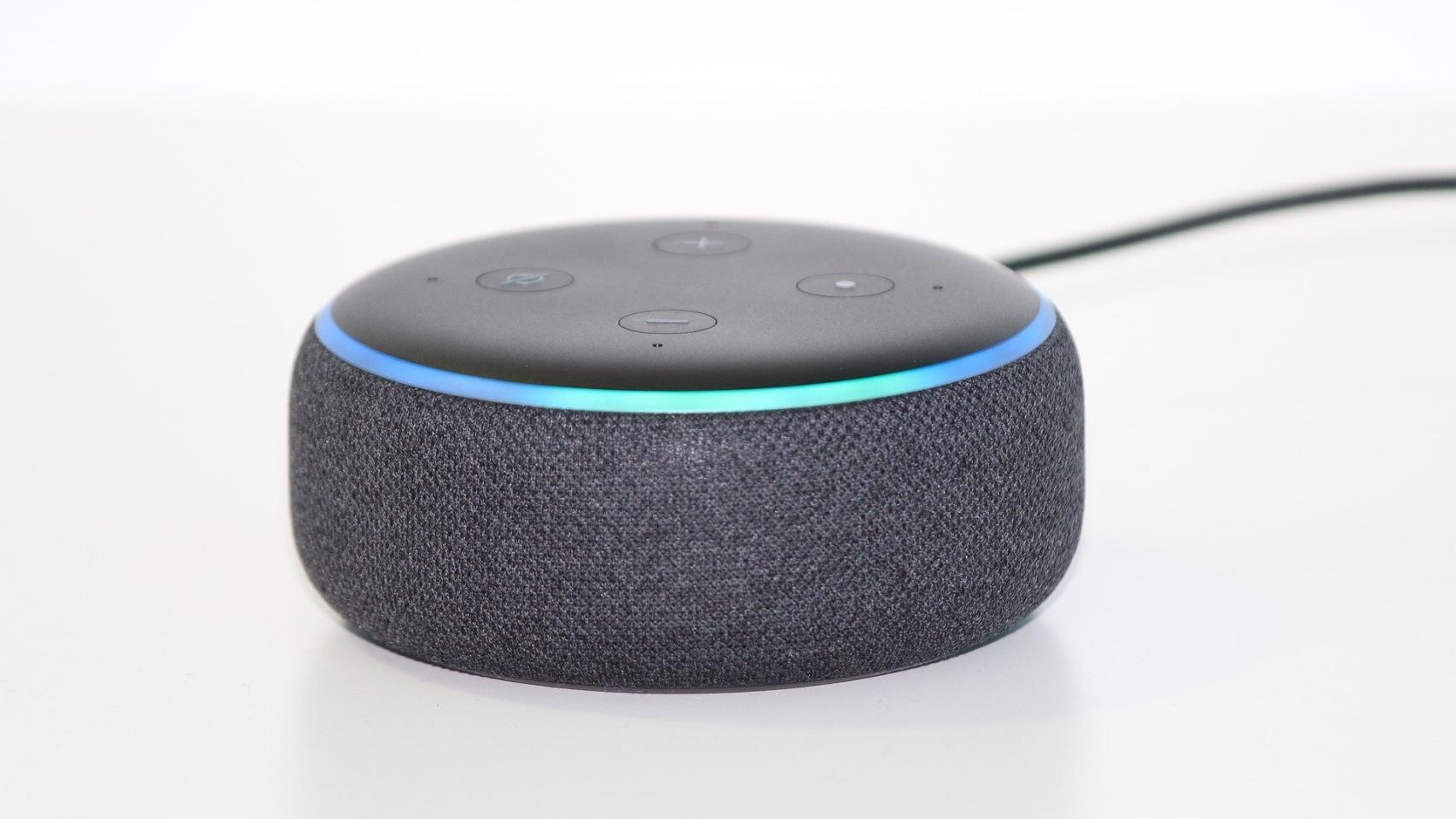
Before you can make calls or send messages using your Echo, it is essential Activate the Communications feature in the Alexa appThis adjustment only needs to be made once, and from then on your devices will be ready for calls, messages, Drop In, and ads.
To activate communications from your mobile phone, Open the Alexa app and sign in with your Amazon account if you haven't already.It is recommended that you use the same account you used to set up your Echo, so everything is linked and you won't have any problems with the devices appearing correctly.
Inside the app, Tap on the “More” section that appears at the bottom rightFrom that menu you'll access several advanced options, including the one we're interested in: Communication. You don't need to be an expert; the interface is quite simple and the sections are clear.
Once you are in “More”, Go to the “Communication” option to start the setup wizardThe first time you use this section, Alexa will ask you to confirm some basic information, such as your name and mobile phone number, because it will use them to identify you when you call or send messages.
In that same process, The app will request permission to access your phone's call and message functions, as well as your contact list.It is essential to accept these permissions so that Alexa can recognize who you want to call when you use voice commands and so that your phonebook can be integrated into the system.
As an additional and entirely optional step, The Alexa app will offer to import your phone's contact list.If you accept, all those contacts will appear in the Communication section, making calls and messages much easier because you can ask by voice to call a person using their name exactly as you have it saved.
How to make calls with Alexa from your Echo or mobile phone
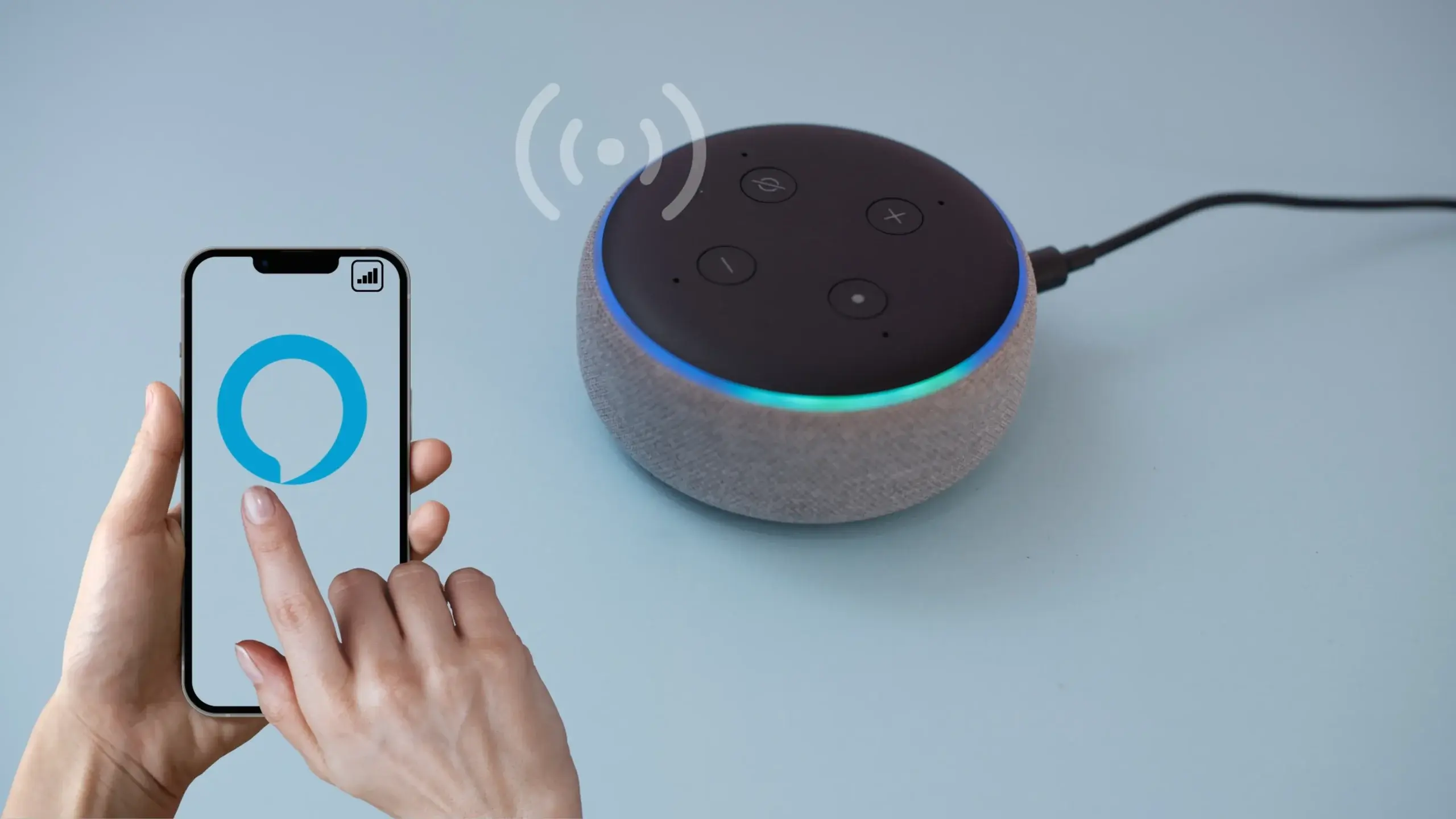
Once you have activated communications, Your Amazon Echo becomes a hands-free phone that lets you make and receive calls using your voice.You can also call directly from the Alexa app on your mobile phone, in case you're not near a speaker at any point.
To make a call from within the application itself, Go back to the “Communication” menu and look for the “Call” option at the top of the screenThis option may also appear as a suggestion as soon as you enter the app, on the main screen, depending on how you have configured the start screen.
When you press “Call”, You'll see your contact list synced with the Alexa appFrom there you can select the person you want to call, whether they have the Alexa app installed or if you're going to use the call function to a mobile or landline number, in countries where this feature is available.
To make voice calls from an Echo, It's key that you remember how the contact is saved in your address book.Alexa will use that exact name, so if you ask "Alexa, call Mom" but in your contacts it's listed as "Mobile Mom," it may ask you to clarify which one you want to use or may not recognize it at first.
If you receive a call through Alexa, you can answer without touching your phone using your Echo. “Alexa, pick up” to accept and start talking. And, when you want to end the conversation, simply “Alexa, hang up” to hang up the call immediately.
Basic voice commands for calls with Alexa
Once everything is set up, the easiest thing to do is Control calls through simple and natural voice commandsAlexa understands everyday phrases, so you don't need to memorize strange formulas for it to work.
The most common command is something as simple as “Alexa, call (NAME)”With that phrase, the assistant will search for the contact in your list and place the call. If there are several very similar matches, Alexa will ask you to specify the last name or to spell it exactly as it appears in your contacts.
You can also Call directly to a specific Echo device that is linked to your account or your household account.In that case, the command would be something like “Alexa, call the Echo in the living room” or “Alexa, call Marta’s Echo Show”, using the exact name of the device as you assigned it in the app.
To answer an incoming call using your voice, You just have to use your voiceSay “Alexa, answer” when you hear the tone on your Echo. That way you won't have to search for your phone or interact with the screen. It's especially useful if you're cooking, your hands are full, or you simply can't remember where you left your phone.
When the conversation is over, or you want to end it, say “Alexa, hang up” To end the call from any Echo device you're using. This command works for calls between Echo devices as well as calls to phones compatible with the Alexa service.
Use multiple Echo devices as home intercoms
If you've already made the leap to a connected home and have more than one Echo device or a combination of smart speakers and displays, You can use them to communicate between rooms as if they were modern intercoms.This is especially convenient in large houses or families with several members.
A very practical way to use Echo devices as an alert system is through the announcements or communications function. With the command “Alexa, speak” you can record a short message that will play on all compatible devices in your homeIt's ideal for letting people know that the food is ready or that it's time to leave without having to shout down the hallways.
When you use that type of general statement, The message is sent in bulk to all devices linked to your home account.There are no distinctions between rooms: it will play in the living room, in the kitchen, in the office, or on any Echo device that is online and associated with the same home setup.
However, to have a back-and-forth conversation with someone in the house without everyone else finding out, Advertisements are not the best option because they only send a message in one direction.In those cases, it's more useful to use Drop In, which allows you to talk continuously and directly to a specific Echo.
The good thing about having several devices distributed throughout different rooms is that Alexa will hear you correctly wherever you are.With a speaker or screen nearby, voice commands are detected much more accurately and orders are executed quickly, without having to raise your voice or repeat yourself several times.
What is Drop In and how does it work as an intercom?
The Drop In feature is one of the most useful when you have more than one Echo device at home, because It allows for instant, two-way communication between two devices, without the other person having to accept the call each time.It's like a classic intercom, but much more convenient.
With Drop In you can choose exactly Which Echo do you want to connect to, whether it's the one in the living room, the one in the kids' room, or the Echo Show in the kitchen?Instead of the message playing on everyone at once, only the audio (and video, if there is a camera) channel you selected will open.
This communication is in real time and does not require pressing any buttons when you speak. so that both devices remain connected for the duration of the conversationYou don't have to keep saying "over" like on walkie-talkies or alternate voice turns; everything flows naturally, as if you were in the same room.
Another advantage is that Drop In It works with devices with or without a camera.You can initiate a Drop In from an Echo Show and connect to an Echo without a screen, another Echo Show, a compatible tablet, a Fire TV, or even some other devices. Smart TV that integrate Alexa. Sound is always transmitted, and video only when both ends have a camera.
If both devices involved have a screen, The experience is very similar to a classic video call.However, in this case, it's internal communication within your own home or between accounts that have Drop In enabled. It's especially useful for keeping an eye on the kids in another room or for talking to someone on another floor without having to move.
How to start and end a Drop In with Alexa
To take advantage of this feature, you can Launch a Drop In directly from an Echo Show screen or from the Alexa appby choosing the device you want to connect to. Even so, the most convenient option for everyday use is to use a short, easy-to-remember voice command.
The typical phrase to start with would be something like “Alexa, drop in with (device name)”It's a good idea to name your Echo devices descriptive (for example, "Echo kitchen", "Echo master bedroom" or "Echo office") to avoid confusion and make it more intuitive to call them by name.
When Drop In is set up, The communication remains active continuously until you end it yourself.This means you can have a smooth conversation and speak naturally, without worrying about the call cutting out after a few minutes or having to agree to anything on the other end.
To hang up, you can choose to tap the end call icon if you're on a device with a screen or close the connection Saying “Alexa, stop” or “Alexa, hang up.” As soon as you give that command, the Drop In channel closes and the audio (and video, if there was any) stops streaming.
Importantly Conversations conducted via Drop In are not stored or saved for later playbackEverything stays within your network and the Amazon Alexa environment in real time, so once you hang up, there is no replayable record of the content of that conversation.
Call other people's Echo devices
A fairly common question is whether it is possible Call a friend or family member's Echo directly, instead of just calling their mobile phone or the Alexa app on their phone.This situation often occurs when a person has taken their smartphone You're away from home and want to talk to someone who's stayed there with their Echo turned on.
For example, imagine that your father leaves with his mobile phone (where he has his Amazon account linked) and Your mother stays home with the Echo Dots turned on, but without access to the phone.It could be very useful to call those Echo Dots directly, so they ring at home and she can answer without relying on her mobile phone.
The way to achieve something like that involves Configure the communication and Drop In options correctly between accounts and devices.To call someone else's Echo, you usually both need to have the feature enabled, the other person needs to have you listed as an authorized contact, and in some cases, Drop In access between accounts needs to be explicitly enabled.
If when you try to call that contact Alexa only directs the call to your mobile phone or the phone app, This means that, as it is currently configured, the system is prioritizing the phone number associated with the account.To enable Echo devices at home to become a call destination, you would need to review the shared settings, create an Alexa home with multiple users, or use an account and device specifically designed for that purpose.
In practice, many families choose to Configure your Echo devices at home with a shared account or with appropriate household profiles and permissions.This makes it much easier to make calls between devices, activate Drop In, and ensure that even if someone takes their phone, the rest of the house remains accessible through smart speakers.
Smart home and voice control with Alexa
Beyond calls and intercoms, having several Alexa-enabled speakers or screens distributed throughout the house It helps to more precisely control the rest of the smart home devices. Lights, smart locksPlugs, thermostats, televisions and many other appliances can be integrated and obey your voice commands from any room.
The more Echo devices you have distributed throughout your home, The greater the feeling of control and comfort, the more you'll always have a voice assistant relatively nearby.This means that when you give a command, the device hears it and executes it quickly, without you having to raise your voice or repeat the phrase several times.
Furthermore, the communication layer is integrated with that ecosystem: You can be in the kitchen preparing food, ask Alexa to let everyone know it's ready, and while you're at it, turn off the living room lights or turn on the TV in the dining room.Everything is part of the same home network and is managed through the Alexa app and your Amazon account.
With the arrival of models of Artificial Intelligence increasingly advanced, Interactions with Alexa are becoming more natural and fluidand, as happens with other assistants like SiriThe experience gradually becomes more like a human conversation, where you can ask for several things in the same sentence or continue what you were talking about before.
Even so, for the time being, The most reliable way for Alexa to understand what you want is to use specific commands. to make calls, communicate between rooms, or broadcast announcements. The system is designed to recognize these commands very accurately, so if you get used to using them, the success rate will be very high.
If you activate the Communication section in the app, grant permission to your contacts, and learn a handful of basic commands, Your Amazon Echo will go from being just a smart speaker to becoming a very powerful tool for talking inside and outside the home.Calls, intercoms with Drop In, announcements to the whole family, and internal video calls combine with smart home control to offer you an always-available assistant without needing to touch your mobile phone.


Passionate writer about the world of bytes and technology in general. I love sharing my knowledge through writing, and that's what I'll do on this blog, show you all the most interesting things about gadgets, software, hardware, tech trends, and more. My goal is to help you navigate the digital world in a simple and entertaining way.