- ONLYOFFICE consists of several modules (DocSpace, Docs, Workspace, Mail, integrations) that are updated with scripts, Docker or Control Panel.
- Updating guarantees new features (such as DocSpace 2.5 or Docs 9.3), security improvements, bug fixes, and compatibility with external services.
- Updates in Linux and Docker require taking care of volumes, dependencies (PostgreSQL, Node.js, sources) and specific safe shutdown scripts.
- The integration with Nextcloud/ownCloud remains stable upon update as long as domains, secret keys, and connector configuration are respected.

If you work with ONLYOFFICE on a daily basis, sooner or later it will happen to you. update the platform To enjoy the latest features, keep security up to date, and fix bugs. The problem is that not all installations are updated the same way: a self-hosted DocSpace is not the same as ONLYOFFICE Docs on Linux, Workspace on Windows, or the Docker-based mail server.
Below you will find a very comprehensive guide that compiles, reorganizes, and clearly explains all the scattered information about How to update ONLYOFFICE in its various components and common scenarios: DocSpace, Docs Community Edition, Mail Server, Workspace, and more. The goal is that, whatever your configuration, you'll know which command to run, which folders to back up, and what changes each version brings without driving yourself crazy searching through dozens of manuals.
What's included in an ONLYOFFICE upgrade and why is it worth it?
Before we delve into commands and scripts, it's important to understand what updating ONLYOFFICE actually entails and what Concrete improvements usually arrive with each version, as this makes it easier to justify the service stoppage or maintenance task.
In the ONLYOFFICE update panel, there is usually a changes block where the New features per moduleFrom the Update panel and the internal search engine to modules like LoginHistory, AuditTrail, Restore, and SSO, these listings are much more than just filler; they directly impact daily administration.
- UpdateFor example, a dialog box with the license agreement has been added when you install Docker components, and a problem with inactive buttons for uninstalled components has been fixed, now allowing you to download and install the available version.
- Search: the is incorporated visualization of indexing progressThis helps to know where the search engine is when handling large amounts of documents.
- LoginHistory and AuditTrailNew blank screens have been added to display information more clearly, even if there is no data at first.
- Restore: are included additional controls when restoring data from local storage or third-party services, reducing the risk of corrupt or incomplete restorations.
- SSOThe SSOAuth functionality is no longer in the Control Panel and is now part of the portal options within Community Server, which is key if you manage single sign-on.
- Bug fixes and licensesMultiple internal issues are resolved (bugs 47721, 49101, 49187, 49273, 49272, 49324, 46386, 49585) and third-party licenses and copyrights are updated, which is essential for compliance.
All of this goes to show that the updates go far beyond a simple aesthetic change: they include improvements in security, stability, interface and compatibility which, in productive environments, make a big difference.
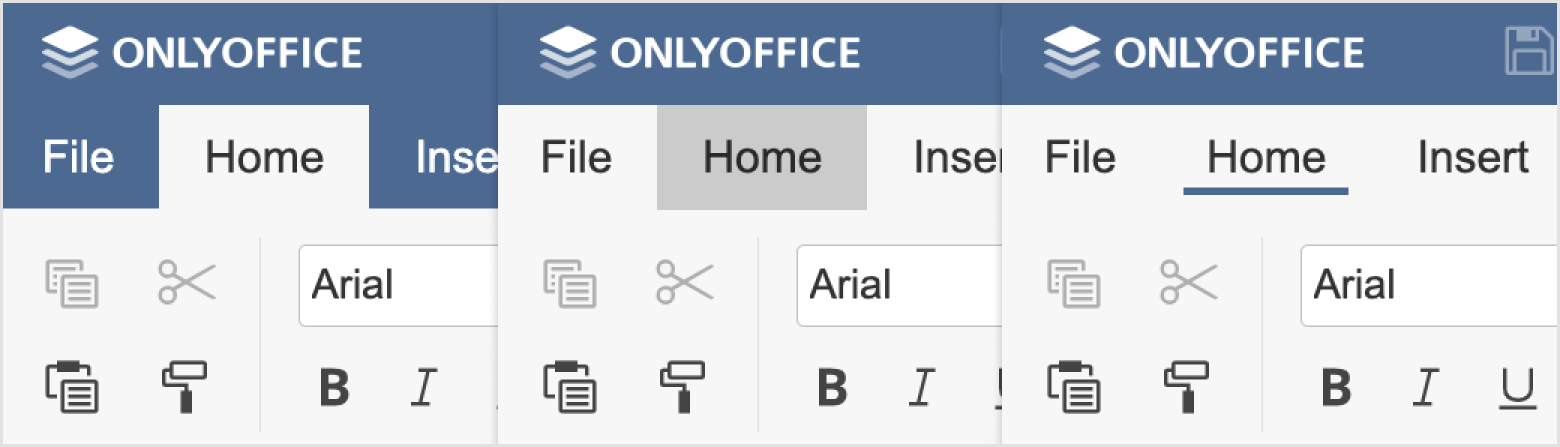
What's new when updating ONLYOFFICE DocSpace to version 2.5
DocSpace is ONLYOFFICE's platform focused on workspaces and document collaboration. With the update to version 2.5Both cloud-based and self-hosted, a good number of features are added that significantly change the way files are shared and organized.
Among the capabilities you gain by upgrading DocSpace to 2.5, those related to the following stand out: exchange of documents with external users and integration with other services. This version was clearly designed with distributed teams and hybrid environments in mind.
- Option to share files and folders via Public links for external usersThis makes it easier to collaborate with clients, suppliers, or partners without creating internal accounts for them.
- Possibility of connecting third-party storage such as Google Drive, OneDrive, Box, Dropbox, kDrive, Nextcloud, ownCloud, etc., to your public rooms, centralizing access to all your content.
- Support for View, create, and edit Markdown files, very useful for technical documentation, notes and lightweight content.
- Tools for creating and managing User GroupsThis simplifies the allocation of permissions in rooms and documents.
- Presets for embed DocSpace or parts thereof in any web interface, integrating it into intranets, corporate portals or proprietary applications.
- Wizard for import data from ONLYOFFICE Workspace, Google Workspace and Nextcloud, avoiding painful migrations.
- configuration storage quotas per room or per user, in order to control disk space consumption.
- ability to create multiple DocSpaces within the same infrastructure and make them accessible to different user groups.
If you want to delve deeper into all these changes, the official documentation and presentation videos provide more details, but this summary already shows that the 2.5 update is especially recommended if you work with many external users or various storage sources.
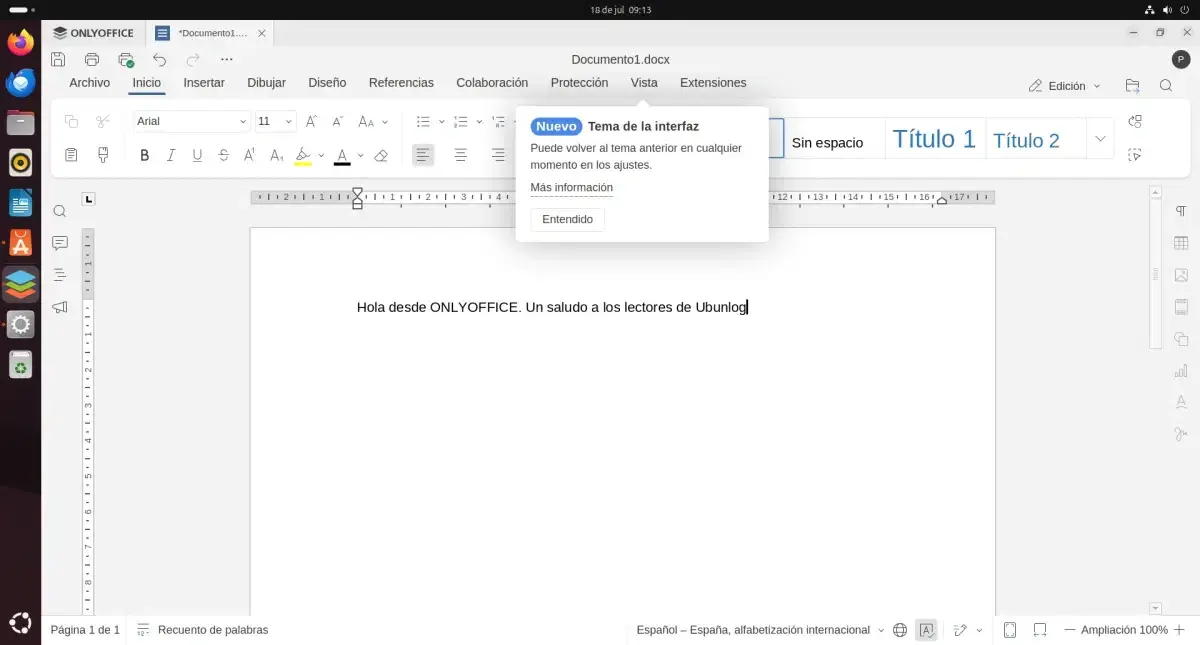
How to update a self-hosted DocSpace (Enterprise Edition)
If you have a local instance of ONLYOFFICE DocSpace Enterprise Edition installed on your own server, you can update it to 2.5 (or a later version) without too much trouble using the official installation script, which also serves to update.
The trick is in using the parameter -u of the script, which by default is set to false, and change it to true so that instead of installing from scratch, the script proceeds to Stop existing containers, remove them, and erect new ones. with the updated versions of each component.
To update the entire DocSpace Enterprise suite at once, you can use this general command:
bash docspace-enterprise-install.sh -u true
This command stops the necessary containers, deletes them, and runs the latest versions of all ONLYOFFICE DocSpace Enterprise components. It's a very convenient way to ensure that all services are synchronized to the same version.
If, on the other hand, you only want to update the DocSpace component and leave the rest as is, you can run something more specific, for example:
bash docspace-enterprise-install.sh -u true -dsv v2.5.0 -idocs false -irbt false -irds false
In this case, the parameter -dsv It refers explicitly to the DocSpace version that you want to install (for example, v2.5.0), while the flags -idocs, -irbt and -irds to false indicate that other components such as Docs, RabbitMQ or storage-related services should not be updated.
DocSpace's official documentation details what each parameter does and how to coordinate updates across all components, which is especially important if you have integrations with other systems or specific customizations.
Install ONLYOFFICE DocSpace if you don't already have it on your server.
If you haven't yet made the leap to DocSpace and want to set it up for the first time, the process is different from the upgrade process, but it's worth mentioning because the two are often confused. initial installation with the updating of versions.
To deploy DocSpace on your own server (Windows or Linux), you need to download the corresponding package from the official ONLYOFFICE website, where the following are offered: installers for each operating system and, in many cases, automated scripts.
Once you've downloaded the appropriate installer for your environment, simply follow the steps in the wizard or script, depending on whether you're using Windows or Linux/Docker. When the installation is complete, you'll be able to... update your local DocSpace using the same mechanism we saw with the -u parameter set to true.
In short, if you're setting up DocSpace from scratch, it's best to start directly with the latest version available to save you from immediate update processes right after installation.
Update ONLYOFFICE Mail Server based on Docker
The ONLYOFFICE mail component is typically deployed as docker containerTo update correctly without losing data, it is essential to ensure that all data volumes are properly mounted and that the exact same paths are reused when recreating the container with the new image.
The standard upgrade procedure for ONLYOFFICE Mail Server can be clearly divided into several steps: checking the volumes, removing the old container, removing the old image, running the new image, and reconnecting Docs and Community Server.
Step 1: Verify external storage volumes
First, you need to verify that the Docker volumes where the email information is stored are correctly mounted. You can do this using a command similar to this, replacing the identifier with the corresponding container:
sudo docker inspect --format='{{range $p,$conf:=.HostConfig.Binds}}{{$conf}};{{end}}' {{MAIL_SERVER_ID}}
In this command, {{MAIL_SERVER_ID}} This represents the name or ID of the ONLYOFFICE Mail container. Reviewing the output will show you the paths of the volumes being used for saving. logs, databases, and email data.
As an additional security measure, it's a good idea to back up the mounted folders residing on the host machine, for example:
/app/onlyoffice/MailServer/logs/app/onlyoffice/MailServer/mysql/app/onlyoffice/MailServer/data/app/onlyoffice/MailServer/data/certs
This ensures that if something goes wrong during the update, you can always... restore critical information from the mail server without drama.
Step 2: Remove the current container
Once the data has been verified and backed up, it's time to delete the running mail container. This doesn't delete the data on the volumes; it only stops and deletes the container itself.
sudo docker rm -f {{MAIL_SERVER_ID}}
Remember {{MAIL_SERVER_ID}} It remains the name or ID of the ONLYOFFICE Mail container. This step frees up the container name and avoids potential conflicts with the new version.
Step 3: Delete the old ONLYOFFICE Mail image
If you don't delete the previous image, Docker might reuse it and a [unclear] wouldn't actually occur. email software updateTo force the download of the latest image, you should do something like this:
sudo docker rmi -f $(sudo docker images | grep onlyoffice/mailserver | awk '{ print $3 }')
This command ensures that any image labeled as onlyoffice/mailserver disappears from your system, and on the next run Docker will download the latest version available in the registry.
Step 4: Run the new image with the same map paths
Before launching the new container, check if you already have a Docker network called onlyoffice. If it doesn't exist, you can create it with:
docker network create --driver bridge onlyoffice
Then, run the new ONLYOFFICE mail server container using the same volume routes that you had before, something like this:
sudo docker run --net onlyoffice --privileged -i -t -d --restart=always --name onlyoffice-mail-server \
-p 25:25 -p 143:143 -p 587:587 \
-v /app/onlyoffice/MailServer/data:/var/vmail \
-v /app/onlyoffice/MailServer/data/certs:/etc/pki/tls/mailserver \
-v /app/onlyoffice/MailServer/logs:/var/log \
-v /app/onlyoffice/MailServer/mysql:/var/lib/mysql \
-h yourdomain.com \
onlyoffice/mailserver
Here, yourdomain.com is the hostname of the ONLYOFFICE mail server. This domain must be valid and point to the IP address of the machine where the Mail Server is installed. record A in your DNS.
Furthermore, this domain often appears in the MX registration from the domain you use for email, in a format like mx1.onlyoffice.com. The important thing is that, when recreating the container, you specify the exact same volume paths again, so that the new image includes all the existing data on mailboxes, certificates, and databases.
Step 5: Re-run Docs and Community Server with the same paths
Once the mail server is updated, it's time to check the other components of your ONLYOFFICE ecosystem, such as ONLYOFFICE Docs and ONLYOFFICE Community Server, which also usually run in Docker containers.
You need to launch a new container of ONLYOFFICE Docs and then the container of ONLYOFFICE Community ServerConnecting them as recommended in the official guides, and mounting the data folders exactly as in the previous version.
Once everything is up and running again, it's time to log into the portal, check that the email is sending and receiving correctly, and verify that The historical data remains intactIf you have respected the volumes, the update should be transparent to users.
Update ONLYOFFICE Workspace from the Control Panel
If you use ONLYOFFICE Workspace with a web panel, the most convenient way to stay up to date is through the panel itself. Control Panel Integrated into the portal. There, the available versions of each online module are centralized, along with the options to download and install updates.
To access the Control Panel, log in to your portal with an account that has administrative privileges and click on the corresponding link in the homepageYou can also go to the Portal Settings section and locate the Control Panel access in the side menu.
In the updates section, you'll see a list of components, their current version, and the version available on the ONLYOFFICE server. When an update is detected, a button will usually appear. DOWNLOAD to download the necessary files.
Once the download is complete, that download button will change to a button. UPDATEDIn Windows environments, for example, the installer is usually saved in the Downloads folder and you will have to run it manually for each component you want to update.
When you click the UPDATE button, a warning window will appear informing you that the portal and Control Panel will be restarted and temporarily inaccessible. If you haven't yet made a backup, you can cancel the operation, but clicking OK will start the process. installation of the new versionwhich can take around five minutes.
Once finished, the Current and Available columns on the update page will display the same version for the updated component. From there, you can return to the main portal (GO TO PORTAL) and begin testing the module's new features.
ONLYOFFICE Docs 9.3: Why you should upgrade
In the case of ONLYOFFICE Docs, recent versions such as 9.3 They bring a set of improvements heavily focused on advanced PDF editing, signature options, and the experience of working with long documents or presentations.
Among the improvements announced for ONLYOFFICE Docs 9.3 are features such as improved PDF editing, more digital signature options for documents, a multi-page view in text documents, a Solver module for spreadsheets, GIF playback during presentations, and several AI-based improvements.
All of this makes ONLYOFFICE Docs a much more powerful suite for both traditional office environments and educational, legal, or technical scenarios where intensive work is done with complex documents.
Update ONLYOFFICE Docs Community Edition on Linux
If you are using ONLYOFFICE Docs Community Edition on Linux, the way to update to the latest version depends on whether you are using the installation/update script Or if you prefer a manual procedure with DEB/RPM packages and dependency management.
The Community version for Linux distributions and the source code are publicly available, and ONLYOFFICE's support policy is clear: support is offered only for the latest stable versionwhich usually includes bug fixes and new features. That's why they recommend updating as soon as possible.
There is an important detail: starting with version 4.1, ONLYOFFICE Docs began using PostgreSQL instead of MySQL as an internal database. This means that standard upgrade procedures apply from version 4.1 onwards, but do not apply to earlier versions that still relied on MySQL.
Prepare ONLYOFFICE Docs for shutdown
ONLYOFFICE Docs has a particular behavior: it saves changes to a document only when all users editing it close it. To prevent data loss when shutting down the service during an update, it is necessary force users to disconnect.
To do this, the suite itself provides a specific script that you must run before stopping the service:
documentserver-prepare4shutdown.sh
Running this script can take up to five minutes, because it disconnects sessions, consolidates changes, and leaves the documents in a specific state. safe to turn offDon't skip this step if you want to avoid surprises.
Update ONLYOFFICE Docs on Linux using the script
The most direct way to update ONLYOFFICE Docs in Linux environments is to use the official installation script, which also supports update mode using a parameter similar to the one we saw in DocSpace.
To begin, download the script from the official repository using a command like this:
curl -O http://download.onlyoffice.com/docs/docs-install.sh
Once downloaded, you can run the script with the update parameter enabled:
bash docs-install.sh -u true
During the process, the installer will ask if you want to update from DEB/RPM packages, for example. If you are using that package system, you can select the appropriate option, for example by pressing N and then press Enter when the tool requires it, to proceed with the update from the corresponding packages.
Manual update: dependencies and repositories
If you prefer to control every detail or your system is older, you can follow a manual procedure to update ONLYOFFICE Docs, taking care of the steps yourself. necessary dependencies and repositories.
In distributions like Ubuntu 14.04 LTS and later, many of the dependencies required by ONLYOFFICE Docs are usually installed automatically when you upgrade from the official packages. Some of the most relevant are:
- libcurl3
- libxml2
- fonts-dejavu
- fonts-liberation
- ttf-mscorefonts-installer
- fonts-crosextra-carlito
- fonts-takao-gothic
- fonts-opensymbol
In very old distributions, such as those prior to Ubuntu 14.04, you may need to manually install some of these libraries to ensure the suite functions correctly, especially regarding... font rendering and document compatibility.
If you are upgrading from ONLYOFFICE Docs version 4.1, keep in mind that you may need to add the correct repository for your specific version. Node.js that the system requires. The documentation suggests something similar to this:
curl -sL https://deb.nodesource.com/setup_8.x | sudo bash -
Once the repository is added, you can install the necessary version of Node.js and begin the upgrade to the latest version of ONLYOFFICE Docs. For distributions older than 14.04, you may also need additional dependencies, so it's advisable to review the release notes and official requirements before upgrading.
ONLYOFFICE integration with Nextcloud/ownCloud and collaborative editing
One of ONLYOFFICE's greatest strengths is its ability to integrate with platforms such as Nextcloud or ownCloud, offering real-time collaborative editing of documents directly in the browser, much like Google Docs but under your own control.
ONLYOFFICE allows you to edit text documents, spreadsheets, and presentations in various formats: by default it uses .docx, but you can also enable formats such as .odt, .doc, .ods, .xls, .xlsx, .odp, .ppt, or .pptx to work with documents created outside the application.
In this type of deployment, Nextcloud or ownCloud act as file access interfaceWhile ONLYOFFICE handles the editing. Instead of downloading the document when you click on it, the online editor opens in your browser.
Basic installation of ONLYOFFICE to integrate it with Nextcloud/ownCloud
Before installing ONLYOFFICE as a standalone service to connect it to Nextcloud, it's important to decide under what domain or subdomain You're going to host it. A typical example would be onlyoffice.mydomain.com, for which you'll need to create a DNS A record pointing to the server's IP address.
Depending on your domain provider, DNS propagation can take anywhere from a few minutes to several hours. Once the domain resolves successfully, you can proceed to install the application from your control panel or your preferred environment.
On many hosting platforms, in the "Install applications" section, when you select ONLYOFFICE, a field appears where you must enter the chosen domain or subdomain, such as onlyoffice.mydomain.com, as well as a secret password which you will then need to link ONLYOFFICE with Nextcloud. It's a good idea to keep it in a safe place.
Connect ONLYOFFICE with Nextcloud/ownCloud
Once the ONLYOFFICE installation is complete, the next step is to install and configure the corresponding extension from the Nextcloud or ownCloud administration panel. To do this, log in with an administrator account and go to the section for Applications, usually in the “Office and text” category, and locate the ONLYOFFICE connector.
Clicking on “Download and activate” will add the module, and then you will need to go to the area of Settings > ONLYOFFICE within Nextcloud to complete the data.
The two key fields you must enter are:
- The ONLYOFFICE server installation URL, including the https://, for example https://onlyoffice.mydomain.com.
- The secret key that authorizes the connection between Nextcloud and ONLYOFFICE is the same one you defined during installation. If you don't remember it, you can usually find or change it from the provider's control panel, in the ONLYOFFICE management section.
On this same screen you can activate different additional file formats for editing, adjusting the integration to your needs. From that moment on, every time a user accesses a document from the Nextcloud files section, it will open in the ONLYOFFICE editor in the browser.
In many deployments, the Community edition of ONLYOFFICE is installed, which has certain limitations, such as a maximum of 10 documents open simultaneously and around 20 active connections at once. For more demanding environments, it is recommended to consider commercial editions with extended limits and dedicated support.
Overall, keeping ONLYOFFICE up to date—whether it's DocSpace, Docs Community Edition, Workspace, the mail server, or integrations with Nextcloud/ownCloud—guarantees not only exciting new features like improved PDF management, external cloud connectors, and multi-page views, but also More security, fewer errors, and a much smoother collaboration experience for all users who depend on the platform daily.

Passionate writer about the world of bytes and technology in general. I love sharing my knowledge through writing, and that's what I'll do on this blog, show you all the most interesting things about gadgets, software, hardware, tech trends, and more. My goal is to help you navigate the digital world in a simple and entertaining way.