- The Apple symbol is a character specific to the company's systems, not a standard emoji, and is only displayed correctly on Apple devices.
- On Mac, it is written natively with combinations such as Option (⌥) + G or Option (⌥) + Shift (⇧) + K and can be used in conjunction with text replacement.
- On iPhone and iPad, access to the symbol is achieved by configuring text substitutions in Settings, reusing a previously copied apple.
- Shortcuts sync via iCloud and allow you to use to customize names, text, and references to Apple products across the ecosystem.
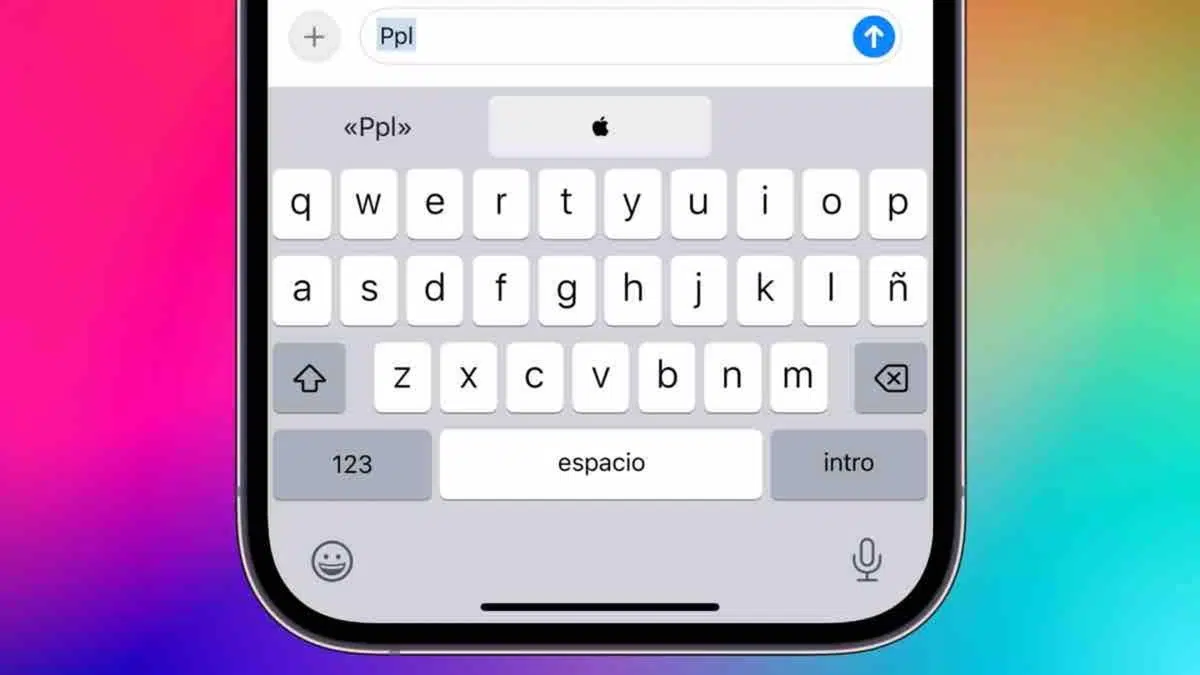
If you're an Apple fan, you've probably wanted to type the Apple logo on your iPhone, iPad, or Mac at some point and didn't know where to begin. It doesn't appear as an emoji, you don't see it on the keyboard, and at first glance, it seems like a hidden trick only for insiders. However, once you know the right combinations and settings, you can have it at the touch of a key whenever you want.
The curious thing is that, despite being a globally recognized icon, Apple doesn't prominently display its logo on the iOS, iPadOS, or macOS keyboards . Forget about finding it in the emoji panel or special symbols. Even so, the system does integrate the character, and with a couple of shortcuts and the text replacement function, you can use it in your social media, messages, folder names, or even "serious" documents. Let's take a closer look at all of this.
What exactly is the Apple symbol and why don't you see it on your keyboard?
Although many people think of the Apple logo as a simple image, on the company's devices the bitten apple also exists as a typographic character , just like a letter or a punctuation mark. This allows it to be typed, copied, pasted, resized, or have its font changed within a document, just like any other symbol.
However, there's an important caveat: it's not a standard emoji or a universal symbol compatible with all platforms . It's primarily supported on Apple systems (iOS, iPadOS, macOS) and some specific fonts. On many Android phones or Windows computers, when the character is displayed, it will show an empty square, a strange symbol, or nothing at all.
For this reason, even though you can type the Apple logo on your devices , it's worth remembering that only other Apple users will see it correctly. If you often chat with people who use Android or work with Windows, your cute will likely look like strange symbols to them.
Another interesting detail is that Apple hasn't included the symbol in the emoji panel or the default virtual keyboards . There's no dedicated button, it doesn't appear when you hold down any key, and you won't find it by searching through icons. To use it, you have to rely on keyboard shortcuts and, above all, the text replacement function.
On macOS, the symbol behaves like any other character in many fonts, so you can change its size, alignment, or even style depending on the font . In some families, such as Chalkboard or Chalkduster, the logo is drawn slightly differently, with the leaf more integrated into the body or with a less recognizable design, leading to some rather curious results.
How to type the Apple symbol on your Mac
Using the logo is easiest on Mac computers: it only takes a combination of two or three keys , depending on your keyboard language. It's not something you'll press accidentally, but once you memorize it, typing the Apple logo is almost automatic.
On a Spanish Mac keyboard, the direct way to type the symbol is to hold down the Option (⌥) key and, without releasing it, press the G key . You will instantly type the character wherever your cursor is, whether in a text document, a Messages window, your browser, or even a Finder filename.
If you're using a standard English keyboard on your Mac, the shortcut changes slightly and you'll need to press Option (⌥) + Shift (⇧) + K. Again, the result will be the same: the Apple logo will appear as if it were just another letter in your text.
This little trick also works when you connect a Bluetooth keyboard to your iPhone or iPad . If you use, for example, an Apple Magic Keyboard with your iPad, you can type Option + G (in Spanish) or Option + Shift + K (in English) and you'll get the symbol just like on a Mac, without any additional setup.
A curious use in macOS is to leverage the logo when naming documents or folders with the symbol as the first character . If you put at the beginning of a filename, it will be sorted differently in the Finder, usually appearing towards the end of the list when sorting alphabetically, which can be useful for highlighting certain items.
Create a text replacement shortcut in macOS for Apple
While the Option + G shortcut is very convenient, some people prefer not to remember combinations and use keywords directly. That's where macOS's text replacement feature comes in, allowing you to convert a sequence of letters into any text , including, of course, the symbol.
This option resides in system preferences and is very powerful for all kinds of tasks: from expanding common abbreviations to inserting long texts with a couple of keystrokes. In our case, we'll use it so that when we type a specific word, it's automatically replaced with the Apple logo.
On a Mac, the steps would be roughly as follows: Open System Preferences (or System Settings in newer versions), go to Keyboard, and then to the Text tab . There you'll see a list of existing substitutions, if you have any. At the bottom, click the plus (+) button to add a new rule.
In the "Replace" column, type an easy-to-remember combination that you don't use in ordinary words , such as "+logo," "logoapple," or "ppl." In the "With" column, enter the symbol, which you can type directly using Option + G. From then on, whenever you type that short string of letters and press space or a punctuation mark, macOS will replace it with the Apple logo.
The beauty of this system is that it doesn't just work for your logo . Using the same screen, you can create shortcuts for your ID, your full address, email signatures, long phrases you use frequently, or any text you want to repeat without having to type it all out each time.
How to type the Apple symbol on iPhone and iPad
On iPhone and iPad, the situation is slightly different, because there's no direct keyboard shortcut on the touch keyboard to type the Apple logo . You won't find it by searching for special symbols or holding down keys, and for now, Apple hasn't included this character in the iOS or iPadOS virtual keyboard.
Even so, the symbol is supported by the system and can be displayed without problems in almost any text app: Messages, WhatsApp, social media, Notes, emails, etc. What changes is how it's entered, and here the solution necessarily involves using the text replacement feature in iOS and iPadOS , just like on a Mac.
The first step is to have the symbol available to paste. The easiest way to do this is to select an existing apple (for example, on a website, in an email, or sent from your Mac) and copy it. Simply press and hold the character for a second and choose "Copy" from the context menu that appears.
If you have a Mac, you can make it even more convenient with Apple's universal clipboard : copy the Apple logo in macOS with Option + G, and without doing anything else, go to your iPhone or iPad and paste it into any text field; the system syncs the clipboard if you use the same iCloud account.
Once you have the symbol on your iPhone or iPad clipboard, you need to create a shortcut that will insert it for you whenever you need it. This is where the Text Replacement menu within iOS and iPadOS Settings comes in ; it's the key to this whole process.
Configure text replacement with the Apple logo on iOS and iPadOS
The path to configure this on your Apple phone or tablet always goes through Settings, although the names of some menus may vary slightly depending on the iOS or iPadOS version . Essentially, what you want to do is tell the system: “when I type a certain word, replace it with the symbol.”
The typical path would be to open the Settings app, go to General, and then tap Keyboard . Within that section, you'll see an option called "Text Replacement" or something similar, where you can manage all the abbreviations you've created. It's the same concept as on macOS, but adapted for the touch interface.
Within "Text Replacement," tap the plus (+) button in the upper right corner to add a new rule. A screen will open with two main fields: "Phrase" and "Shortcut" (or "Shortcut," depending on the version). Paste the Apple logo into the "Phrase" field.
Press and hold on the "Phrase" field, and in the menu that appears, choose "Paste" to insert the symbol you had on your clipboard . Then, in the "Shortcut" field, type the sequence of letters you want to use as a trigger, for example, "apple," "logoapple," "ppl," or any abbreviation you don't usually type.
Once you're happy with the change, tap "Save" to confirm the new text substitution . From then on, every time you type that word on your iPhone or iPad keyboard, the system will suggest replacing it with the Apple logo () or will do so automatically when you press the space bar, depending on your keyboard settings and the app you're using.
The best part is that this shortcut works in virtually any app on your device : you can type Apple Pay in messages, create a note with folders called Projects, change your social media profile name to add the logo, or type Music, TV, or Watch with that extra touch that only other Apple users will see.
Sync shortcuts between iPhone, iPad, and Mac with iCloud
One of the strengths of the Apple ecosystem is that most of these keyboard settings sync across devices via iCloud . This means that if you've already set up text replacement for the Apple logo on a Mac, when you sign in with the same account on your iPhone or iPad, you should see the same shortcut available there without having to repeat the process.
Similarly, if you create the Apple shortcut for the first time on your iPhone or iPad , it will then appear on your Mac in the Text Replacements section, provided syncing is enabled. This way, it doesn't matter which device you use to type: the shortcut will behave the same way on all of them.
This behavior means it's not strictly necessary to manually define the shortcut on each device . You can choose the device that's most convenient for you (many prefer the Mac, due to the larger screen and physical keyboard) and let iCloud handle the rest.
However, if you ever notice that the shortcut isn't syncing, it's a good idea to check in your iCloud settings that the keyboard information sharing and text replacement options are enabled and that all your devices are using the same account. In most cases, it works seamlessly, but it's good to keep in mind in case something goes wrong.
Use external keyboards to type on iOS and iPadOS
If you're someone who uses their iPad like a mini-laptop, you probably have a Bluetooth keyboard or a Magic Keyboard connected . In that case, in addition to the text replacement shortcut, you can use the same physical key combinations as on a Mac to type the symbol on the fly.
With a Spanish keyboard, it's simply a matter of pressing Option (⌥) + G. On an English keyboard, the combination will be Option (⌥) + Shift (⇧) + K. This way of typing the Apple logo doesn't rely on text replacement, so it works even if you haven't defined any shortcuts in the settings.
This method is especially useful if, for example, you use your iPad to write long documents in a word processor and want to insert the symbol occasionally without interrupting your writing. It's as fast as any other keyboard shortcut and identical to the one you use on macOS.
By combining both systems (text replacement and physical shortcuts), you have all scenarios covered: when you type directly on the touch screen you can use the keyboard shortcut, and when you connect a physical keyboard you can use Option + G or the corresponding shortcut for your keyboard language.
What is the real purpose of using the Apple symbol in your texts?
Beyond mere geeky curiosity, using the Apple logo in your text can have several practical and aesthetic uses . It's not just about showing off the little apple, although that has its appeal, but about giving a different touch to certain names, shortcuts, and elements of your system.
A very common use is to identify Apple products and services more visually . Instead of writing "Apple Pay," "Apple Watch," or "Apple TV," you can use Pay, Watch, or TV, and the text is more compact and recognizable, especially for other users of the brand who will immediately recognize the icon.
There are also many people who use the symbol as a sign of support for or belonging to the Apple fan community . You'll see users including it in their social media profile names, email signatures, blogs, forums, or even music playlists—more as a nod than out of genuine necessity.
From an aesthetic point of view, the Apple logo is a very clean, minimalist, and easily recognizable icon , which lends it a certain style when used to name folders or documents. For example, you can create folders on your iPhone called "Photos," "Work," or "Family," and you'll easily distinguish them from the rest.
Some people take advantage of text replacement to create even faster shortcuts : they type an abbreviation, and the system replaces it with the Apple logo along with a longer word, a favorite phrase, or the full name of a product. It's a very efficient way to automate short texts without relying on external applications.
However, it's important to remember that the symbol isn't universal . If you send a message with several apples to someone using Android or a Windows PC, they'll likely only see an empty box or a strange character on their screen instead of the Apple logo. Keep this in mind if you want to ensure the other person understands the message correctly.
In short, having the logo as a text character opens the door to personalizing your experience with Apple devices without much hassle. Once the shortcuts are set up, it becomes almost an automatic gesture that you can incorporate into your typing in any app within the ecosystem.
With all of the above, you now know how to type the Apple logo on Mac, iPhone, and iPad using keyboard shortcuts and text replacement , how to take advantage of iCloud syncing to have the same shortcut on all your devices, and in what situations it might be useful or visually appealing to use this symbol, always keeping in mind that only other Apple users will see it exactly as you type it.


Passionate writer about the world of bytes and technology in general. I love sharing my knowledge through writing, and that's what I'll do on this blog, show you all the most interesting things about gadgets, software, hardware, tech trends, and more. My goal is to help you navigate the digital world in a simple and entertaining way.
Table of Contents
- 1 What exactly is the Apple symbol and why don't you see it on your keyboard?
- 2 How to type the Apple symbol on your Mac
- 3 Create a text replacement shortcut in macOS for Apple
- 4 How to type the Apple symbol on iPhone and iPad
- 5 Configure text replacement with the Apple logo on iOS and iPadOS
- 6 Sync shortcuts between iPhone, iPad, and Mac with iCloud
- 7 Use external keyboards to type on iOS and iPadOS
- 8 What is the real purpose of using the Apple symbol in your texts?