- Driver management and print queue configuration using the CUPS server.
- Using terminal commands to diagnose and restart printing services.
- Configuring user permissions and administrative groups for hardware access.
- Installation of generic and specific drivers depending on the Linux distribution used.

Switching to Linux after years with Windows is an exciting journey, but there are things that can drive you crazy, and printer setup is often one of them. It's very common that, when you connect a device via USB, the system recognizes it but nothing prints, leaving you with that frustrating feeling when you see the document marked as "finished" but the page remains blank.
To master this chaos, you have to understand that the brain behind it all is CUPS (Common UNIX Printing System) . This server manages the queues, controllers, and communication with the hardware, and although it sometimes seems to be doing its own thing, knowing where to look and which commands to issue is key to making everything run smoothly.
Diagnosing and troubleshooting common errors
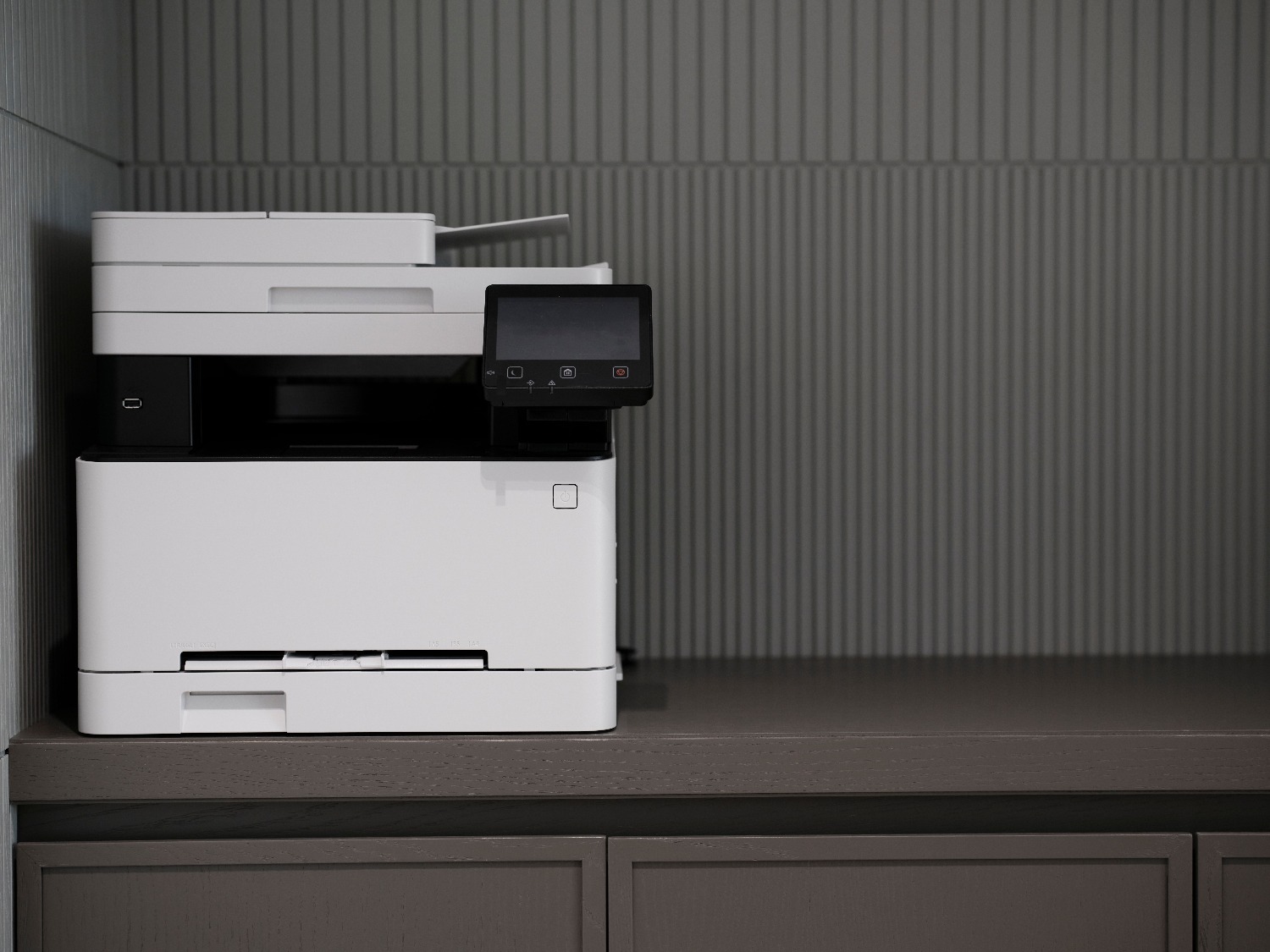
When a printer isn't responding, the first thing to do is rule out service failures. Sometimes, the system assigns an incorrect or generic driver (like using an HP driver on a Canon printer), which causes communication to fail. If you notice the print status changing to "completed" without any paper being dispensed, the driver is likely incorrect.
To try and refresh the connection, you can try restarting the services from the terminal. The commands `sudo systemctl restart cups` and `systemctl restart cups-browsed` are the usual ones to force the server to rescan the hardware. If this doesn't work, it's essential to check for missing driver packages. On Debian-based distributions, the command `apt install cups printer-driver-all` can be a lifesaver by installing a comprehensive set of drivers.
Permission management and system administration

It's not always a driver issue; sometimes the problem is that your user account doesn't have sufficient permissions to send commands to the printer. It's crucial to ensure that the user belongs to the print administrators group, which is usually called lpadmin . You can add a user to this group with the command `usermod -a -G lpadmin username`.
Additionally, it's important to verify that the configuration file /etc/cups/cups-files.conf contains the line `SystemGroup lpadmin` . If it's missing, you'll need to add it manually so the system knows who has control. In more complex cases, such as on SUSE Linux, you might need to grant read permissions to the local CUPS certificate in the /var/run/cups/certs/ directory using the `chmod` and `chgrp` commands.
Using the CUPS interface and PPD files

CUPS offers a powerful web interface for managing everything. The Printers tab shows the real-time status of each printer, while the Jobs tab lets you track which jobs are stuck. If a document is stuck, the fastest way to clear the queue is to use the cancel command followed by the job ID.
Behind every printer is a PPD (PostScript Printer Description) file located in /etc/cups/ppd/ . These files are essentially plain text that tell the system what capabilities the printer has. If the automatic driver fails, sometimes installing a Generic PostScript Printer from the system settings is the most stable and least problematic solution.
Installation in different layouts

The process varies depending on the Linux distribution you use. On Debian and Ubuntu , using apt is the norm. However, on Arch Linux , you'll need to use pacman to install packages like cups-filters, ghostscript, and gsfonts , and don't forget to manually enable the service with `systemctl enable cups.service` so it doesn't stop on reboot.
For those who need virtual print queues (such as in university or business environments using PaperCut), the `lpadmin` command is used to add the printer by pointing to a specific URL. This allows the document to be sent to a central queue and the user to then decide which physical machine to pick it up from.
To resolve printing failures in Linux, it is essential to combine CUPS service management, the correct assignment of user groups such as lpadmin, and the selection of the appropriate PPD driver, whether proprietary or generic, ensuring that the services are active and the system permissions are correctly configured.
FAQ
What to do if CUPS recognizes the printer but assigns the wrong model?
It is necessary to manually change the driver in the system printer settings or through the CUPS web interface, trying either the manufacturer's specific driver or a generic PostScript driver.
How can I restart the printing service from the terminal?
You must run the command `sudo systemctl restart cups` to restart the main server and, optionally, `systemctl restart cups-browsed` to refresh the computer search.
What is the lpadmin group used for in Linux?
This group grants administrative permissions over the printing system, allowing the user to add, remove, or configure printers on the CUPS server.
Where are the printer's configuration files stored?
The operational capabilities are stored in text files with the .ppd extension located in the /etc/cups/ppd/ directory.
How do I install the basic printer drivers on Ubuntu?
The command `apt install cups printer-driver-all` can be used to install the print server along with a comprehensive package of compatible drivers.
What command is used to clear a stuck print job?
The cancel command followed by the job's numeric identifier is used to delete it from the print queue.
How do I activate the CUPS service on Arch Linux?
You need to run systemctl start cups.service to start it immediately and systemctl enable cups.service to make it start automatically with the system.
