- Circle to Search allows you to search, translate, and identify on-screen items without leaving the app, using gestures such as circling, highlighting, or tapping.
- The function supports zoom, bar movement, and selection adjustments, making it easy to stack multiple consecutive searches on different items.
- In addition to shopping and trivia, it offers text translation, song identification, and access to AI-powered summaries on compatible Android phones.
- Its proper functioning depends on device compatibility, digital assistant permissions, and keeping the Google app updated.

If you use your phone all day to scroll through social media, watch videos, or read articles, you've probably been left wondering about something on the screen more than once, but you're too lazy to open another app to look it up . What breed is that cute dog? Where can I buy that jacket you love? What does that weird English expression mean? Until now, it meant leaving the app, opening your browser or Google Lens, and interrupting the moment.
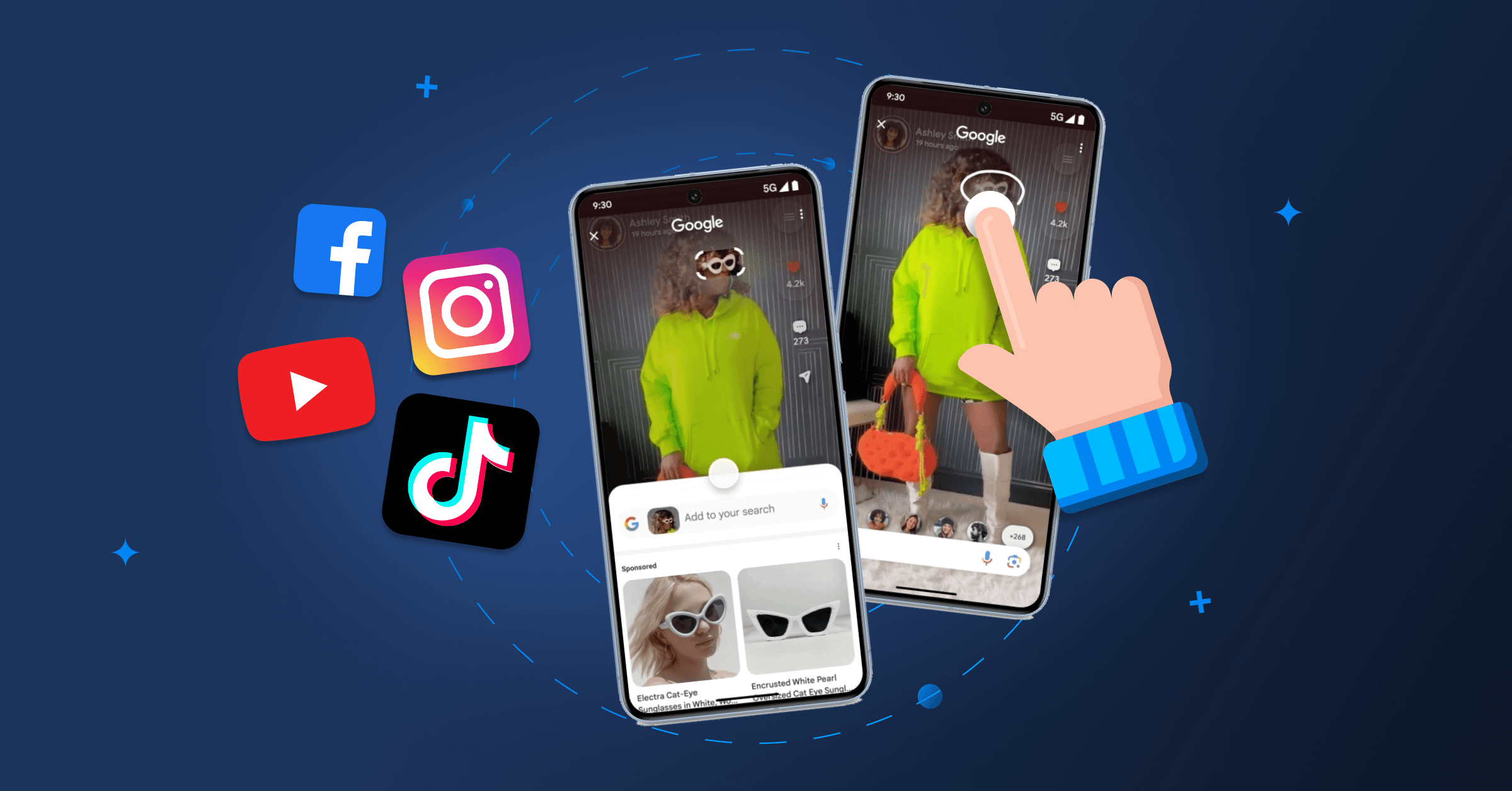
With Circle to Search (called "Surround to Search" in many Android menus ), everything changes completely. This feature lets you search for anything you see on the screen without leaving the app, using natural gestures like circling, highlighting, scribbling, or simply tapping. And the most interesting thing for the curious: you can stack searches one after another on the same content or on new results , creating a kind of endless chain of curiosity without losing track.
What exactly is Circle to Search and on which mobile devices does it work?
Circle to Search is a Google feature integrated into some Android phones that allows you to visually search (using both image and text) for any element on your screen without switching apps or taking manual screenshots. It's not a separate app, but rather a capability integrated into the system and the Google app.
In Spanish, it often appears as "Rodea para buscar" within the settings , but it's the same as Circle to Search. It originated with the Samsung Galaxy S24 as part of the Galaxy AI suite and later with the Pixel 8 and 8 Pro, although Google has since extended the feature to more devices compatible with Android and the updated Google app.
Important: Not all Android phones have this feature yet . For now, it's limited to certain models, especially mid-range and high-end phones, and depends on the manufacturer and Google having activated it in your region. Some devices, like the Galaxy A26 5G, already include it as standard, bringing this feature to more affordable phones as well.
On recent Samsung phones, Circle to Search is part of the Galaxy AI toolset , along with other features like Math Assist and enhanced translation solutions. On Pixel phones, it comes directly from Google as part of the pure Android experience.
How to activate and use Circle to Search in practice
The great thing about Circle to Search is that, once activated, it's used with very simple gestures directly on the screen . It doesn't matter if you're on Instagram, TikTok, YouTube, in a browser, or reading a PDF: the idea is always the same—to search without leaving the current app.
On most compatible phones, you have two main activation methods depending on the type of navigation you use on Android: classic three buttons or gestures . The behavior changes slightly, but the end result is the same.
Start Circle to Search with buttons or gestures
If you're using the classic three-button navigation mode, press and hold the home button until the screen dims . You'll see a search bar appear at the bottom, indicating that Circle to Search is ready to use.
If you have gesture navigation enabled, instead of the physical button you'll see the typical gesture bar. In this case, press and hold the navigation bar and the effect will be the same: the screen will dim slightly and the circular search interface will activate.
Once the interface is active, you can start selecting the content you want to search for. This part is key to understanding how to stack searches and get the most out of the tool.
Selection methods: circle, highlight, scribble, or tap
Circle to Search isn't limited to one type of gesture; it lets you interact with what you see on screen in various ways so that the selection is as natural as possible and you can focus on just the part of the image or text that interests you.
Among the main options you have the possibility of surrounding an element with your finger, perfect for products, faces, monuments or any visual object that you want to identify or about which you want to obtain more context.
You can also underline or highlight text if you are interested in a word, phrase, or paragraph, much like selecting text in a word processor, but without leaving the app where you are reading it.
For those who feel more comfortable drawing freehand, there is the option of scribbling the area of interest , marking a more irregular area, which is useful when the object does not have such a clean shape or is mixed with other elements in the image.
And in cases where you just want something very simple, simply tap a part of the screen to tell Circle to Search that you want information about what you are pointing at, without needing longer strokes.
Adjust the selection and view the results.
After making a selection, you'll often want to refine it further. The interface allows you to drag the edges of the selection or move the entire area to precisely fit the zone you want to analyze.
The results don't fill the entire screen; instead, they appear at the bottom as a sliding panel . From there, you can view visual suggestions, links, product information, translations, definitions, or related information, depending on your selections.
If the area you want to select is hidden beneath the Circle to Search bar, you can drag the bar up or down to clear the area. There's also a lesser-known gesture: swiping two fingers sideways to move the window and access what's behind it.
If you need to refine your search even further, you can type additional text into the search bar while keeping your visual selection. This is what Google calls a mixed search: combining what you see with keywords to get more precise results.
Zoom, move, and "stack" searches on the same screen
One of the less publicized but most useful features is the ability to zoom in on the image used by Circle to Search . This is great when you want to select a specific word within a very small text, or when a detail in a photo is too far away.
While the screen is dimmed and Circle to Search is active, you can pinch with two fingers as if you were zooming in on a normal photo in the gallery . This way, you can zoom in on the exact image or text fragment you want to highlight more precisely.
This zoom feature is combined with the ability to move the search bar to different areas of the screen . If it's in the way at the bottom because it's covering the object you want to circle, simply slide it to another position and you'll have a clear area to select.
And this is where the concept of "stacking searches" comes into play. Instead of making a single query and stopping there, you can chain selection after selection on new items that appear in the results , or reactivate Circle to Search on something related that you see later.
For example, you can start by searching for a product in an Instagram photo, tap on a store result, and once on the website, reactivate Circle to Search on another part of the page (like a logo, text, or related image) without interrupting what you were doing. This builds a sequence of queries that support each other.
Additionally, if you want to get rid of the screenshot that was used as the basis for the search, you can double-tap the screenshot thumbnail or press the Backspace key on your keyboard to clear it and start again with another selection.
Fast on-screen text translations with Circle to Search
Circle to Search isn't just for discovering products or interesting facts; it's also a fantastic tool for everyday use if you consume content in other languages, because it allows you to translate text without having to leave the app or copy and paste.
You have two main ways to work with translations: select a specific fragment of text that interests you or translate the entire interface of a screen, web page or document at once, ideal for longer readings.
Translate a specific piece of text
To translate a specific section, first activate Circle to Search and then circle or tap the area of text you want to understand . If the system doesn't automatically detect the text, you can tap the "Select text" option to indicate that you want to work at the character level.
Once you've selected the text, manually adjust the selection if necessary, and then tap the translate button that appears on the interface. The translation will appear instantly, either directly overlaid or in the bottom panel, depending on your device's design.
Translate the entire screen at once
When you need to understand an entire page, a long thread, or a document, it's more efficient to use the full-screen instant translation feature . To do this, launch Circle to Search and look for the "Translate" button next to the search bar.
When you tap it, you'll see a selector at the bottom with the input and output languages, where you can choose which language you want to translate from and to . Once configured, the interface will replace or overlay the translated text on top of the original almost in real time.
There is also a mode designed for browsing and translating simultaneously, accessible from the same translation option. In this mode, the " Scroll and Translate " option appears, allowing new text to be automatically translated as you scroll down a long page, without having to tap the translation button each time.
This navigation and translation feature is being rolled out gradually and only to some Android devices , so you might not see it on your phone yet. However, spot text or full-screen translation usually arrives sooner on most compatible models.
AI-powered summaries and mixed search with Circle to Search
In addition to its purely visual and translation capabilities, Circle to Search integrates with Google's AI-enhanced search capabilities . This allows you, in certain cases, to obtain AI-generated summaries, explanations, and answers based on what you see on screen and the text you add.
When you make a selection and type a supplementary query, the mixed search (text + image) is activated , which combines what you're selecting with your written question. Depending on the region (for example, it's more common in the United States), this may return summary-type answers or more detailed explanations.
For example, you can circle a diagram, add a question like " explain this to me simply " and receive an organized text that clarifies the content without you having to jump between several websites.
These AI features are not yet deployed identically in all countries, but as Google expands its artificial intelligence models, Circle to Search will gain more traction as a gateway to these kinds of summaries and advanced answers directly from the screen.
Practical uses: shopping, travel, studying and music
Beyond the technical aspects, Circle to Search shines when applied to everyday tasks. On phones like the Galaxy A26 5G, which integrate the feature along with other AI-based solutions, it has become an essential daily tool for searching, translating, and discovering content without wasting time.
A very common use is identifying products you see on social media. You're on Instagram or TikTok, you see some headphones, a tablet, or a piece of clothing that you love, but you have no idea of the brand or where they're sold . By activating Circle to Search and circling the product, the system returns similar images, listings on online stores, and pages with related information.
For those who consume a lot of content in foreign languages, it's especially convenient to be able to highlight text in another language and get an instant translation without leaving the video, post, or website. Students, travelers, and people who work with international documents find this very useful.
Another typical scenario is when you see a photo of a place that catches your eye, a unique dish, or a monument you've never seen before. With the tool activated, you simply select the area in the image and receive information such as the name of the place, reviews, history, or even directions on how to get there using Google Maps.
The music aspect is also noteworthy, thanks to the integration of Song Search. If you're watching a series or listening to a podcast and a song you love comes on, you can activate Circle to Search and tap the music note icon that appears in the interface to identify the track and artist using the audio playing around you or from the phone's own speakers.
Configure, disable, and troubleshoot Circle to Search
While most users leave it enabled because it's so convenient, you can disable Circle to Search in your Android settings, whether you use button or gesture navigation. The procedure is similar in both cases; only the menu path changes.
In general, you need to go into your phone's Settings, look for the option related to "Circle to Search" and, within that section, uncheck the corresponding box or switch so that it stops responding to the gesture of holding down the home button or navigation bar.
If you see the message “Circle to search not available” on a phone that should be compatible, it's best to first check the digital assistant's permission settings. In Settings, look for the “Digital assistant app” entry and make sure that the default assistant is Google and that the “Use screenshot” option is enabled.
Another very common reason for failure is having an outdated Google app. To fix this, go to the Play Store, tap "Manage apps & device ," locate the Google app, and update it if an update is available. Often, after this step, Circle to Search will work normally again.
Finally, in some specific cases or in regions where the feature has not yet been rolled out, some users may resort to unofficial alternative solutions to activate Circle to Search on devices not originally supported, although these options usually require installing specific versions of the Google app and third-party applications to simulate activation.
With all of the above, Circle to Search becomes a kind of smart magnifying glass embedded in your mobile, capable of combining visual search, instant translation, music identification and access to generative AI in a single gesture, and the best part is that it allows you to stack queries without losing the flow of what you were doing , making browsing the screen much faster and more natural.


Passionate writer about the world of bytes and technology in general. I love sharing my knowledge through writing, and that's what I'll do on this blog, show you all the most interesting things about gadgets, software, hardware, tech trends, and more. My goal is to help you navigate the digital world in a simple and entertaining way.