- Excel may fail to save large files due to insufficient space, permissions, antivirus software, or excessively long file paths.
- Empty formatted rows, excessive styles, and heavy formulas increase the size and cause crashes.
- Trying other formats, locations, new books, or safe mode helps to isolate and correct the problem.
- Updating Excel and Windows and using AutoSave reduces the risk of data loss in large workbooks.
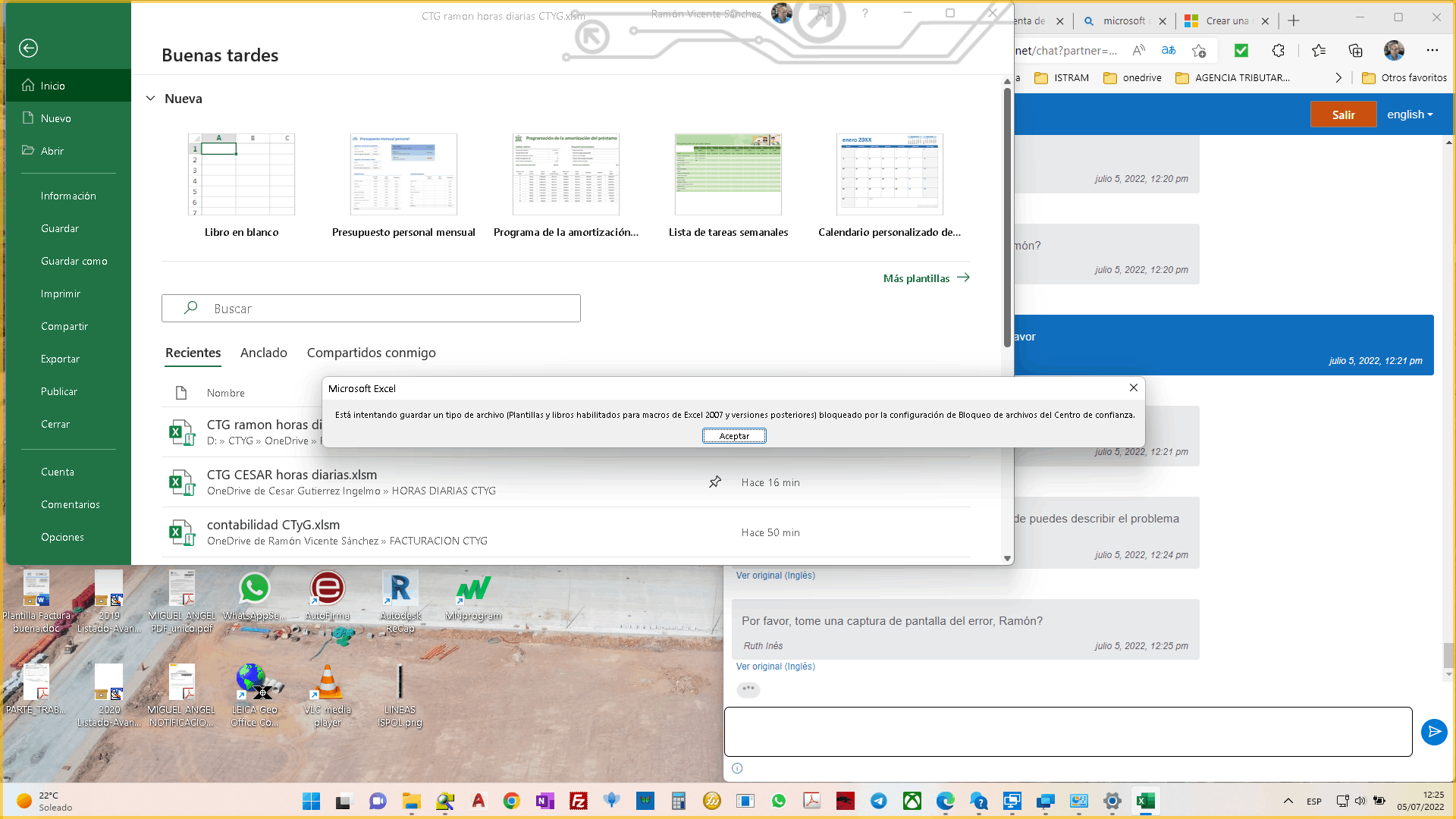
When working with large spreadsheets, it's quite common for Excel to become slow, take a long time to save, or even display errors when trying to save . Sometimes the file doesn't seem that big, but it still crashes, takes ages, or throws up frustrating "Document not saved" messages.
Often, these errors aren't caused by anything "mysterious," but rather by a combination of Excel limitations, space issues, excessively long file paths, antivirus conflicts, overly formatted files, and other factors that accumulate until the workbook becomes unstable. The good news is that you can almost always avoid losing your work and restore some responsiveness to the file if you know where to look.
How Excel saves files and why it fails with large workbooks

To understand why a large workbook sometimes doesn't save properly or becomes corrupted , it's helpful to know, in general terms, what Excel does when you click Save or Save As.
Internally, the program doesn't directly overwrite the file. Instead, Excel first creates a temporary file in the same destination folder , with a random name and no recognizable extension (for example, something like Cedd4100). It then writes the entire contents of the workbook, including all the changes you've made, to this temporary file.
If you're saving over an existing file, the next step is for Excel to delete the original file once the temporary file has been successfully written . Only when that deletion is complete does it move to the final stage of the process.
Finally, Excel renames the temporary file to the name you see (for example, Book1.xlsx), replacing the original. This process is designed to minimize the risk of corruption, but if it's interrupted at any point, problems will arise.
When something goes wrong with this mechanism, several things can happen: temporary files may be left behind , the original version may be lost, or the current file may be left incomplete . Depending on the exact moment of the failure, you will see different error messages, and the damage may be more or less severe.
When the message indicates that "any previously saved copies have been deleted" or that "the document is not saved ," the situation changes slightly. In these cases, the process is usually interrupted at the stage where Excel deletes the original file or renames the temporary one, so a readable temporary file may remain, but the original no longer exists.
If the problem is accompanied by a system crash or a sudden power outage, your best bet is to locate and open that temporary file in the destination folder . One way to focus your search is to check recent files in Windows 11 or the session's temporary folder to locate the suspicious file.
Typical error messages when saving and what they really mean

When working with large workbooks or somewhat unstable internet connections, Excel may display error messages such as "Document not saved," "Document not fully saved," or similar . Although they sound similar, the cause can vary slightly.
Typical notifications related to the saving process are:
- "Document not saved"
- "Document not completely saved"
- "Document not saved. Any previously saved copies have been deleted."
- "The document is not saved"
In the first two cases, it usually means the error occurs while Excel is trying to create or write the temporary file . Normally, the original file remains intact on disk and what you're seeing on the screen is still in memory, so you still have a chance to try to save it.
These interruptions can be caused by something as simple as pressing the ESC key mid-save, a hardware or software error, or even a problem with the storage medium itself (damaged external drive, unstable network, etc.). In this scenario, it's advisable to try saving the book to a different drive or location.
When the message indicates that "any previously saved copies have been deleted" or that "the document is not saved ," the situation changes slightly. In these cases, the process is usually interrupted at the stage where Excel deletes the original file or renames the temporary one, so a readable temporary file may remain, but the original no longer exists.
If the problem is accompanied by a system crash or a sudden power outage, your best bet is to locate and open that temporary file in the destination folder . One way to focus your search is to check the session's temporary folder(s) to locate the suspicious file.
Factors that prevent saving large files in Excel
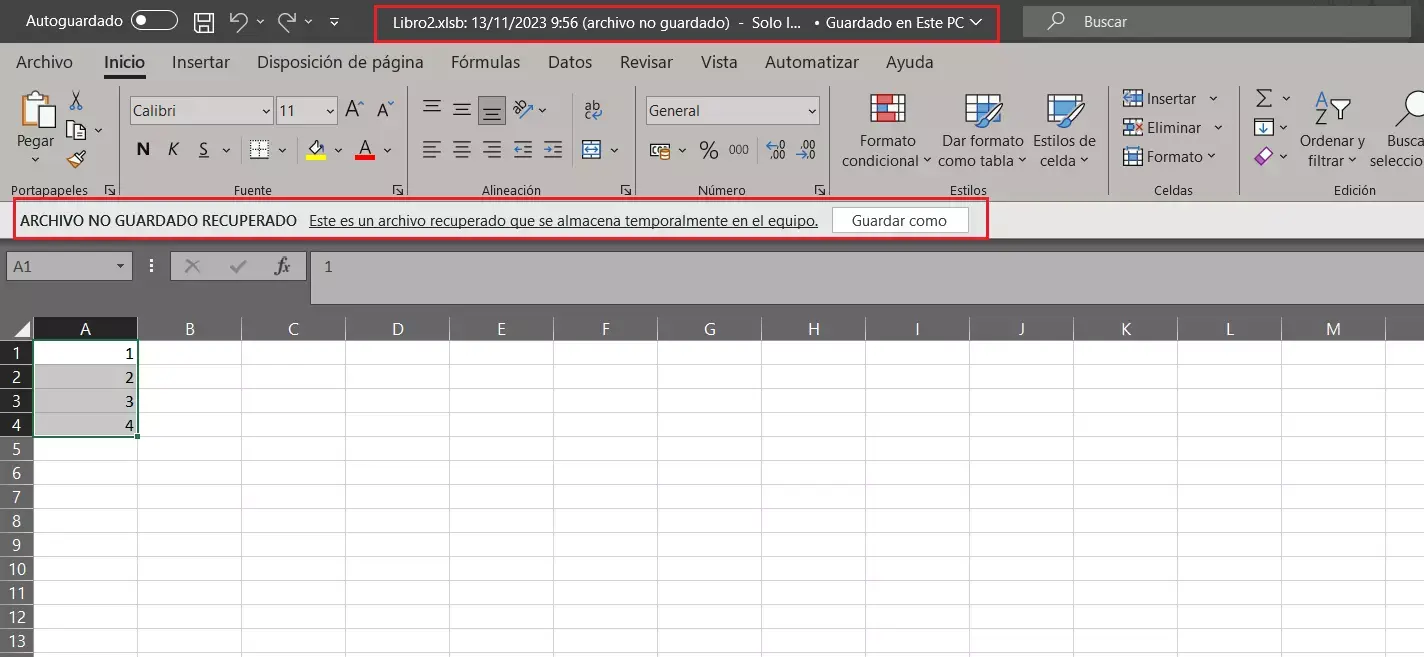
A large book doesn't always cause problems, but beyond a certain point, system limitations, file format, and how the pages are structured become more significant factors . The most common reasons for saving failures are fairly straightforward.
One of the most common problems is insufficient disk space or space on the network drive where you're trying to save the workbook . If there isn't enough room to create the entire temporary file, Excel will display warnings such as "Disk is full" and won't be able to complete the process.
Another common problem is restricted permissions on network drives or corporate folders . You might have read access, but not full write permission, which can cause saving to fail or prevent you from replacing the original file with the temporary one.
Conflicts with security software are also a factor. Some antivirus programs scan newly created or modified files in real time and can momentarily block access , precisely when Excel is in the middle of saving. The result: errors when saving existing workbooks, while new files appear to work without any problems.
Another critical issue is shared workbooks or workbooks opened by more than one user simultaneously . If you and another person try to save the same file at the same time, Excel is unable to overwrite it because another instance is already modifying it. This triggers the classic sharing conflict and file lock messages.
Finally, there's a rather underestimated cause: the length of the path and filename . In Windows, if the complete path (folders + filename) exceeds certain limits, Excel may return errors such as "The filename is invalid" when trying to save or open it, especially if it's close to 218 characters or more.
When the file size isn't what it seems: empty rows, formatting, and styles
A common source of headaches is discovering that a seemingly simple workbook, with just a few rows of data and some basic formulas, takes up hundreds of megabytes and takes ages to open and save . Many people have encountered a file of over 200 MB that, in theory, only contained a few sheets with simple calculations.
In many of these cases, the problem is that the sheet has hundreds of thousands or even millions of empty rows that Excel considers "used ," sometimes due to formatting applied unintentionally to the entire column, a stray cell at the end with a value or formula, or a poorly selected range.
A quick way to detect this is to use the CTRL + END combination to go to the "last used cell" that Excel recognizes in the sheet . If doing so takes you to an absurd row, far below the actual data area, it's a clear sign that something is marking those rows as active (either content or formatting).
The practical solution in these cases is to actually delete all the extra rows and columns down to the end of the sheet . For example, by placing your cursor in the row immediately after your last row of data, selecting all the rows and columns, and deleting them.
A typical procedure would be:
- Select the row directly below the last row with valid data or formulas (click on the row number).
- Use CTRL + SHIFT + Right Arrow to extend the selection to the last column.
- Pulsar CTRL + SHIFT + DOWN ARROW to select up to the last available row of the sheet.
- Delete all selected rows.
- Save the file, close it, and reopen it so that Excel "resets" the last used cell.
In more than one real-world case, applying this cleaning process to each page has reduced the size of a book from over 200 MB to less than 400 KB , with a dramatic improvement in opening and saving speeds. It also significantly reduces the risk of crashes.
Formats, styles, and conditional formatting: silent enemies of performance
Beyond "ghost" rows, another reason why large books become sluggish and freeze when saving is the overuse of formatting, styles, and conditional formatting rules.
Formatting cells is useful for making data understandable at a glance, but applying formatting to entire rows or columns that aren't actually used can cause the workbook size to skyrocket. The same is true for hundreds or thousands of different cell styles, which can also trigger the "Too many different cell formats" error.
To help with this, Microsoft offers an add-in called "Clean Up Excess Cell Formatting ," integrated into the Query tab of certain Office editions (Microsoft 365 and Office Professional Plus 2013, among others). If you don't see this tab, you can enable it by going to File > Options > Add-Ins , selecting COM Add-Ins in the Manage box, and checking the corresponding option.
Once the add-in is activated, simply go to the Query tab and use "Clean Excess Cell Formatting ," choosing whether you want to work on the current sheet or the entire workbook. After applying the cleanup, you'll need to save the changes to compress the file.
If the problem stems from too many styles already created in the workbook , you can use specific tools recommended by Microsoft, such as third-party utilities to clean styles in .xlsx/.xlsm files or plugins for binary .xls/.xlsb formats and protected or encrypted workbooks.
In parallel, it's also a good idea to review conditional formatting . If there are rules applied to huge ranges or duplicated across many sheets, you can free up resources and space by selecting Conditional Formatting > Clear Rules > Clear Rules from Entire Sheet on the Home tab, and repeating this process on any sheets where this feature has been overused.
Calculations, formulas, and RAM: why a "normal" workbook freezes when saving
Even if the file isn't huge in megabytes, the way the formulas are designed can cause Excel to push the available RAM to its limit and crash just when it tries to recalculate and save.
Typical cases that put a lot of pressure on the calculation engine are formulas that reference entire columns or rows without real need (for example, using SUM(A:A) in thousands of cells), and massive combinations of functions such as SUMIF, COUNTIF, SUMPRODUCT or array formulas over large ranges.
Volatile functions (such as NOW, TODAY, OFFSET, INDIRECT, among others) also play a part when used on a large scale, because they force Excel to recalculate very frequently, which is especially noticeable on computers with little memory.
If you've removed formatting, styles, and conditional formatting rules and the workbook is still behaving erratically, it's worth reviewing critical formulas that are repeated thousands of times or that apply to disproportionately large ranges. Simplifying references, limiting the calculation range to the rows actually used, or moving certain calculations to pivot tables or Power Query can significantly reduce the workload.
It's important to remember that, beyond a certain size and complexity, your computer's RAM becomes the main bottleneck . If the system runs out of RAM, the workbook might take forever to save or even crash. In these cases, in addition to optimizing the file, it helps to check memory usage in Windows and consider upgrading your RAM or closing other resource-intensive applications while working with Excel.
Row and column limits and file formats in Excel
Another key point, especially when working with large text files like .csv or .txt , is the grid limits of Excel and each file format.
If you open a very large dataset from a CSV file, Excel may display a warning such as, "This dataset is too large for the Excel grid. If you save this workbook, you will lose the data that wasn't loaded ." At that point, the file is already truncated: only as many rows and columns as the sheet supports have been loaded; the rest has been left out.
In these situations, it's crucial to keep two things in mind: first, you shouldn't save over the original file , because you'll permanently lose any data that hasn't been loaded. Second, if you need to work with the entire dataset, Excel alone isn't sufficient for grid leveling.
The safest option is to open a blank workbook and, from the Data tab, use Get & Transform Data (Power Query) with the "From Text/CSV" option to import the file. This allows you to load the entire dataset into the data model or a pivot table, even if it exceeds the visible row and column limits.
By loading it as the source for a pivot table (for example, by choosing "Load In" > PivotTable Report), the pivot table will be able to summarize and analyze the entire dataset , even though the worksheet grid cannot display it all at once. However, it's important to remember that this workbook no longer contains the "plain" CSV file, but rather a processed version.
Regarding the limitations of each format, older .xls files only support 65.536 rows per sheet , while .xlsx (and its derivative .xlsm) allow up to 1.048.576 rows. Therefore, when dealing with large volumes of data, it's essential to save in .xlsx format rather than .xls; you can read more about file formats in Office to choose the most suitable one.
Quick options for trying to save a problematic workbook without losing data
When you're already in the thick of it and Excel refuses to save, the most important thing is to try to preserve as much information as possible before you start running aggressive tests . There are several quite effective tactics you can try in sequence.
A simple first step is to save the workbook with a different name . From the File menu, using Save As and choosing a different name forces Excel to create a new file instead of replacing the existing one. Sometimes the problem only affects the original file, and this change bypasses it.
Another very useful method is to move all the important spreadsheets to a new workbook . To do this, you can create a "filler" sheet, group all the data sheets except that one, right-click, and choose Move or Copy, sending them to a New Workbook. This way, you're dragging the content but not necessarily all the "junk" accumulated in the original file.
If the workbook contains VBA macros, you'll also need to copy the code modules from the Visual Basic editor to the new workbook . This way, you don't lose any custom logic that might be associated with buttons, events, etc.
Sometimes, the problem is related to the specific file format. Trying to save the workbook in a different format can resolve the issue: for example, if the file is in .xls, try saving it as .xlsx or .xlsm, or even temporarily in another format to see if the save completes.
When you suspect the location (unstable network, slow external drive, etc.), a basic tactic is to try saving the file to a different folder or drive : a local disk instead of a network drive, a USB flash drive, etc. If it works there, you have clues that the problem stems from permissions, space, or the stability of the original path.
Check the original location: test saves and disk space
To further refine the diagnosis, it's helpful to run a small experiment: create a completely empty new workbook and try saving it in the same problematic location . If the new workbook saves without issue in that folder, the problem is likely with the original file, not the location. If you suspect the path, check the default save location for files.
If, however, you still can't save a new file to that location, you're almost certainly facing a problem with insufficient disk space or permissions . In the first case, you'll need to free up space, and in the second, review the permissions with your system administrator.
The behavior also provides clues about potential file name length or sharing conflicts . For example, if only files with very long names or files saved in paths with many subfolders fail, shortening the path and simplifying the name may be enough to get Excel working normally again.
If, after these tests, errors persist and there are no obvious space or permission issues, it is advisable to reconsider cleaning strategies: removing empty rows and columns, reducing formatting, debugging styles, and reviewing heavy formulas , as discussed earlier.
Try booting into safe mode and rule out external conflicts.
Another way to isolate the problem is to check how the file behaves if you boot the system in safe mode and work with the workbook from there . In this mode, Windows loads only the bare minimum, making it easier to rule out interference from third-party software.
If you're saving to a network drive, you can also start your system in Safe Mode with Networking and try saving the workbook to the same shared location . If everything works in Safe Mode and the file saves without errors, there's probably a plugin, antivirus software, sync tool, or something similar interfering.
In recent versions of Excel, the application's own safe mode can be used to disable third-party add-ins and see if any are causing save crashes . Temporarily disabling your antivirus software can also serve as a test: if the workbook saves correctly without it, you have a clear suspect.
If, even after starting in safe mode or without plugins, the workbook still cannot be saved correctly, then issues such as system permissions, an excessively long filename, or internal damage to the workbook itself are likely . In extreme cases, specialized repair tools may be necessary.
When a file is already corrupted and won't open or displays unreadable content errors, there are specialized Office document repair utilities capable of reconstructing .xls and .xlsx workbooks, recovering tables, images, charts, and formulas. These utilities typically allow you to repair multiple files at once and are compatible with different versions of Excel, although they should be considered a last resort.
Keep Excel and Windows up to date, and optimize the environment
Beyond the file's internal causes, it also makes a big difference whether both Excel and Windows are up to date . Many stability and performance fixes are distributed through updates, and these can make a significant difference with large workbooks.
Within the application itself, you can check for updates and apply them from your Office account, while in Windows, it's advisable to check Windows Update regularly to install patches and improvements . After certain major updates, restarting your computer may be recommended for the changes to take full effect.
If you notice that you only have problems saving when the file is on an external drive or USB disk , it's worth trying to work in a fast local folder first and, once the workbook is saved and closed, copy it to the external drive. This avoids bottlenecks or brief connection interruptions while you work.
It's also important to remember that Excel add-ins and third-party extensions can negatively impact performance, especially when they interfere with the saving process. If performance improves after disabling them, you'll know that one of them is causing the problem and you can decide whether to keep it, update it, or replace it.
Finally, using features like Autosave in Microsoft 365 helps reduce the impact of these problems, because the workbook saves changes frequently and it's less likely to lose large blocks of work if something goes wrong unexpectedly.
In short, understanding how Excel saves files, what factors increase the actual file size, and what to do when errors occur allows you to anticipate crashes and save most of your data, even in very large workbooks . With a few good practices (controlling formatting and styles, watching for empty rows, using the appropriate formatting, checking file paths, and keeping your computer updated), it's much easier to work with large files without fear of them being incomplete every time you click Save.


Passionate writer about the world of bytes and technology in general. I love sharing my knowledge through writing, and that's what I'll do on this blog, show you all the most interesting things about gadgets, software, hardware, tech trends, and more. My goal is to help you navigate the digital world in a simple and entertaining way.
Table of Contents
- 1 How Excel saves files and why it fails with large workbooks
- 2 Typical error messages when saving and what they really mean
- 3 Factors that prevent saving large files in Excel
- 4 When the file size isn't what it seems: empty rows, formatting, and styles
- 5 Formats, styles, and conditional formatting: silent enemies of performance
- 6 Calculations, formulas, and RAM: why a "normal" workbook freezes when saving
- 7 Row and column limits and file formats in Excel
- 8 Quick options for trying to save a problematic workbook without losing data
- 9 Check the original location: test saves and disk space
- 10 Try booting into safe mode and rule out external conflicts.
- 11 Keep Excel and Windows up to date, and optimize the environment