- Activate discrete 5.1 on speakers or virtual 7.1 on headphones from Sound Blaster Command.
- Uses Dolby Digital Live/DTS for multi-channel via optical to AV receiver.
- Fine-tune EQ, SBX, and CrystalVoice with presets and fine-tune your gear.
If you've just bought a Creative Sound Blaster Z or Z SE and want to activate surround sound that immerses you in every game or movie, you're in the right place . Here you'll find a detailed and practical guide to installing the sound card correctly, choosing the right connections, downloading the official software, and, most importantly, configuring surround mode (5.1 discrete and 7.1 virtual) step by step on your speakers and headphones.
We'll also cover key settings for SBX Acoustic Engine, Dolby Digital Live, DTS Connect, CrystalVoice, and equalization , with helpful tips for different scenarios (2.0, 2.1, 5.1, and headphones) and gain recommendations to reduce noise and distortion. In addition, we include official information on the SB1500 model (Sound Blaster Z SE) , product registration, technical support, and other small details often missing from other websites.
What the Sound Blaster Z / Z SE offers in surround sound
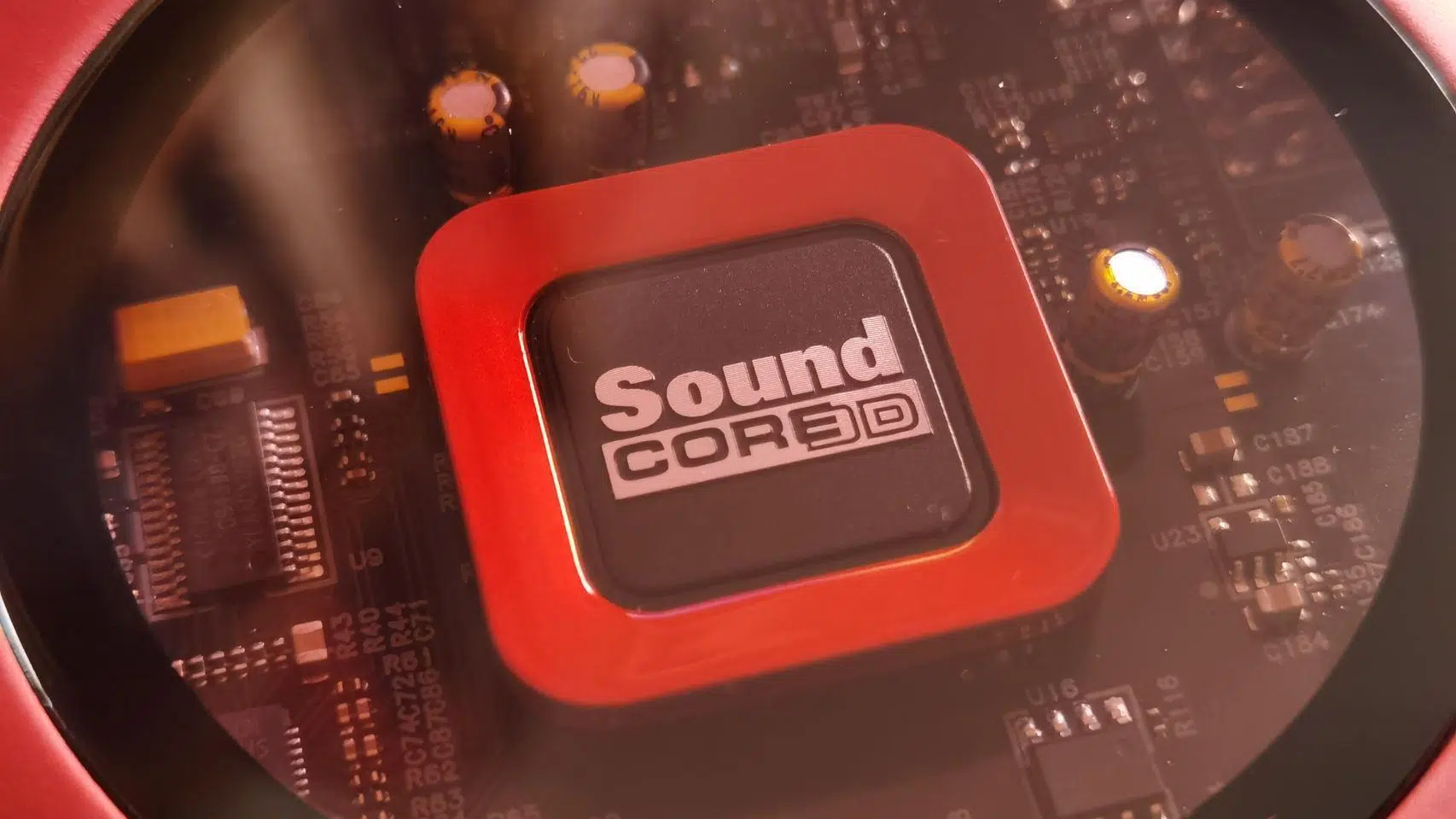
The Sound Blaster Z/Z SE family is designed for gaming, movies, and creating with high-fidelity audio . It offers up to 24-bit/192kHz quality, with a signal-to-noise ratio as low as 116dB for line-out, gold-plated connectors, and ASIO compatibility for low-latency, high-fidelity recording and playback . At its heart is the Sound Core3D chipset , which accelerates the effects of the Sound Blaster Acoustic Engine and CrystalVoice voice technologies.
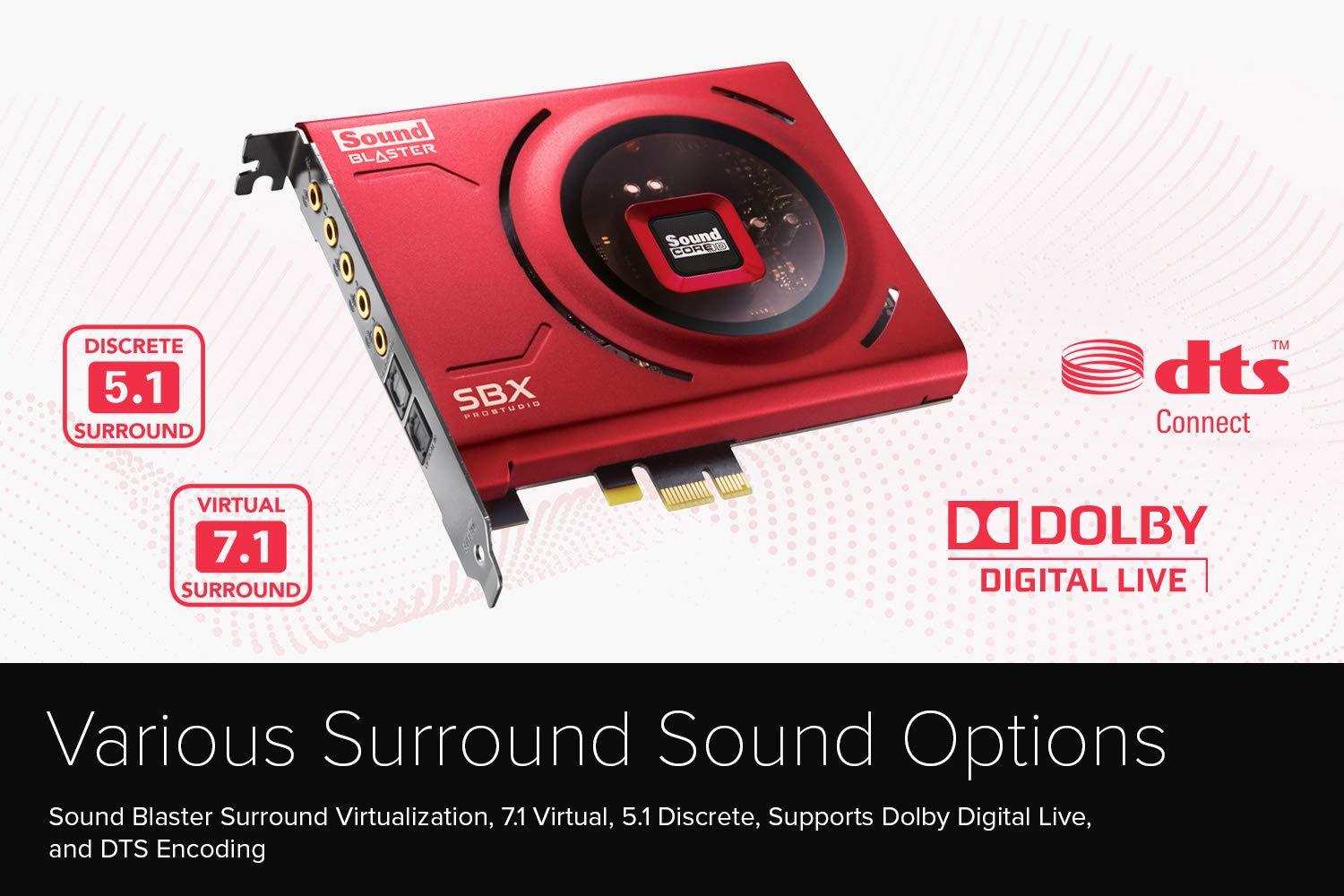
For surround sound, you have two great options : discrete 5.1 analog output on speakers and virtual 7.1 on headphones (and also on speakers if you opt for virtualization). In addition, the Z SE is compatible with Dolby Digital Live and DTS Connect for real-time encoding to AV receivers via optical output. Everything is managed through the Sound Blaster Command software , where you can switch on the fly between headphones and speakers when you want to seamlessly transition to a session with heavy bass.
The Z SE adds SBX Gaming EQ profiles ready for popular titles (Apex Legends, Fortnite , Overwatch, PUBG, etc.). These are internally tuned to sound great right out of the box, though you can always tweak the equalizer to your liking instead of starting from scratch. For the microphone, Command integrates EQ presets that compensate for specific headphones and, along with CrystalVoice , help reduce echoes, ambient noise, and improve clarity in chats or video conferences.
Regarding connections, the card (model SB1500) clearly labels each port : (a) Line-in/Mic-in, (b) Headphones, (c) Front L/R, (d) Rear L/R, (e) Center/Sub, (f) Optical-out, (g) Optical-in, and (h) Front Panel Header. Standard colors are helpful: front green , rear black , and center/sub orange . This organization simplifies the setup of 2.0/2.1/5.1 systems, headphones, and AV receivers.
Physical installation of the card (PCI-e) and requirements
Before doing anything, turn off your PC and unplug it from the power outlet . Remove the side panel of the tower and, if there is a pre-installed sound card, carefully remove it . Remove the metal plate from the PCI-e slot you will be using (important: do not confuse PCI and PCI-e ) and slide the Sound Blaster Z/Z SE in firmly but gently.
Reassemble the case, connect the power cable, and turn on the computer . If you're using the front audio connector on the chassis, remember to connect the Front Panel Header (h) before closing it up. It's a simple installation, but take your time to seat the card correctly in the PCI-e slot . If you have any questions about compatibility or installation, you can refer to how to enable the equalizer in Windows 11.
System requirements : The documentation indicates compatibility with Windows 7 and 8 (including 64-bit versions), a minimum of 1 GB of RAM, and a 2,2 GHz CPU. In practice, it works perfectly on modern Windows systems with current Creative drivers. For optical surround sound, ensure your AV receiver supports Dolby Digital/DTS if you plan to encode in real time.
Quick tip : If you're upgrading from integrated audio or another sound card, disable the old device in the BIOS or Windows to avoid driver conflicts and duplicate audio paths . Keeping your system "clean" greatly helps with ASIO and ensuring full control of the new sound card.
Typical connections and scenarios: 2.0, 2.1, 5.1, headphones and AV receiver
For 2.0 systems (pair of speakers) : connect to the Front (green) output . If you're only using 2.0, the card allows all SBX processing, but surround sound is pointless without rear speakers . You can apply virtualization, although the priority will be equalization and stereo imaging.
For 2.1 (speakers + subwoofer) : Connect the system as instructed by the manufacturer (usually still the front/green jack). In Command, you'll find Bass Redirection (Crossover) if the subwoofer is separate; if there's no subwoofer, this setting won't help . Adjust the crossover according to the system's response. For more information on audio setup on other devices, we recommend visiting our guide on how to pair a soundbar and TV.
For discrete analog 5.1 : use Front (green), Rear (black), and Center/Sub (orange) . On the panel, select 5.1 configuration and calibrate levels/delays. This setup allows you to hear true surround sound with dedicated rear channels.
AV receiver via optical : Connect Optical-out (f) to your AVR and enable Dolby Digital Live or DTS Connect for real-time encoding. If you're using Windows 11 for the hearing impaired , be sure to adjust the sound profiles as well.
Headphones : Connect to the Headphone (b) jack . Activate virtual 7.1 surround sound in Command and adjust the surround sound intensity. The Z/Z SE allows you to switch on the fly between headphones and speakers via the software, which is very useful if you alternate between late-night gaming sessions and using speakers.
Downloading and Using Sound Blaster Command
The Z/Z SE's central hub is Sound Blaster Command . Download it from creative.com/support/SBZSE along with the user manual. This software unlocks the entire interface: speaker and headphone settings, equalizers, SBX Acoustic Engine , CrystalVoice , and playback and recording settings.
SBX Acoustic Engine brings together effects such as Surround, Bass, Crystalizer, Smart Volume or Dialog+
To shape the sound signature, CrystalVoice focuses on voice: noise suppression, echo cancellation, directional focus, and more. In Z SE, you'll also find SBX game profiles ; load them and fine-tune them as needed. For more in-depth sound tuning, you can also consult our guide on choosing the best sound card.
Registration, support, and documentation : You can register the product from Command or at creative.com/register . The creative.com/support portal offers 24/7 knowledge base , downloads , and customer support. Keep your serial number and this document for future reference.
Compatibility with other panels : Some Creative speakers (such as the Roar series) have a Sound Blaster Control Panel specifically designed for those models, with SBX presets. For the Z/Z SE, the reference software is Sound Blaster Command , with the full suite of enhancements.
Activate and tune surround sound on speakers
- Select the correct topology: In Command, go to speaker settings and choose 5.1 if you use the Front/Rear/Center-Sub analog outputs. Run the channel test to verify that each speaker responds where it should.
- Calibrates levels and distances: Adjusts the volume of each channel and the distance/delay for center the “sweet spot” in your listening position. This is crucial for the surrounding field be consistent.
- Bass Management: If you have a separate subwoofer, enable the bass redirection and sets the crossover frequency according to the point where the system begins to decline. If there is no sub, don't activate itFor more information on adjusting it to your system, we recommend visiting how to set up sound bars.
- SBX Effects (optional): You can add a touch of Surround SBX to expand the scene and use Dialog+ to improve clarity in voices. Avoid overdoing it so as not to dislocate the image or generate fatigue.
Activate and tune virtual 7.1 on headphones
- Select “Headphones” as an output in Command and activates the virtual surround mode. The Z/Z SE allows you to simulate a field up to 7.1 channels in stereo headphones.
- Adjust the intensity: increase the effect until you perceive greater spatiality, but without losing focus in steps, shots and voices. The key is to achieve sharp directionality without artificial echo.
- Try the game presets: try the SBX Gaming EQ and the microphone preset that best compensates for your headphones. If the timbre becomes harsh, reduces treble or try another voice preset.
- Fast change: use the function of switch between headphones and speakers from the software for convenience without having to reconfigure in Windows.
EQ, SBX, and How-To Tips (2.0, 2.1, 5.1, and Headphones)
For 2.0 systems, surround sound is useless since there are no rear channels. In this case, focus on equalization according to your room and speakers . Many prefer to disable Crystalizer because of its tendency to create a "V" shape (emphasizing bass and treble) ; it's better to opt for a neutral EQ and adjust it to your liking.
The bass boost functions as a classic loudness compensator: useful at low volumes, but it can muddy the sound if you overdo it. For 2.1 or 5.1 systems with a real subwoofer, manage the crossover with Bass Redirection and avoid overlap between satellites and the subwoofer.
Usage profiles : create at least two EQ presets: one flatter for music and another with a slight "V" for movies/games (more bass for explosions and a little brightness to highlight dialogue without raising the volume too much).
Gain and noise reduction : To avoid hum, turn up the amplifier's volume until you hear no noise without a signal, mark that level, and adjust the sound card accordingly. The Z/Z SE tolerates high levels without adding noise , allowing you to lower the amplifier's potentiometer (usually the noisiest part) and maintain a good signal-to-noise ratio.
Headphone profiles : Save specific presets for each headphone model if you use different ones. Prioritize comfort and consistent listening experience, and don't duplicate configurations if they don't offer any additional benefits.
Digital Audio and AV Receivers: Dolby Digital Live and DTS Connect
If you're using the optical output to an AVR , enable Dolby Digital Live or DTS Connect real-time encoding in Command . This allows you to send multichannel audio from your PC for content or games that don't use bitstream. For an even better experience, you can also consult troubleshooting guides for sound and microphone issues in Microsoft Teams if you encounter any communication problems.
On video players with AC-3/DTS material, configure passthrough so the AVR decodes directly. Avoid double conversion from PCM to DDL/DTS if unnecessary. The goal is to maintain a clean, lossless signal chain.
To enhance your digital audio experience on your device , you can also learn how to use Emoson to track sound and check outputs and sounds in real time.
Microphone, voice, and remote work: CrystalVoice and presets
To improve voice clarity in games or video calls , activate CrystalVoice and try its echo cancellation and noise suppression features. Complement this with the microphone equalization presets in Z SE, which compensate for different headsets (less harshness, more naturalness, or mid-range boost for better intelligibility ). To check the entire system, you can also visit [link missing].
Perform test recordings with your preferred application and adjust input levels to avoid clipping . If you're recording music or voice, consider using ASIO to reduce latency and obtain a more direct connection.

Passionate writer about the world of bytes and technology in general. I love sharing my knowledge through writing, and that's what I'll do on this blog, show you all the most interesting things about gadgets, software, hardware, tech trends, and more. My goal is to help you navigate the digital world in a simple and entertaining way.