- The importance of prioritizing Windows installation over Linux to avoid conflicts with the boot manager.
- Managing disk space by creating unallocated partitions and using the shared EFI partition.
- The use of boot managers such as GRUB to manage the selection of the operating system when starting the computer.
- Modern alternatives such as virtualization and WSL are available for those seeking to avoid manipulating physical partitions.
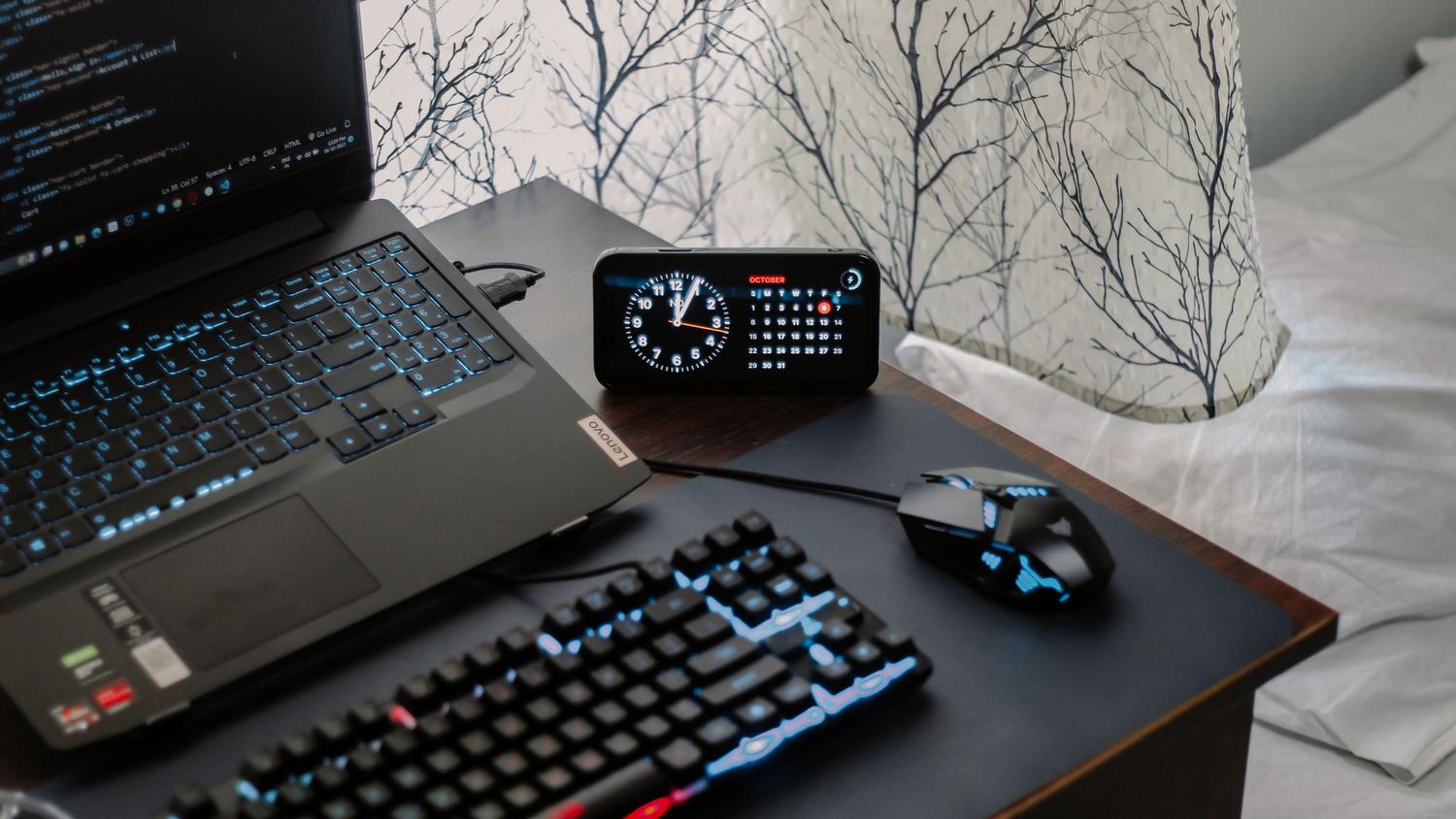
Having a computer that can run both Windows and Linux is essentially having the best of both worlds. While Microsoft's operating system remains the undisputed king for gaming and using professional software like the Adobe suite, Linux has become the preferred tool for developers, server administrators, or those who simply want a lighter and more open system. Setting up this configuration, known as dual boot, allows you to take full advantage of your hardware without the performance losses that virtual machines often experience.
However, we won't lie: messing with hard drive partitions can be a little intimidating if you don't know where to start. One mistake deleting a volume and you could wipe everything out , losing valuable files or leaving your PC without an operating system. Therefore, before touching anything, it's crucial to plan the installation order carefully and understand how the motherboard firmware and bootloaders communicate, ensuring a smooth experience and preventing you from ending up with a black screen when you turn on your computer.

Preparations and safety before starting
Before diving in, there's a golden rule: back up everything you consider important. No matter how confident you are in the tutorial, a power outage or a wrong click can be disastrous. It's also highly recommended to create a Windows restore point so you can revert to a previous state if things go wrong.
On a technical level, you should verify that your PC uses UEFI mode instead of legacy BIOS and that the disk has a GPT partition table. This is vital because modern systems manage booting differently. It's also advisable to note down your Windows product key and ensure you have at least an 8GB USB drive on hand to create the installation media for your chosen Linux distribution, whether it's Ubuntu, Fedora, or Arch.
The order of installation: the key to success
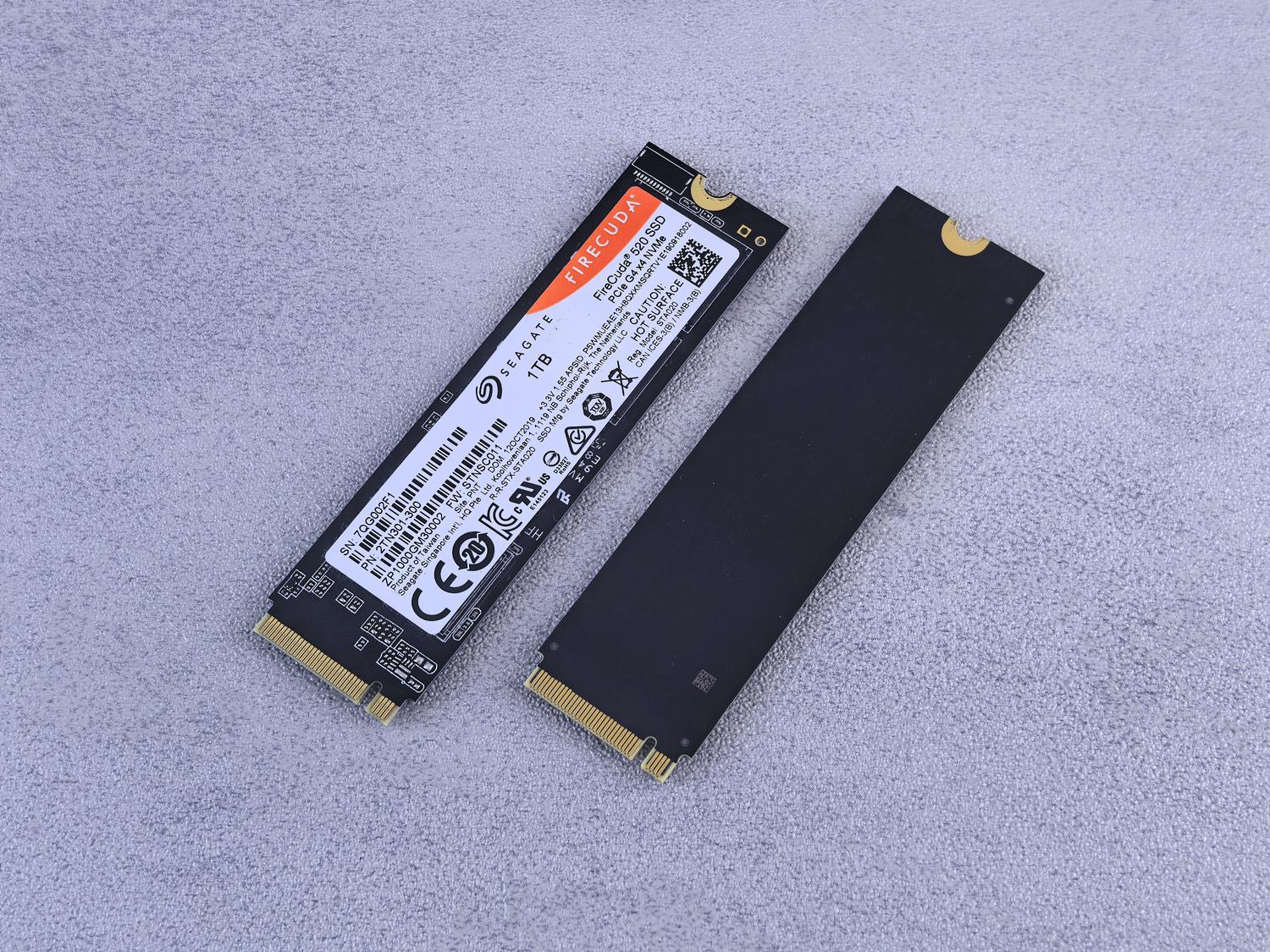
If you're going to install both systems from scratch on the same disk, the order is crucial: install Windows first, then Linux . The reason is simple: Windows is quite "selfish," and if you install it afterward, it will most likely overwrite the Linux boot manager, making the latter invisible at startup. Linux, on the other hand, is much more cooperative, and its boot manager, the well-known GRUB, can detect that Windows is present and automatically add it to the boot menu.
Ideally, if you have the budget or space, you should use separate hard drives for each system. This way, each has its own boot partition, and the risk of one damaging the other is virtually nonexistent. In this scenario, you would only need to configure in the BIOS which of the two drives has boot priority.
Preparing the ground in Windows

If you already have Windows running, you don't need to erase everything. You can use Disk Management to shrink the volume of the C: partition . Right-clicking and selecting "Shrink Volume" will free up space that will be designated as "unallocated." For comfortable use, it's recommended to allocate at least 50 to 100 GB for Linux, depending on whether you'll only be browsing or setting up a complex development environment.
There are two critical settings you need to adjust in Windows to avoid headaches. First, disable Fast Startup in the power options; otherwise, Windows leaves the disk in a partial hibernation state that can corrupt data when Linux tries to access it. Second, if you have BitLocker enabled , fully decrypt the drive, otherwise the Linux installer won't be able to read the partitions or install the bootloader correctly.

Linux installation and partition management

Once you have the bootable USB drive (created with tools like Rufus or the `dd` command), restart your PC and enter the UEFI settings to boot from the USB drive. During the installation process, it's highly recommended to choose manual or advanced partitioning . This allows you to decide exactly where each partition goes instead of letting the wizard make decisions you might not like.
In the empty space you left, you can create a root partition (/) and, optionally, a separate /home partition. Doing the latter is a pro tip, as it allows you to reinstall the operating system in the future without deleting your personal documents. Most importantly, there's the EFI System Partition (ESP). Don't format it, as this is where the Windows boot files reside; simply assign it as a mount point at /boot/efi so that Linux can place its boot files there.
Understanding boot managers
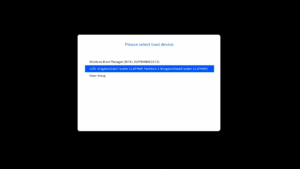
The boot manager is the program that takes control immediately after you turn on your computer. In the Linux world, GRUB is the standard due to its extensive compatibility and customization capabilities. If you notice that your PC boots directly into Windows without prompting you, it's likely that the Windows Boot Manager has priority in the UEFI. You can fix this by changing the boot order , moving the Linux entry to the top of the BIOS hierarchy.

There are other tools for managing this process. For those who prefer not to use the terminal, Grub Customizer is a fantastic application for changing the boot order, adjusting the timeout, or changing the menu's appearance. On the other hand, if you only use Windows versions, Microsoft's own Grub manager is sufficient, although programs like EasyBCD make editing the BCD easier without risking system failure.
Alternatives to physical Dual Boot
If you think manipulating partitions is too risky, or if you only need Linux for specific tasks, there are simpler options. Virtual machines (using VirtualBox or VMware) allow you to run Linux as if it were an application within Windows. This is the safest option because you don't touch the actual hard drive, although performance is lower since the system has to share RAM and CPU with the host.
For developers, the crown jewel is WSL (Windows Subsystem for Linux) . This Microsoft tool allows you to run a Linux terminal directly on top of Windows without needing to restart your computer or create partitions. It's incredibly fast and efficient, ideal for using Docker or command-line tools, although it doesn't offer a complete desktop experience like a native installation.
Final adjustments and troubleshooting
It's very common to notice that the Windows time is incorrect after setting up dual booting . This happens because Linux uses UTC and Windows uses local time. The simplest solution is to run a command in the Linux terminal to make the system use the local clock, thus preventing Windows from becoming misconfigured every time you switch operating systems.
If Windows disappears from the GRUB menu, don't panic. Usually, running `sudo update-grub` in Linux is enough for the system to scan the disk, find the Windows NTFS partition, and add it back to the list. In more serious cases, where the PC says there is no boot device, you can use a recovery USB drive to reinstall the bootloader from a live environment.
Mastering dual booting involves understanding the relationship between hardware and software, from shrinking volumes in Windows to configuring GRUB and managing UEFI. Whether you opt for the raw power of a native installation, the convenience of WSL, or the security of a virtual machine, the key is to always maintain an up-to-date backup and follow a logical installation order to take full advantage of the versatility of both operating systems on a single machine.

Passionate writer about the world of bytes and technology in general. I love sharing my knowledge through writing, and that's what I'll do on this blog, show you all the most interesting things about gadgets, software, hardware, tech trends, and more. My goal is to help you navigate the digital world in a simple and entertaining way.