- Windows 11 includes reset and cleanup options that, when used correctly, allow you to almost completely erase your personal data.
- The most secure methods combine disk encryption, erasing free space, and specialized tools for HDD and SSD disks.
- Before selling or giving away the computer, it is also advisable to clean programs, residual files, backups and possible malware threats.
- There is no single perfect method: you have to choose the strategy according to the type of unit, the level of security required and the future use of the equipment.
Before getting rid of your laptop or desktop PC, the most important thing is not the price you sell it for, but ensuring that your personal data disappears securely and no one can recover it afterward.
With Windows 11, it's tempting to simply delete documents or even format your computer, but that falls short: most of those files are still recoverable with forensic or recovery tools . In this guide, you'll see, step by step and in great detail, how to thoroughly clean your Windows 11 computer to get it ready to sell, give away, or recycle without any unpleasant surprises.
Why deleting files or formatting the disk is not enough
When you press Delete or empty the Recycle Bin, Windows is actually just marking the space as "free," but the data is still physically on the disk until it's overwritten with something else, so someone with decent recovery software could rescue it.
The same thing happens with many quick formats or deleting partitions: the disk seems empty, but much of the information is still there , only the system no longer has the index of where each thing was.
That's why it's important to differentiate between several common actions that are often mixed up in the same conversation: securely erasing, destroying, formatting, and simply deleting files . These are different things and don't offer the same level of protection.
Differences between deleting, destroying, formatting, and removing files
In the world of digital storage, several terms are used that sound similar but do not mean the same thing; understanding them will help you choose the right method according to the level of security you need.
When we talk about securely erasing or wiping a disk , we mean overwriting all sectors with new data patterns, usually in multiple passes. This makes the original data completely unrecoverable with current tools , even using advanced techniques.
If what you do is destroy specific files , the goal is similar but at the level of individual files: the areas of the disk where those files are located are overwritten, so that only the selected ones become impossible to recover , keeping the rest of the information intact.
Formatting or deleting a partition is usually less drastic. A quick format, for example, removes the logical file system structures but doesn't touch all the disk's contents , so with a little patience, much of the information could be recovered using specialized software.
When you simply delete a file from Explorer, you don't even get that far: Windows only frees up the space so it can be reused later , but until it is overwritten, the file continues to "float" on the disk and is relatively easy to recover.
Built-in options in Windows 11 for securely erasing data
Windows 11 includes several built-in features that, when combined effectively, allow you to thoroughly clean a computer without the need for external tools in many cases . It's important to be aware of their limitations and in what situations they fall short.
The most visible option is "Reset this PC ," designed precisely to prepare the PC for someone else. You can find it by going to Settings > System > Recovery , where you'll see the section for resetting the PC.
When you start the process, Windows offers two options: “Keep my files” or “Remove everything .” If you're going to sell or give away the computer, the only sensible option is the second, which deletes your profiles, documents, applications, and settings, reinstalling Windows from scratch.
Within that option, there's another key detail: you can choose between "simply delete my files" or "delete files and clean the drive ." The first is faster but more recoverable; the second takes considerably longer because it performs a more thorough erase of the drive, overwriting the data.
Although this additional cleaning significantly improves security, Microsoft warns in its documentation that these features are intended for home users and do not meet the stricter forensic erasure standards that certain companies or public bodies may require.
Encrypt the disk with BitLocker or Device Encryption before erasing
A very effective way to increase the level of protection, even before deleting anything, is to fully encrypt the system drive . This way, any remaining data that might be left after a clean erase will be unreadable without the encryption key.
On many modern computers with Windows 11, especially laptops, device encryption is enabled by default when you log in with a Microsoft account and the hardware is compatible with BitLocker Device Encryption (BDE).
To check if your computer supports it, you can open the System Information tool (Msinfo32.exe) running as administrator and check the Device Encryption Support field in the summary. If it indicates that it is enabled or supported, you're on the right track.
In the Pro editions of Windows 10 and Windows 11, you also have the dedicated “Manage BitLocker” console (just search for “BitLocker” in the Start menu) from which you can encrypt the system drive and additional data drives.
When you enable encryption, make sure you select the option to encrypt the entire drive, not just the currently occupied space . This includes free space as well, so any remaining old data will be encrypted and useless even if someone physically recovers it.
Clean the free space with the Cipher command
If your computer does not support device encryption or you do not want to activate BitLocker, you have another tool built into Windows that, although less well known, is very useful: the Cipher command with the /W modifier.
This command is executed from a command prompt window with administrator privileges; for example, you can open the Start menu, type “cmd”, right-click on Command Prompt and choose “Run as administrator” to launch it with elevated permissions.
Once in the console, you can use a command like Cipher /W:C:\ (adapting the letter to the corresponding volume) to tell Windows to overwrite all the free space on that drive.
This process fills the unallocated space with temporary data and then deletes it, so that traces of deleted files are overwritten and become unrecoverable with typical recovery tools.
The drawback is that, depending on the disk size and the amount of free space, it can take many hours to complete the operation , so it's usually a good idea to leave the PC on and running overnight or at a time when you don't need the computer.
SSD-specific tools: manufacturer's secure erase
In modern computers you will almost always find an SSD instead of a mechanical hard drive; these devices handle memory differently and, in many cases, traditional overwrite passes are not the best strategy to guarantee a complete erasure.
That's why major SSD manufacturers include their own utilities with "secure erase" functions that send a special command to the drive to internally delete all memory cells in a controlled manner.
For Samsung drives, for example, you can use Samsung Magician , while for Intel SSDs there's the Intel Memory and Storage Tool . Other brands, such as Crucial, offer similar solutions, like Crucial Storage Executive with safe wiping options.
Microsoft's Surface devices even have a dedicated tool called Microsoft Surface Data Eraser , which runs from a bootable medium and is specifically designed to leave these tablets and laptops ready for reuse without data leaks.
It's always advisable to consult the official management utility from your SSD manufacturer to take advantage of this secure erase, as it respects the hardware's specific characteristics and is usually more effective than trying to emulate classic disk erases on flash memory.
Reset Windows 11 or do a clean install from scratch
Once you've encrypted the drive or are familiar with the secure erase tools, it's time to restore the system to its original state. In many cases, simply using the Windows 11 reset wizard and choosing the most drastic options is sufficient.
As we have seen, the correct path involves going to Settings > System > Recovery > Reset this PC , choosing "Remove everything" and then enabling the option to delete files and clean the drive so that Windows can perform a more thorough cleaning.
During the setup wizard, you'll go through several confirmation screens, precisely to prevent you from accidentally resetting your device . This process erases all personal content, so make sure you've backed up anything you want to keep.
If you prefer the "classic" approach, you can use a bootable Windows 11 installation medium (a USB drive with the official Microsoft tool) to boot your PC from there, delete all disk partitions, and perform a clean installation.
This approach has the advantage that you literally start from scratch and can even resize partitions or change the partition table scheme, but don't forget that if you don't combine this with pre-encryption or secure erase, there could still be recoverable remnants on mechanical disks.
Third-party software for secure erasure in Windows 11
In addition to the native options, there is a whole ecosystem of specialized programs that allow you to erase entire disks, partitions, or individual files with different levels of security , some of them especially geared towards professional environments.
Tools like EaseUS Partition Master, for example, offer a specific data erasure module that allows you to choose the number of overwrite passes ; the higher that number, the more difficult (and practically impossible) it will be to recover anything.
Within this type of application you usually find two main functions: on the one hand, to delete only a specific partition of the disk when you don't want to touch the rest, and on the other hand, to clean the entire disk, including all volumes and the partition table.
The graphical interface makes it easy to start complex tasks with just a few clicks, whether it's destroying entire volumes, irreversibly deleting folders and files, or even recreating the partition table after deletion to leave the disk ready for other use.
As an added bonus, many of these suites integrate advanced features such as resizing partitions, migrating the operating system to a new SSD without reinstalling , or splitting large disks into smaller units, which can be useful if, after cleaning a computer, you want to reorganize its storage.
Other cleaning and deletion utilities in Windows
Beyond simply wiping your computer securely, it's also important to clean up accumulated junk files, uninstall unnecessary programs, and review files that take up too much space , especially if you're going to continue using the computer yourself and just want to give it a "diet."
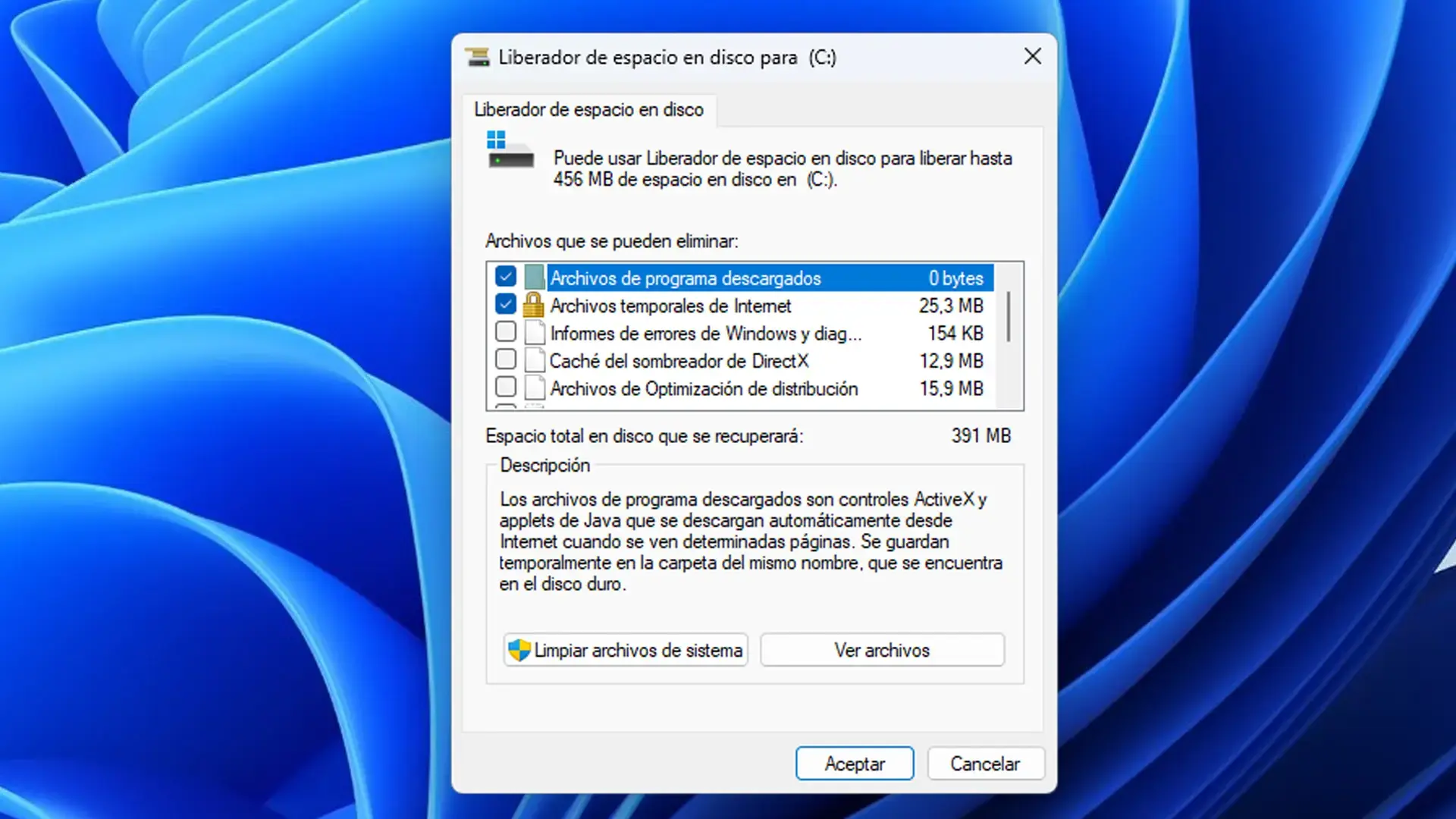
Windows 11 includes the classic Disk Cleanup tool (cleanmgr) , which you can access by typing "cleanmgr" in the Start menu and running it as administrator. From there, you select the drive, and Windows calculates which temporary, system, or Recycle Bin files can be deleted.
Within the Settings app, under System > Storage , you also have a very complete panel to see how much space applications, temporary files, personal documents and other types of content occupy.
The "Cleaning Recommendations" section suggests deleting large files you haven't opened in a while, cloud-synced items that duplicate space, apps you haven't used for a while, and various temporary files that don't contribute anything.
From that same panel you can activate the “Storage Sense” , a system that periodically empties temporary files, cleans the recycle bin and deletes content from the downloads folder or OneDrive according to the rules you configure, keeping your PC lighter in the long term.
Uninstall programs and clean up application remnants
If your goal is not to sell the PC but to make your Windows 11 as clean and fast as possible , a good part of the job involves removing programs you no longer use and deleting the remnants they leave scattered throughout the system.
From Settings > Apps > Apps & features you can see the full list of installed programs, use the search bar to locate common suspects, and easily uninstall anything that no longer makes sense to keep.
In some cases, uninstalling from this screen fails or doesn't remove everything, especially with traditional applications installed from an .exe file ; in those situations, it's best to use the old Control Panel and go to "Uninstall a program" to try from there.
When none of that works, many applications include their own uninstaller, or there are specific third-party deep uninstallation tools that search for and delete residual files, orphaned folders, and registry entries related to the removed program.
You have to be careful when manually deleting folders, because many applications store internal data in paths like C:\Users\yourusername\AppData (Local, LocalLow and Roaming) , and deleting something randomly can cause a program to stop working or make Windows unstable.
Organize, free up space, and find large files
Another important aspect of "cleaning" a system, even without completely erasing it, is to review what actually occupies your hard drive and decide what can be deleted or moved to another location, such as an external drive or the cloud.
In the same Storage section of Settings, you can go to the "Other" section to see which folders are using the most gigabytes. They are listed from largest to smallest, making it easy to identify directories with excessive storage.
From there you can jump directly to the File Explorer, calmly review and delete only what you are sure you don't need : copies of old installers, huge videos that you already have elsewhere, or obsolete projects that take up half a disk.
It's also a good idea to take a look at your desktop and Downloads folder , which over time can become veritable junk drawers and can slightly slow down startup if they are full of files.
To improve your daily organization, you can take advantage of Explorer's Quick Access feature by pinning frequently used folders to the top of the sidebar, avoiding having twenty shortcuts scattered across your desktop.
Managing duplicate photos and redundant content
One type of file that tends to eat up space almost without you noticing are photos and videos; if you also sync with your mobile phone or make multiple copies, it's common to end up with lots of duplicate images that don't add anything.
Windows 11 does not come with a specific tool for finding duplicates, so in this area third-party applications that can compare images by content , not just by file name, usually come into play.
This type of program allows you to select one or more folders (or even entire drives), scan them, and present pairs or groups of identical or almost identical photos so you can decide which ones to keep and which ones to discard.
Before you start deleting everything en masse, it's a good idea to carefully review the previews, because sometimes the differences are subtle (different resolutions, edited versions, etc.) and you might want to keep a specific copy because of its quality or the way you processed it.
Although it is not a "secure" deletion technique in the forensic sense, reducing duplicates and unnecessary copies frees up a considerable amount of space and facilitates subsequent backup or encryption processes.
Extra security: malware scan and careful registration
Once you're deep into cleaning, it's always a good idea to perform a thorough scan for viruses, Trojans, spyware, and other malicious software that may have infiltrated your system without you noticing.
Windows Security itself (the built-in antivirus) is more than enough for most users; you can open it from the hidden icons in the taskbar and go to the "Virus and threat protection" section.
From there you can launch a quick scan for a superficial review or go to "Scan Options" to choose a thorough full scan, a custom scan of certain folders, or even an offline scan that restarts the system and looks for persistent malware.
Regarding the Windows registry, it's tempting to think that manually deleting all entries of uninstalled programs will leave the system "cleaner ," but it's a delicate area, and messing with it without knowing what you're doing is almost a sure recipe for breaking things.
If you ever decide to use the Registry Editor (regedit), always perform a security export before changing anything and make sure that what you are deleting actually corresponds to software that is no longer installed, carefully checking the user and machine keys.
Other considerations: external devices, backups, and accounts
When securely deleting data, it's also important not to forget external drives, USB flash drives, USB disks, and memory cards that may contain sensitive information and sometimes go unnoticed.
Before disconnecting any storage device, always use the "Safely Remove Hardware and Eject Media" icon in the system tray to minimize the risk of data corruption and ensure there are no pending writes.
If the icon is not displayed, you can go into the taskbar settings and in the "Notification Area" section choose which icons you want to appear, activating the safe removal icon to always have it at hand.
Don't forget to also check old backups linked to your Microsoft account that the system offers when setting up a new PC as the source for restoring apps and settings; if you don't want them to keep being suggested, it's a good idea to manage those backups in the cloud.
Finally, if you are going to give the device to someone else, it is good practice to sign out of all your accounts (Microsoft, browsers, cloud services) and, if necessary, remove the device from the list of devices associated with your main account from the Microsoft website or the corresponding provider.
By applying a sensible combination of disk encryption, a full reset with drive wiping, possible secure erase tools for HDD/SSD, and a good review of programs, files, and backups, it is perfectly possible to leave a Windows 11 PC ready to change hands without your personal information being at risk and with the peace of mind that, even if someone tries to recover data, what they find will be completely unreadable or irrelevant.


Passionate writer about the world of bytes and technology in general. I love sharing my knowledge through writing, and that's what I'll do on this blog, show you all the most interesting things about gadgets, software, hardware, tech trends, and more. My goal is to help you navigate the digital world in a simple and entertaining way.