Would you like to know how to switch back to the classic WordPress editor ? WordPress has made a big change to its default editor in its latest version. But if you prefer the old way, we've prepared a short guide that will explain the benefits of choosing the classic editor over the new Gutenberg editor. We'll also give you an overview of how it works.
Gutenberg looks very different because it is a series of blocks instead of one big editing box inside. You may get confused if there are errors in WordPress or if you have done something wrong.
If you're using version 5 or higher, the editor will be very different. But, if you don't like the new editor, this guide will help you switch back to the classic WordPress editor, which you might be more familiar with.
3 Ways to Revert to the Classic WordPress Editor
Why disable the Gutenberg editor to return to the classic WordPress editor? The developers are still updating the Gutenberg plugin. The Gutenberg editor should work normally on your WordPress site, however, you may need to disable it.
You might also be interested in reading about: How to Create a Forum in WordPress
In fact, it may be better to disable the Gutenberg editor until you have had time to test it properly. You may also prefer to wait until the module is more stable before you can use it.
It is important to note that the two proposed solutions are not necessarily solutions to be used in the long term. Indeed, WordPress 5.0 uses the Gutenberg editor by default and it is very likely that one day you will have to adopt it permanently. Also, it is good to know that the classic editor will no longer be updated as of December 31, 2021.
Method 1: Revert to the classic WordPress editor by downloading plugins
- Step 1:: The first thing you will need to do to switch back to the classic WordPress editor is to download the Classic Editor plugin version.
NOTE : This plugin is developed and supported by the official WordPress organization, so you can trust that the WordPress team has tested it. You can find the Classic Editor plugin by searching for it in the plugins section of your WordPress admin area. The image below shows where to find the plugin in the WordPress admin panel.
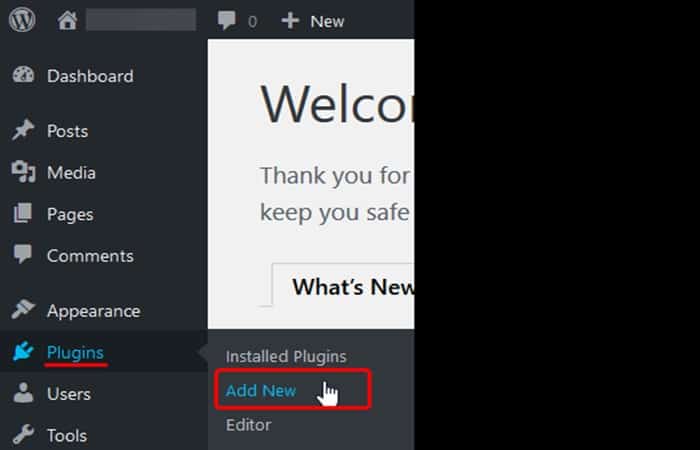
Step 2 : Next, go to the search add-ons area and then click the Install Now button.
How to install a plugin with WordPress
You can also install the plugin by following the steps below:
- Step 1:: First, you'll need to start by logging into your WordPress dashboard.
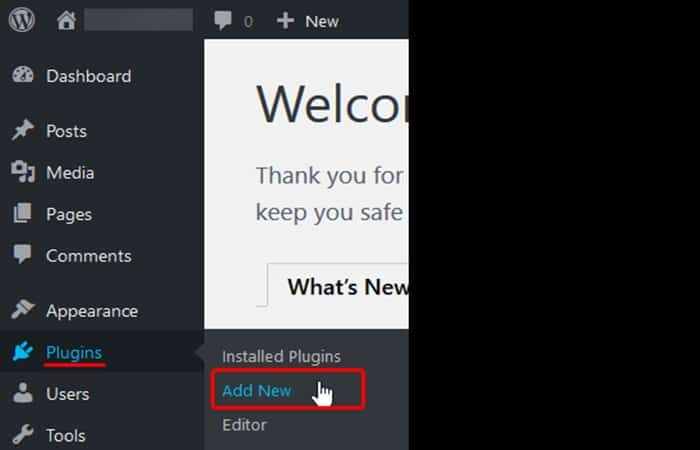
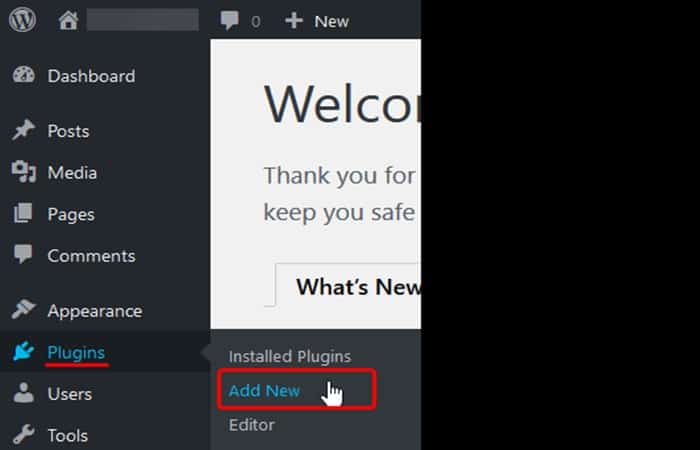
- Step 2:: From inside the board, on the left, you will see a list of options. You will need to scroll down and look for the option Plugins -> Add New from the list and click on it.
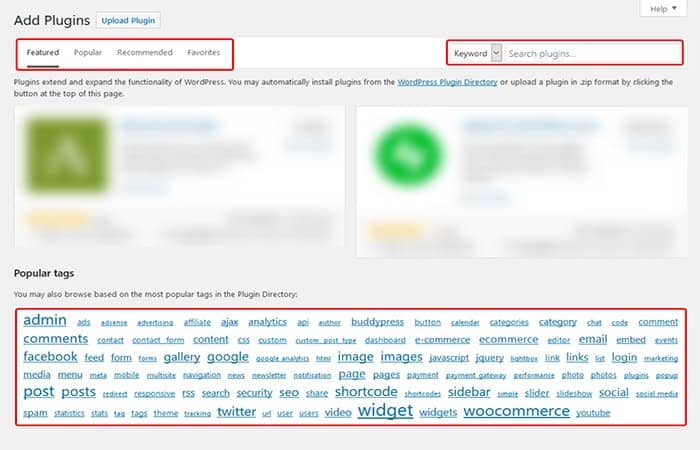
- Step 3:: From the next page, you will have the option to search the WordPress plugin repository. You can search by keyword, author, or even a tag of the plugin you are looking for. You can also view featured, popular, and recommended WordPress plugins. With the Favorites tab, you can view a WordPress.org user's favorites using their username. At the bottom you'll find a nice selection of popular tags to choose from.
- Step 4:: When you have found the plugin you want to install, you will be given the option to install the plugin listed in the box Description of accessories.
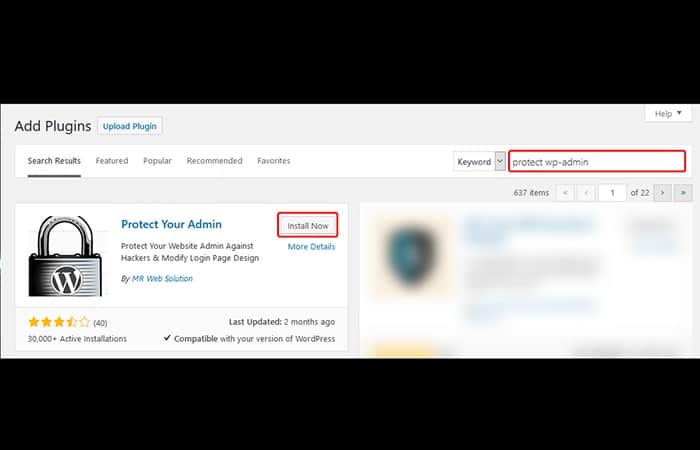
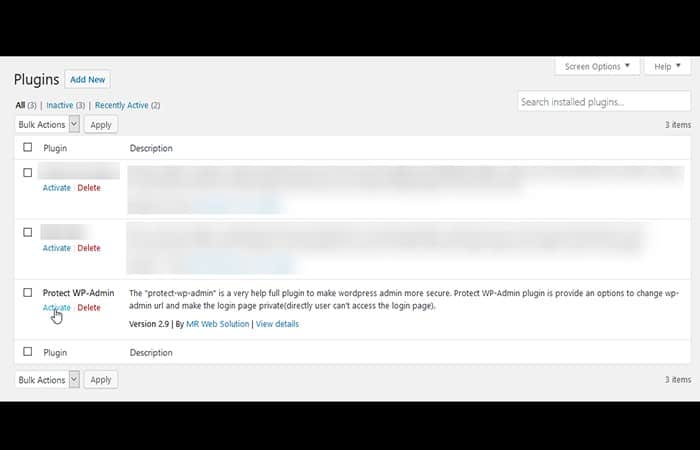
- Step 5:: Then, you need to click on Install Now to install the plugin on your WordPress. By default, this will only install the plugin but not automatically activate it. The example below is made with the plugin Protect Your Admin from the WordPress plugin repository.
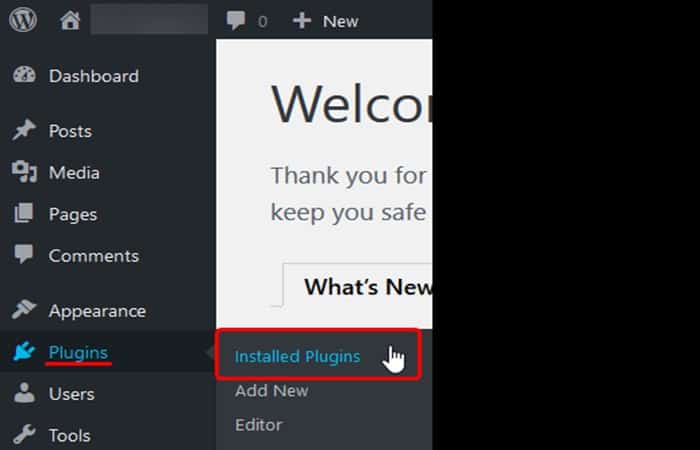
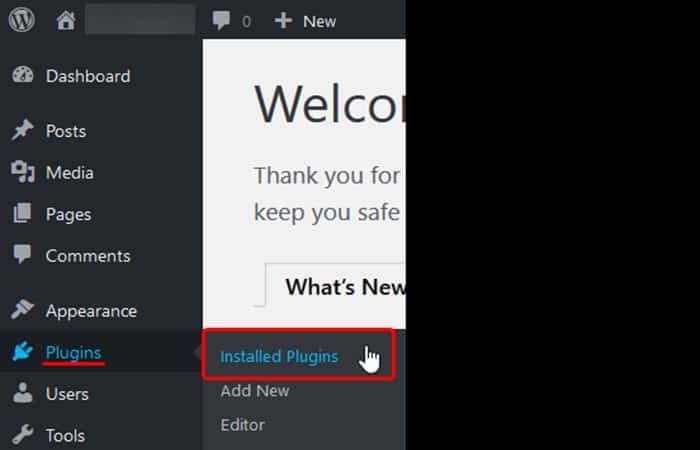
- Step 6:: Once installed, you can navigate from the sidebar to Plugins -> Installed Plugins to activate the plugin on your site.
- Step 7:: You can activate the plugin from the Installed Plugins page by clicking on the link Activate for this plugin.
How to install a custom plugin from the WordPress dashboard
While it can be nice to access plugins through the WordPress repository, some developers may want to limit access to their plugins or provide custom plugins for clients.
Either way, you can also install them. The following steps assume you have a WordPress plugin in .zip format.
- Step 1:: Similar to the previous steps, you need to start by logging into your WordPress dashboard.
- Step 2:: After logging in, you need to go to Plugins -> Add New as if you were installing a plugin from the WordPress repository.
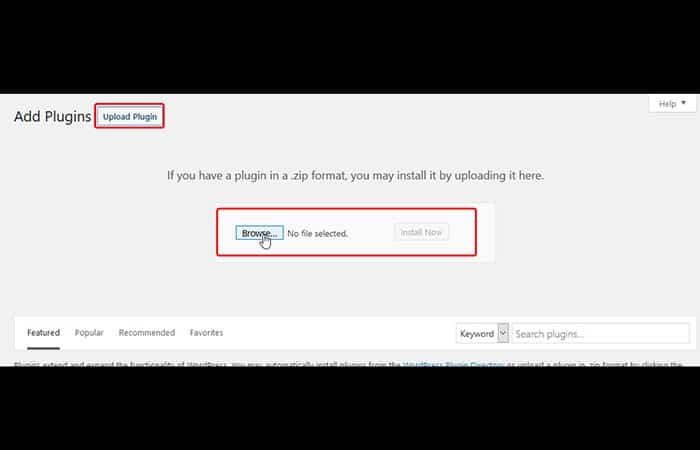
- Step 3:: On this page, you should notice a button near the top to Download the plugin. You click on it and it should expand to reveal a new menu.
- Step 4:: You will have to choose ..and look for the .Zip file* on your local computer for the plugin in this menu. Once you have selected the plugin you want to install, click Install Now.
- Step 5:: After installing the plugin, you will need to activate the plugin from your dashboard by going to Plugins -> Installed Plugins.
After installing the plugin return to the classic WordPress editor
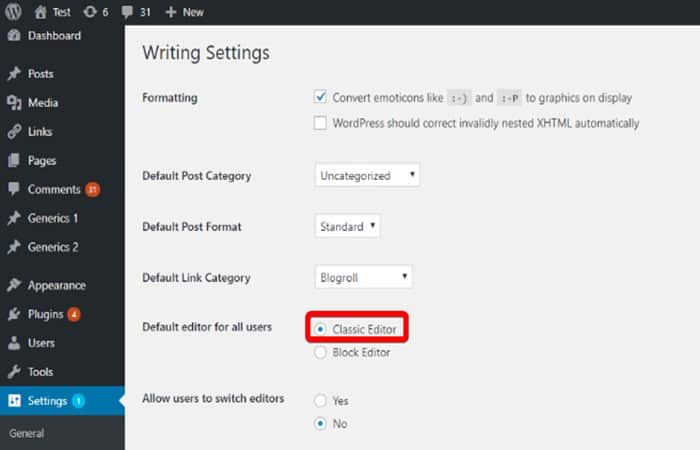
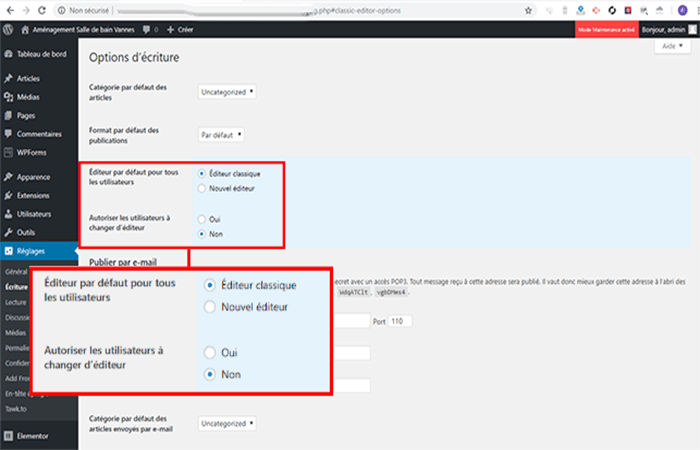
Now that the Classic Editor plugin is installed , you'll need to activate it by selecting Settings in the MordPress admin panel and then changing the default editor for all users to Classic Editor. This is highlighted in the red box in the image below:
Edit the options to display to return to the classic WordPress editor
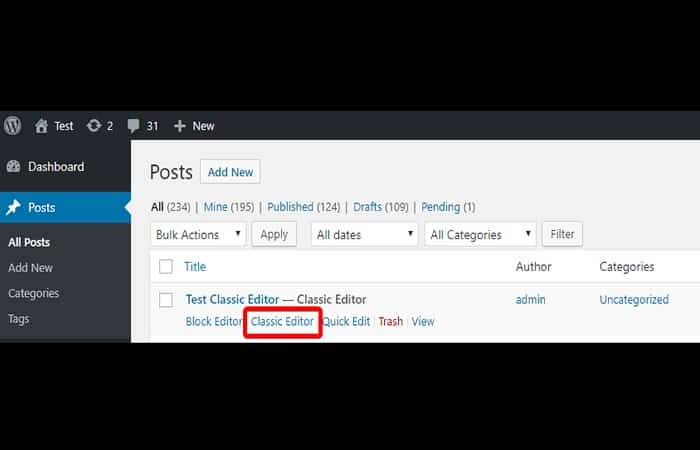
You'll now see the Block Editor and Classic Editor listed below each of your posts, and you can choose between them when entering a message.
You can also access it via the post title, and you should see the classic editor by default. If you choose the block editor , this specific post will open in your chosen block editor.
You can also exit the message and ring the classic editor to resume editing with the classic editor.
Method 2: Disable Gutenberg Editor to Return to the Classic WordPress Editor
The Classic Editor plugin isn't new, but it allows you to restore the old WordPress editor . Let's see how to disable the Gutenberg editor to return to the classic WordPress editor in the following steps:
- Step 1:: Log in to your WordPress Dashboard, then you need to go to «Extensions" and then to "Add".
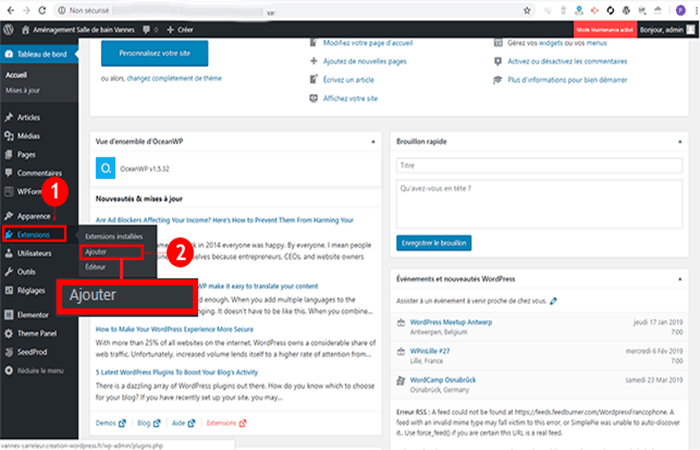
- Step 2:: Search for the plugin «Classic editor» and click on the «Install".
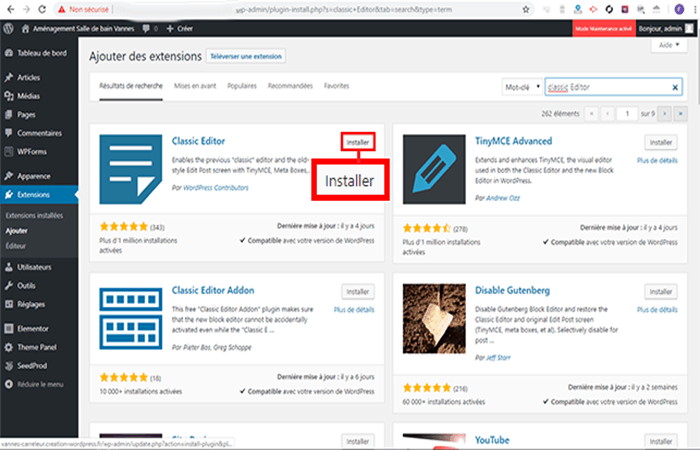
- Step 3:: Then click on the “ buttonActivate"
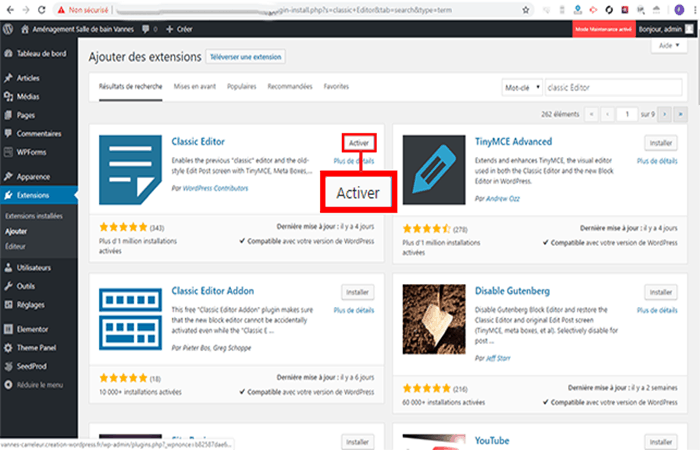
- Step 4:: Finally, you need to go to «Extensions" and then to "installed extensions«. Click on «setting» which is located below the corresponding plugin.
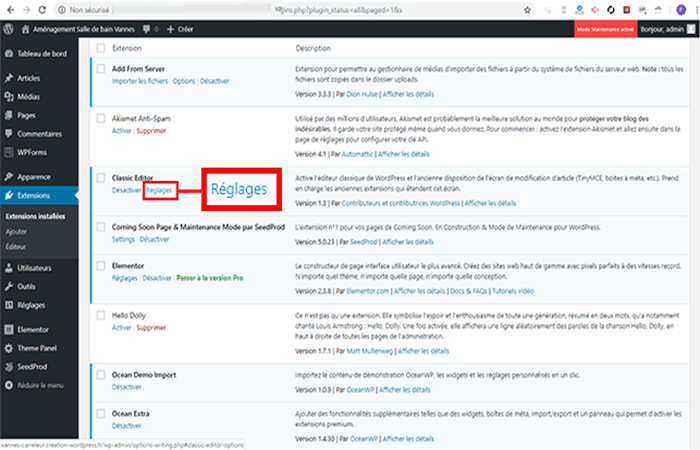
- Step 5:: In the settings, you can choose if you want use the new editor or the classic editor. If you choose the new editor, you will be able to use both editors at the same time. create an article and/or page.
Method 3: Install Disable Gutenberg plugin to revert to the classic WordPress editor
Although the Classic Editor plugin is recommended for uninstalling Gutenberg, you can also use the " Disable Gutenberg " module. Just follow these steps:
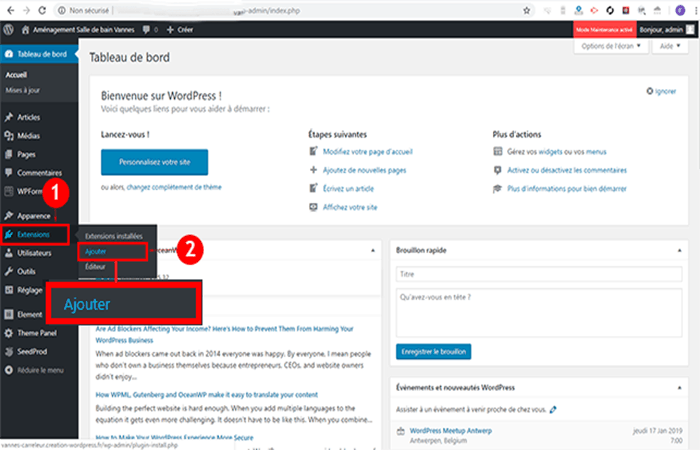
- Step 1:: Log in to your WordPress dashboard, then you need to go to «Extensions" and then to "Add«.
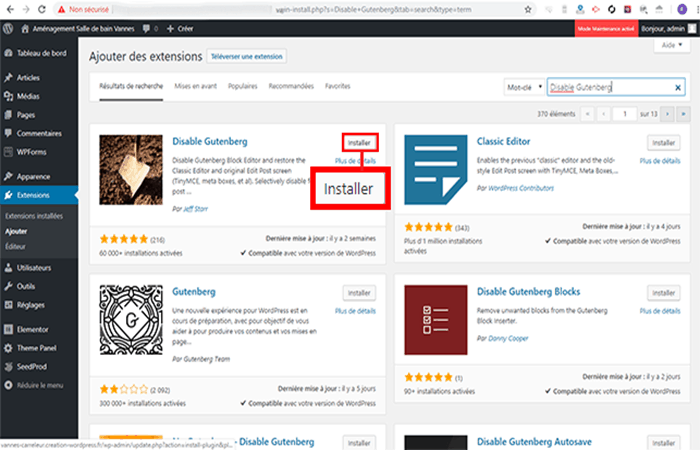
- Step 2:: Search for the plugin «Disable Gutenberg» and click on the «Install«.
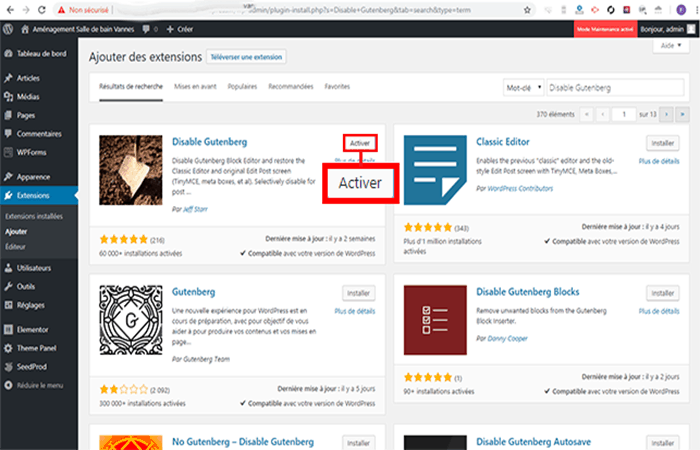
- Step 3:: Click on the button «Activate«.
- Step 4:: Then, you need to go to «Extensions" and then to "installed extensions« Click on the « tabConfiguration» below the corresponding module.
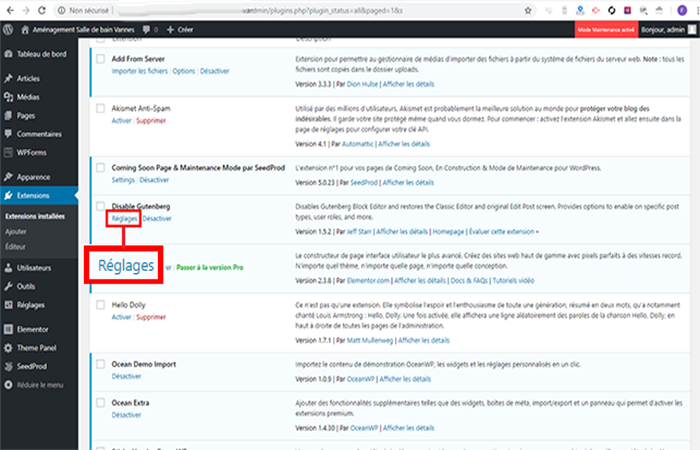
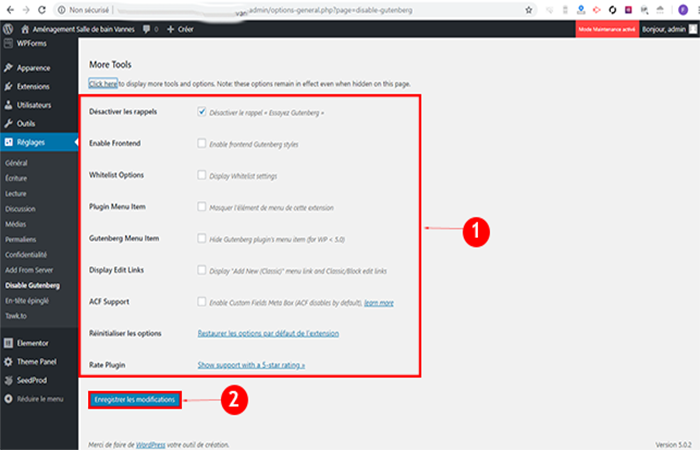
- Step 5:: Check the options to activate in the module and click on the “Save Changes".
Here you can learn about: How to Change, Edit, and Remove Copyright from the Footer in WordPress
Conclusion
The proposed actions can be performed before updating your WordPress site. In fact, the classic editor remains the default editor, even if Gutenberg is present in your dashboard.
Once you add the official WordPress Classic Editor plugin, you will now be able to switch back to the WordPress classic editor and have the editing experience you know. The WordPress organization said that the classic editor will continue to be officially supported through this plugin until at least 2021. We hope we have helped you.

My name is Javier Chirinos and I am passionate about technology. Ever since I can remember, I have been interested in computers and video games, and that passion has turned into a job.
I have been publishing about technology and gadgets on the Internet for over 15 years, especially in mundobytes.com
I am also an expert in online marketing and communication and have knowledge in WordPress development.