- Diagnosing reception failures related to coaxial cabling and DTT signal quality.
- Automatic and manual tuning procedures for updating channel frequencies.
- Advanced channel list management, including custom sorting, favorites, and content blocking.
- Technical solutions for software errors in broadcast applications and compatibility with the DVB-T2 standard.
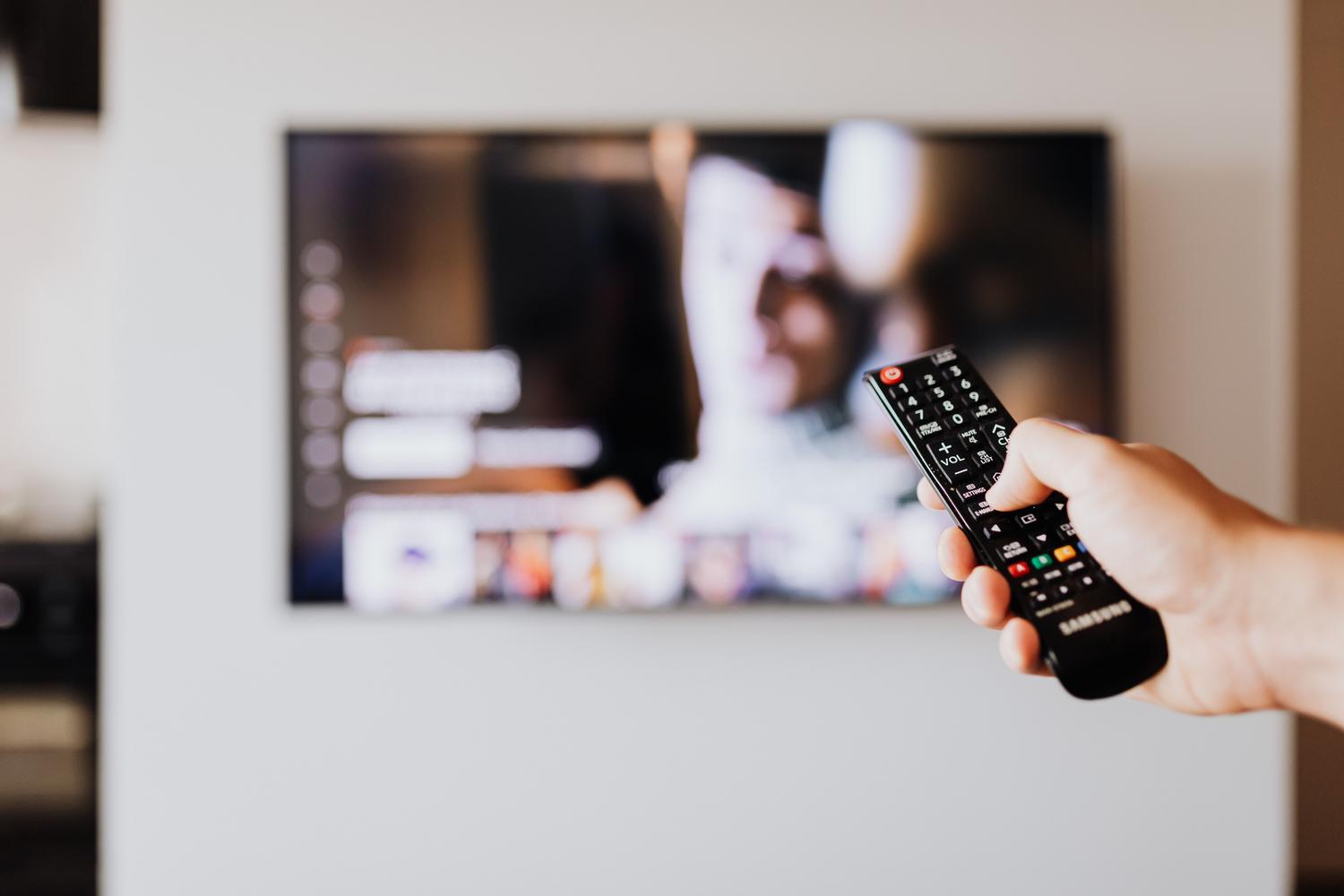
There's nothing more frustrating than settling down on the sofa to watch your favorite show only to realize the TV isn't detecting the channels or the program guide has frozen. These kinds of problems are more common than you might think, especially with Smart TVs, where the combination of older hardware and modern software can cause problems.
Whether it's because you've moved, there's been a change in the frequencies in your area, or the streaming service has simply gone on strike, there are multiple effective solutions to get your TV working properly again. In this article, we'll break down each possible problem so you don't have to fumble around blindly and can get your programming back up and running as soon as possible.

Common causes of canal loss
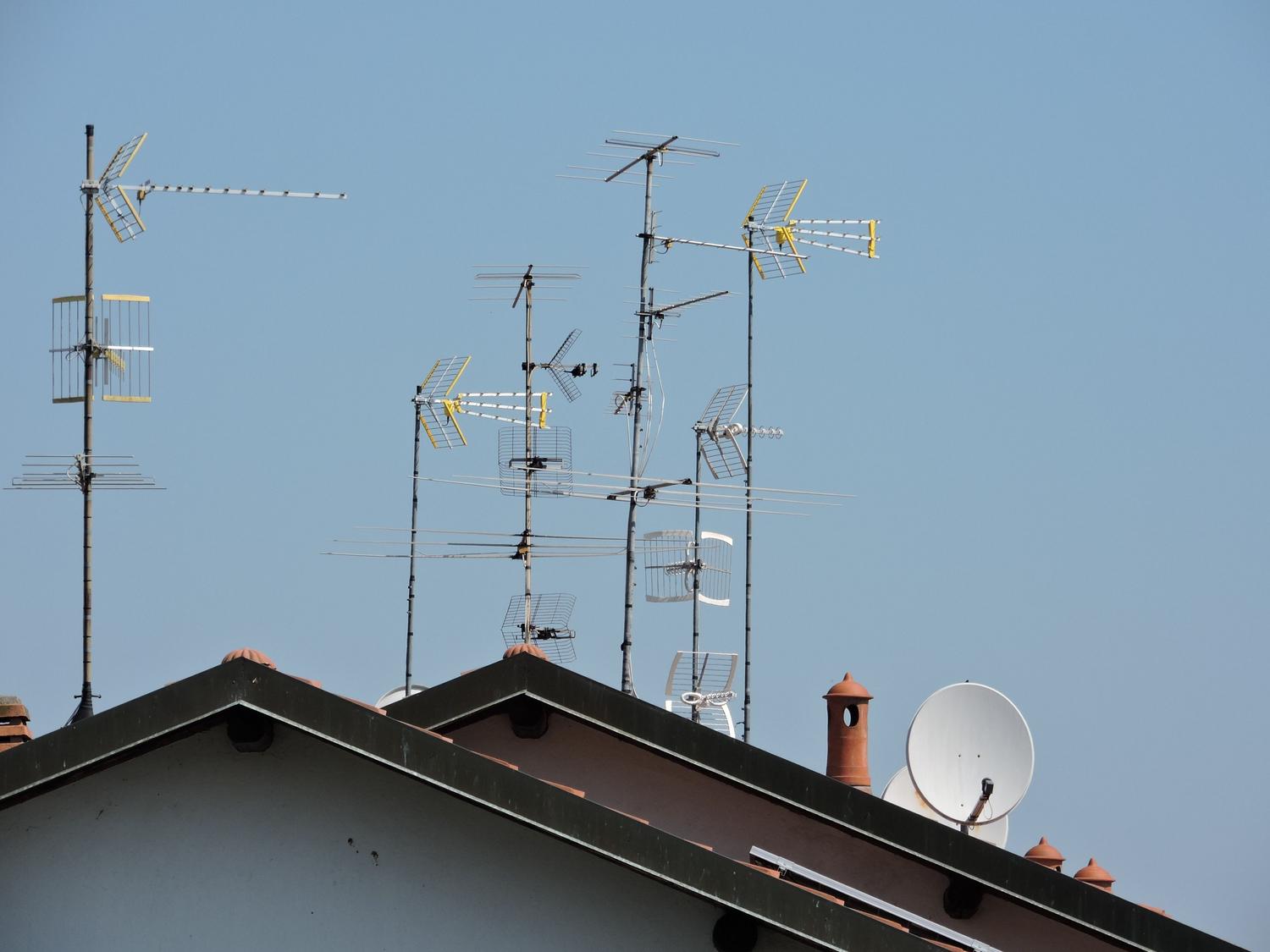
Before we get started, it's helpful to understand why this happens. Often, the culprit is a poorly connected or damaged antenna cable , as any break in the coaxial cable can cause the image to pixelate or entire stations to disappear. It's also very common for the tuning process to be incomplete or for the region setting to be incorrect, causing the television to search in the wrong region.
On the other hand, there's the issue of signal. If you live in an area with a lot of interference, or if your antenna is misaligned with the transmission towers, you'll likely receive some channels and not others. We also can't forget technological incompatibility; many older televisions don't support the DVB-T2 standard , which leaves them unusable after the recent digital switchovers if they don't have an external set-top box.
Steps to troubleshoot physical connection problems
First things first: check the cabling. Make sure the connector is securely plugged into the ANT IN port on your TV. Take a look at the cable to see if it's excessively bent or if your pet has decided to use it as a toy. If you notice the cable is old, it's best to replace the coaxial cable before you drive yourself crazy fiddling with the system menus.
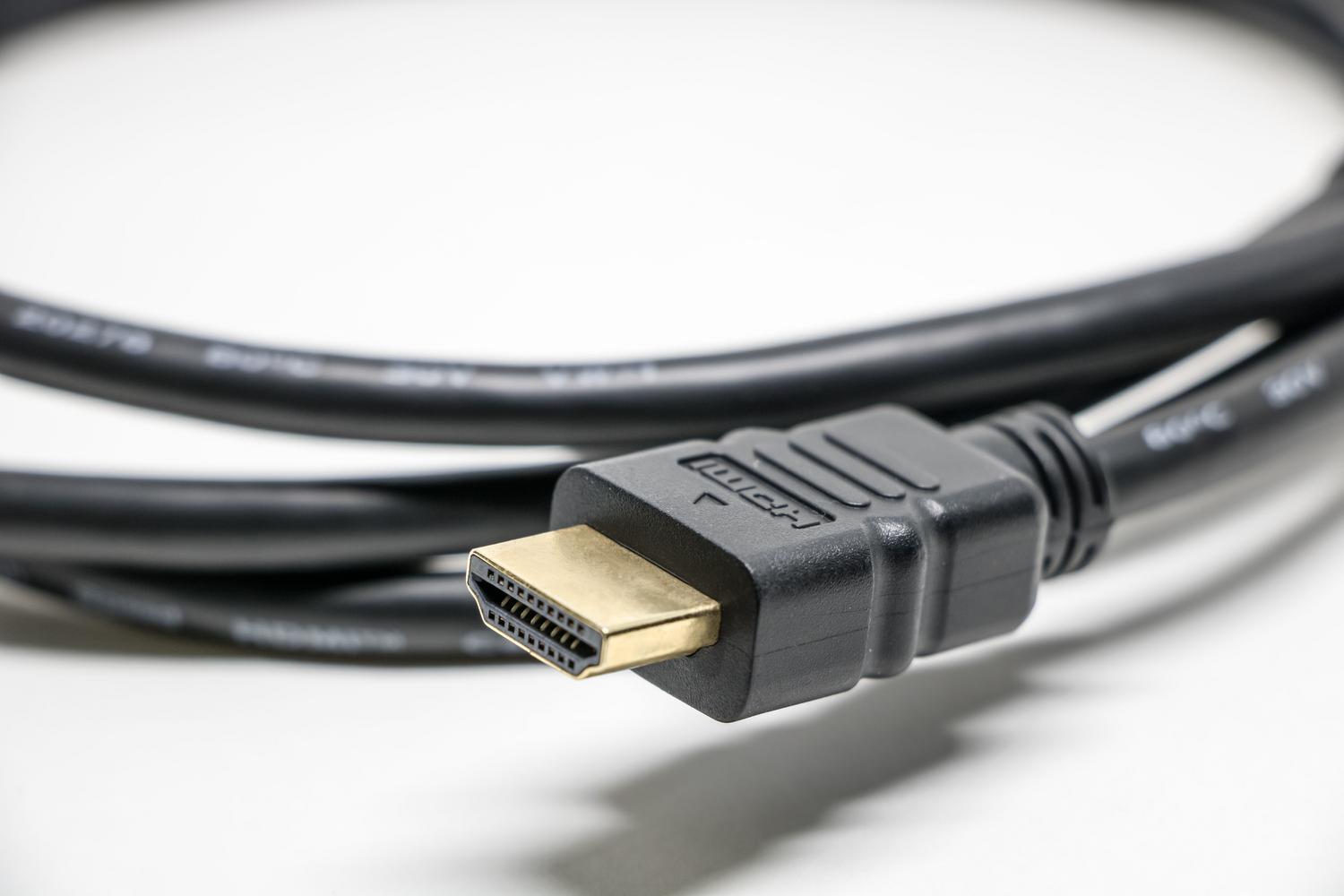
If you're using a set-top box, make sure the HDMI connection is stable. Remember that if the image is pixelated or flickering, it's a clear sign of insufficient signal quality . In these cases, raising the antenna height or installing a communal signal amplifier may be the only viable solution.
How to perform proper tuning on a Samsung device
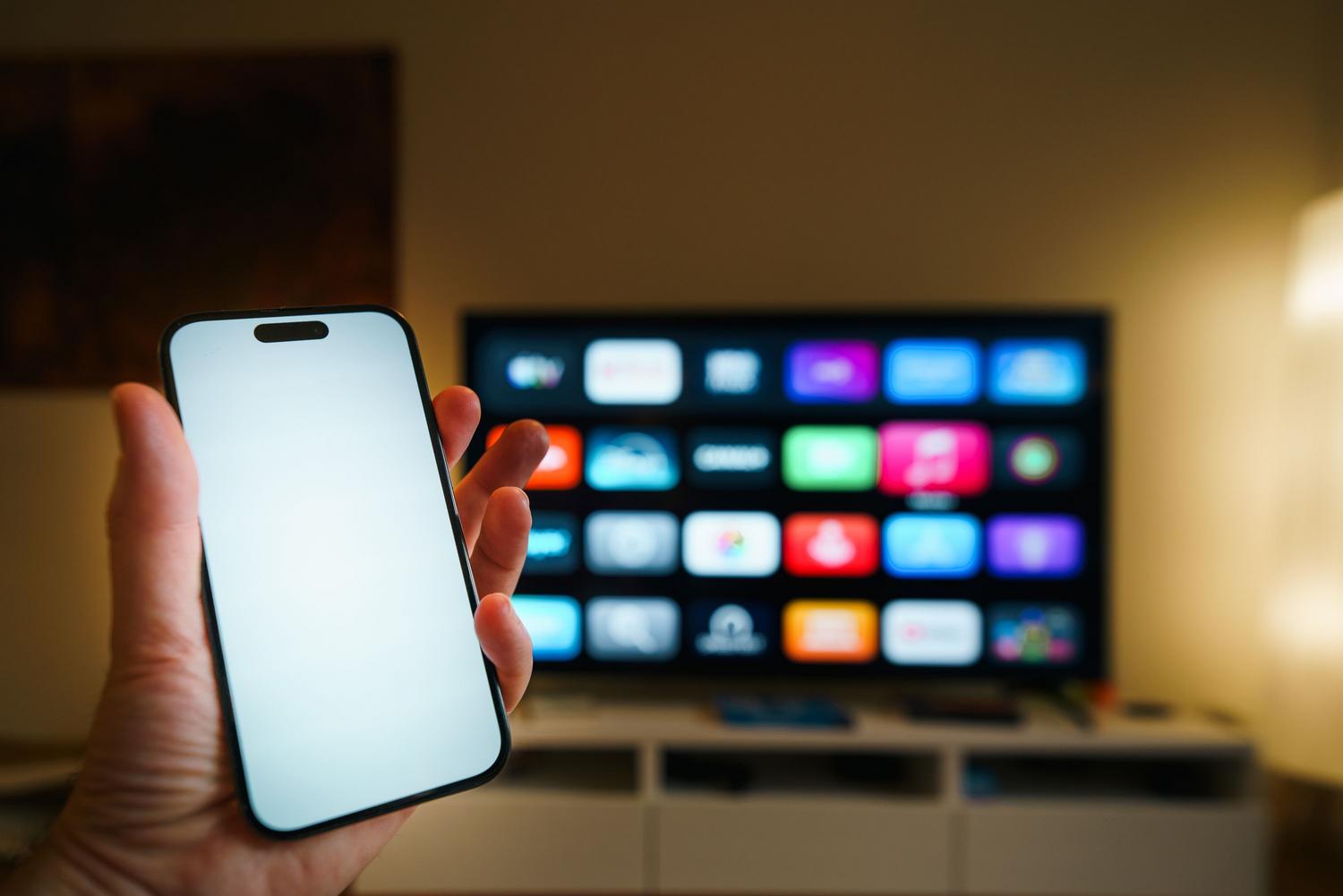
If you have a Samsung Smart TV with the Tizen operating system, the process is fairly intuitive but has its tricks. First, you need to go into the settings menu and look for the Broadcasting section (which usually has an antenna icon). If you don't see this option, you're probably using an HDMI source; to fix this, press the Home button and change the source to Live TV.
For automatic tuning , select "Start" and choose your antenna type (Overhead for DTT, Cable, or Satellite). Then, select the digital channel search. It's vital that you don't interrupt the process until it reaches 100%, even if it takes about 15 minutes. If you notice that some channels are still missing, you can use manual tuning within the expert settings by entering the specific frequency and bandwidth for your area.
Managing and customizing your channel list
Once you have all the channels, you don't have to watch them in the random order the TV found them in. You can go to the Channel List and select "Edit Channels" to move each station to your preferred number. If you have multiple TVs at home, Samsung allows you to transfer the channel list using a USB flash drive, exporting the settings from one TV and importing them to another so you don't have to repeat the entire process.
To make navigation easier, we recommend creating a favorites list . Simply go to the channel list, select the channels you use most often, and mark them with the heart icon. Additionally, if there's content you don't want children to see, you can block channels by protecting them with a custom PIN code.

Solution to errors in the guide and broadcast applications
Sometimes the problem isn't the signal, but the app. Some users experience glitches where the picture appears, but the program guide disappears or doesn't display any information. In these cases, clearing the app's cache or reinstalling it can help, although on some Samsung models the problem persists due to operating system bugs.
If the Samsung TV Plus app indicates that no channels are available , the problem is usually your internet connection. Check that your Wi-Fi signal is stable or, even better, connect the TV using an Ethernet cable to avoid interruptions. If none of this works, a power cycle (unplugging the TV for 10 minutes) or a factory reset often clears the most persistent software errors.
Keeping the firmware updated, ensuring the antenna is properly aligned, and knowing how to navigate the broadcast menus are key to preventing your TV from displaying a blank screen. From simply checking a cable to manually tuning frequencies or using external decoders for older models, there are tools available to restore full functionality to any Smart TV and ensure the program guide displays the correct daily content again.


Passionate writer about the world of bytes and technology in general. I love sharing my knowledge through writing, and that's what I'll do on this blog, show you all the most interesting things about gadgets, software, hardware, tech trends, and more. My goal is to help you navigate the digital world in a simple and entertaining way.