- Restart a iPhone It can be done gently or forcefully depending on the fault and the model, without losing data under normal conditions.
- Force restart uses button combinations specific to each generation when the iPhone is locked or unresponsive.
- A factory reset erases all content and is recommended only for persistent problems or before selling the device.
- Regular backups and good usage and security practices help prevent data loss and keep your iPhone running smoothly.
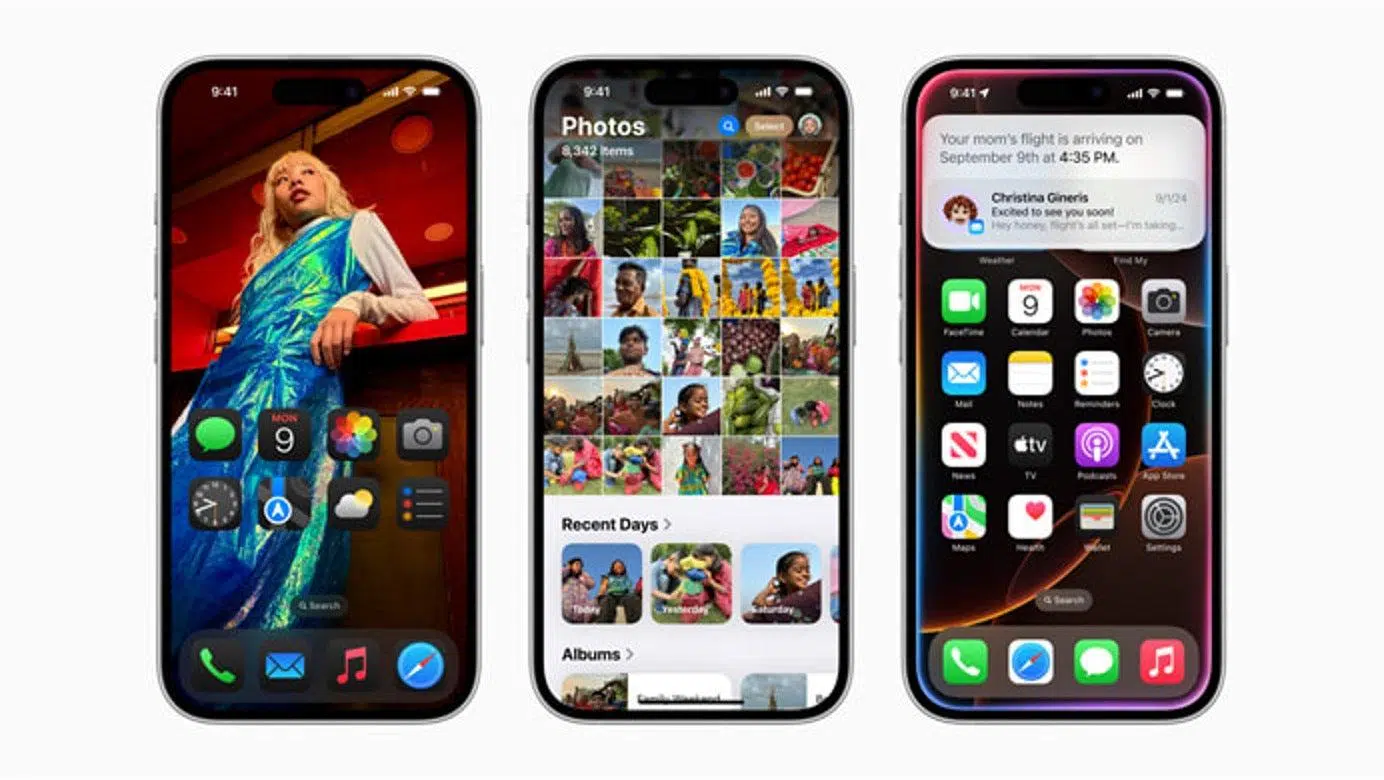
If your Apple phone starts running slowly, apps freeze , or the screen locks up, knowing how to properly restart an iPhone can save you a lot of frustration and unnecessary trips to the repair shop. You don't need to be an expert: with a couple of button combinations, you can get your phone working like new again in just a few seconds.
Throughout this guide, we'll cover all the ways to restart an iPhone : from the traditional power cycle (soft restart) to the popular "force restart," as well as a factory reset for serious issues and some tricks to optimize performance. You'll see that the procedure varies slightly depending on the model, so I'll explain what to do in each case to help you stay on track.
Soft restart: Turn the iPhone off and on using the buttons
The most basic restart simply involves turning off the iPhone using the power slider and turning it back on with the side or top button. This is the recommended method when the phone is responding, even if it's a bit slow or behaving erratically.
On newer models with Face ID (without a physical home button), such as the iPhone X, 11, 12, 13, or 14, you must press and hold one of the volume buttons and the side button until the power off slider appears on the screen. At that point, you can release the buttons.
When you see the power-off message, simply drag the slider from left to right and wait about 30 seconds for the device to completely shut down. If everything goes well, the screen will go black and won't respond to touches or buttons.
To turn your iPhone back on, simply press and hold the side button (on the right side) until you see the Apple logo appear in the center of the screen. Release the button when the Apple logo appears and wait a few seconds for the system to finish booting up.
On models that have a home button but with the power button on the side, the procedure is very similar: simply press and hold the side button until the slider appears, slide to turn off, wait half a minute and then press and hold the side button again until you see the Apple logo.
If you have an older iPhone where the power button is on top (for example, certain SE models or previous generations), the process is the same, but using the top button instead of the side one: press and hold until you see the slider, turn it off, and when you want to turn it on, press and hold the top button again until the Apple logo appears.
This type of soft restart is ideal for resolving minor software glitches, app crashes , or strange behavior without risking data, as iOS safely closes processes before shutting down.
Differences between restart, forced restart and reset
Terms like restart, forced restart, soft reset , and hard reset are often used interchangeably , which can lead to confusion. It's helpful to clarify these terms to understand what you're doing in each case and what the consequences are.
When we talk about restarting (or a simple restart), we're referring to the act of turning the device off and on again . This can be done through the settings, using the physical buttons and the power slider, or even as a forced restart if the phone is unresponsive, but in all cases the goal is the same: to shut down iOS and restart it.
Many people differentiate between a "normal" restart and a forced restart , but the end result is actually similar: the system shuts down and restarts. What changes is how it gets there. In a soft restart, the iPhone cooperates, displays the power-down slider, and closes apps in an orderly fashion; in a forced restart, the system is forced to shut down even if some processes are unresponsive.
In English terminology, a soft reset usually refers to the restart we're discussing, typically performed using button combinations when the device is malfunctioning but still responding. It's a safe procedure that doesn't erase data, affect internal memory, or alter settings.
A hard reset, or factory reset, is a different story: it involves erasing all the phone's content and returning it to its original, out-of-the-box state. This deletes apps, photos, contacts, settings, and in many cases, even reverts to a cleaner system configuration. It's a much more invasive process, best reserved for serious problems or when you're going to sell or give away the device.
The terms "hard reset" or "forced restart" are sometimes used to describe a sudden shutdown using a rapid combination of buttons. In this context, it's not a factory reset, but rather a system restart that doesn't allow enough time for the system to properly close all processes, which could result in the loss of local data from any apps that were running at the time.
How to perform a soft reset step by step
A soft restart, also called a normal restart, is the most common and recommended way to turn your iPhone off and on without forcing it . It's used to install updates, improve stability, and refresh the system periodically.
On models with Face ID (without a physical home button), you can gently restart it in three easy steps: Press and hold a volume button and the side button until a power off prompt appears, slide the power off slider, and then press and hold the side button again until the Apple logo appears.
On iPhones with a physical home button, such as some SE models and earlier generations, the process is virtually identical, but you'll use the side button or the top button depending on the model. Press and hold until you see the slider, turn it off, wait a few seconds, and then turn it on again while still holding that same button.
After a soft restart, the phone should return to normal operation within a few seconds, or a couple of minutes if it has a lot of data and apps. It's a good practice to perform this type of restart occasionally, for example, once a week, to close background processes and give the memory a break.
Force restart when iPhone is unresponsive
If your iPhone freezes, becomes unresponsive to touch, won't turn off with the power slider, or gets stuck on a screen , you'll need to perform a forced restart or hard restart . The procedure varies depending on the model, so check which one you have.
In all cases, this maneuver forces the system to shut down abruptly and restart without properly closing processes , so there is a risk of losing unsaved changes in some apps. However, it is usually the only solution when the screen is unresponsive.
Force restart on iPhone X and later (with Face ID)
On newer iPhones, such as the iPhone X, Xs, Xr, 11, 12, 13 and 14 (including their Pro, Max and Mini variants), Apple removed the physical home button, so a forced restart is done with a quick sequence of buttons.
To force a restart on these models, first press and quickly release the volume up button . Immediately afterward, press and quickly release the volume down button. Finally, press and hold the side lock button.
Keep pressing the side button even when you see the power off slider appear; don't use it. Keep holding the button until the Apple logo appears on the screen. As soon as you see the Apple logo, release the side button and wait for the iPhone to finish booting up.
This procedure is also valid for models such as the iPhone SE 2020 and the iPhone 8 and 8 Plus , which, although they have a home button, share the same forced restart system as later devices.
Forced restart on iPhone SE 2020, iPhone 8 and 8 Plus
The iPhone SE 2020 and the iPhone 8/8 Plus are somewhere in between: they retain the home button, but Apple decided to unify the forced restart with later models . Thus, the combination is identical to that of devices with Face ID.
You'll need to quickly press and release the volume up button , then press and release the volume down button, and finally press and hold the side lock button until the Apple logo appears. It's important that the volume presses are brief, almost like clicks.
Once the Apple logo appears, release the side button and let the phone restart. This type of restart doesn't erase any data, although, as with any forced restart, you might lose data from an app that was actively running at that moment.
Forced restart on iPhone 7 and iPhone 7 Plus
To force a restart, press and hold the volume down button and simultaneously press and hold the side lock button. You must hold both buttons simultaneously for several seconds.
When you see the Apple logo appear on the screen, release both buttons and wait for the system to finish booting. The phone will automatically turn off and on without you having to do anything else.
Force restart on iPhone 6, 6 Plus, 6s, 6s Plus and iPhone SE (2016)
In older models like the iPhone 6, 6 Plus, 6s, 6s Plus and SE from 2016, there is still a physical home button that is used in conjunction with the power button to force a restart.
To do this, press and hold the power button (side or top, depending on the model) and simultaneously press and hold the home button. Keep both buttons pressed for a few seconds until the Apple logo appears on the screen.
As soon as you see the Apple logo, you can release both buttons and let the system restart . After a few moments, you'll see the lock or home screen again, and you should be able to use your iPhone normally.
Note that on some older SE models, the power button is located on the top , not on the right side like on later iPhones. This is an important detail to avoid confusion when looking for the controls.
When is it appropriate to restart, force restart, or reset your iPhone?
Not all situations require the same level of intervention. Knowing when a soft restart is sufficient and when it makes sense to force a restart or perform a factory reset will save you time and potential problems.
A soft restart is ideal when you notice your iPhone is running slower than usual , animations are sluggish, an app isn't responding properly, or after installing a major update. It's also a good idea to perform a soft restart periodically to refresh the system.
A forced restart comes into play if the iPhone freezes completely , the screen is unresponsive to touch, you can't turn it off with the power slider, or it gets stuck on the Apple logo or another specific screen. In these circumstances, a normal restart is usually impossible.
If after a soft or hard restart your iPhone still isn't working properly , freezes frequently, or won't turn on, you should consider checking Apple's official troubleshooting guidelines for devices that won't turn on or are locked, or taking it to an authorized service center.
Factory reset is reserved for more serious cases: persistent software problems, network errors that cannot be fixed , suspected malware that is very difficult to remove, or when you plan to sell or give away your iPhone and want to completely erase all your personal data.
What is a factory reset and when to do it
A factory reset returns your iPhone to a state very similar to when it was new . Your photos, apps, accounts, settings, files, and basically all personal information stored on the device's internal memory will be erased.
When you perform this process, the operating system reverts to its original settings, removing any adjustments you may have made over time . This can fix deep-seated software problems, configuration errors , or even help remove persistent malware such as spyware or keyloggers that resist other solutions.
It's also essential to perform a factory reset if you're going to sell, give away, or recycle your iPhone . This ensures that no one can access your emails, photos, messages, social media, or any other accounts, even if they have the device in their possession.
Remember that deletion is permanent, so it's vital to back up your data beforehand . Otherwise, you could lose your selfies, videos, chats, contacts, notes, and app data that's only stored locally.
How to back up your iPhone before resetting it
Before restoring to factory settings, it's a good idea to back everything up safely. iOS offers several ways to back up your iPhone , with iCloud being one of the most convenient because you don't need a computer.
To back up to iCloud, open the Settings app on your iPhone and tap your name or account at the top. Once there, select iCloud to see all your associated cloud services.
Scroll down to the iCloud Backup section and tap it. Make sure the backup switch is turned on, and if you want to back up now, tap "Back Up Now." The process may take more or less time depending on the size of your data and your internet connection speed.
It's recommended that you connect to a Wi-Fi network during the backup process to avoid using your mobile data allowance and incurring extra charges. If you're using a public Wi-Fi network, be extra careful and don't enter passwords or sensitive information during the process.
Once the backup is complete, you'll have a recent version of your data saved in the cloud. Then, when you set up your iPhone after a factory reset , you can restore that backup and recover your photos, contacts, apps, and most important settings.
How to factory reset an iPhone on iOS 16
On relatively recent iPhones (XR, 11, 12, 13, 14, and similar models), they are most likely running iOS 16 or an equivalent version . The procedure for factory resetting them is quite simple from within the system settings.
To begin, open the Settings app and go to the General section . Here you'll find various options related to system behavior, storage , updates, and more.
Scroll to the bottom and tap the "Transfer or Reset iPhone" option . This section includes options for preparing your phone to switch devices as well as options for a complete erase.
Within this menu, tap "Erase All Content and Settings ." The system will ask you to enter your passcode and, in many cases, your Apple ID password to confirm that you are the legitimate owner of the device.
Once you confirm, your iPhone will begin the process of erasing data and restoring factory settings . This may take a few minutes, during which you'll see a progress bar on the screen. When it's finished, your phone will restart and display the setup assistant as if you were using it for the first time.
This procedure is compatible with devices such as iPhone XR, 11, 12, and 13 , provided they have been updated to the mentioned iOS version or later. After erasing, you can restore the backup you previously created in iCloud or using a computer.
Reset your iPhone if you've forgotten your passcode
If you've been locked out of your iPhone because you've forgotten your passcode or the device has been locked due to entering the wrong code multiple times, you'll need a computer to restore it using recovery mode.
In this case, you can use either a Mac or a PC with Windows 10 or later , as long as you have iTunes installed on the Windows computer. You will also need a compatible cable to connect your iPhone to the computer.
The first step is to connect your iPhone to your computer with the cable . Next, turn off your phone. Then you'll need to put it into recovery mode: the exact button combination will depend on the model, but generally it involves holding down the side button or the home button while connecting or turning on the device until you see the recovery mode screen.
When your computer detects your iPhone in this mode, open it in Finder (on a Mac) or iTunes (on Windows) . A pop-up message will appear indicating that there is a problem with the device and offering options to update or restore it.
You must select the "Restore" option . The computer will download and install the necessary software and erase the device's contents, returning it to its factory default settings. The process may take a while, especially if the full iOS version needs to be downloaded.
Once the restore is complete, you can set up your iPhone from scratch or restore from a previous backup . If you don't have a Mac or a PC running Windows 10 or later, the best option is to visit an Apple Authorized Service Provider to help you complete this process safely.
Restarts, security, and best practices for your iPhone
A factory reset can be a lifesaver for problems that aren't solved by soft or hard resets , but it shouldn't be overused because it involves erasing everything and configuring the device from scratch.
If you notice frequent crashes, unstable network connections, or suspect your iPhone may be infected with malware , a factory reset can help remove malicious software that has infiltrated the system and cannot be removed otherwise.
However, you must ensure that you are not including the problem in the backup . If the malware or corrupted configuration is restored along with your data, the issue may reappear even after deletion.
The best medicine is always prevention: use strong and different passwords for your accounts, activate two-step or multi-factor authentication whenever possible, and be suspicious of emails or messages that ask for personal information through strange links.
Avoid downloading files from dubious websites, do not share your private information on insecure platforms, and if you frequently use public Wi-Fi networks, try to limit sensitive operations as much as possible while connected to those networks (such as shopping, banking, or password changes).

Passionate writer about the world of bytes and technology in general. I love sharing my knowledge through writing, and that's what I'll do on this blog, show you all the most interesting things about gadgets, software, hardware, tech trends, and more. My goal is to help you navigate the digital world in a simple and entertaining way.