It's possible to prevent access to your iPhone 's digital camera from the lock screen . Here are the steps to remove the digital camera from your iPhone's lock screen.
Remove the digital camera from the iPhone lock screen
To access your iPhone's digital camera, just swipe up on the lock screen and you will discover that the iPhone's digital camera is capable of taking photos and videos.
You'll agree that this convenient setup is much better than having to unlock your iPhone and launch the Digital Camera app.
However, there are times when you will want to disable this easy accessibility to your iPhone's digital camera.
In these cases, you can disable access to the digital camera from the lock screen and also from the home screen of your iPhone.
1. Remove the digital camera from the iPhone lock screen
Your iPhone's Screen Time feature can be used to disable access to the digital camera from the lock screen.
1. Go to Settings > Time display screen > tap Open Flip On Time display.
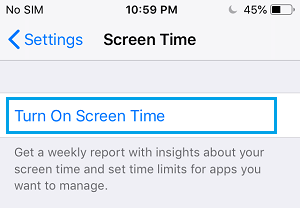
2. Then the tap Continue > This is my iPhone.
3. On the next screen, scroll down and click on Content and Privacy Restrictions.
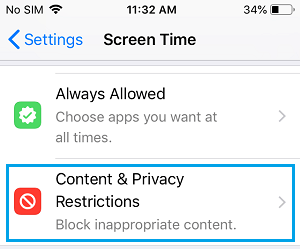
4. On the Content and Privacy Restrictions screen, switch Content and Privacy Restrictions to ON and click Allowed Apps.
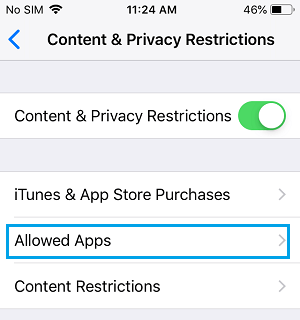
5. On the allowed applications screen, switch to OFF Digital Camera Application.
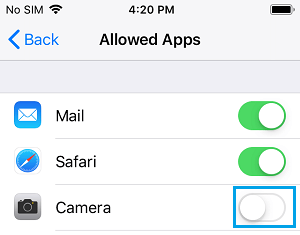
Now, when you go back to the home screen, you won't see the Digital Camera app icon. Also, you haven't been given the option to access the digital camera by swiping left on the iPhone lock screen.
2. Add the digital camera app to the iPhone lock screen
Once you have achieved the goal of eradicating the digital camera input from the iPhone lock screen, you can re-enable the digital camera input from the system lock screen by following the steps below.
1. Go to Settings > Time display screen > Content and privacy restrictions.
2. On the next screen, click on Allowed Applications.
3. On the next screen, activate the Digital Camera ON screen option by moving the cursor to ON.
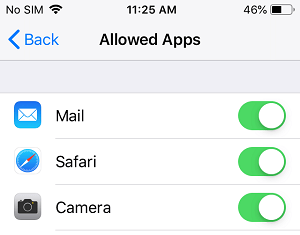
This will return the digital camera to its default location on your iPhone's Lock screen and Home screen.
