
Does your Google Chrome have a virus? If you don't know, there's a way to find out. You'll find the method in this guide. If you want to know the reasons and causes of the malware infection , you'll also find them below. But that's not all!
This guide includes several solutions you can use to resolve these issues. The solutions vary for Windows , Mac , iOS , and Android users . So this is a guide in its own right.
After all, Google Chrome is a very popular web browser , but it's susceptible to malware. Read this article to learn how to easily remove malware from your Chrome browser. So here's the ultimate guide with the best methods to solve this problem. Let's get rid of malware from Google Chrome!
How to know if Google Chrome has malware?
This section will tell you how to tell if your Google Chrome has a virus. Remember that you must act quickly if any of these points match. There won't be enough time before it infects your entire system.
Here's a checklist to help you figure out if your browser has malware:
- Generally, the first clue is the Chrome homepage. If you set a specific homepage, but it has changed, there could be malware. But that's not enough to count. If it continues even after resetting the homepage, the probability increases. The same goes for the default search engine.
- There is a problem with websites loading, even with cached files. This is especially true for websites that you visit or use almost regularly. If this is the case, it could be malware interference in Chrome.
- Chrome somehow downloads unknown and unwanted files or programs. In some cases, they are even installed from within Chrome. This also applies to extensions and applications for the device.
- Do you frequently see pop-up ads in Google Chrome? This can happen even when you visit authentic websites. If so, there is a high chance.
- Check the extensions and toolbar settings. Check if there are any that you don't recognize. If you uninstall them, do they reappear? If the extensions keep appearing, it means that there is malware.
- Have you been redirected to an unknown website or gateway? You end up seeing content that is not from your area. Any of these situations can suggest virus problems.
- If Google Chrome's performance has dropped, it could be due to malware. Google Chrome is already a huge resource hog on your PC. If it's charging too much, responding slowly, or crashing, you might want to worry. In these cases, most of the time, it's a malware issue.
Things to consider before removing malware from Chrome
Before you begin diagnosis and solutions, consider these points. Think of them as a checklist. They can help you reduce the impact or spread of malware. More importantly, you can solve many problems if you follow this protocol:
1. Save your bookmarks and data
This is the first time you will be able to use this protocol.
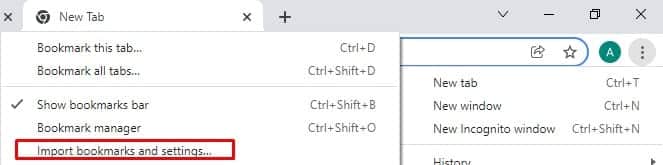
- The best way to make backups is to write them down. This will prevent malware from leaving Chrome. You can use Notepad or other apps, or even paper and pen.
2. Stop synchronization
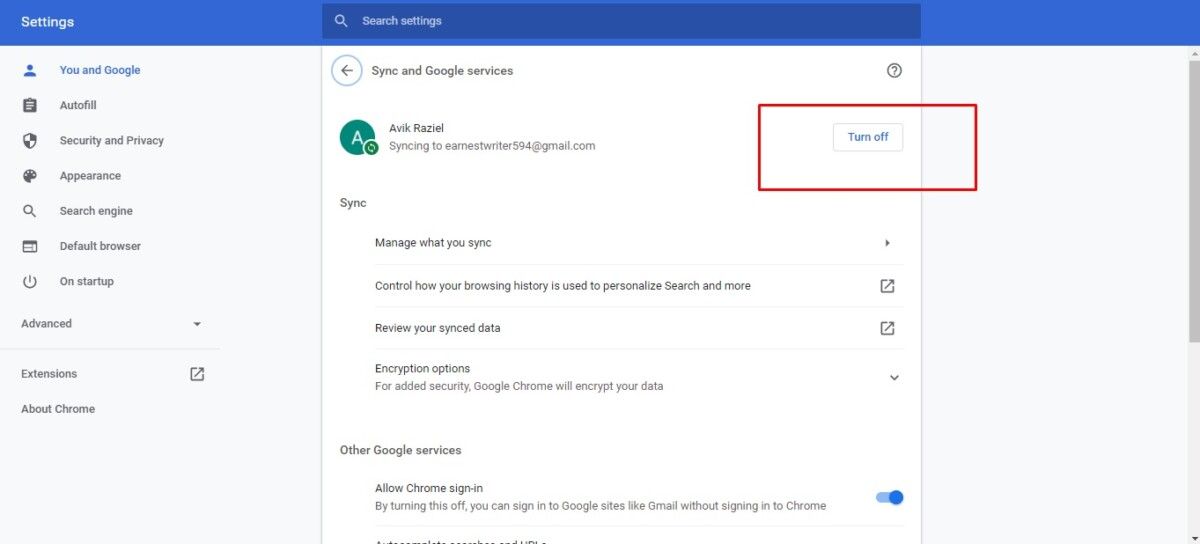
Why would you want to do this? Because it will prevent malware from syncing, just in case:
- Go to your web browser's Settings.
- Find the People section. If you can't find it, it may be "You and Google."
- This is an emergency situation.
- You will find an option: Google Sync and Services. Click on it.
- Click Restart Sync. You can also manually check and disable any sync-related options. This will keep your device safe.
- In some cases, there may be a “Turn Off” option instead of a Reset Sync option. You can try that as well.
3. Check Chrome's resource usage
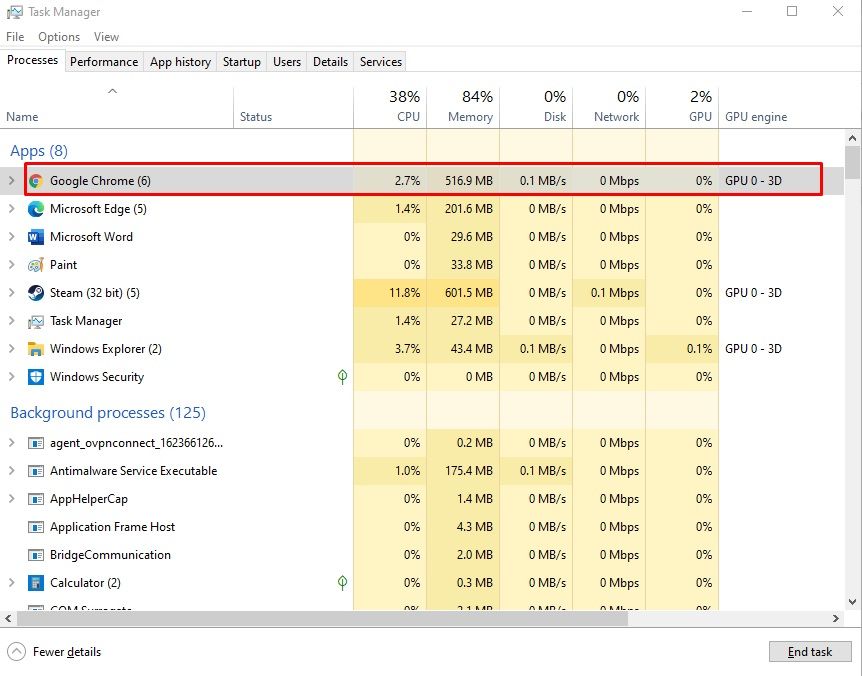
So:
- Press CTRL + SHIFT + ESC for Windows users. Then go to Task Manager monitor and check what happens.
- For Mac users, you'll have Activity Monitor: Go to Applications > Utility > Activity Monitor.
- Android and iOS users don't have this luxury. You'll need to check the app info to see if Chrome is causing the problem. In most cases, you can have a device check that will show which app is consuming the most resources. See if it's Google Chrome.
You will also see if another app is the culprit. If you find another suspicious app, take action immediately.
How to remove malware from Google Chrome
- Update Google Chrome
- Remove suspicious extensions
- Clear cache and browsing data
- Restart Google Chrome
- Use the safe mode
- Device care
- Use Play Protect
- Use the cleanup option in Windows
- Remove malware from Mac
- Use an alternative browser
- Use a third-party antimalware
How to remove malware from Google Chrome
1. Update Google Chrome
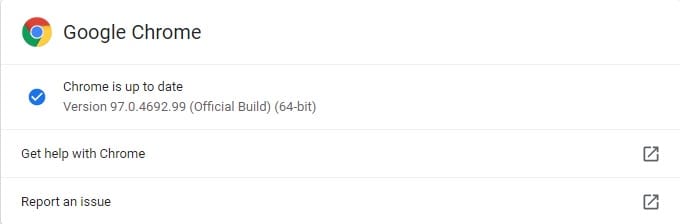
Therefore, you should always keep your Google Chrome browser up to date. This applies to all platforms (Windows, Android, iOS, macOS, etc.) that you use. The first thing you should do is check for updates.
- Windows and macOS users can go to the Google Chrome menu. Under About Google Chrome, you will see an option to check for updates. You can use it there.
- For Android and iOS users, go to the App Store. Check if there are any new app updates available and if Google Chrome is listed. Make sure to update if that option exists.
General advice: Ideally, you should always keep your devices up to date. This applies to apps, the operating system, and everything else. This will prevent many security holes and keep your device safe.
2. Remove suspicious extensions
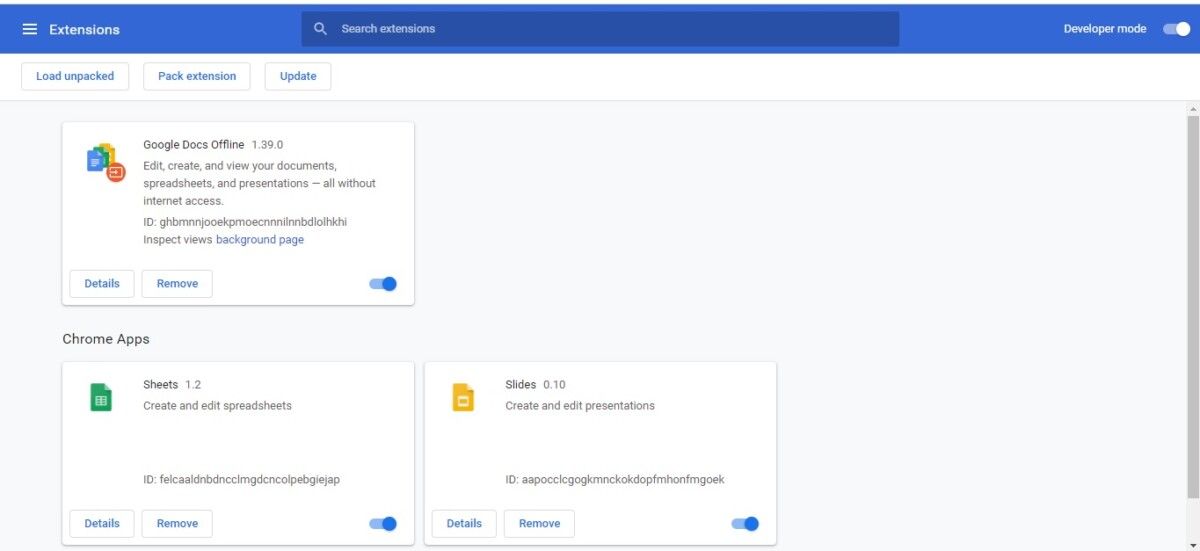
Therefore, it is best to do:
- Go to your Google Chrome extensions list. Check if you have more than you should.
- Delete extensions you haven't used in a while. If you haven't used them already, you won't be using them anytime soon. This will save you space, performance, and more.
- Check for any extensions you don't remember installing. Remove them immediately. Do this for extensions you can't recognize.
- Please note that you may need to enable developer mode to edit extensions.
After removing the extensions, restart Google Chrome. You can follow this method for all devices and platforms.
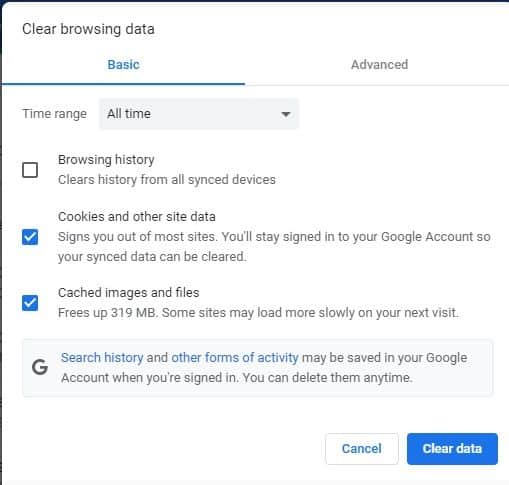
- Go to History (CTRL +H for Windows and Mac users). Then, look for the Clear browsing data option. Click on it.
- Then select “All time.” Make sure to delete browsing history, cookies, images, and cached files. Everything.
<Entonces, sigue adelante y deja que Chrome haga el trabajo. A continuación, reinicia Chrome.
Check for updates and see if Chrome causes more problems like before.
4. Restart Google Chrome
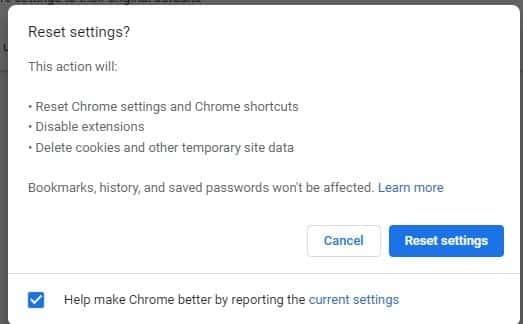
- Look for the Menu button in the top right corner.
- Once you have opened the settings, go to the Advanced Settings option.
- Here you will find the Restart option.
- On some devices, it may just be the “Reset settings” option. For others, it will be “Restore original default settings.” Click on it and follow the instructions.
Resetting is like a soft reinstall. If it works, that's great. If not, you might want to remove Google Chrome from your device. After that, reinstall it and see if that fixes the problem.
Remove malware from Google Chrome on Android
There are three ways to remove malware from Google Chrome on Android. No, it doesn't come with a built-in scanner either.
1. Safe mode
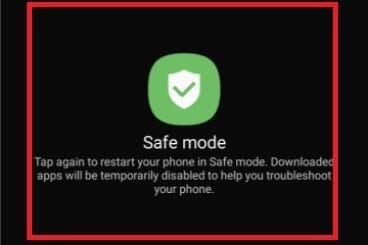
- Press and hold the power button for a few seconds. This will bring up the power button options.
- Now hold the power button for a moment, and check if the Safe Mode option appears. If not, repeat the same action with the reset button. One of them will have the option to reboot into safe mode.
2. Use Device Care
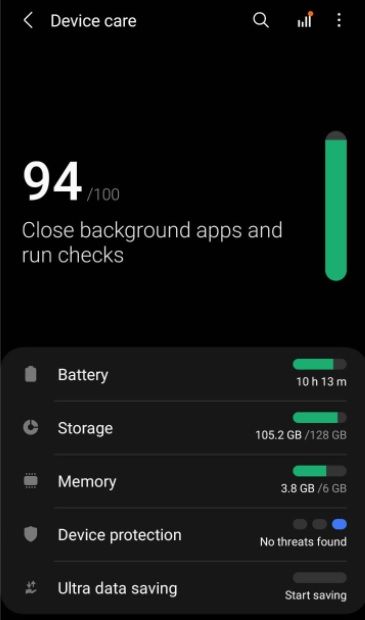
- Go to your Android device's settings. You'll find Device Care under the options.
- Here you will find an option to scan the entire phone or optimize it. Use it.
Each device care may have a different set of options, so you will need to find the one that allows you to scan for viruses.
3. Use Play Protect
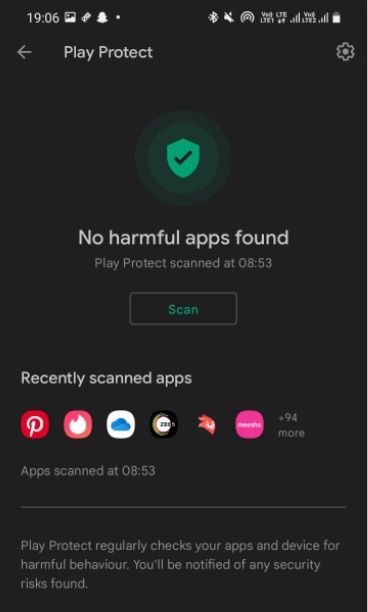
- Open the Google Play Store.
- Click on your account icon in the top right corner.
- Here you will find the option to scan.
Don't forget that Google Play Protect will scan your entire phone. If you don't have a service like Device Care, this should be your best option. It will protect your entire device from threats.
Cleanup tool for Windows Chrome users
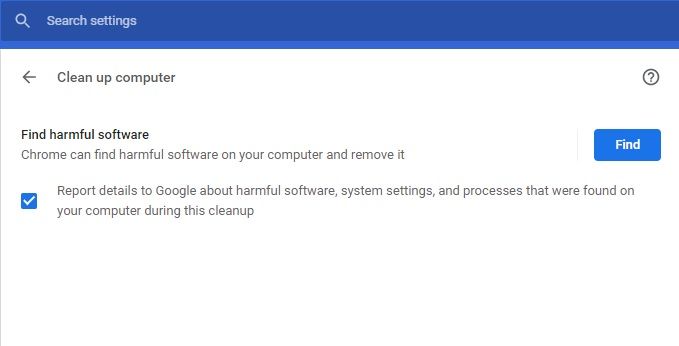
- Launch Google Chrome. Go to the Menu button (three dots) in the top right corner. From the menu, select Settings.
- In Settings, look for the “Advanced” Settings options. You will find a Reset and Cleanup option. Select the Clean up your computer option.
- Make sure you uncheck the option that says “Send details to Google.” You’d be better off checking that out. If a threat is found, Chrome will report it to Google. They will then try to come up with solutions if there aren’t any. This will also keep other users safe in the long run.
- One way or another, once you run the scanner, it will start scanning your PC. If any malicious content is found, you will have the option to remove it. You can click the Remove button.
It is an information management system.
Once you've done that, go ahead and restart your PC. It's as simple as that. There's a built-in quarantine in Google Chrome for users. If you think there are files that Chrome has deleted by mistake, you can restore them. All you need to do is access the quarantine. To do so, follow these instructions:
- Go to your Documents and the user profile you are using. Then follow the path below:AppData\LocalGoogle\NChrome Cleanup Tool.
- Once you have accessed the Quarantine folder, you can select any file you want to release. Then right-click it and select the Extract option.
- Then you will need to access Chrome Cleanup again. Enter the password and it will restore the file.
Remove malware from Google Chrome on Mac
Why? Because it is an Apple product and operating system. The best way to ensure your security on an Apple device is to keep it up to date. It never fails to provide you with all the security you need. But still, if that is not enough, you can try another solution.
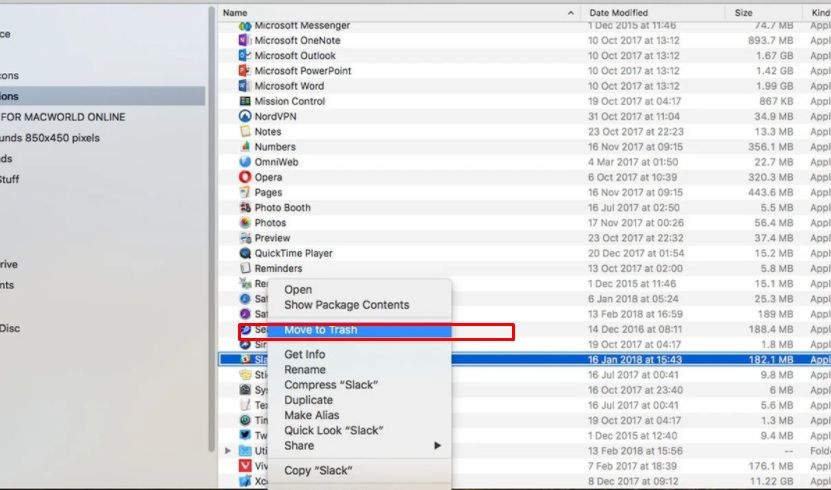
If there is an app, extension or tool that you suspect, you can uninstall it:
- Launch the Finder app. This is your Mac's file explorer.
- On the left panel, you will find Apps under the options. Click on it.
- Now go and check the list of programs you have. Is there one that stands out? Something you don't use or don't remember installing.
- Be careful to check if there is another program in the list. Do the same for it. This will also automatically uninstall the program from your system.
This is a product quality management system.
So, keep your macOS, apps, and Chrome up to date. Use the above method to remove malware in other cases. If your Chrome is infected, delete it and reinstall it.
If nothing has worked so far
If none of the solutions have worked so far, the problem may be with your device. It may be that the source of the malware is different. In this case, you will need to use the diagnostics and solutions for each platform. You can also try these two options before jumping to a conclusion:
If even restarting and reinstalling Chrome didn't work, try a different browser. Why should you do this? The problem may be due to some compatibility issues between your device and Chrome.
These issues are rare but possible. In these cases, you may need to diagnose your device. This is a completely different issue. It could also mean that your device is infected, not Chrome.
To verify this, you can use other legitimate browsers. There are many options available. Check if they work properly. Check if your device has malware . If not, you can proceed with the solution and contact Google customer support.
2. Use a third-party antimalware
If you really want to remove malware from Chrome, or from your system, use a third-party security tool. These take care of your problems and give you exceptional protection. But watch out for these things:
- Windows 10 and 11 come with Windows Defender built-in. You can use it to scan for malware.
- Mac users may have a similar tool or may need to purchase one.
- Make sure you always use premium tools for all platforms, Android, iOS and macOS. Even for Windows
- Don't be lured by unknown and free third-party antivirus and maintenance tools. They are most likely to blame.
Conclusion
This marks the end of the ultimate guide. Now you know how to tell if your Google Chrome has malware. You can also diagnose and fix the problem. But always keep your options open. As stated, the problem may be with your device or another app. So stay alert and stay safe.
Remember that all platforms have undergone significant improvements. They all offer well-thought-out protection. To keep them up to date, you just need to update them. So keep your devices and operating system up to date to avoid malware and other problems.
FAQ
How to find a virus or malware in Chrome?
You can use a scanning tool to find malware in Google Chrome. You can also use the built-in cleaning tools available to Windows users. If you're not a Windows user, you'll need to use a third-party security tool. You can use Google Play Protect or DeviceCare if you have a smartphone.
Google has done a commendable job of making Chrome a safe web browser. However, it remains one of the most widely used and supported browsers. As a result, many hackers and other people try to exploit it for fun. Because of this, it also has many threats.
Does Google have antivirus protection?
Google has virus protection and scanners built into most of its apps. Gmail scans emails. Chrome has security and malware protection. Even other tools have similar security. But it's not invincible. That's why you have to be careful.
Yes. Malware or antivirus software is mainly spread through web browsers. There is nothing we can do about it and you cannot contain it. The only way to prevent it is to use a robust antivirus tool. Most importantly, follow ethical and safe browsing protocols to ensure your safety.

Table of Contents
- 1 How to know if Google Chrome has malware?
- 2 Things to consider before removing malware from Chrome
- 3 How to remove malware from Google Chrome
- 4 How to remove malware from Google Chrome
- 5 Remove malware from Google Chrome on Android
- 6 Cleanup tool for Windows Chrome users
- 7 Remove malware from Google Chrome on Mac
- 8 If nothing has worked so far
- 9 Conclusion
- 10 FAQ