- Firefox saves sessions, history, and bookmarks in specific profile files that can usually be recovered.
- It is possible to restore previous sessions by copying and renaming the sessionstore files and the profile folder.
- History and other data can be recovered from local backups or with the help of recovery tools.
- Creating regular backups of your Firefox profile minimizes the loss of tabs, passwords, and settings.

Losing all your open tabs, history, or even bookmarks and passwords in Firefox can be a real digital disaster. Sometimes it happens due to a browser crash, other times from accidentally closing the browser, downgrading or updating the version, or simply from accidentally changing a setting you shouldn't have. The good news is that Firefox stores much of this information in internal files that, with a little know-how, can be recovered.
In this guide, we'll calmly and clearly explain how to recover lost Firefox sessions and data : open tabs and windows, browsing history, bookmarks, cookies, passwords, and even sessions from days ago. We'll also review where this data is stored in your user profile and what to do if you've already lost or deleted these files.
How the Firefox profile works and where it stores your data
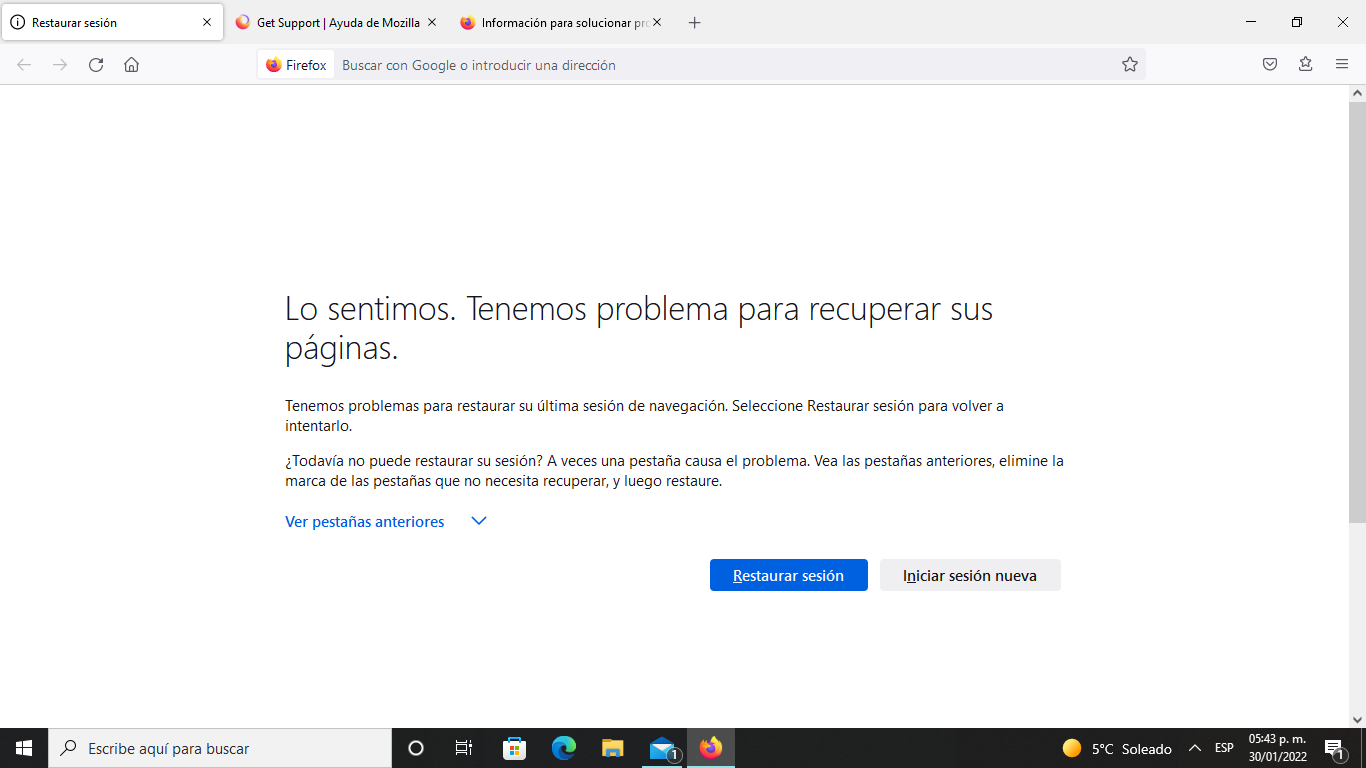
To understand how to recover things in Firefox, you first need to know that everything important is saved in a folder called "profile" . This folder contains everything from bookmarks and history to open sessions, passwords, permissions, and much more.
On Windows , the typical path to the main Firefox profile is C:\Users\(your_username)\AppData\Roaming\Mozilla\Firefox\Profiles\ . Inside, you'll see one or more folders with unusual names, something like xxxx.default-release or similar. Each one is a different profile, with its own data, extensions, and settings.
In addition to the Roaming folder, there's also the path C:\Users\(your_username)\AppData\Local\Mozilla , where cache and other temporary items are stored. It's not the primary location for bookmarks and history, but many people save a complete copy of "Mozilla" there before making any changes, and that copy can serve as a source for attempting to restore bookmarks, passwords, and settings on a clean installation.
The trick to recovering data basically consists of locating the specific files in those folders that contain what you have lost and copying them to a new or current profile so that Firefox recognizes them again.
Key profile files: what each one saves
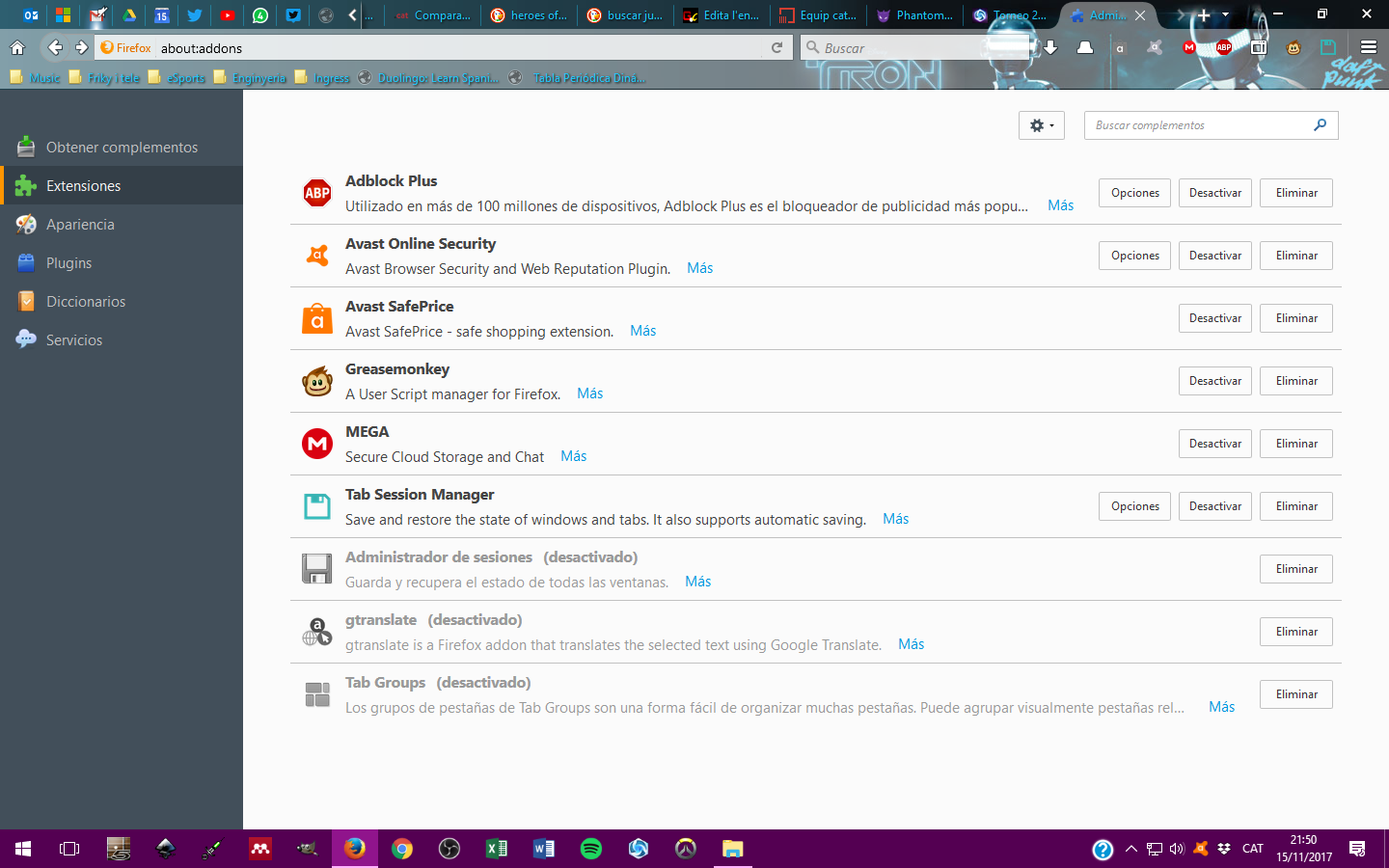
Within the profile folder, there are a number of files and subfolders that are the ones we're really interested in. Understanding their function will help you retrieve exactly what you need without resorting to a simple copy-paste.
Some of the most important files that should be identified and, in many cases, backed up are the following:
- places. sqliteThis file stores both browsing history and bookmarks. It is one of the most critical files when it comes to recovering information.
- cookies.sqlite: stores website cookies, including login sessions on many pages.
- formhistory.sqlite: contains the form history, i.e., what you type in search fields, web forms, etc.
- logins.json (Starting with Firefox 32): Collects saved passwords, in combination with key files.
- key3.db / key4.dbThese are files that store the keys used to encrypt passwords and other sensitive data. Without them, logins.json alone is useless.
- cert8.db: old certificate database (older versions of Firefox).
- signons.sqlite: password file in Firefox versions prior to 32.
- mimeTypes.rdf: file type associations and how they should be opened.
- persdict.dat: personal dictionary (the words you add to the spell checker).
- search.json.mozlz4: configuration of installed and customized search engines.
- sessionstore-backups folder: contains session backups, where your open windows and tabs are located.
The sessionstore-backups folder is especially important when it comes to recovering tabs and windows. It typically contains files like recovery.jsonlz4 , recovery.baklz4 , and previous.jsonlz4 , which represent the current session, the immediate backup, and the previous session, respectively.
In older versions of Firefox, the session was saved in files like sessionstore.js and sessionstore.bak . Today, the compressed .jsonlz4 format is used, but the idea is the same: it contains a list of all the tabs and windows you had open.
Restore the previous session when Firefox does not offer the option
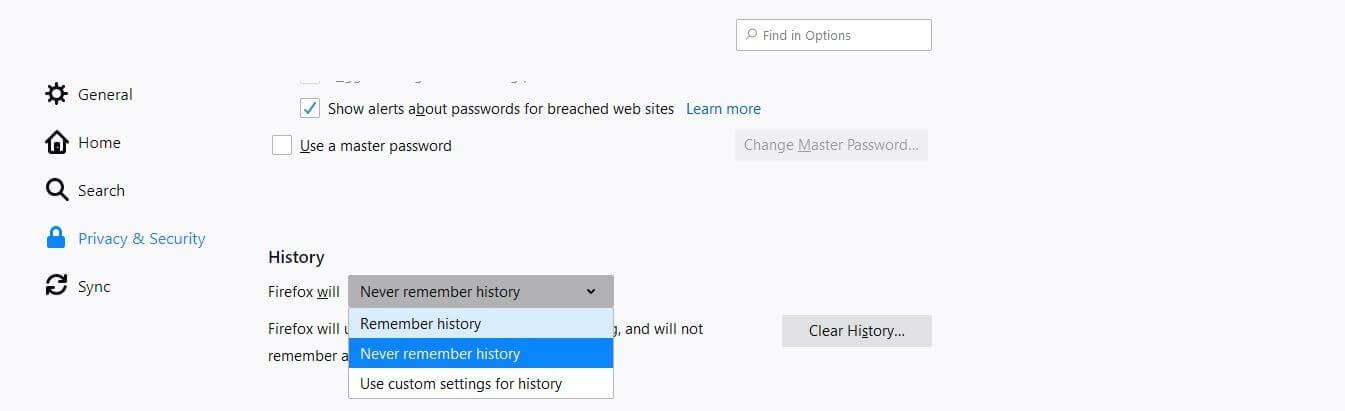
One of Firefox's most practical features is the "Restore Previous Session" button . When the browser closes unexpectedly or your computer restarts, you'll usually find the option to recover your windows and tabs exactly as they were when you open Firefox.
The problem arises when, for whatever reason, that option doesn't appear . You might have reopened and closed Firefox again, a new blank session might have been created, or something might have gone wrong during the process. In that scenario, many people think they've lost everything, but there's still a way to recover the session manually.
The most reliable method involves working directly with your profile folder. To get there quickly, open Firefox and type about:support in the address bar . On the page that opens, you'll see a button labeled something like "Show Folder" or "Open Folder" in the Profile Folder section. Clicking it will open directly to the exact location where Firefox saves your current profile.
If that button doesn't do anything or you prefer to do it manually, you can navigate in the file explorer to c:\users\your_username\appdata\roaming\mozilla\firefox\profile_name . Once there, you'll have access to all the files we mentioned earlier.
Before making any changes, it is highly recommended to back up the key files . Copy all of these elements to a new folder: cert8.db, cookies.sqlite, formhistory.sqlite, key3.db (and/or key4.db in current versions), logins.json, mimeTypes.rdf, permissions.sqlite, persdict.dat, places.sqlite, search.json.mozlz4, signons.sqlite (if it exists), and especially the sessionstore-backups folder.
Force session restoration using a new profile
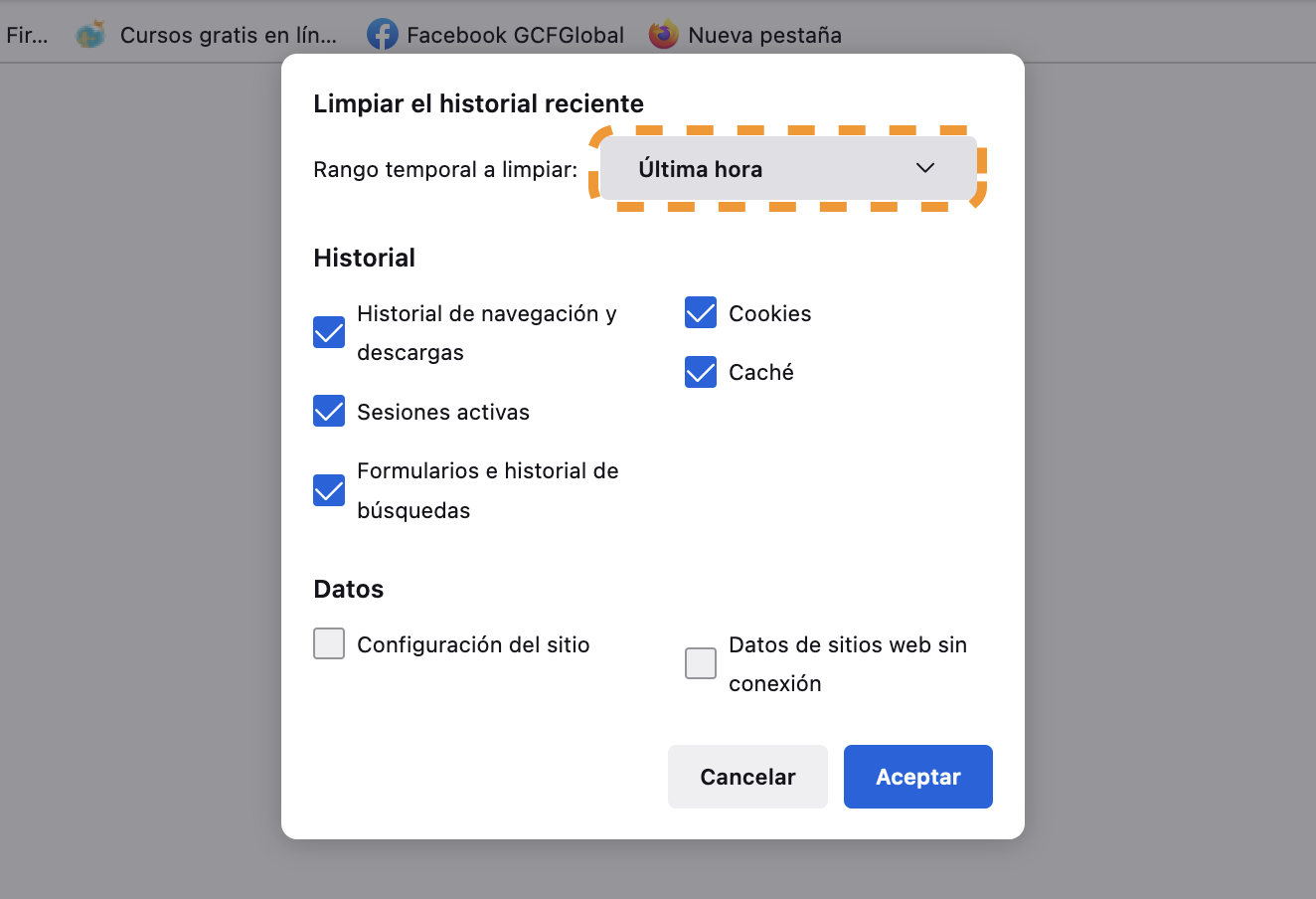
When the session you want to recover no longer loads automatically, a very effective tactic is to create a new Firefox profile and copy the session files from your original profile into it. This "tricks" Firefox into thinking it should open the previous session at startup.
To create a new profile, close Firefox completely and press Windows + R on your keyboard. In the window that opens, type firefox -profilemanager and confirm. The Firefox Profile Manager will open, where you can create a new profile with any name you like . Once created, close the profile manager without restarting Firefox yet.
Now go to the new profile folder (you can locate it the same way as before, using about:support once you open it for the first time, or by looking in AppData\Roaming\Mozilla\Firefox\Profiles). Inside that folder, paste all the files you saved from the previous profile: cookies.sqlite, places.sqlite, logins.json, key3.db/key4.db, etc., and also the sessionstore-backups folder.
Inside sessionstore-backups you'll find several files. If recovery.jsonlz4 still exists , that's usually the last session Firefox tried to use. If it's no longer there because the browser closed normally afterward, you'll be interested in the previous.jsonlz4 file , which represents the immediately preceding session.
The trick here is that if you've reopened Firefox and an empty session has been created, you can rename previous.jsonlz4 to recovery.jsonlz4 within that new profile. That way, when you start Firefox with that profile, the browser will interpret the session it should offer for restoration as the one saved as "previous". In many cases, displaying the familiar "restore session" message becomes possible again thanks to this small name change.
Keep in mind that when Firefox closes normally, it automatically deletes the recovery.jsonlz4 and recovery.baklz4 files . That's why it's so important to act as soon as possible: the more you use the browser after the problem occurs, the greater the chance that the session you want to save will be overwritten.
Recover tabs and URLs when the session can no longer be opened
It's possible that even after copying and renaming files, Firefox still won't show the session restore option , or that the session is corrupted and can't be loaded normally. In those cases, you still have one option: manually extract the addresses from the session files.
The recovery.jsonlz4 and previous.jsonlz4 files are compressed in a special format, but their content is essentially JSON with all the tabs and windows open at the time the session was saved. There are two ways to access them: one manually and another more automated.
If you choose the manual method, you can use an advanced text editor like Notepad++ . First, make a copy of the session file you're interested in (recovery.jsonlz4 or previous.jsonlz4) and always work on the copy to avoid corrupting the original. Then, using utilities that decompress the mozlz4 format (tools and scripts are available online), you'll obtain a readable JSON file where you can manually search for the important URLs.
The easiest option, if you don't want to deal with decompression software and unusual formats, is to use a service or tool that automatically processes the session file and returns a list of all the addresses. You'll just need to copy those URLs and open them in new tabs, adding the ones you really need to your bookmarks so you don't lose them again.
This method doesn't return the session exactly as it was with its precise window structure, but it does allow you to save the content of the tabs you had open , which is especially useful when you've been accumulating pages for a job, a project, or your thesis for months and can't afford to start from scratch.
Restore deleted Firefox history from backups
Beyond session issues, one of the most common surprises is opening Firefox and discovering that your entire browsing history has disappeared . This could be because you cleared your history from within the browser itself, used a system cleanup tool, or there was a problem with your profile.
Firefox history is primarily stored in the places.sqlite file within the user profile, although in some older environments, files like index.dat were also mentioned in relation to browsing history. These files can act as a kind of hidden copy of network activity.
On older Windows systems, one way to try to locate history remnants is to search for index.dat files on the disk. To do this, you first need to make hidden system files visible. Open File Explorer and go to Folder Options: on the "View" tab, check "Show hidden files and folders" and uncheck both "Hide extensions for known file types" and "Hide protected operating system files."
Next, in the "Search" field on your C: drive, type index.dat and let Windows scan the disk. If you find files of this type and have an index.dat file reader installed, you can open them and review some of the browsing history stored there, copying addresses you want to revisit.
It is not the most modern or infallible method, but in very specific scenarios it can serve as a last resort to recover URLs from old sessions when the places.sqlite file no longer contains anything useful or has been overwritten.
Where history files are stored and how to use them as a backup
In current versions of Firefox, as we've seen, history and bookmarks share the places.sqlite file . If you ever made a manual backup of your profile (for example, by copying the entire Roaming folder or the Mozilla folder from Local before formatting or changing versions), you're in luck, because it's very likely that you have a healthy places.sqlite file in that backup.
The specific path where you should look in your backup is something like C:\Users\(username)\AppData\Roaming\Mozilla\Firefox\Profiles\ . Inside, you'll see the old profile with its files. If you find the places.sqlite file there, you can replace the places.sqlite file in your current profile (after backing up your current profile) with the one from the old backup to re-import both your history and bookmarks.
If, unfortunately, you've also deleted or lost that previous backup, there's still a slightly more advanced option: using data recovery software . These tools can scan the disk for files deleted or lost due to formatting or file system corruption.
Specialized programs, such as EaseUS Data Recovery Wizard or others in the same category, can locate older versions of places.sqlite, the entire profile folder, and even other files like cookies.sqlite or logins.json. Once recovered, the process is the same: carefully replace the current profile files with the ones you just recovered.
However, the longer you wait and the more you use the computer after the loss, the harder it will be to recover intact files . That's why it's best to stop, avoid installing things haphazardly, and run the recovery tool as soon as possible if you want a realistic chance of success.
Use DNS caching to view recently visited sites
There's a lesser-known trick that can help you remember pages you've recently visited even when Firefox doesn't show your history: the Windows DNS cache. Whenever you visit a website, the operating system temporarily saves domain name resolutions, and this can be used to view a list of recently visited sites.
The condition is important: this method is only useful if you haven't turned off or restarted your computer since you were browsing. If the computer has restarted, the DNS cache is emptied and there's nothing more you can do this way.
If you meet that condition, press Windows + R , type cmd , and press Enter to open the command prompt . You can also search for "cmd" in the Start menu. Once in the black window, type ipconfig /displaydns and press Enter. You will see a fairly long list of all the domains that have been recently resolved.
Among this list, you'll find websites you visited using Firefox . You won't see the exact URL with the full path, but you will see the main domain, which is often enough to find the page again and bookmark it. You can copy the domains you're interested in and paste them into Firefox to review them one by one.
It's a somewhat rudimentary method, but in desperate situations where there's no history, session, or backups , it can give you the clue you needed to recover that website you were studying for a job or research project.
Recover bookmarks, passwords, and other data from an old profile
A fairly common scenario is someone trying to install a different version of Firefox (for example, downgrading to an older version due to an incompatible add-on) who ends up creating a completely clean profile. When they open the browser, they see a Firefox that looks brand new: no bookmarks, no passwords, no history, nothing.
If you copied the Mozilla folder from AppData\Local or your Roaming profile before conducting this experiment , you're in a good position. Even if Firefox doesn't recognize that folder simply by pasting it over, you can use attrib, icacls, and takeown to extract the key files (places.sqlite, logins.json, key3.db/key4.db, cookies.sqlite, etc.) and move them to a new profile using the Profile Manager method.
The general idea is this: install or open Firefox, create a new profile using the Profile Manager, close the browser, and then copy the files from your old profile into the new profile . If you kept logins.json together with their corresponding key3.db/key4.db files, you'll see that the passwords reappear as if nothing happened. The same applies to bookmarks and history if you replace places.sqlite.
It's important not to indiscriminately mix files from very old versions with very new versions of Firefox , because there may be internal changes in the formats. Even so, in most cases, especially if the version difference isn't extreme, the browser is able to migrate that data without too many problems.
For bookmarks, there's also the option of using HTML or JSON backups , which Firefox can export from its bookmark manager. If you saved one of these backups previously, you can simply import it into the new installation. But if you didn't, the only way to restore your bookmarks is by directly retrieving the places.sqlite file from the old profile.
Best practices to avoid losing sessions and data in Firefox
Once you've experienced the shock of losing tabs, history, or passwords, you naturally don't want to repeat the experience. Fortunately, there are several simple habits that will save you a lot of trouble in the future and make data recovery a matter of minutes if something goes wrong.
The most important thing is to get into the habit of making regular backups of your profile folder . It doesn't require anything fancy: simply close Firefox, go to Roaming\Mozilla\Firefox\Profiles, and compress your profile folder into a dated ZIP file. Saving that ZIP file to an external drive or the cloud is one of the best security measures you can take.
It's also a good idea to occasionally review Firefox's startup settings, specifically what it should do upon launch: open the homepage, load a blank session, or automatically restore the previous session . If you're someone who always has dozens of tabs open, the latter option will be more convenient and will also minimize the impact of an unexpected closure.
When it's time to update or change Firefox versions (for example, when switching from a stable branch to an ESR branch or vice versa), it's worth making a full backup of your profile before doing anything . This way, if the new version doesn't work well with an add-on or your settings, you can always revert without losing your personal information.
Finally, it's best to take any serious failure in stride: if you notice your history or bookmarks have disappeared , the worst thing you can do is continue using the browser as if nothing happened, because you'll be overwriting files and deleting traces that could later be used to recover data. Ideally, you should close the browser, back up what remains of your profile, and only then begin recovery attempts.
Losing sessions and data in Firefox doesn't have to mean starting from scratch: by understanding how your profile works, knowing the key files (places.sqlite, logins.json, sessionstore-backups, etc.), and applying a few tricks like using the Profile Manager, DNS caching, or data recovery tools, it's perfectly possible to recover bookmarks, history, passwords, and tabs from past sessions . If you also make it a habit to back up your profile regularly, your Firefox sessions will be much better protected against future problems.

Passionate writer about the world of bytes and technology in general. I love sharing my knowledge through writing, and that's what I'll do on this blog, show you all the most interesting things about gadgets, software, hardware, tech trends, and more. My goal is to help you navigate the digital world in a simple and entertaining way.
Table of Contents
- 1 How the Firefox profile works and where it stores your data
- 2 Key profile files: what each one saves
- 3 Restore the previous session when Firefox does not offer the option
- 4 Force session restoration using a new profile
- 5 Recover tabs and URLs when the session can no longer be opened
- 6 Restore deleted Firefox history from backups
- 7 Where history files are stored and how to use them as a backup
- 8 Use DNS caching to view recently visited sites
- 9 Recover bookmarks, passwords, and other data from an old profile
- 10 Best practices to avoid losing sessions and data in Firefox